How to Move Your Games and Saves From Switch to Switch 2
Moving from Nintendo Switch to Nintendo Switch 2 is mostly painless, but "mostly" is doing some important work. Here is how to transfer your accounts, digital library and precious saves safely, what happens to your old console afterwards, and which older games need a little extra thought.
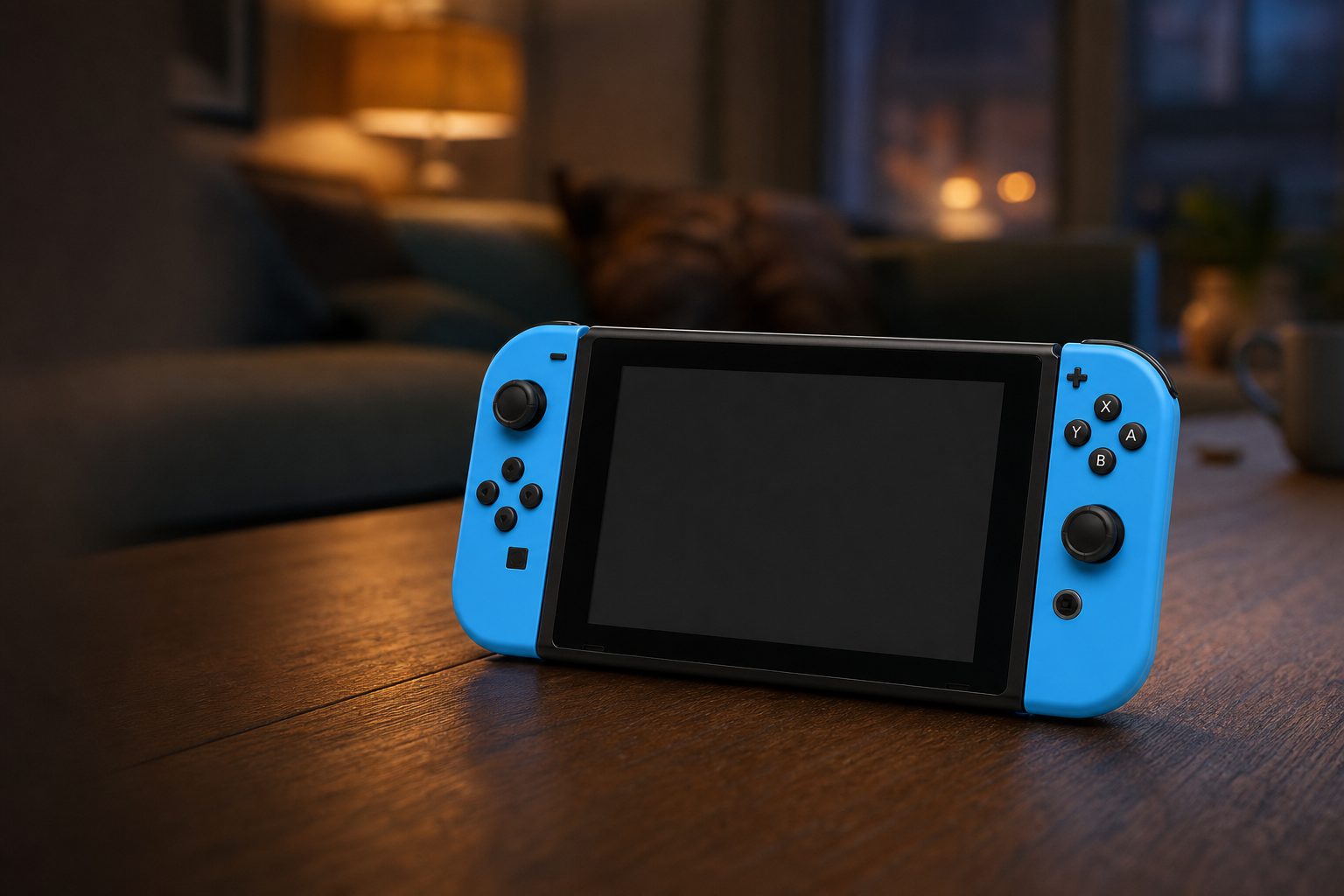
A Switch and Switch 2 side by side: having both consoles charged, updated and close together makes the changeover far less dramatic.
1. Start with the reassuring bit: your library is not trapped
Nintendo Switch 2 arrived on 5 June 2025 with backwards compatibility as one of its most useful everyday features. That matters because a console change is rarely just about shiny new hardware. It is about the hundred-hour role-playing save you have quietly carried for years, the family island everyone has opinions about, and the digital purchases that would be rather annoying to buy twice.
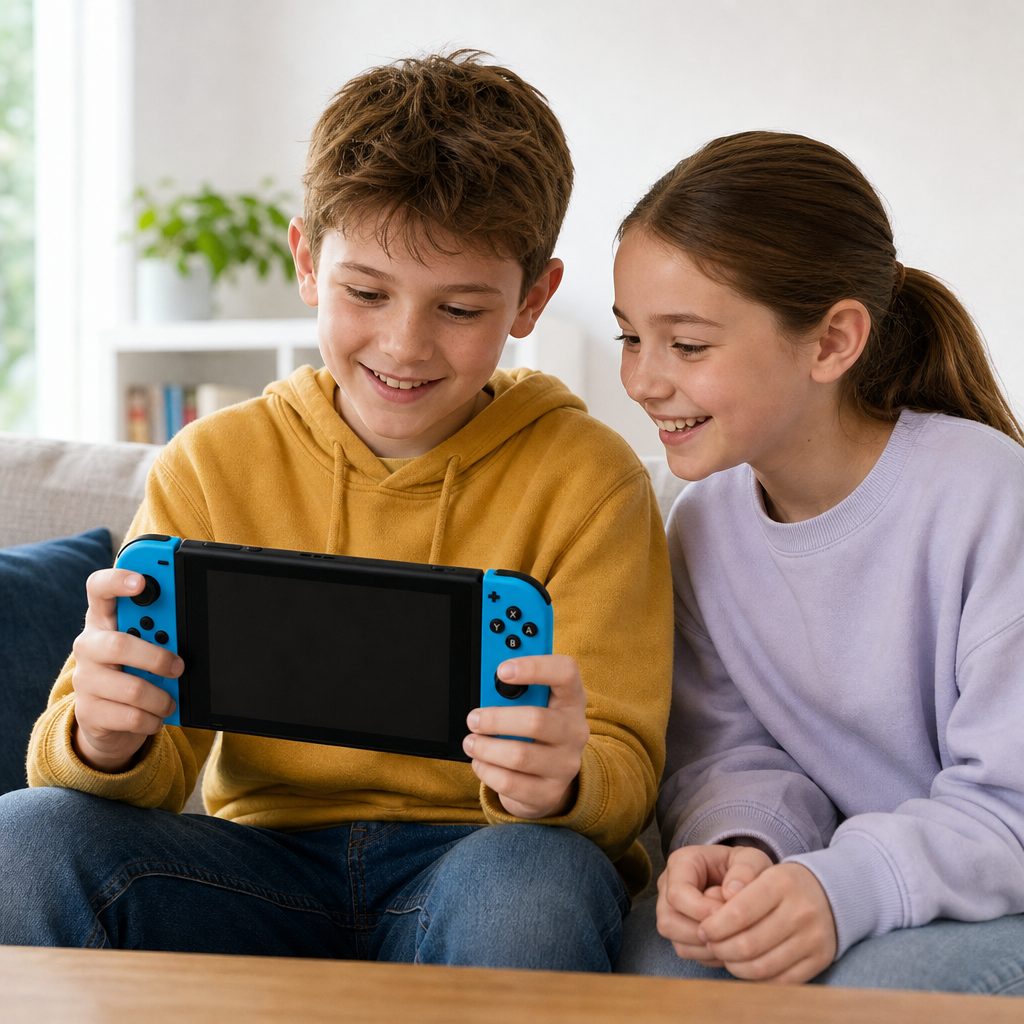
Check a few treasured saves after the transfer, particularly profiles used by children or anyone who did not link a Nintendo Account on the original Switch.
The good news is that Nintendo's System Transfer feature was built to move the important stuff from an original Nintendo Switch to Nintendo Switch 2. That includes user accounts, linked Nintendo Accounts, digital game licences, downloadable content, save data, parental controls and other settings. Physical game cards do not need "transferring" in the same sense: you simply insert a compatible Switch card into Switch 2 and play it there. The save file is the important passenger, and that is handled by the transfer.
There is one distinction worth keeping clear from the start. Your digital ownership and save data can move over, but the actual downloaded game files are re-downloaded on Switch 2. That is normal. Do not panic when a game icon needs to download again; Nintendo has not quietly eaten your game collection.
Think of the transfer as moving house rather than making a casual copy. It is designed to establish Switch 2 as your new main console, while applying specific rules to the old one depending on the account and save type involved. That is why a little preparation is worthwhile. Ten quiet minutes before you start can save a lot of staring at progress screens later.
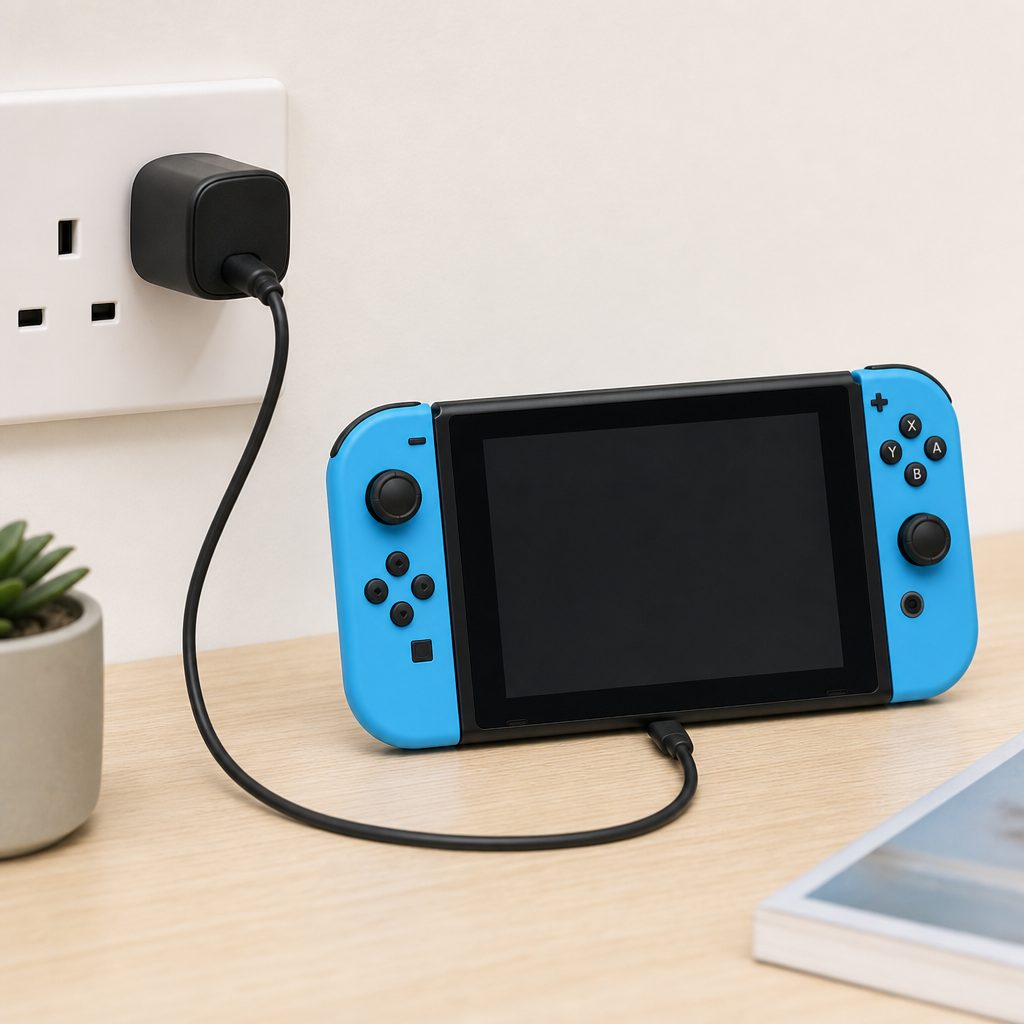
Before beginning, check both consoles have power and an internet connection; this is not the moment for a nearly flat battery to develop a personality.
2. What you need before you press transfer
You need both consoles present and powered on: the original Nintendo Switch containing your existing data, plus the Nintendo Switch 2 that will receive it. An active internet connection is required, and at least one user profile on the old Switch needs to be linked to a Nintendo Account. If several people use the household console, take a moment to check which profiles are linked and which are local-only.
For the local method, the consoles communicate through a local wireless connection or a LAN cable. Keeping them near one another makes the process straightforward. Put both machines somewhere stable, plug them into power if possible, and do not start just before you need to leave the house. Nintendo quoted roughly 30 to 90 minutes for a local transfer, depending on how much data is involved. Your library may then need time to re-download, so the whole move can feel longer than that headline figure.
Power both consoles
A transfer is not a job for battery-saving heroics. Keep both systems powered and avoid interrupting the process.
Check account links
At least one user on the original Switch must have a linked Nintendo Account for System Transfer to begin.
Get online first
An active internet connection is required even when the two consoles are transferring locally.
Know your essentials
Make a short list of the games and saves you would be genuinely upset to lose. It gives you a sensible post-transfer checklist.
Pro tip: do not sell the old Switch first
Keep the original console until you have opened your key games on Switch 2, checked the saves you care about and confirmed that every family profile looks right. It sounds obvious, but console handovers have a habit of becoming urgent the moment somebody remembers a favourite game from 2019.
3. Choose your route: local transfer or server-based transfer
Nintendo offered two practical routes. The usual choice is a local System Transfer with both consoles in front of you. It is the cleanest option if you have already brought Switch 2 home and can set aside an hour. The alternative uses Nintendo's server to hold your data temporarily, useful if the old Switch has to leave your hands before the new one is available.
The server option is not a permanent digital loft. Data remains there for approximately one year, specifically around 364 days, and is deleted once that period expires. If you choose this method, put a reminder in your calendar and receive the data on Switch 2 well before the deadline. "I will definitely remember" is one of gaming's least reliable promises, somewhere below "just one more turn".
| Transfer route | What it needs | Timing | Best for |
|---|---|---|---|
| Local System Transfer | Both consoles powered on, internet connection, local wireless connection or LAN cable | Typically 30–90 minutes, depending on data volume | Most households with both consoles available now |
| Server-based transfer | Internet connection and a later Switch 2 setup | Data can be held for approximately 364 days | Anyone who must part with the old Switch before receiving Switch 2 |
| Save Data Cloud Backup | Supported game save and a user linked to a Nintendo Account | Useful alongside, rather than instead of, a proper transfer | Extra reassurance for supported saves |
For most people, local transfer is the obvious winner. You can watch the process, keep the machines together, and immediately begin downloading the games you want to play. Server-based transfer is best treated as the practical contingency plan it is. It is valuable, but it comes with that firm collection deadline.
A local transfer keeps the old Switch and Switch 2 together while user information, settings and save data make the move.
4. Step-by-step: run a local System Transfer
The exact presentation on screen can change with system updates, but the principle stays pleasingly simple: choose the System Transfer option on both consoles, identify the original Switch as the source and Switch 2 as the destination, then follow the on-screen instructions carefully. Read each confirmation screen rather than tapping through on autopilot. This is not a quiz, but it is a poor time to select the wrong console role.
- Charge or connect both consoles to power. The transfer involves two active systems and may take 30 to 90 minutes locally.
- Connect both consoles to the internet. System Transfer requires an active connection.
- Make sure the original Switch has a linked Nintendo Account. At least one linked account is required to start the process.
- Start System Transfer on both machines. Designate the original Nintendo Switch as the console sending data and Switch 2 as the console receiving it.
- Follow the prompts on screen. The systems establish their local wireless connection, or use LAN where applicable, and prepare your information to move.
- Leave both consoles alone until completion. Do not restart them, wander out of range or decide this is a splendid time to tidy cables.
- Allow game downloads to finish on Switch 2. Digital licences move, while game data is re-downloaded to the new console.
One helpful mental model is that the transfer handles the identity of your Switch life first: users, linked accounts, saves, settings and ownership. Downloads are the furniture arriving afterwards. You can begin by downloading the titles you actually expect to play this week rather than trying to rebuild every icon before bedtime.
5. Understand the save-data rules before moving anything
This is the part to read twice. During a local system transfer, save data supported by Save Data Cloud Backup for users linked to a Nintendo Account remains on the original Switch and is copied to Switch 2. In other words, supported cloud saves linked to an account get the least alarming outcome: a copy reaches the new machine whilst the old one retains its version.
However, save data for user accounts that are not linked to a Nintendo Account, along with saves for games that do not support Save Data Cloud Backup, is deleted from the old Switch after transfer. Those saves still go to Switch 2, but the old console should not be treated as a second untouched backup in those cases. This is the single most important reason not to hand over, reset or trade the old machine until you have checked the new one properly.
It also explains why a household with several users needs to slow down. A parent may have a linked Nintendo Account, whilst a child's profile was created locally years ago and never linked. Both profiles can matter just as much, particularly if they contain separate saves. The transfer is designed to move users, but the old-console behaviour differs according to account status and cloud support.
Important: a physical game card does not hold the save file you are relying on. The card can be inserted into a compatible Switch 2 later, but the save belongs on the console and needs to make the move through the transfer process.
What goes smoothly
- User accounts and Nintendo Account links move together.
- Digital purchases and DLC licences transfer to Switch 2.
- Save files for both digital and physical games can be transferred.
- Parental controls and other settings can come across as well.
What needs care
- Digital games still need to be downloaded again on Switch 2.
- Some saves are deleted from the old Switch after a local transfer.
- Not every older game or app works identically on Switch 2.
- Old Switch microSD cards cannot carry Switch 2 game data.
6. Re-download digital games and deal with storage cards
Once the transfer completes, Switch 2 can begin re-downloading your digital games. The transfer tool initiates this automatically, but it is still worth checking the download queue. Start with the games you actually want ready first: the family multiplayer staple, the long-running solo adventure, or that title you opened every evening on the commute. There is no prize for having every single library thumbnail installed before you play anything.
The storage-card rule is important and unusually easy to miss. Nintendo Switch 2 is compatible with microSD Express cards. The microSD cards used with the original Switch are not compatible with Switch 2 for game data. So, whilst the old card may represent a very organised collection of downloaded games, it is not a shortcut to moving that game data to the new console.
That does not affect game ownership. Your digital licences are transferred, and the games can be downloaded again. It simply means you should not remove an old Switch microSD card, slot it into Switch 2 and expect your downloaded library to spring back into life. Storage standards have changed; the card is not being difficult on purpose, although it may feel that way at half past eleven at night.
7. Check backwards compatibility before promising a games night
Switch 2 can play compatible physical and digital Nintendo Switch games, and the overall picture is very strong. Testing of more than 15,000 third-party original Switch titles was completed with a success rate of roughly 98 per cent. That is excellent news for a library accumulated across the original Switch era. It means the overwhelming majority of games should behave without problems on Nintendo's newer system.
Still, "roughly 98 per cent" is not the same thing as "every single game under the sun". Compatibility on Switch 2 uses a hybrid approach between software emulation and hardware compatibility rather than a simple one-to-one continuation of the original Switch hardware. The practical result is that most games work as expected, but a minority can behave differently, have issues, or require updates.
Nintendo's Software Compatibility website, launched on 10 November 2025, is the sensible place to check a particular game before moving your expectations with it. Search the exact title, especially if it is a favourite older third-party release, an unusual accessory-based game, or something you intend to give a child as part of the Switch 2 handover. Checking first is less glamorous than discovering a limitation in front of an impatient eight-year-old, but considerably kinder.
| Compatibility status | What it means on Switch 2 | What you should do |
|---|---|---|
| Supported — behaviour is consistent | The game should work as it did on Nintendo Switch. | Transfer the save and play normally. |
| Supported — behaviour may vary | The game works, but may have noted differences or minor issues. | Read Nintendo's compatibility notes before relying on it. |
| Unsupported | Problems with game progression have been found. | Do not assume a save can be completed safely on Switch 2. |
| Incompatible | The title does not work on Nintendo Switch 2. | Keep the original Switch if this game matters to you. |
Most original Switch games transferred happily to Switch 2, but Nintendo's compatibility checker remains worth using for a favourite niche title.
8. Games and apps that will not work, or need original Joy-Con
The clearest first-party exception is Nintendo Labo Toy-Con 04: VR Kit. It is incompatible with Switch 2 because the newer console is larger and cannot fit in the cardboard VR headset. This is a very literal compatibility problem. No software patch can persuade a larger rectangle into a smaller cardboard slot without turning a craft project into a cautionary tale.
A small set of streaming and media apps also cannot be used on Switch 2: Niconico, ABEMA, Hulu, Crunchyroll and the comic service InkyPen. If one of these was part of your original Switch routine, assume it does not carry across as a usable Switch 2 app.
Then there are games that can work, but only when Switch 2 is paired with first-generation Joy-Con controllers. This group includes 1-2-Switch, Everybody 1-2-Switch, Ring Fit Adventure, Game Builder Garage, Nintendo Switch Sports, WarioWare: Move It! and Labo Toy-Con 01, 02 and 03 Kits. Depending on the title, the issue may be that Joy-Con 2 lacks an infrared camera, or that the newer controllers cannot fit in original accessories such as the Ring-Con.
This is not a reason to abandon those games. It is a reason to retain your original Joy-Con if they are family favourites. For Ring Fit Adventure in particular, the physical relationship between original controllers and Ring-Con is part of the game's design. Switch 2 cannot magic that requirement away.
Labo VR is incompatible
Labo Toy-Con 04: VR Kit cannot be used because Switch 2 does not fit the original cardboard headset.
Keep Joy-Con 1 for Ring Fit
Ring Fit Adventure needs first-generation Joy-Con because of its existing accessory arrangement.
Party games may need older controllers
Titles including 1-2-Switch and WarioWare: Move It! are among those that require first-generation Joy-Con pairing.
Some apps stop here
Niconico, ABEMA, Hulu, Crunchyroll and InkyPen cannot be used on Switch 2.
9. Be cautious with games listed as having issues
Nintendo's compatibility work was extensive, but it was not finished in the sense that every difficult title had magically become flawless. A total of 118 games were listed with startup issues on Switch 2, including Darksiders Genesis, Dead by Daylight, Final Fantasy, Little Nightmares Complete Edition, NieR: Automata, South Park: The Fractured But Whole and Wolfenstein II: The New Colossus.
That list is why it is wise to distinguish between a game launching and a game being safe to invest another 30 hours in. A title labelled unsupported may allow some play but have problems with progression. If your save is deep into a story, or if a youngster is midway through a game they adore, check the current status before treating Switch 2 as its permanent home.
There is encouraging evidence that updates can improve matters. Doom Eternal, Everspace, Batman: The Enemy Within, NBA 2K 25 and World of Tanks Blitz were confirmed as fully functional on Switch 2 following updates. So do not write off a game based on an early compatibility report alone. Check Nintendo's current listing and make sure the game is updated before testing it.
For games with reported issues, update first and check the current compatibility status before making Switch 2 your only place to play.
10. Your post-transfer checklist: verify before resetting the old Switch
Once the transfer and downloads are complete, resist the urge to wipe the old console immediately. Spend a little time confirming the move worked in the real world, not merely according to a completion message. Start Switch 2, look through its user profiles and make sure each person who uses the console can see their expected account.
- Open the profile list and confirm household users are present.
- Check that linked Nintendo Accounts appear where expected.
- Open several important games and inspect their save data.
- Test a physical Switch game card if that is how you own a favourite title.
- Confirm your key digital titles are downloading or ready to launch.
- Check parental controls and any settings that matter to your household.
- For accessory-led games, pair original Joy-Con before declaring the move complete.
- Use Nintendo's compatibility checker for titles you know are unusual or older.
There is no need to test every game in a large library on the first evening. Start with the irreplaceable things: the longest saves, games played by children, games with complex accessories, and anything that has appeared on a compatibility list. Once those are fine, the rest of the library becomes a much more relaxed job.
Best for family consoles
Local System Transfer. It brings profiles, settings and saves across in one organised session, provided you check every family user afterwards.
Best if the old Switch must go first
Shop Best if the old Switch must go first on Amazon UK
Server-based transfer. Use it when timing is awkward, but receive the data within the approximately 364-day storage period.
Best for precious saves
Local transfer plus careful verification. Check cloud-supported saves, local profiles and games without cloud support before resetting anything.
Best for accessory games
Keep original Joy-Con. This is the practical answer for Ring Fit Adventure and several motion or IR-dependent games.
11. When keeping the original Switch is the smartest answer
Not every upgrade needs to end with the older console leaving the house. If you own Nintendo Labo VR, use the original cardboard kits regularly, depend on the unsupported streaming apps, or have a game with unresolved compatibility trouble, keeping the original Switch can be the sensible move. It becomes a perfectly useful second machine rather than an obsolete lump in a drawer.
It can also be handy in families. One person can use Switch 2 whilst another plays a game that requires original Joy-Con or works more reliably on the first system. The original Switch remains part of the same gaming history; it is simply no longer the main destination for your library.
That is the balanced way to approach Switch 2 compatibility. Nintendo did an impressive job across a catalogue of more than 15,000 tested third-party games, and roughly 98 per cent working without problems is a substantial result. But your own library is not an average. If the two per cent contains your child's favourite oddball game, it matters a great deal in your house.
Keeping the original Switch for a little longer is sensible when a household still enjoys Labo, Ring Fit Adventure or a game awaiting a compatibility fix.
Frequently asked questions
Yes. System Transfer moves save data for both digital and physical games. The physical game card can then be inserted into Switch 2 if the title is compatible. The save is on the console, not safely tucked inside the cartridge.
Your digital game licences and DLC transfer, but the actual game data must be downloaded again on Switch 2. The transfer tool starts this process automatically, though it is worth checking the download queue afterwards.
Nintendo stated that local transfer usually takes around 30 to 90 minutes, depending on how much data is involved. Re-downloading a large digital library can take additional time afterwards.
Cloud-backup-supported saves for users linked to a Nintendo Account remain on the original Switch and are copied to Switch 2. Saves for unlinked users and games without Save Data Cloud Backup are deleted from the old Switch after local transfer, so verify Switch 2 before resetting or selling the original console.
Not for Switch 2 game data. Switch 2 uses microSD Express cards, while microSD cards compatible with the original Switch are not compatible with Switch 2 for game data. Your digital games can still be downloaded again after transfer.
No, although the picture is very positive. More than 15,000 third-party games were tested with roughly a 98 per cent success rate. Nintendo Labo Toy-Con 04: VR Kit is incompatible, some apps cannot be used, some games need first-generation Joy-Con, and certain titles have reported issues.
Keep them if you play titles such as 1-2-Switch, Everybody 1-2-Switch, Ring Fit Adventure, Game Builder Garage, Nintendo Switch Sports, WarioWare: Move It! or Labo Toy-Con 01, 02 and 03 Kits. These games require first-generation Joy-Con when played on Switch 2.
Use Nintendo's server-based transfer option. Your data can be stored on the server for approximately 364 days, but it is deleted after that period. Receive it on Switch 2 well before the deadline rather than relying on a last-minute memory miracle.
The bottom line
Moving from Nintendo Switch to Nintendo Switch 2 was designed to be a practical upgrade rather than a complete restart. Your accounts, save data, digital licences, DLC, settings and parental controls can make the journey, while compatible physical games remain playable through their original cards.
The sensible approach is simple: use local System Transfer when both consoles are available, keep the old Switch until your important saves have been checked, re-download your priority games, and look up any title that relies on old Joy-Con, Labo hardware or an unusual app. With roughly 98 per cent of more than 15,000 tested third-party Switch games working without problems, most households can move across confidently. Just do not throw away the original Joy-Con if Ring Fit is still part of the weekly routine.