
How to Transfer Your PS5 Games and Saves to the PS5 Pro
Moving from a PS5 to PS5 Pro is less dramatic than moving house, thankfully, but it still rewards a little planning. Here is how to bring over games, save files, screenshots, settings and your familiar PlayStation setup without accidentally leaving your hundred-hour RPG progress behind.

A PS5 and PS5 Pro side by side: the original console remains useful throughout the move, so do not rush to reset or trade it in.
1. Start with a calm plan, not a factory reset
The PS5 Pro had been available since 7 November 2024, and its 2TB internal SSD gave most upgraders much more breathing room than the storage in an earlier PS5. That extra room is lovely. It is not, however, magic. A large library can still take a while to move, particularly if you try to copy everything in one heroic afternoon whilst someone else in the house is streaming four series at once.
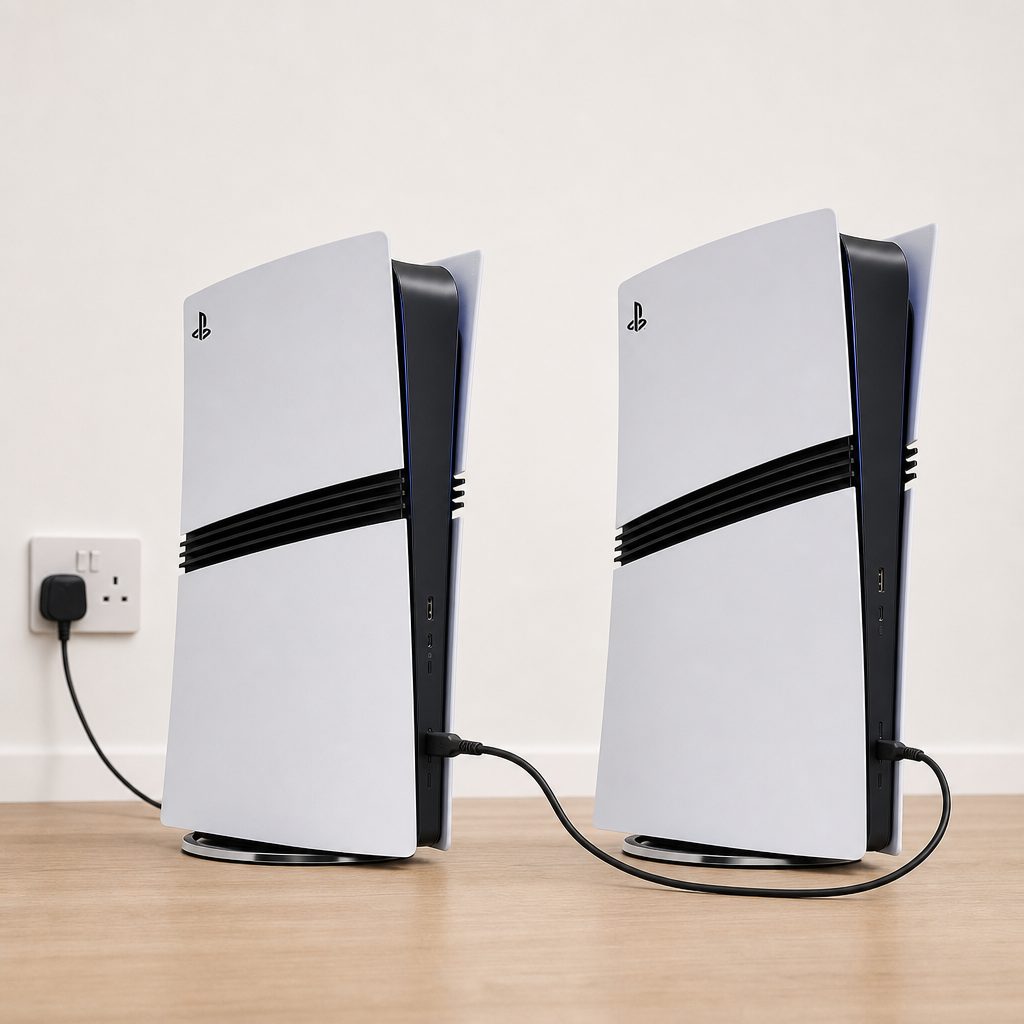
A wired Ethernet connection between consoles is the least glamorous part of the upgrade, but it is the one that makes a large local transfer much less painful.
The sensible approach is to decide what you actually need on day one. Your profile, save data and console settings are the important bits. Games can always be downloaded again later; a save that existed only on the old console is rather more precious. Think of the old PS5 as the cardboard box marked "do not lose", not as something to wipe five minutes after the Pro says hello.
Before beginning, update both consoles to their latest available system software, make sure you can sign in to the PlayStation Network account that owns your digital games, and check that the old PS5 can connect to the internet or your home network. If you have more than one account on the console, decide whether each person needs their own saves and profile transferred. It is easy to remember your own Destiny character and forget that your child has built an entire Minecraft world next door.
Do not erase the original PS5 until you have checked the PS5 Pro properly. Open a few games, confirm the saves load, inspect your media gallery and make sure any family accounts that matter can sign in. The old console is your safety net until then.
2. Choose the right route before you start
There are three practical ways to get settled on PS5 Pro. Sony's built-in Data Transfer is the most complete option. PlayStation Plus cloud storage is the neatest way to protect and restore saves when you do not need every game copied immediately. USB extended storage is extremely handy for PS4 games, because it lets you carry those games physically between consoles without filling the Pro's internal SSD.
You can also combine them. In fact, that is often the best answer. Use cloud storage as a safety copy for PS5 saves, transfer the games you want to play straight away over the network, then plug your PS4 extended-storage drive into the Pro. It sounds almost too sensible for a console migration. That is because it is.
| Transfer method | What it is best for | What moves | What to remember |
|---|---|---|---|
| PS5 Data Transfer | A complete move to PS5 Pro | Profiles, settings, PS5 games, saves and console data | Use both consoles and a stable network; wired Ethernet is the practical choice for a big library. |
| Cloud saves | Protecting progress and restoring selected saves | Supported saved data for the account | It does not replace downloading or transferring the full game installation. |
| USB extended storage | Moving a large PS4 library | Backward-compatible PS4 games stored on the drive | PS5 games cannot be played from USB extended storage. |
3. Prepare both consoles and your home network
Put the PS5 and PS5 Pro somewhere with ventilation and power them directly from reliable mains sockets. You do not want either system switched off midway through a transfer because somebody unplugged the extension lead to charge a phone. This is not a time for improvisation.
Sign in on the PS5 Pro with the same PlayStation Network account used on the old machine. If your games were bought under another household account, that account may need to be signed in as well. Digital licences are tied to the purchasing account, not merely to the console that happened to download them.
For the transfer itself, both systems should be connected to the same network. Wi-Fi can work, but a wired Ethernet connection is the friendlier option when there is a lot of data to move. You can connect each console to your router with Ethernet, or use an Ethernet cable between the consoles where the setup process permits it. The goal is simple: avoid asking a busy wireless network to shift a sizeable game collection whilst it is also trying to run everyone's phones, tablets, work calls and Friday-night telly.
Use the correct account
Sign in with the account that owns the games and holds the saves. Check household accounts individually rather than assuming one login covers everything.
Reduce network traffic
Pause big downloads on other devices if possible. A transfer is happier when the network is not having to referee an argument between every gadget in the house.
Keep power steady
Leave both consoles on and do not remove cables during the process. A little patience is far cheaper than rebuilding a library from scratch.
Record what matters
Before moving, make a quick note or phone photo of your installed favourites, storage layout and any games you absolutely want available first.
4. Transfer everything with PS5 Data Transfer
Shop Transfer everything with PS5 Data Transfer on Amazon UK
If your aim is for the PS5 Pro to feel like your old PS5 in a nicer new outfit, this is the method to use. Data Transfer is designed to move the everyday console life: user information, console settings, installed games, save data and other local material. It is the closest thing to taking your old system's memory and pouring it carefully into the new one.
- Turn on the old PS5 and PS5 Pro, then connect both to the same network.
- On the PS5 Pro, sign in and work through the setup prompts until you reach the option to transfer data from another PS5. If you have already completed setup, look in Settings for the transfer option.
- Follow the on-screen instructions to locate the source PS5. Keep the old console awake and connected.
- Select the data you want to move. This is where your earlier list pays off: prioritise saves, your current games and any captures you genuinely value.
- Confirm the transfer and leave both machines alone until the process has finished. The Pro will tell you what it needs you to do next.
- Once complete, sign in on the PS5 Pro and check the library, storage and saved-data screens before you consider the job done.
The exact duration depended on how much was installed and on the network route between the consoles. There is no honest universal "it takes exactly X minutes" answer, because a few favourites and a household's entire collection are wildly different jobs. Wired networking generally removes one major variable, which is why it is worth the cable.
Pro tip: move priorities first
If you are transferring a large library, choose the game you are currently playing, the saves that matter most and the titles you expect to revisit this week. You can download the rest later. There is no prize for having 90 games installed by teatime.
5. Check saves before and after the wired move
Save data is the bit that turns an upgrade from exciting to mildly terrifying. A game installation is replaceable. Your 70-hour campaign, painstaking custom character or carefully arranged Gran Turismo garage is not something you want to discover was "probably fine".
Before starting, open the saved-data management area on the old PS5 and look at what is stored locally. You do not need to catalogue every tiny file, but it is sensible to identify the saves that would hurt most to lose. Then, after the transfer, launch several games on the PS5 Pro and load into actual gameplay. Seeing a save file listed is reassuring; reaching the point where your character is wearing the same ridiculous hat is better.
Be particularly careful with games that have their own servers, cross-progression systems or in-game account links. Some progress may be held online by the publisher, whilst local settings and saves may still live on the console. Treat every game according to its own behaviour rather than assuming "online game" means "nothing local matters".
Why Data Transfer is excellent
- It can bring your profile, settings, PS5 games and saves together.
- It avoids re-downloading every selected game from scratch.
- It keeps the new console feeling familiar from the first evening.
- It is ideal when the old PS5 is still working normally.
Where it needs patience
- Both consoles must be available during the process.
- A large game library can take time to copy.
- Wireless networking is less appealing for a major move.
- You still need to verify saves manually afterwards.

The Saved Data and Game/App Settings area is worth checking on both consoles; it is the sensible place to confirm that the progress you care about is present.
6. Use PlayStation Plus cloud storage for saves
Shop Use PlayStation Plus cloud storage for saves on Amazon UK
Cloud storage is not a full-console clone, but it is an extremely useful second route for save data. If you subscribe to PlayStation Plus and your saves have synchronised, you can download them to the PS5 Pro after signing into the same account. This is particularly useful if you want a clean Pro installation, if the old console is in another room, or if you simply prefer to download games selectively rather than copy them all.
On the old PS5, check the saved-data settings and ensure your important PS5 game saves have synchronised to cloud storage. Do this before you hand the console to somebody else, pack it away or reset it. Then on the PS5 Pro, go to the same saved-data area, select cloud storage and download the saves you need. Automatic synchronisation is convenient, but for a big upgrade I would still inspect the dates. The latest save should be the latest save, not a mysterious version from last Tuesday because the console had been offline.
Cloud saves are brilliant insurance, but they are not an excuse to skip checking. Once a save has downloaded, launch the game. If it asks whether to use local or cloud data because it sees a conflict, stop and read the timestamps. Choosing quickly simply because the button is highlighted is how people end up learning a lot about the menu music while replaying six hours of progress.
7. Move PS4 games with USB extended storage
Shop Move PS4 games with USB extended storage on Amazon UK
An external USB drive remains one of the neatest bits of PS5 housekeeping. PS4 games can be stored on USB extended storage and played from it on the PS5 Pro. That means a drive packed with backward-compatible PS4 favourites can simply be disconnected from the old console, connected to the Pro, and used there after the console recognises it.
This is especially useful because the PS5 Pro supported more than 8,500 backward-compatible PS4 games, with PS5 Pro Game Boost available for compatible titles. If you have an older library full of PS4 favourites, an external drive keeps those games separate from the internal SSD space you may prefer to reserve for PS5 titles.
There is an important line in the sand: PS5 games cannot be played from USB extended storage. You can use the PS5 Pro's internal SSD for them, or add compatible M.2 SSD storage if you need more room. USB is therefore a great PS4 solution, not a secret way of running a huge PS5 library from a portable drive.
- On the old PS5, make sure the external drive has finished any activity before disconnecting it.
- Use the console's safe removal process rather than pulling the cable out mid-operation.
- Connect the drive to the PS5 Pro.
- Wait for the console to recognise the USB extended storage, then check your installed PS4 games in the library.
- Launch one game before deleting anything from the old console.
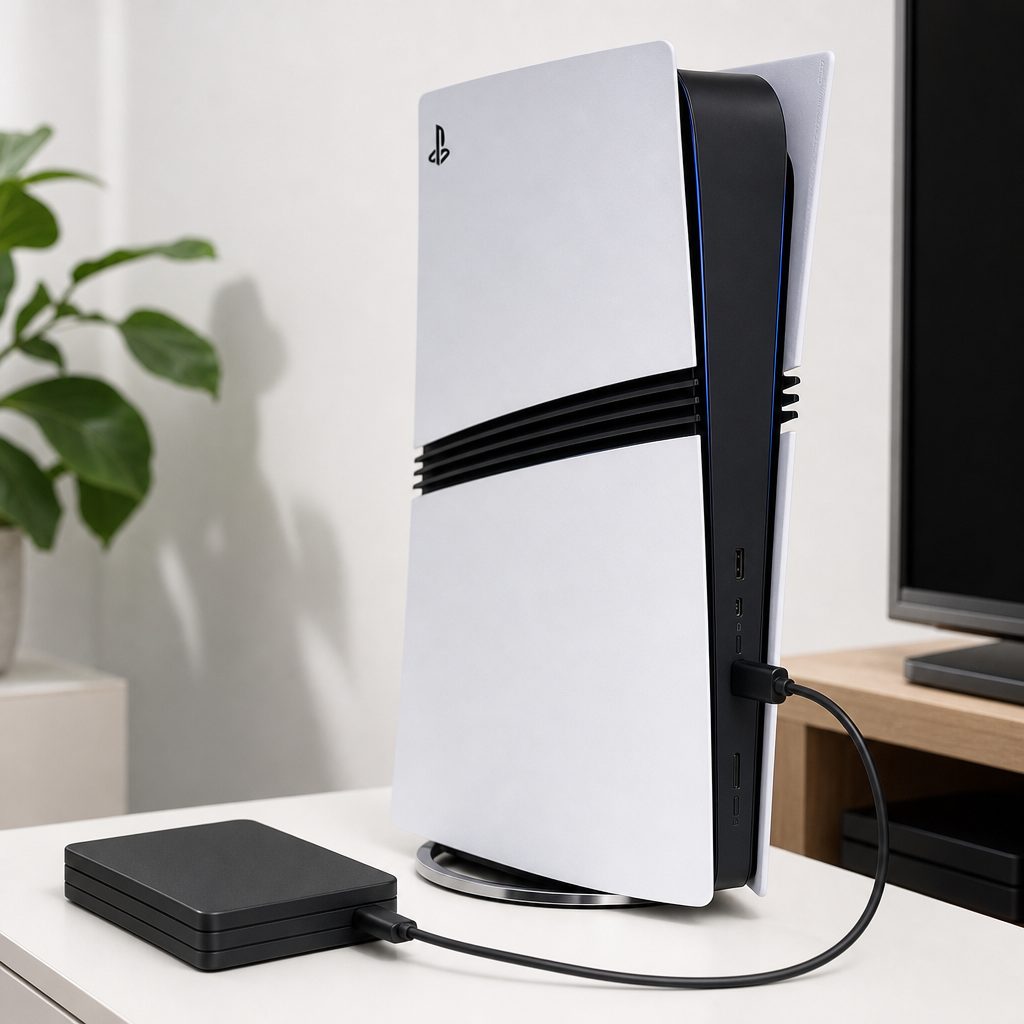
USB extended storage is the practical home for a PS4 library on PS5 Pro, leaving the internal SSD for PS5 games that need it.
8. Understand PS5 storage, downloads and M.2 expansion
Shop Understand PS5 storage, downloads and M.2 expansion on Amazon UK
The PS5 Pro's 2TB internal SSD was a major convenience upgrade over the 1TB storage in the base PS5. It does not mean you need to copy every game you have ever bought. Modern libraries are full of "I will definitely play that one day" installations, and one day has a habit of remaining theoretical.
For PS5 games, use the internal SSD. If you need expansion, the PS5 Pro supported PCIe Gen4 x4 M.2 NVMe SSDs from 250GB to 4TB, with sequential read speed of 5,500MB/s or faster, in the compatible 2230, 2242, 2260, 2280 or 22110 form factors. That gives you a proper internal route for more PS5 storage rather than trying to make an external drive do a job it was not designed to do.
If you are using the Pro as a fresh start, download only the games you are actively playing and leave the rest in your library. Your purchases remain associated with your account. That can be less immediately satisfying than seeing a completely full home screen, but it is a great deal tidier.
9. Decide which games deserve the PS5 Pro first
Once your saves are safe, it is worth being selective about what goes onto the Pro first. PS5 Pro-enhanced games were the obvious candidates, because the console had a larger GPU with 60 compute units compared with 36 in the base PS5, 28% higher memory bandwidth at 576GB/s versus 448GB/s, and Sony's claim of up to 45% faster rendering. It also used PlayStation Spectral Super Resolution, or PSSR, to pursue sharper images whilst maintaining higher frame rates.
In real terms, the point was not to stare at a specification sheet like it is homework. It was to let games make fewer awkward compromises between image quality and smoothness. In Alan Wake 2, the benefits to ray tracing, reflections and lighting were immediately noticeable in quality mode, whilst the Pro could improve both quality and performance options. Sony had also said ray tracing could be two or three times faster than on the standard PS5 in appropriate workloads.
| PS5 Pro capability | PS5 Pro figure | Base PS5 figure | What it means when choosing installs |
|---|---|---|---|
| GPU compute units | 60 | 36 | Pro-enhanced games are the sensible first downloads if you want to see the upgrade quickly. |
| Memory bandwidth | 576GB/s | 448GB/s | The Pro had a 28% bandwidth increase. |
| Rendering performance | Up to 45% faster | Baseline | Visual-performance compromises could be reduced in supported games. |
| Ray tracing | Up to two or three times faster | Baseline | Lighting and reflections are among the areas that can benefit most. |
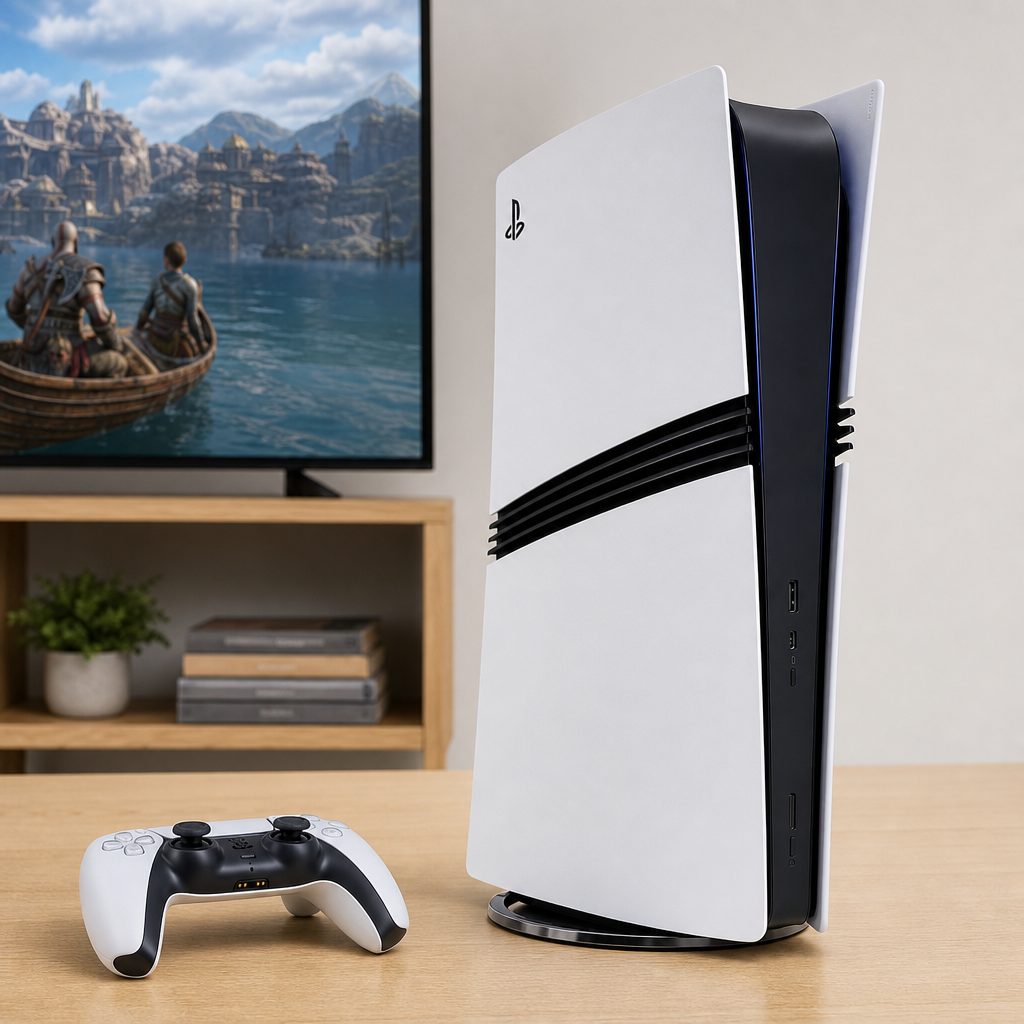
Prioritise the games you are actually playing, especially PS5 Pro-enhanced titles, rather than filling the SSD with a backlog that may not be touched for months.
10. A sensible "best for" transfer plan
There is no single best method for every household. The right choice depends less on the console and more on whether you are moving a carefully curated handful of games, a sprawling family library, or a PS4 collection that has been quietly living on an external drive since 2017.
Best for a complete move: Wired Data Transfer
Choose this if you want profiles, settings, PS5 games and saves on the Pro with the least rebuilding afterwards.
Best for a clean start: Cloud saves
Use cloud saves when you want protected progress but prefer to download only selected games to the new console.
Best on a budget: Existing USB drive
Keep compatible PS4 games on USB extended storage and avoid using the internal SSD for games that do not need it.
Best for large libraries: Combined approach
Transfer priorities over Ethernet, restore saves from cloud storage, and bring your PS4 drive across separately.
For most people, I would choose the combined approach. It gives you redundancy for saves, gets your current favourites moved without endless downloads, and treats your PS4 collection as the separate, useful library it is. It is not flashy. It is just the plan least likely to end in sighing at a progress bar.
11. Troubleshoot the usual transfer hiccups
If the PS5 Pro cannot find the old PS5, check the unglamorous basics first: both consoles are powered on, connected to the same network, signed into the relevant accounts and running current system software. Restarting the network equipment can help if the consoles appear to be connected but refuse to see each other. Where possible, switch to Ethernet rather than spending an hour trying to persuade Wi-Fi to behave differently because you asked politely.
If a game is visible but your progress is not, check whether the save belongs to the account currently signed in. Then inspect cloud save dates if you use PlayStation Plus, and confirm that the old console still contains the local save. Do not delete or overwrite anything until you understand which version is newest.
If a USB extended-storage drive is not recognised, reconnect it securely and confirm it was safely removed from the original PS5. Keep in mind what belongs where: PS4 games can be used from USB extended storage, but PS5 games need internal or compatible M.2 SSD storage to be played. That distinction solves a surprising number of apparent problems.
Do not treat an incomplete transfer as a disaster. Your purchases remain in your PlayStation library, and the original PS5 should still be left untouched. Work methodically: account, save data, game installation, then licence access.
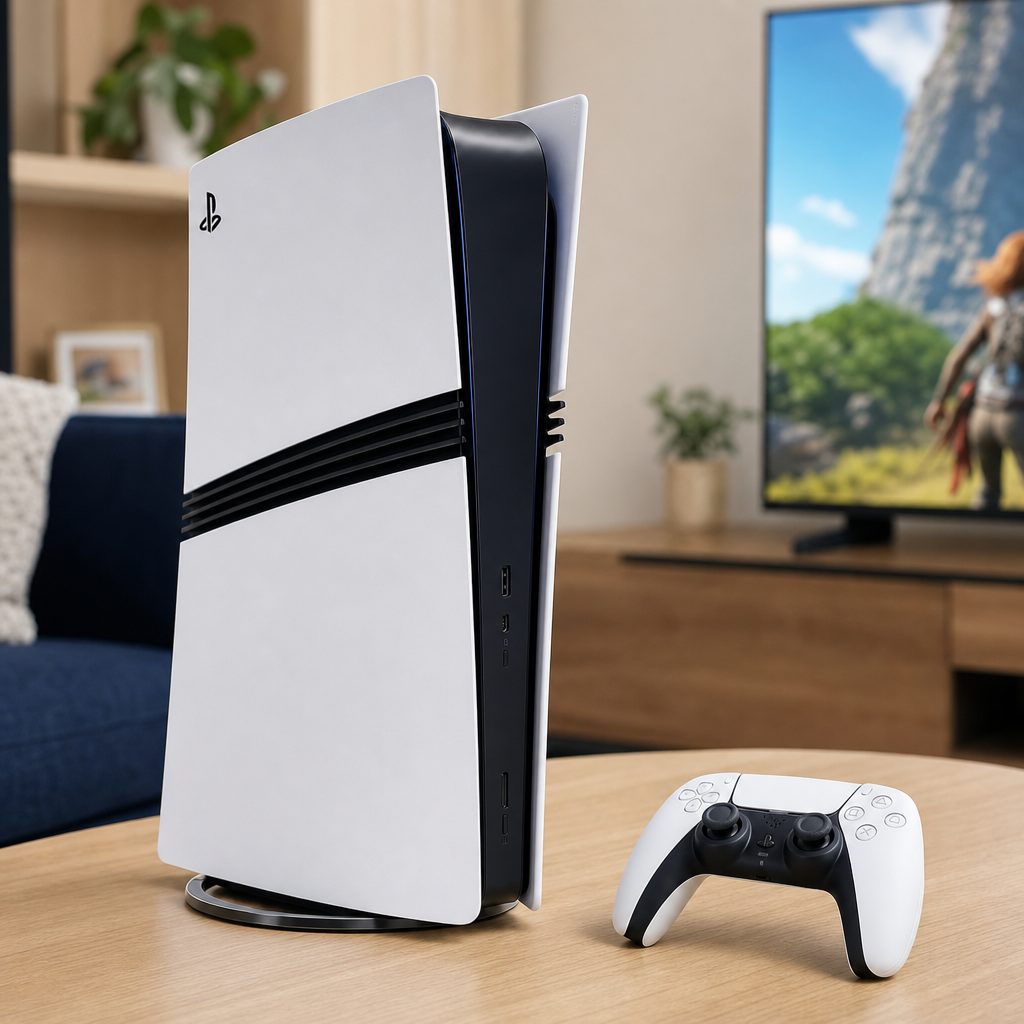
Before selling, gifting or resetting the old PS5, test several saves on the PS5 Pro and confirm each household member can access their own account.
12. Final checklist before you retire the old PS5
Shop Final checklist before you retire the old PS5 on Amazon UK
Once the transfer has ended, give yourself a proper verification session. It need not take all evening, but it should be more than checking whether the home screen has your wallpaper. Sign into each relevant profile. Open your games library. Confirm your external PS4 drive is visible if you use one. Check screenshots and video clips if they matter to you. Then launch at least a few games, especially the ones with the most irreplaceable progress.
Check that digital games unlock as expected under the account that bought them. If you used disc games on the old PS5, remember that the PS5 Pro did not include a disc drive as standard; a compatible separately sold disc drive was required for physical discs. Do not assume a disc-based game will be usable until your hardware setup is ready for it.
Only after you are satisfied should you consider resetting the older console, passing it on or trading it in. Give it a few days if you can. The small inconvenience of having two consoles under the television for a short while is far preferable to discovering a missing save after the old one has already gone.
Frequently asked questions
No. Treat the old PS5 as your backup while you check the PS5 Pro. The transfer is intended to copy selected data to the new console, not make the old one vanish into the ether. Do not reset the original system until you have tested your important saves.
It is not the only route, because both consoles can be connected through the same network, but Ethernet is the practical choice for a large transfer. It reduces dependence on wireless performance and is generally the less stressful option for a substantial library.
Yes. That is exactly where cloud saves can be useful for PlayStation Plus members. Restore the saves you need on the PS5 Pro, then download your selected games from your library as and when you intend to play them.
No. USB extended storage is for backward-compatible PS4 games. PS5 games need to be on the PS5 Pro's internal SSD or compatible M.2 SSD storage in order to be played.
Yes, provided it is USB extended storage containing compatible PS4 games and has been safely removed from the old console. Connect it to the PS5 Pro, allow it to be recognised, and check the library before removing copies elsewhere.
Start with the saves you care about most, the profile that owns your games and the one or two titles you are currently playing. After that, prioritise PS5 Pro-enhanced games if you want to see the improved rendering, PSSR and stronger ray-tracing capability quickly.
Games and saves may belong to different accounts in a household. Make sure the purchasing account and the player account are both set up correctly on the PS5 Pro, then check the game's own account requirements if it has online services.
Only after you have launched key games on the PS5 Pro, confirmed the correct progress loads, checked media and settings you value, and made sure every relevant household account works. Waiting a few days is the cautious, sensible move.

A successful migration ends with the PS5 Pro ready for play and the old PS5 still intact until every save, account and favourite game has been checked.
The bottom line
The cleanest way to move from PS5 to PS5 Pro is a wired Data Transfer, backed up by cloud saves if you have PlayStation Plus. It is the most complete route for profiles, settings, games and progress, whilst an existing USB extended-storage drive makes moving PS4 games wonderfully straightforward.
Do not rush the final step. Transfer what matters, check your saves in real games, keep the old PS5 untouched for a few days, and only then reset it. Do that, and your PS5 Pro upgrade should feel like an upgrade rather than a weekend spent hunting for a missing save file.