
PS5 Pro Storage Full? How to Add Space and Move Games Safely
A full PS5 Pro is less a disaster than an irritating bit of housekeeping. Here is how to choose between an internal M.2 SSD and external USB storage, fit the right drive with a properly sized heatsink, and move your games without accidentally turning a quiet evening into a download-management marathon.
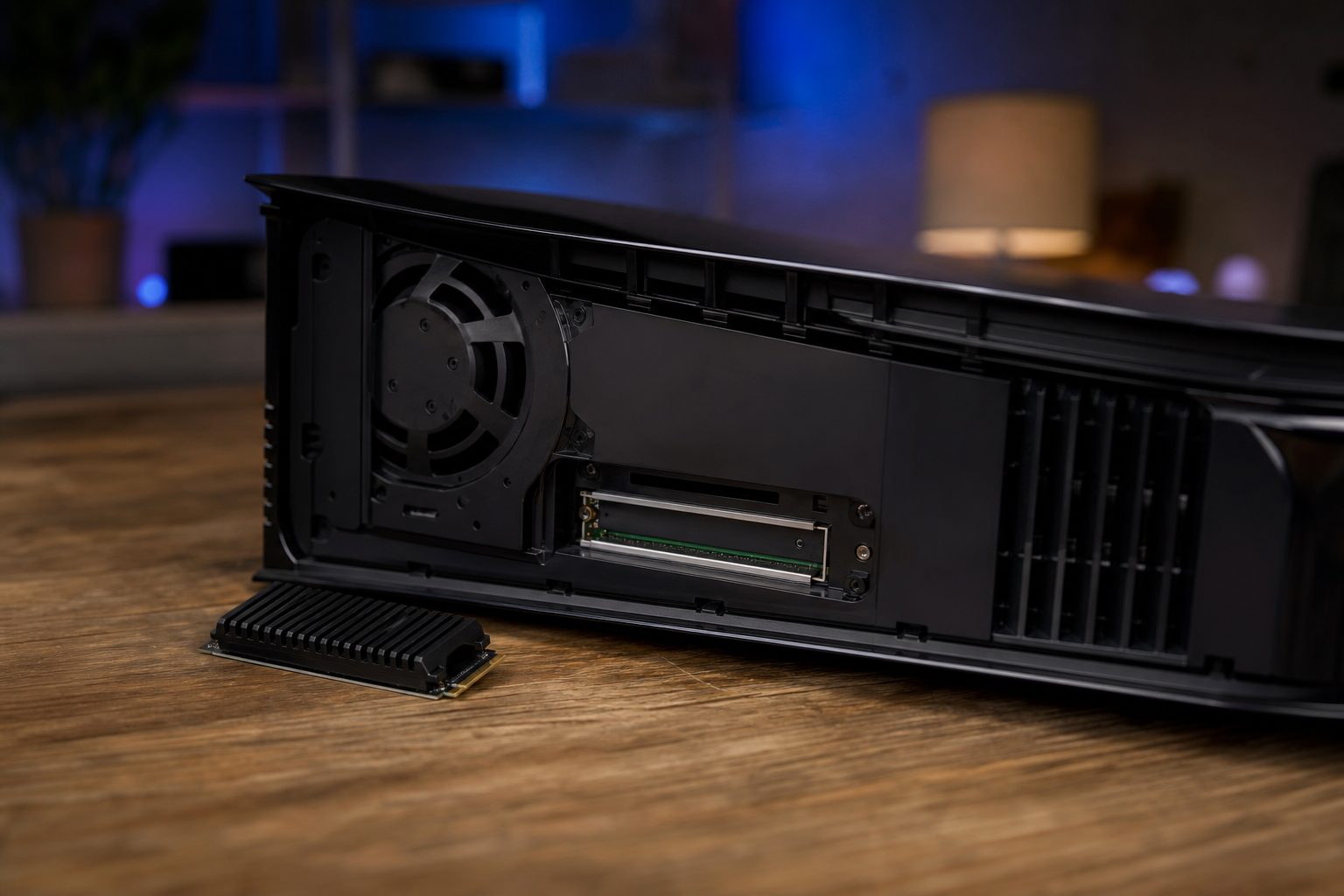
An opened PS5 Pro beside a compatible M.2 NVMe drive: the internal slot is the route to extra game space that behaves like part of the console.
1. Start by deciding what "more storage" actually means for you
The PS5 Pro arrived with 2TB of internal storage, which is a far more comfortable starting point than the original PS5's 667GB of usable internal space. It is still possible to fill it, though. Modern games have a remarkable ability to arrive with a huge install, a giant update and an expansion pack before you have even chosen the brightness setting. Storage, like biscuit tins, has a way of looking generous right until it absolutely is not.
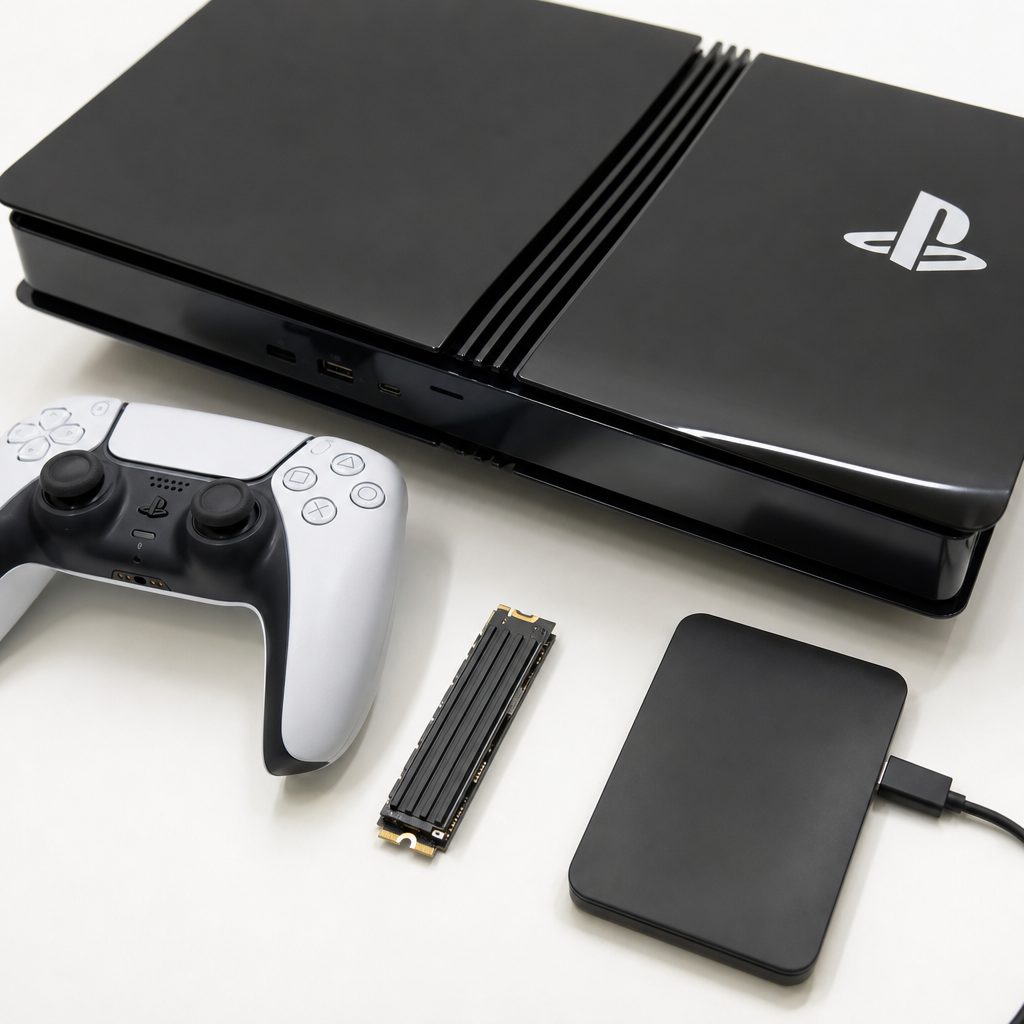
An internal M.2 drive is the better choice for a frequently played PS5 library, whilst an external drive is useful as a holding area for games between sessions.
You have two sensible expansion routes. An internal M.2 NVMe SSD goes inside the console and can store, download, copy and launch both PS5 and PS4 games, along with media apps. An external USB drive is useful for keeping games off the main storage, but it is storage rather than a substitute for the internal drive: for PS5 games, you will need internal expansion storage to play them.
If you regularly bounce between several large PS5 games, install an internal M.2 SSD. If your aim is simply to archive games you are not playing this month, an external USB drive can make far more sense. There is no prize for buying the biggest possible drive if it will sit mostly empty.
2. Internal M.2 SSD or external USB drive: the practical difference
Shop Internal M.2 SSD or external USB drive on Amazon UK
Think of an M.2 SSD as an extra room added to the house. Once fitted and formatted, it is part of the PS5's usable game space. You can download games directly to it, move games to and from console storage, and launch PS5 or PS4 games from it. That is the neat, low-faff solution.
An external USB drive is more like a very organised shed. It is excellent for holding games safely when you want to clear space, and it gives you a handy place to keep a larger library without deleting everything. But if you want to play a PS5 game again, plan on moving it back to console or M.2 SSD storage first. That limitation is not glamorous, but it is important to understand before you buy a drive on the assumption it will magically make every game playable in place.
Why choose M.2 SSD storage?
- PS5 and PS4 games can be downloaded, copied and launched from it.
- It sits inside the console, so there is no extra box or cable beside the television.
- You can freely move games between console storage, USB extended storage and M.2 storage.
Why not choose M.2 for everyone?
- It needs the correct PCIe Gen4 x4 specification and a suitable heatsink.
- Installation means opening the console and fitting a small component carefully.
- Higher capacities can become dramatically more expensive.
3. Check M.2 compatibility before putting anything in your basket
This is the bit worth doing slowly. A drive may say "NVMe", "gaming" or "fast" in rather large letters, but those words alone do not make it PS5-compatible. The core requirement is a PCIe Gen4 x4 M.2 NVMe SSD with a sequential read speed of 5,500MB/s or faster.
The PS5 supports 22mm-wide M.2 modules in the 2230, 2242, 2260, 2280 and 22110 form factors. In normal human language: check the numbers on the listing rather than relying on product photography. The drive must have a capacity from 250GB to 8TB. That includes familiar 500GB, 1TB, 2TB and 4TB options, but compatibility is about the whole specification, not simply the capacity printed on the label.
Correct interface first
Choose PCIe Gen4 x4 M.2 NVMe. A drive with a different interface is not the right candidate simply because it physically resembles an M.2 stick.
Respect the speed floor
Look for a stated sequential read speed of at least 5,500MB/s. Faster claimed figures are fine; slower is not the safe choice here.
Choose capacity around habits
1TB or 2TB is a sensible extra-library size for many households. 4TB and 8TB are for players who genuinely keep a huge catalogue installed.
Do not skip cooling
The SSD needs a built-in cooling structure or an attached heatsink. It is not decorative metal. It is part of the job.
4. Heatsink advice: measure twice, avoid a very annoying fit
The most common avoidable error is buying a perfectly good SSD with a heatsink that is simply too chunky for the PS5's M.2 bay. A heatsink-equipped model is the easiest route because there is no extra assembly, but it still needs to fit the console's limits.
The total height of the SSD and cooling structure must be below 11.25mm. Below the circuit board, the cooling structure must be less than 2.45mm; above it, the total must be less than 8mm. These figures are not particularly exciting. Nor is checking them. Yet five minutes spent comparing the manufacturer's dimensions beats discovering that the cover will not go back on after you have peeled thermal pads, found the screwdriver and frightened the cat.
Heatsink rule of thumb
Buy a drive sold with a PS5-suitable heatsink, or choose a separate heatsink only after checking the combined dimensions. Never force the M.2 cover into place. If it does not fit naturally, stop and re-check the drive and cooling structure.
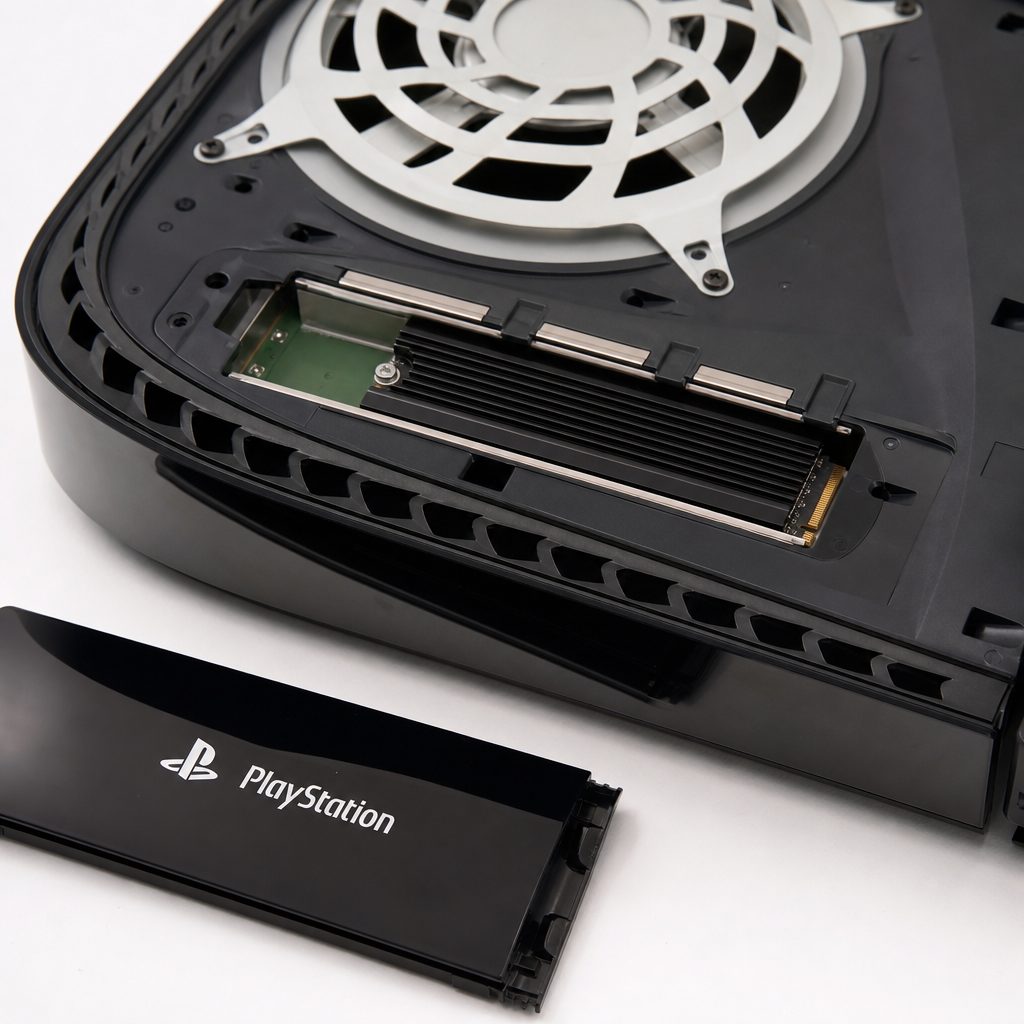
A low-profile heatsink keeps an M.2 SSD within the PS5 bay's height limits, helping the drive remain cool without fouling the cover.
5. Compatible drive examples and the price landscape
There are several well-known options that meet the broad PS5 expansion brief when bought in the appropriate configuration. The Corsair MP600 PRO LPX, WD_BLACK SN850P, Samsung 990 Pro with Heatsink, Lexar NM790 with Heatsink and Crucial P5 Plus are among the established names to look for. SanDisk also offers the Optimus GX PRO 850P internal NVMe M.2 SSD for PS5 consoles.
Do not get too hypnotised by enormous speed claims. They are useful for confirming that a drive clears the requirement, but they are not a promise that every game will suddenly load in half the time. The Corsair MP600 PRO LPX is rated for up to 7,100MB/s sequential reads and 6,800MB/s writes, though reported PS5 testing measured 5,561MB/s. It nevertheless kept pace with the fastest drives in game testing. That is the more useful takeaway.
Typical 1TB or 2TB NVMe
A typical UK storage-expansion range.
WD_BLACK SN850P 4TB
High-capacity internal game-drive example.
WD_BLACK SN850P 8TB
For exceptionally large installed libraries.
External 2TB hard drive
An example price for USB archive storage.
Those top-end capacity prices are a good reminder to shop for your real needs, not your most ambitious possible game library. A 2TB M.2 addition can be a wonderfully balanced choice; an 8TB upgrade is a specialist purchase and should be treated as such.
6. Install an internal M.2 SSD safely, one calm step at a time
Shop Install an internal M.2 SSD safely, one calm step at a time on Amazon UK
The physical installation is not difficult, but it rewards patience. You are handling a small electronic component and working near the console's internals, so make the job boring. Boring is good. Boring means nothing is cross-threaded, dropped, forced or somehow left under the sofa.
- Finish any game session and fully power down the PS5 Pro. Do not begin whilst it is switched on or in the middle of doing something important.
- Disconnect the console from power and let it cool. You are about to open it, not race it.
- Move to a clear, well-lit surface. Keep the SSD, any supplied screw or spacer, and the correct screwdriver within reach. Avoid a deep-pile carpet if possible.
- Remove the console cover carefully to access the M.2 expansion area. Follow the physical layout of your console and do not use force.
- Open the M.2 slot cover, set the spacer for the length of your drive, and line the SSD up with the connector. It should seat cleanly rather than requiring pressure or persuasion.
- Secure the SSD, refit the M.2 cover and then refit the outer panel. Check that the cover sits properly. A bulging cover is a stop sign, not a challenge.
- Reconnect the PS5 Pro and switch it on. The console will guide you through formatting the newly installed M.2 SSD.
Formatting prepares the new drive for use with the console. Do not put anything on an M.2 SSD that you need elsewhere before formatting it in the PS5 Pro, because that setup process is intended to ready the drive for PS5 storage.
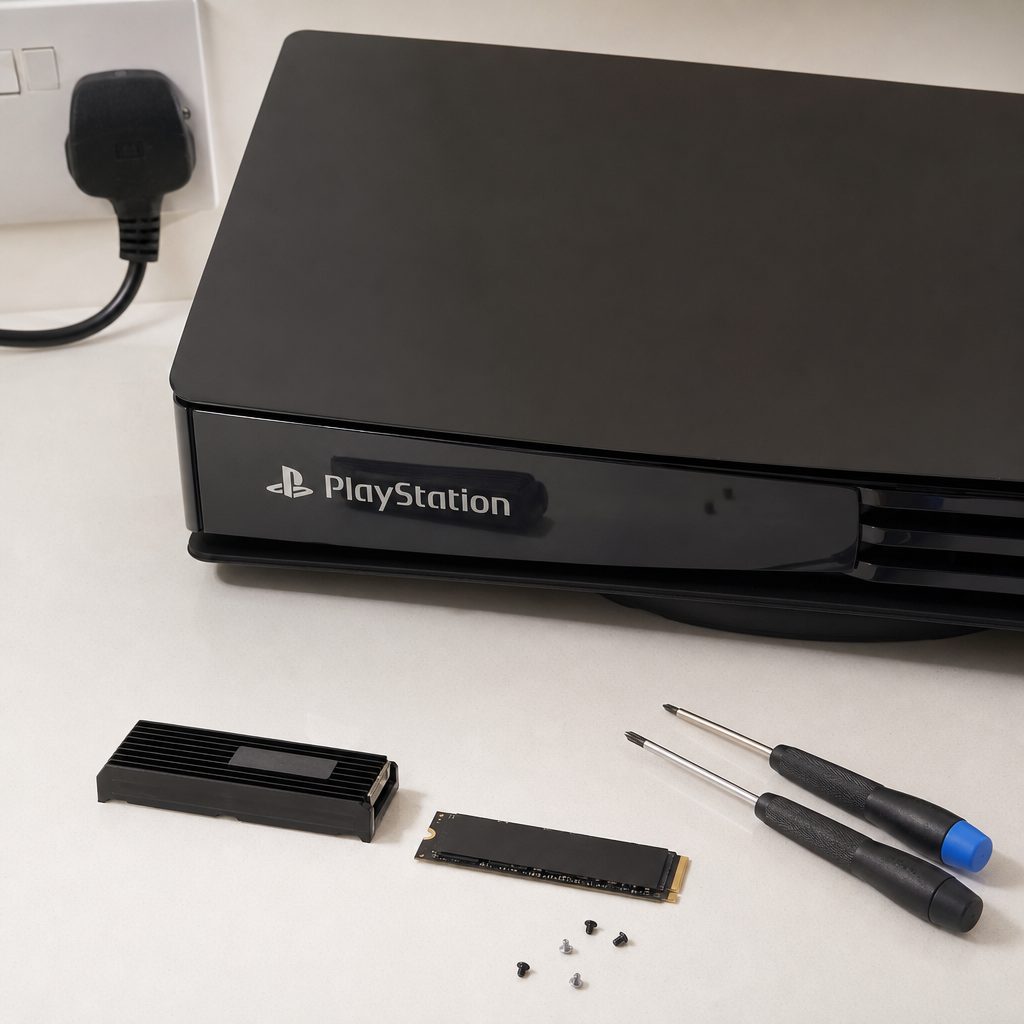
Prepare the drive, heatsink and a clear work area before opening the console; a slow installation is safer than trying to rush a tiny screw.
7. Format the drive, then move games without making a mess
Once the PS5 Pro has recognised and formatted the M.2 SSD, you can treat it as another internal destination. The most sensible first move is not necessarily to shift every game across in one heroic sweep. Start with the titles that are installed but not currently being played, or move a few larger games to create breathing room on console storage.
You can move games freely between PS5 console storage, connected USB extended storage and the M.2 SSD. That flexibility is the entire point of setting the system up properly. It lets you use console storage for the games you are currently playing, M.2 storage for the wider active library, and USB storage as the long-term waiting room.
Before selecting a transfer, check the destination has enough free space for the complete game. It sounds obvious. So does checking that the washing machine door is shut. Both are lessons people occasionally learn the hard way. Give the transfer time to finish, keep the console powered during the process, and do not disconnect an external drive while it is moving data.
A tidy-library approach that works
Keep your current favourites on console or M.2 SSD storage. Move games you might revisit, but are not playing now, to USB extended storage. Delete only games you are genuinely finished with or happy to download again later. This protects your time as well as your storage.
8. External USB storage: the simple archive option
External storage is still worthwhile, especially if you have accumulated a library from years of sales, subscriptions, bundles and that one friend who always says, "You absolutely have to try this." A USB hard drive gives you a relatively affordable place to park games and keep your main storage from becoming a constant game of digital Tetris.
Seagate's Game Drive PS5 external SSD is one example of the category, whilst external USB hard drives remain useful for inexpensive high-volume storage. An Avolusion PRO-5X 2TB USB 3.0 external gaming hard drive was listed at $69.99, illustrating how much less costly an archive-focused option can be than premium internal capacity.
The trade-off is clear: external storage is not the place to run PS5 games from. It is where you keep them safe and ready to copy back. For a household with uneven gaming habits, that can be absolutely fine. If you only return to a massive game every few months, a transfer is mildly inconvenient, not life-changing.
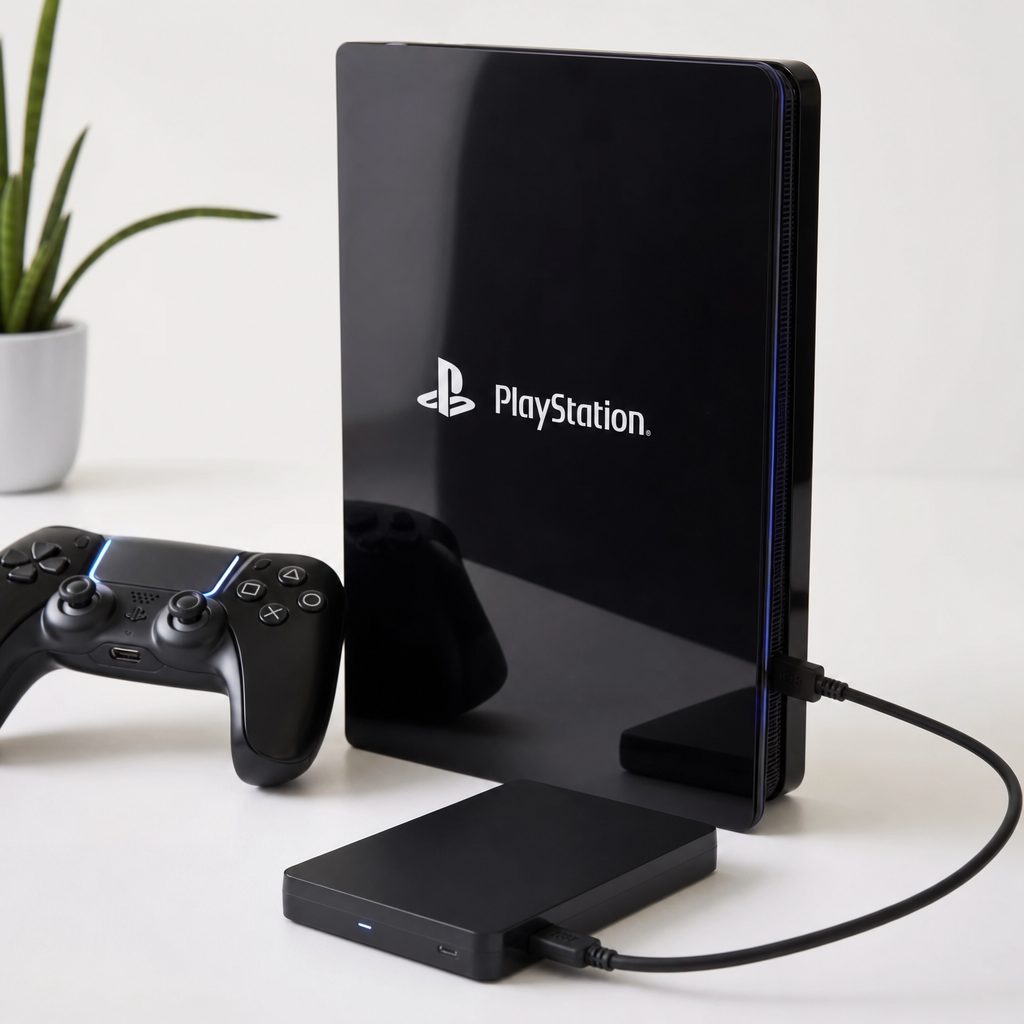
An external USB drive is best thought of as a game archive: handy for clearing space, but not a replacement for internal storage when you want to play PS5 games.
9. What performance tests actually tell us
There is a temptation to compare SSDs as if every extra megabyte per second is going to alter the fabric of reality. In practice, compatibility, cooling and reliable performance matter more than chasing a headline number. The Corsair MP600 PRO LPX demonstrated that nicely: despite a reported PS5 result of 5,561MB/s against its up-to-7,100MB/s claim, it routinely matched the quickest drives in testing.
In one loading test, the MP600 PRO LPX loaded Assassin's Creed Valhalla in 50 seconds, tied for the fastest observed result. The Crucial P5 Plus also tied that 50-second loading result. It copied Assassin's Creed Valhalla back to PS5 storage in 5 minutes 12 seconds, and Mass Effect: Andromeda in 3 minutes 22 seconds. These are useful real-world indicators because they involve the sort of task you will actually do after buying the drive.
One more reason not to skimp on the heatsink: without one, an SSD may throttle itself once it becomes warm enough to trigger thermal protection. That is most likely to matter during long sessions lasting several hours. A drive that is fast on a specification sheet but poorly cooled is not the clever bargain it first appears.
10. Compare the main storage routes before committing
There is no universal winner because each route solves a slightly different problem. The M.2 SSD is the proper answer for an active PS5 library. The external drive is the more economical answer for keeping games around. And the console's built-in storage remains the simplest place for whatever you are playing right now.
| Feature | Internal M.2 SSD | External USB storage | PS5 Pro internal storage |
|---|---|---|---|
| PS5 game use | Download, copy and launch games | Store games; move them back before play | Download, copy and launch games |
| Capacity supported | 250GB to 8TB | External game storage | 2TB in PS5 Pro |
| Hardware requirement | PCIe Gen4 x4, 5,500MB/s+, heatsink | USB external drive | No additional hardware |
| Physical setup | Install inside console | Connect externally | Already installed |
| Best role | Frequently played PS5 library | Archive and storage rotation | Current games and immediate convenience |
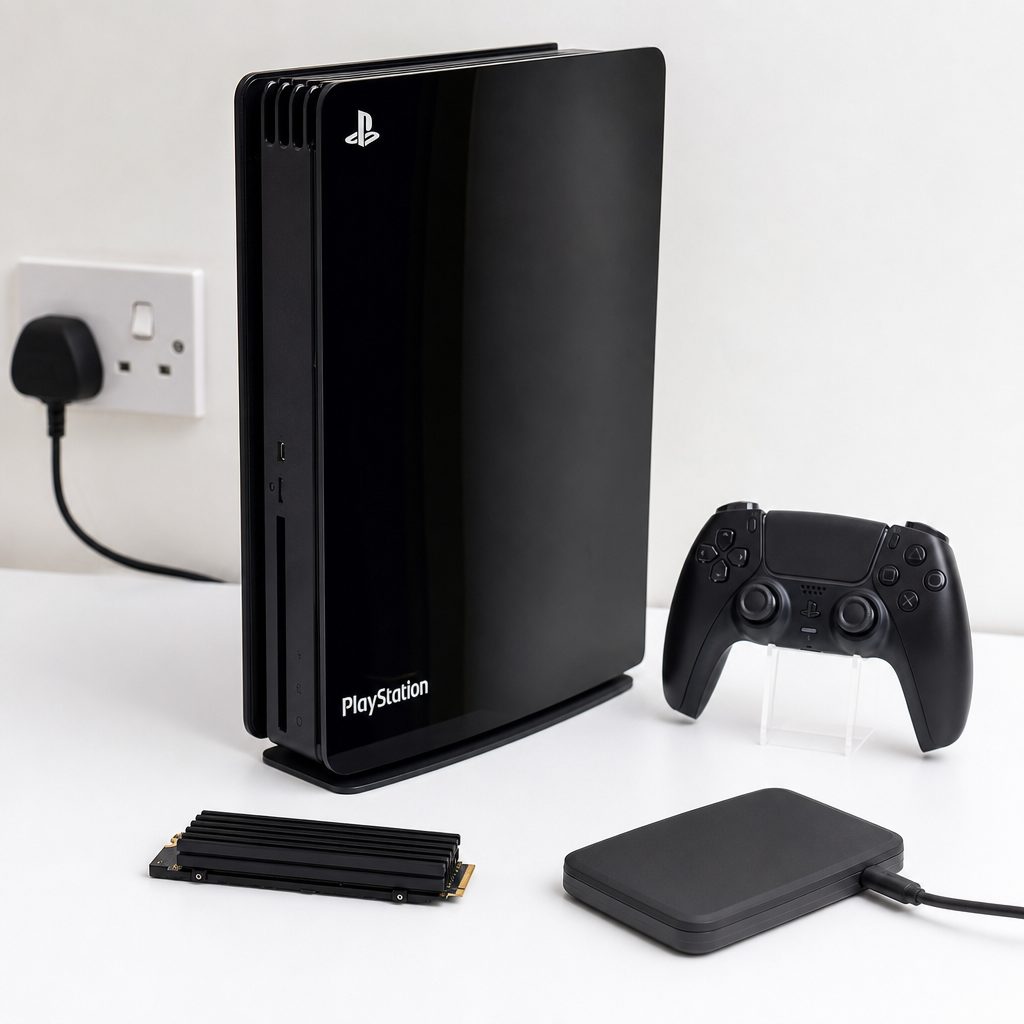
The best storage setup is often a combination: internal M.2 capacity for active games and USB storage for the games waiting their turn.
11. Best pick for each sort of PS5 Pro owner
Shop Best pick for each sort of PS5 Pro owner on Amazon UK
Choosing storage is less about buying the "best" component in a vacuum and more about matching it to how you play. A weekend player with four favourites does not need the same plan as someone who keeps a season's worth of multiplayer games, story adventures and co-op downloads installed at all times.
Best on a budget
External USB hard drive. Choose this if you mainly need a safe, affordable archive for games you are not currently playing.
Best all-rounder
1TB or 2TB PCIe Gen4 x4 M.2 SSD with heatsink. It adds genuinely usable PS5 game space without going straight to specialist capacities.
Best premium choice
WD_BLACK SN850P 4TB or 8TB. This is for the player who wants an enormous installed library and accepts the major price jump.
Best for active PS5 games
Corsair MP600 PRO LPX. Its reported PS5 results and 50-second Valhalla load tie showed why a compatible, cooled internal SSD is the useful route.
12. Storage mistakes that are easy to avoid
The first is buying a drive just because it is cheap. If it is not PCIe Gen4 x4, does not meet the 5,500MB/s read requirement or lacks a compatible cooling solution, it is not the right PS5 Pro expansion drive. The second is assuming any heatsink will fit. Check the 11.25mm total height and the separate 2.45mm-below and 8mm-above-board limits.
The third mistake is treating external storage as though it offers the same play-from-drive convenience as M.2 storage for PS5 games. It does not. It is still valuable, just valuable in a different way. Finally, resist moving everything around whenever one game needs an update. Make a simple library habit instead: active games internally, dormant games externally, and a little free space left over for patches. Your future self will be less cross.
Never force the fit
If the SSD, heatsink, M.2 cover or outer console panel does not sit correctly, do not tighten harder. Remove the drive and confirm the form factor, spacer position and heatsink dimensions. Components should fit securely, not grudgingly.
13. PS5 Pro storage FAQ
External USB storage is for game storage, but to play PS5 games you need internal storage: either the PS5 Pro's built-in space or a compatible installed M.2 SSD. Use USB storage as an archive and move games back when you want to play.
Choose a PCIe Gen4 x4 M.2 NVMe SSD with a sequential read speed of 5,500MB/s or faster. The console supports 22mm-wide 2230, 2242, 2260, 2280 and 22110 drives in capacities from 250GB to 8TB.
Yes. The M.2 SSD needs a built-in cooling structure or an attached heatsink. Without cooling, a drive may throttle when thermal protection kicks in, particularly during long sessions.
The combined SSD and cooling structure must be less than 11.25mm high. Cooling below the board must be less than 2.45mm, while the total height above the board must be less than 8mm.
Yes. Games can be moved between the PS5 console's storage, a connected USB extended storage device and an added M.2 SSD. That makes a mixed internal-and-external setup particularly practical.
Both can work well. A 1TB addition suits a smaller rotating library, whilst 2TB is the more comfortable all-round choice for players who like keeping several large games installed. The key is whether you archive older games externally or prefer everything ready to launch.
Not necessarily in a dramatic way. The Corsair MP600 PRO LPX had a reported PS5 result of 5,561MB/s despite an up-to-7,100MB/s claim, yet tied the fastest Assassin's Creed Valhalla loading time at 50 seconds. Compatibility and cooling matter just as much as headline figures.
Once storage is organised, the PS5 Pro becomes much easier to live with: keep current games internal, archive the rest, and spend less time deleting downloads.
Bottom line: add an M.2 SSD if you want to play more, not shuffle more
If your PS5 Pro storage is full because you genuinely play a wide range of PS5 games, an internal PCIe Gen4 x4 M.2 NVMe SSD with a correctly sized heatsink is the answer. It is the expansion route that lets you download, move and launch games naturally, without turning every new install into a storage negotiation.
An external USB drive still earns its place. It is the sensible archive for games you want to keep but are not actively playing. For most people, the best setup is not an either-or argument: use internal M.2 storage for the active library, use USB storage for the backlog, and leave enough free space for the updates that will inevitably arrive just as you sit down with a cup of tea.