
How to Set Up Parental Controls on Switch 2, PS5 and Xbox
A practical, cross-platform guide to screen time, spending limits, age filters and online chat settings on Nintendo Switch 2, PlayStation 5 and Xbox Series X|S — without turning every gaming session into a household tribunal.

A family console corner works best when the grown-up accounts, child accounts and spending rules are sorted before the first "Can I just buy this?" request appears.
1. Start with the boring bit: separate adult and child accounts
Parental controls are one of those things that feel faintly unnecessary right up until somebody has accidentally spent money on a shiny digital hat, joined a voice chat with a stranger or discovered that "one more game" has quietly become an entire evening. Then they become extremely interesting indeed.
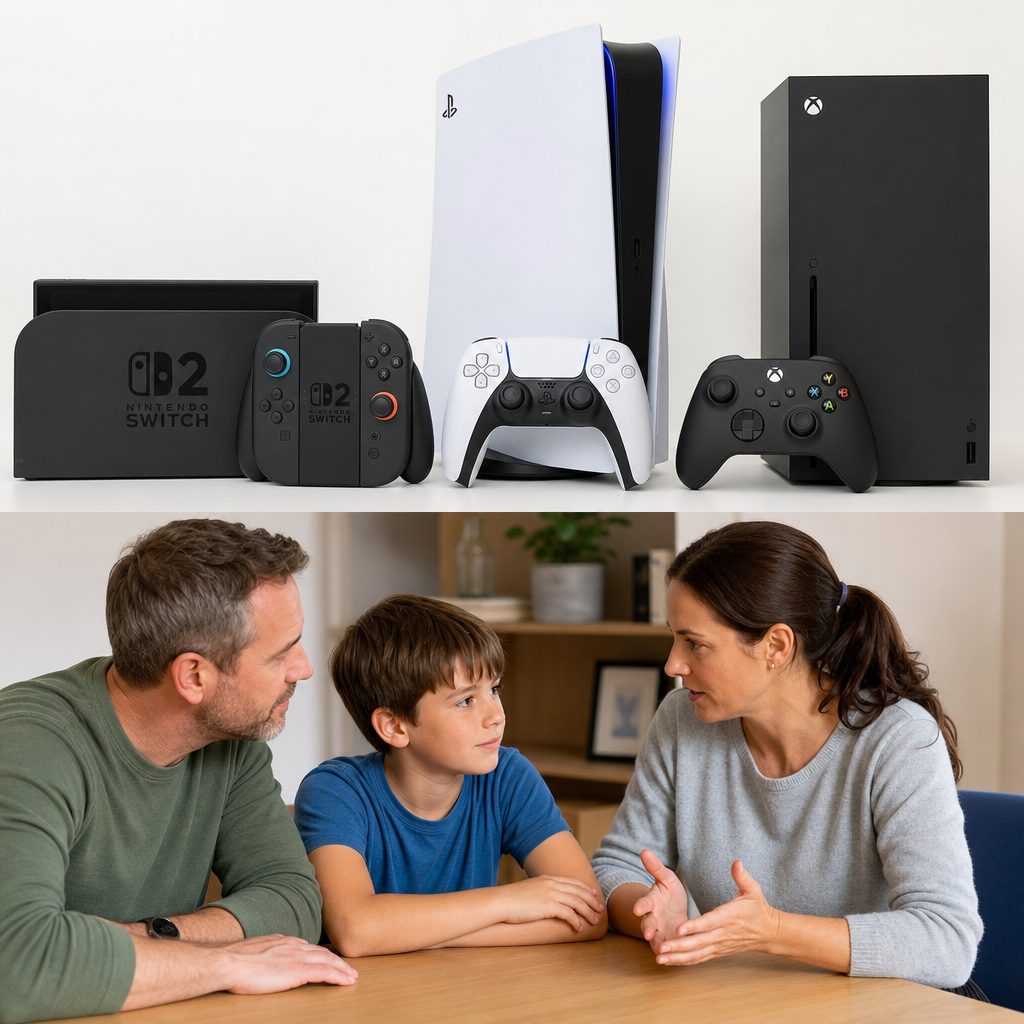
Before choosing a preset, agree the basics: allowed games, allowed hours, buying rules and whether online communication is part of the deal.
The good news is that Nintendo, PlayStation and Xbox all offered genuinely useful family tools by August 2026. The less glamorous news is that they work properly only when each child uses their own account. A shared family profile might feel easier on day one, but it removes much of the point: the console cannot apply a child's content filter, playtime allowance or purchase approval accurately if everyone is playing as the same person.
Set up or identify the adult account first. This should be controlled by the parent or guardian, protected with a password nobody else knows, and used for family-management decisions. Then create or add a child account for each young player. Give everyone their own recognisable name or avatar. It sounds obvious, but it prevents the familiar post-school debate of "I did not play for four hours, that was my brother." Consoles are many things. Diplomats, sadly, they are not.
Do this before handing over the controller. It is much easier to begin with sensible permissions and relax them as a child grows than to untangle a full purchase history, open chat list and unrestricted account later.
2. Decide your household rules before touching the settings
Each platform uses slightly different language, menus and companion apps, but the questions are basically the same. How long can your child play? Which age-rated games are appropriate? Can they communicate with people online? Can they buy anything without asking? Do you want gaming to stop at a particular time?
It helps to answer those questions as a family before you turn them into buttons and toggles. A control setting is not a substitute for a conversation. Think of it as the lock on the garden gate rather than the entire parenting strategy. A child who understands why the rule exists is far less likely to see every restriction as a personal insult designed specifically to ruin their Saturday.
Try making rules that are clear enough to explain in one breath. For example: games rated for your age are fine; ask before downloading something new; voice chat is for people you know; play ends at bedtime; homework and chores come first. The exact boundaries will differ between families, ages and school routines. What matters is that the settings reflect your actual rules instead of becoming a confusing maze nobody remembers.
Content rules
Use account-level age settings to limit games, apps and video content that are not appropriate for your child.
Time rules
Set a daily allowance, and where available use a start and bedtime window so play does not drift into the night.
Money rules
Keep spending approval in adult hands, whether that means a zero limit, purchase requests or a specific account balance.
Social rules
Decide whether messaging, voice chat, user-created content and friend requests are allowed, limited or switched off.
3. Nintendo Switch 2: set up the Parental Controls app first
Shop Nintendo Switch 2 on Amazon UK
Nintendo Switch 2, released in June 2025, made Nintendo's app-led approach central to family management. For most households, the Nintendo Switch Parental Controls app is the sensible starting point. It is available free for iOS and Android devices and gives you a more convenient place to check activity and adjust limits than trying to remember settings menus whilst someone is bouncing impatiently beside you.
Download the app to the parent or guardian's phone, sign in with the Nintendo Account that will supervise the console, then follow the app prompts to link it to the Switch 2. During setup, choose a four-digit PIN. This is important. It is the code needed whenever someone tries to bypass or alter a restriction, so do not pick a birthday, a house number or the sort of sequence a determined eight-year-old will guess before tea.
Once linked, the app lets you choose one of three broad presets: Young Child, Child or Teen. These are useful as a starting point, especially if you want a quick setup before a birthday party descends into joyful chaos. But do look through the individual options afterwards. A teenage child may be ready for a wider range of games but still need limits around late-night play or online video chat. A younger child may only play a couple of harmless games but still need purchases firmly locked down.
- Install the Nintendo Switch Parental Controls app on the supervising adult's phone.
- Sign in with the Nintendo Account used to manage the family.
- Link the Switch 2 by following the app's on-screen setup process.
- Create and keep private the four-digit parental-controls PIN.
- Choose Young Child, Child, Teen or move into custom settings.
- Check playtime, spending and GameChat controls before calling the job finished.
A useful Switch 2 habit
Shop A useful Switch 2 habit on Amazon UK
Do not treat a preset as a verdict on your child. Treat it as the first draft. The best parental-control setup is usually a sensible preset followed by a few personal adjustments for playtime, spending and communication.
4. Nintendo Switch 2: daily playtime, bedtime and game activity
Switch 2's most practical family feature is its time management. Parents can set a daily limit for how long the console can be played, and the app also lets you see which games were played and for how long. That activity view is valuable because it turns a vague sense of "you seem to have been on that all day" into a calmer, more useful conversation about actual habits.
Choose a daily amount that fits your household routine, then decide whether a bedtime schedule will help. Switch 2 allows a bedtime and morning start time: for example, no gaming after 9 p.m. until 8 a.m. The exact times are yours to set, but the concept is wonderfully straightforward. If the console lives in a bedroom, a bedtime restriction is often more reliable than expecting tired children to make their very best decisions after a gripping final round.
Try not to make the number so strict that every week becomes an argument about exceptions. If your child has a longer session with friends planned for Saturday, you can discuss it beforehand rather than forcing them to negotiate in the middle of a game. Likewise, a daily limit is not necessarily a reward-and-punishment machine. It can simply create a predictable stopping point. Predictability is underrated. It is not glamorous, but neither is a row at 9.47 p.m.
Use the game activity history to spot patterns, not to conduct forensic investigations. If one game is taking all their time, ask what they enjoy about it. If play is creeping later, change the schedule. If a new game appears that you do not recognise, look at its age suitability and whether it includes online interaction or in-game purchases. The app gives you information. The useful bit is what you do with it.
Daily limits
Set the total amount of time the Switch 2 can be played in a day, then revisit it as routines change.
Bedtime and morning lockout
Create a no-play window overnight, such as 9 p.m. to 8 a.m., to support a proper wind-down.
Game activity
See which games have been played and for how long, rather than relying on guesswork or heroic claims of innocence.
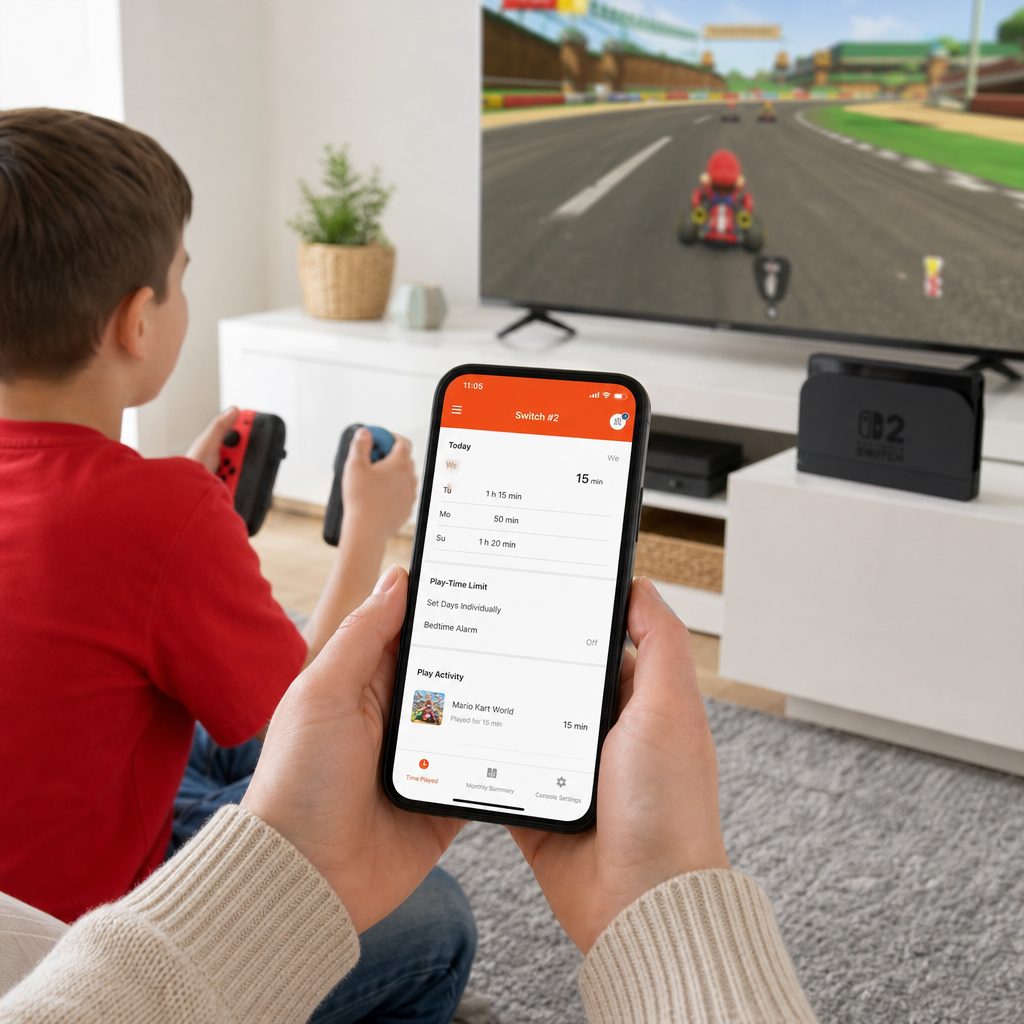
Nintendo's companion app is particularly handy for checking play activity and changing a bedtime rule without borrowing the console from a child mid-game.
5. Nintendo Switch 2: spending restrictions and GameChat
Screen time is often the setting parents think about first. Spending is the one they remember after the first surprise transaction. On Switch 2, spending restrictions link through to Nintendo Account settings on the web, where a parent can manage whether a child is allowed to spend real money on games or in-game purchases.
Do this even if you believe your child would always ask. They probably would. But games are very good at making a purchase feel like part of the next button press, particularly when a new costume, extra content or virtual currency is sitting right in front of them. A technical barrier gives everyone a pause. That pause is the whole point.
Switch 2 also introduced GameChat, which supports voice chat, video chat and screen sharing with other players. This is brilliant for a carefully chosen group of real-life friends. It also deserves active supervision. Children under 16 and supervised users need the Nintendo Switch Parental Controls app linked to the console before they can use GameChat, and the parent must configure the additional GameChat controls.
Within those controls, parents can manage which friends their child can chat with, allow video chat with specific camera field-of-view options, restrict video chat for each session, and review GameChat history to see who they chatted with and for how long. That is unusually detailed control. It does not mean you need to monitor every conversation. It means you can make a sensible rule — perhaps voice chat with approved friends only, no video unless an adult knows who is involved — and have the settings support it.
GameChat is not just another game setting. On Switch 2 it can involve voice, video and screen sharing. Check it separately from game age restrictions, particularly for children under 16 and supervised accounts.
6. PlayStation 5: build the family around the child account
Shop PlayStation 5 on Amazon UK
PlayStation 5 gives parents a broad collection of controls through Family Management. The useful trick is to make the child account the centre of your setup rather than making a general console restriction and hoping it fits everybody. One sibling may be ready for a different game age level than another. One may be trusted to message friends, whilst the other is still in the "ask first" stage. Separate settings save a surprising amount of friction.
On PS5, start in the family-management area and select the child account you want to manage. From there, parental controls cover playtime settings, time zone, age level for games, age level for Blu-ray Disc and DVD videos, use of PlayStation VR and PlayStation VR2, web browsing, communication and user-generated content, age filtering for online content, and a monthly spending limit.
That list is long, but you do not have to become an expert in every item on a Tuesday night. Begin with the four that matter most in almost every home: game age level, playtime, communication and spending. Then consider the other categories based on how your child uses the console. If they never use a headset or browser, those settings can still be checked once and left alone. If they do use them, give them the same attention you would give to any other internet-connected device.
The PlayStation Family app can also be used to manage parental controls from a mobile device. That is useful when you are away from the console, but it should not turn into a habit of making rules remotely without explaining them. If you change something significant, tell your child why. It costs very little and avoids the baffling experience of discovering, halfway through a game, that the internet has apparently become cross with you.
Start with the strictest settings you can explain
On PS5, it is perfectly reasonable to begin with purchases disabled, communication restricted and an age filter in place. You can then grant more access deliberately as your child shows they can handle it.
7. PlayStation 5: set playtime, content limits and communication
PS5's playtime controls are flexible because time limits can be set in 15-minute steps. That may sound like a minor detail, but it is genuinely useful. A family that wants an hour after homework can set an hour. A family that wants an hour and a quarter on a weekend can do that too. You are not forced into a clumsy all-or-nothing choice.
To set it up, select the child's user, then choose Playtime Settings. Make sure the time zone is correct before setting schedules. A time restriction is only as helpful as the clock it follows. From there, establish the hours or duration that fit your routine and explain what happens when time is up. If your household allows a little flexibility for saving progress, say so. If the rule is a firm stop, say that too. Clear rules produce fewer appeals to the imaginary gaming court.
Next, set the age level for games. PS5 also allows age levels for Blu-ray Disc and DVD videos, which matters if the console doubles as the family media player. It is worth checking web browsing, online-content age filtering and PlayStation VR or PlayStation VR2 access as well, rather than assuming game controls cover every type of content a child could reach.
Communication deserves a separate decision. Under Family Management > your child's account > Parental Controls > Communication and User-Generated Content, you can configure messaging and voice chat. The available approach can be to restrict it to friends only, block it entirely, or allow communication with everyone. For younger players, friends-only is often the sensible middle ground once you have checked who those friends actually are. For very young children, blocking it may simply be easier.

On PS5, content settings should cover more than games: check online material, physical video discs, browsing and communication as part of one family plan.
PS5 strengths
- Playtime can be tailored in practical 15-minute increments.
- Controls include games, Blu-ray and DVD video, browsing, VR and online content.
- Messaging and voice chat can be blocked, limited to friends or opened more widely.
PS5 watch-outs
Shop PS5 watch-outs on Amazon UK
- There are many categories, so a rushed setup can leave important areas unchecked.
- Communication settings need an active decision; game age filters alone do not manage chat.
- Each child account should be reviewed individually as children mature at different rates.
8. PlayStation 5: keep purchases on a short leash
PS5's monthly spending limit is one of the simplest settings to get right because the default is already 0. In plain English, that means a child account begins with no monthly spending allowance. For many parents, leaving it there is the best option. It turns every purchase into a conversation, which is exactly what most households want.
If you do choose to set a monthly allowance, agree what it covers. Is it for a full game, occasional downloadable content, cosmetic extras, or birthday money? Be specific. Digital stores make all these purchases appear in the same place, but they are not the same thing in family terms. A child saving for a game is a very different conversation from a child repeatedly buying small bundles because each one feels insignificant.
It is also sensible to explain that a spending limit is not a promise that every purchase below it will be approved. It is a maximum, not a standing invitation. Ask your child to show you the item, talk through whether it is appropriate and decide together. This takes a minute. It can save you both the awkwardness of discovering that a game has become a very effective vending machine.
Simple rule, strong result: leave the PS5 child account's monthly spending limit at 0 unless you have a clear reason to change it. You can always make a deliberate exception; reversing an accidental purchase is a much less cheerful family activity.
9. Xbox Series X|S: create a Microsoft family group
Shop Xbox Series X|S on Amazon UK
Xbox Series X|S had one of the most comprehensive family-management systems across console, Windows devices and mobile platforms. That wider Microsoft approach is particularly helpful if your child uses both an Xbox and a Windows computer, because the same family structure can support more consistent rules instead of leaving each device to become its own little legal jurisdiction.
You can manage the family through account.microsoft.com/family, and the free Xbox Family Settings app provides a particularly convenient way to monitor and adjust controls from an adult's phone. Begin by making sure the adult account is the organiser, then add each child's Microsoft account as a family member. Check carefully that you are changing the child's profile rather than the organiser's. It is an easy mistake to make when account names are similar, and it produces the rare situation where the parent has accidentally limited their own gaming time. Character building, perhaps. Not ideal.
Xbox family settings cover screen time, privacy settings, content filters, spending controls and activity reporting. That range makes it a very good system for parents who want a central dashboard rather than several separate rules scattered across menus. It is also useful for families with more than one child because each account can have its own age-appropriate settings.
- Sign in to the adult Microsoft account used to organise the family.
- Add each child's Microsoft account to your family group.
- Open the Xbox Family Settings app or visit the Microsoft family-management page.
- Choose the child account and turn on content filtering.
- Set screen-time rules, then move on to spending and activity reporting.
- Review privacy and communication choices before the child begins online play.
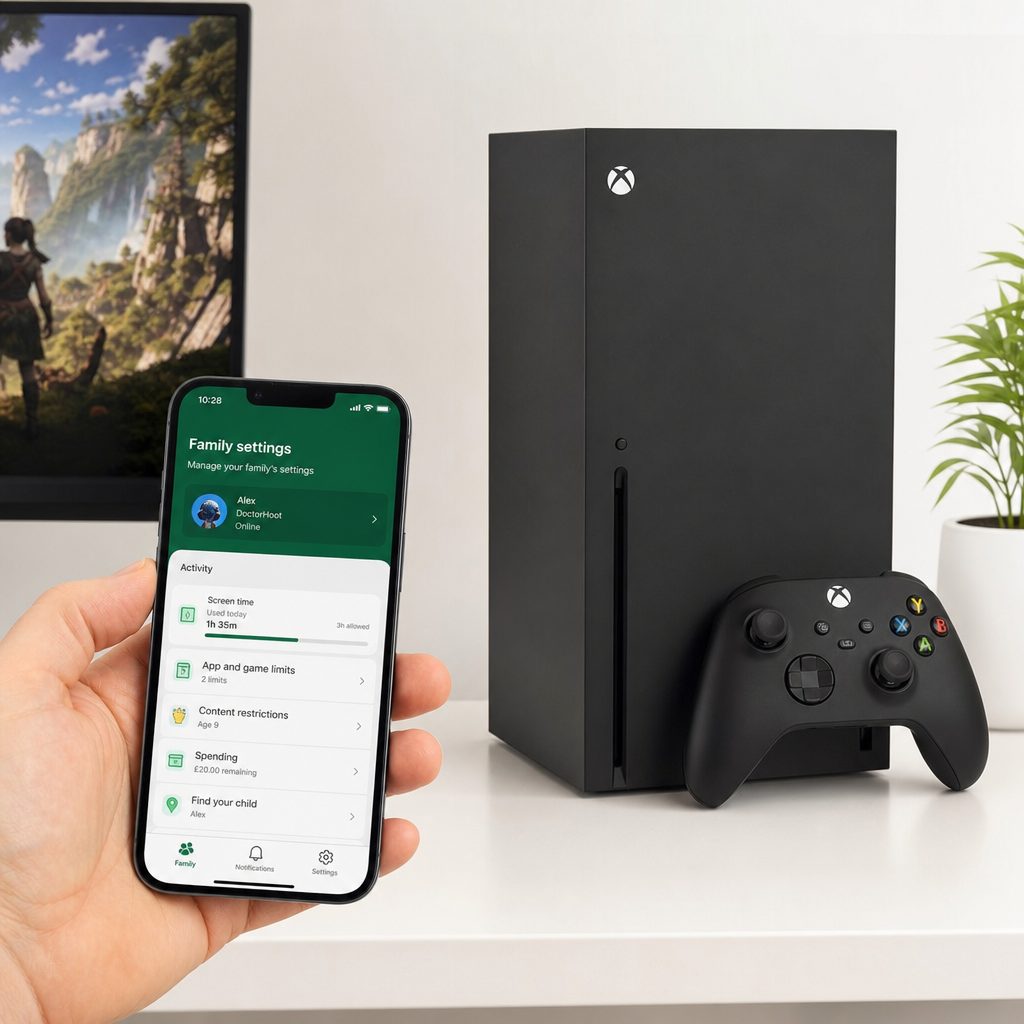
Xbox family management can be adjusted from a parent's phone, making it easier to approve, decline or review settings without waiting for the television to be free.
10. Xbox Series X|S: filter content, manage time and approve spending
Start on Xbox with content. Make sure Filter Inappropriate Content is turned on, then choose Allow Content Suitable for Age and confirm your child's age. This is the core setting that helps restrict games, apps and other media that are not suitable for them. It is not a replacement for taking an interest in what they play, but it is a strong first barrier and should not be skipped.
Then set screen-time restrictions for how long the console can be used each day. As with the other platforms, the point is to create a predictable routine rather than to catch children out. Discuss the allowance, including what happens at weekends and during school holidays. If your child has access to more than one gaming device, remember that a console limit only controls the console. The total amount of leisure screen time is still a family conversation.
For money, Xbox gives parents two particularly practical routes. You can select Account Balance to provide a specific amount for a family member to spend. This can work well when a child has birthday money or a pre-agreed digital allowance. Alternatively, enable Ask to buy, which sends you notifications when your family member wants to purchase a store item. For most younger children, Ask to buy is the easier default because it keeps the adult in the loop every time.
Use activity reporting too. It provides a clearer picture of how the account is being used and makes it easier to spot changes in behaviour. A sudden increase in playtime, a new interest in multiplayer games or repeated purchase requests is not necessarily a problem. It is, however, useful information. Parenting gets easier when you know what is happening before it turns into an argument about what happened.
Best Xbox spending setup for most children
Shop Best Xbox spending setup for most children on Amazon UK
Enable Ask to buy first. Add an Account Balance only when you want to give a specific amount of money. That combination keeps everyday approvals with the parent whilst still allowing a child to use agreed funds.
11. Switch 2 vs PS5 vs Xbox: which family controls suit whom?
There is no universal winner because the best system depends on what worries you most. Nintendo Switch 2 is excellent for parents who value a phone-based view of game activity, daily limits, bedtime rules and unusually detailed GameChat supervision. PS5 is particularly strong for households wanting tightly adjustable playtime and broad media controls alongside games. Xbox stands out if you want family management that reaches across Xbox, Windows and mobile tools, with sensible purchase-request options.
All three can limit content, time and spending. That is the important headline. The differences are about how the controls are organised and which extra layer suits your home. Do not choose a console purely because one control menu sounds more comprehensive. The best setup is the one you will actually maintain. A brilliant app nobody checks is still just an app.
| Family-control feature | Nintendo Switch 2 | PlayStation 5 | Xbox Series X|S |
|---|---|---|---|
| Mobile management | Free Nintendo Switch Parental Controls app for iOS and Android | PlayStation Family app | Free Xbox Family Settings app |
| Playtime controls | Daily limits, plus bedtime and morning start time | Playtime settings in 15-minute steps | Daily screen-time restrictions |
| Content filtering | Young Child, Child, Teen presets or custom settings | Age levels for games, Blu-ray and DVD video, online content and more | Filter Inappropriate Content and age-suitable content setting |
| Spending controls | Managed through Nintendo Account web settings | Monthly spending limit, set to 0 by default | Account Balance or Ask to buy notifications |
| Communication controls | GameChat friend, video and history controls; extra setup for under-16s | Messaging and voice chat: friends only, blocked or everyone | Privacy settings alongside family controls |
Nintendo Switch 2
Its clear child presets, daily limits, bedtime scheduling and parent-app activity view make it especially approachable for families starting from scratch.
PlayStation 5
PS5's 15-minute playtime increments are ideal if your household prefers a schedule that is more nuanced than simply "an hour or nothing".
Xbox Series X|S
The free Xbox Family Settings app and Ask to buy system give parents practical control without needing to create a monthly spending allowance.
Xbox Series X|S
Xbox family management works across console, Windows devices and mobile platforms, which is useful when gaming does not happen in just one place.
12. Review the controls regularly instead of setting and forgetting
Children change quickly. A setting that made perfect sense at eight can be unnecessarily restrictive at eleven, and a rule that worked during term time might need adjusting in the school holidays. Review your setup every few months, or sooner if your child starts using voice chat, gets a new game, receives a new console or begins asking for more independence.
Make reviews collaborative where possible. Show your child what you are checking and invite them to make their case. Perhaps they want a slightly later weekend bedtime because all their school friends play together then. Perhaps they want to talk to a particular friend online. Perhaps they have shown they can manage their existing allowance responsibly. These are useful conversations about trust, not merely technical chores.
At the same time, do not feel pressured to loosen every setting because a child asks. "Not yet" is a perfectly respectable answer. So is "yes, but friends only", "yes, after homework", or "yes, with purchases still requiring approval". Good parental controls are adjustable. That flexibility is their strength.
What a good setup achieves
- Children know the rules before a problem appears.
- Parents can approve spending rather than discover it afterwards.
- Age-inappropriate content and unplanned online contact have useful barriers.
- Gaming fits around sleep, school and family routines more predictably.
What controls cannot do alone
- They cannot replace talking about online behaviour and kindness.
- They only apply properly when each child uses their own account.
- They need revisiting as games, friendships and maturity change.
- They do not remove the need to take an interest in what children play.

A calm review every few months is far more useful than waiting for a problem; family controls should grow with the child rather than remain frozen in time.
Frequently asked questions
Yes. Separate child accounts are the foundation of useful parental controls. They allow content filters, playtime rules, spending settings and communication permissions to match the actual child using the console. A shared profile makes it much harder to apply rules fairly or understand who played what.
Yes. Switch 2 spending restrictions are managed through Nintendo Account settings on the web. PS5 child accounts have a monthly spending limit that defaults to 0. On Xbox, you can use Ask to buy for approval notifications, or provide a specific Account Balance for agreed spending.
On Switch 2, set a bedtime and morning start time in the Nintendo Switch Parental Controls app. PS5 and Xbox also offer playtime controls, so build a schedule that matches your household's routine. Explain the rule in advance, especially if your child plays online games where stopping suddenly can feel awkward.
They can use it only when the Nintendo Switch Parental Controls app is linked to the console and the supervising parent has set up the additional GameChat controls. Parents can manage approved friends, video-chat options and GameChat history, including who the child chatted with and for how long.
PS5 playtime limits can be set in 15-minute steps. That makes the system useful for families who want practical schedules such as 45 minutes, one hour, or a slightly longer weekend allowance without having to settle for very broad time blocks.
It is safer than allowing communication with everyone, but it still needs sensible supervision. Check who is on the friend list, talk about not sharing personal information, and make sure your child knows they can leave or tell you about an uncomfortable conversation. Settings help; trust and communication do the rest.
Xbox is the most natural fit because its family-management system works across Xbox, Windows devices and mobile platforms. That can make it easier to maintain a consistent approach where a child games or uses Microsoft services in more than one place.
Absolutely. Be open about the rules and the tools you use. The aim is not to catch children out; it is to help them use games safely and sensibly. Knowing that activity and purchases can be reviewed also makes the boundaries feel clear rather than mysterious.
The bottom line
All three systems offered capable parental controls by August 2026, and every family should spend the short time needed to turn them on properly. Switch 2 is particularly family-friendly for daily limits, bedtime routines and GameChat supervision. PS5 gives you excellent playtime flexibility and broad control over games, media and communication. Xbox Series X|S is the strongest all-round choice for families managing Xbox alongside Windows devices, with practical purchase approvals and activity tools.
The cleverest setting is not the strictest one. It is the one your child understands, your family can maintain, and you review as they grow. Set the guardrails, keep talking, and let games remain what they should be: fun.