
Fix a Slow or Dropped Connection on PS5 Pro and Xbox: A Troubleshooting Guide
Slow downloads, rubber-banding in online matches and a console that keeps deciding it has "lost connection" are deeply irritating. The good news is that most PS5 Pro and Xbox network problems can be narrowed down methodically, without buying a pile of networking hardware or performing router surgery at midnight.
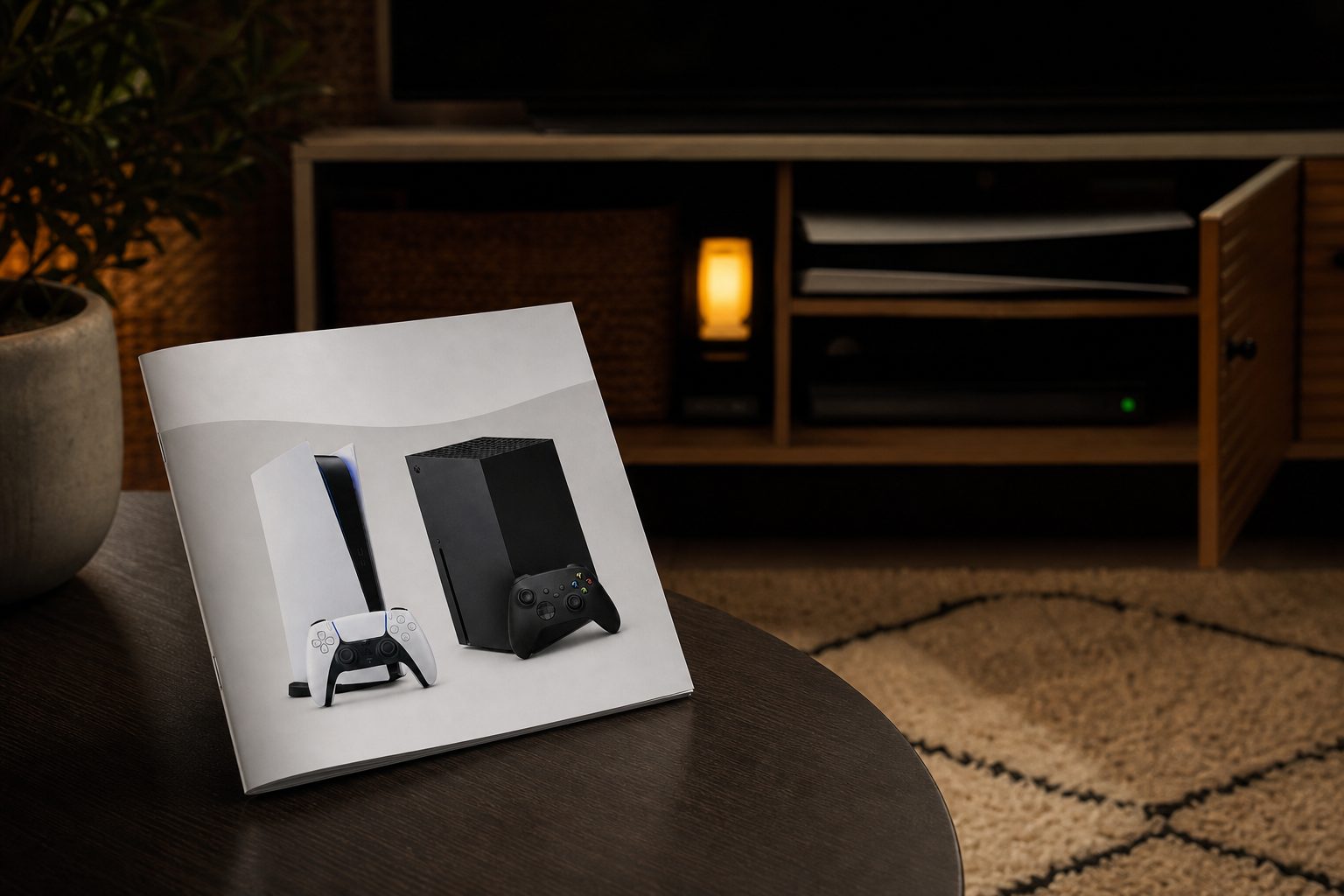
A console tucked into a TV unit can be a surprisingly awkward place for a Wi-Fi signal to reach, especially once doors, walls and other wireless kit enter the picture.
1. Start by identifying what is actually going wrong
"My internet is bad" is a perfectly understandable conclusion after being disconnected from a match for the second time. It is also a little too broad to fix. A game console uses your home network in several different ways: it downloads large game files, checks account services, joins voice chat, communicates with multiplayer servers and may stream games or media. Each job exposes a different sort of weakness.

Network diagnostics can point towards a NAT or connection-status issue, but they should guide the next test rather than encourage a flurry of random router changes.
Before changing settings, take a minute to name the symptom. Is the problem confined to one game? Does it appear only in the evening? Does your console work brilliantly in the room beside the router but not in its usual spot? Does a download crawl whilst online play itself feels fine? These clues are more useful than randomly changing DNS entries and hoping for wizardry.
A slow installation can be caused by a busy game delivery service, a congested broadband connection or another household device pulling down a massive update. That is not necessarily the same thing as high latency. Lag in an online race or shooter is about how consistently small packets travel between your console and the game server. A connection can download a giant game overnight and still be terrible at a tense final round. Broadband is clever, but it is not magic.
Test when the fault is happening, rather than only after it has disappeared. A quick note of the game, time, whether other people were streaming and whether the console was using Wi-Fi or Ethernet can reveal a pattern remarkably quickly.
2. Check whether the problem is the console, your home or the wider internet
The first proper test is gloriously unglamorous: try another device. Use a phone, tablet or computer in the same room as the console, then try it close to the router. Open a few ordinary websites, play a video and see whether the connection drops. This does not perfectly replicate console traffic, but it tells you whether the whole household is struggling.
Next, try a different game or online service on the console. If one title cannot connect but other games, party chat and media apps work normally, the likely issue sits outside your living room. Check the game publisher's service notices and the relevant console network status information before dismantling your setup. Servers have occasional bad days. So do humans. It happens.
If every device in the house is slow, rebooting the console alone will not help much. If only the console is affected, move through this guide from the simple physical checks towards router configuration. Avoid changing everything at once. When five settings have changed and the issue vanishes, you do not know what cured it — and you have made future troubleshooting rather more exciting than necessary.
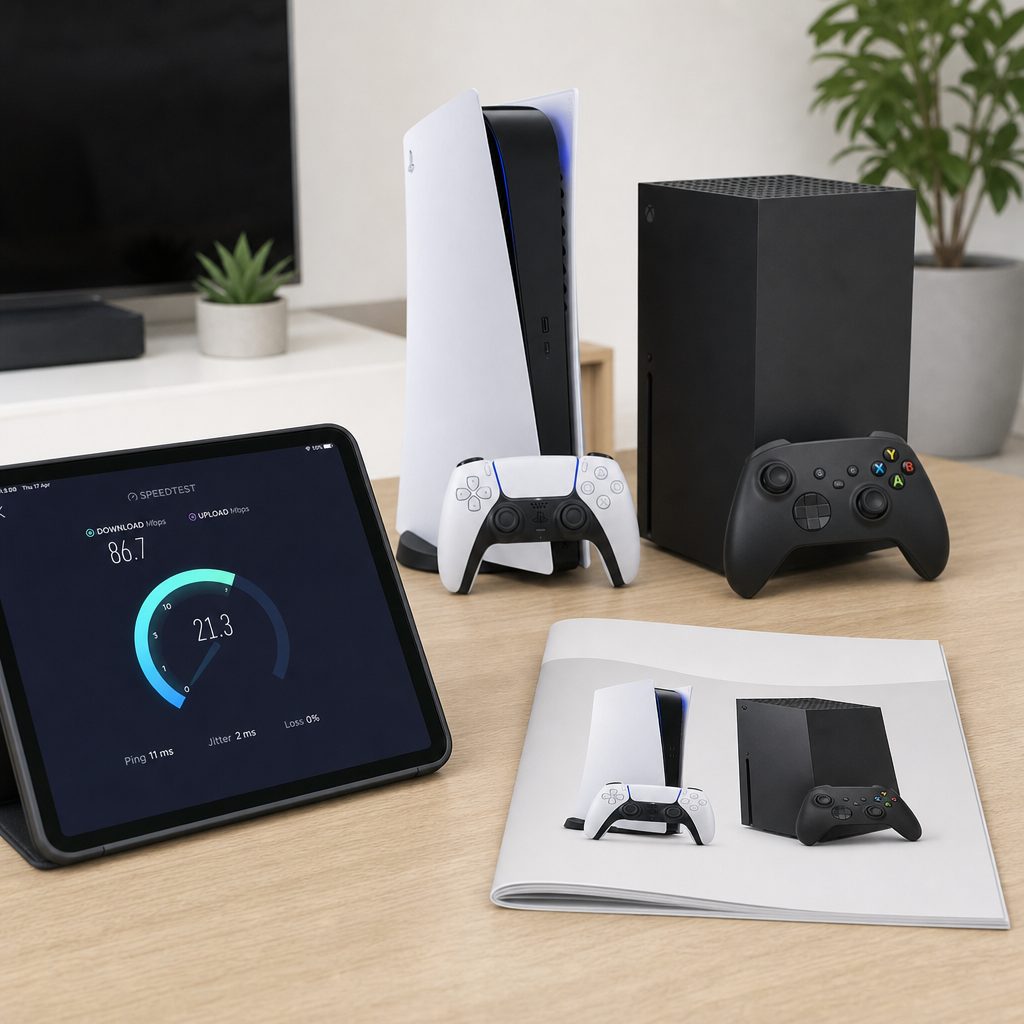
Testing another device in the console's room helps separate a weak local Wi-Fi signal from a broadband problem affecting the whole household.
3. Do the boring resets properly — they solve more than they deserve to
Start with a full restart of the console, not merely putting it into rest mode. Close any game that is running, power the console down fully, wait briefly, then start it again. A lingering game session, paused download or confused network lease can occasionally clear with this alone.
Then restart the router. Switch it off using its power control or unplug it, leave it off for a short while, then bring it back online and wait until the connection has settled before testing the console. This refreshes the router's local network housekeeping and forces a fresh connection to your provider. Do not repeatedly power-cycle it in frustration; give it time to reconnect after one orderly restart.
Check the obvious physical points too. If you use Ethernet, make sure each plug clicks firmly into place. Inspect the cable for crushed sections, tight bends, pet-related incidents and plugs that have spent years being tugged sideways behind the cabinet. Swap in another cable if one is available. A cable can look innocent whilst behaving like a tiny saboteur.
Restart in the right order
Bring the router back first, allow it to reconnect, then start the console. That gives the console a clean chance to obtain a local address.
Check every wired link
Ethernet is only as reliable as the cable and ports at both ends. A quick swap is a useful test, not a sign of defeat.
Pause competing downloads
Stop game updates, cloud backups and large household downloads whilst diagnosing lag. Give the console a fair run at the connection.
Test at different times
Evening-only trouble points towards busy household use, Wi-Fi crowding or a broadband issue that deserves a conversation with your provider.
4. Use a wired Ethernet connection wherever you realistically can
For competitive online gaming, a direct Ethernet cable from router to console remains the cleanest answer. It removes the radio link between your router and console, which means walls, furniture, neighbouring networks and microwave ovens have fewer opportunities to become minor villains. You still depend on the quality of your broadband service and the game server, of course, but local stability usually improves.
If your PS5 Pro or Xbox is close enough to the router, this is the first change I would make. Route the cable neatly along a skirting board, behind furniture or through a purpose-made cable cover rather than leaving a trip wire across the hallway. A neatly installed cable is less likely to be kicked loose, pinched under a chair or converted into an impromptu climbing rope by a small child.
When a direct run is impossible, do not assume that Wi-Fi is automatically hopeless. Plenty of households get excellent results wirelessly. The aim is to make the wireless route short, clear and consistent. A mesh system, an additional access point or a better router position can help enormously in a large or awkwardly shaped home. But first, use Ethernet temporarily if you can. It is an excellent diagnostic tool. If the issue disappears on a cable, you have learned that Wi-Fi rather than the console itself is the place to focus.
The simplest useful test
Before spending money on a mesh system, temporarily connect the console directly to the router with a known-good Ethernet cable. If multiplayer stability improves immediately, your broadband may be fine and the wireless path is the real target.
5. Make Wi-Fi work harder for you, not against you
Wi-Fi works best when the router is out in the open, reasonably central to the rooms that need it and raised off the floor. It works less well when hidden in a closed TV cabinet, tucked behind a large television, placed beside a fish tank or imprisoned behind a stack of books. Routers are not decorative, sadly, but they do need a little breathing room.
Place the console where its signal path is as clear as practical. Thick walls, foil-backed insulation, large metal surfaces and floors all reduce wireless performance. A console in a low cabinet at the far end of the home is asking the router to perform a small miracle. If moving the router is not possible, moving the mesh node or access point closer to the gaming room often makes more sense than moving the console.
Where your router offers more than one Wi-Fi band, experiment with the console on each sensible option rather than assuming the newest-sounding one must win. A higher-frequency connection can be very fast at short range but may lose strength more quickly through walls. A lower-frequency connection may travel further and remain steadier in an awkward room. The best choice is the one that stays dependable where you actually play, not the one that produced the prettiest result when standing beside the router.
Also consider interference inside the home. Wireless headphones, smart-home hubs, baby monitors and other Wi-Fi devices all share airspace. You do not need to turn the house into a museum of unplugged gadgets, but pause or relocate likely culprits during a test. If the connection suddenly settles when a particular device is off, you have found something worth investigating.
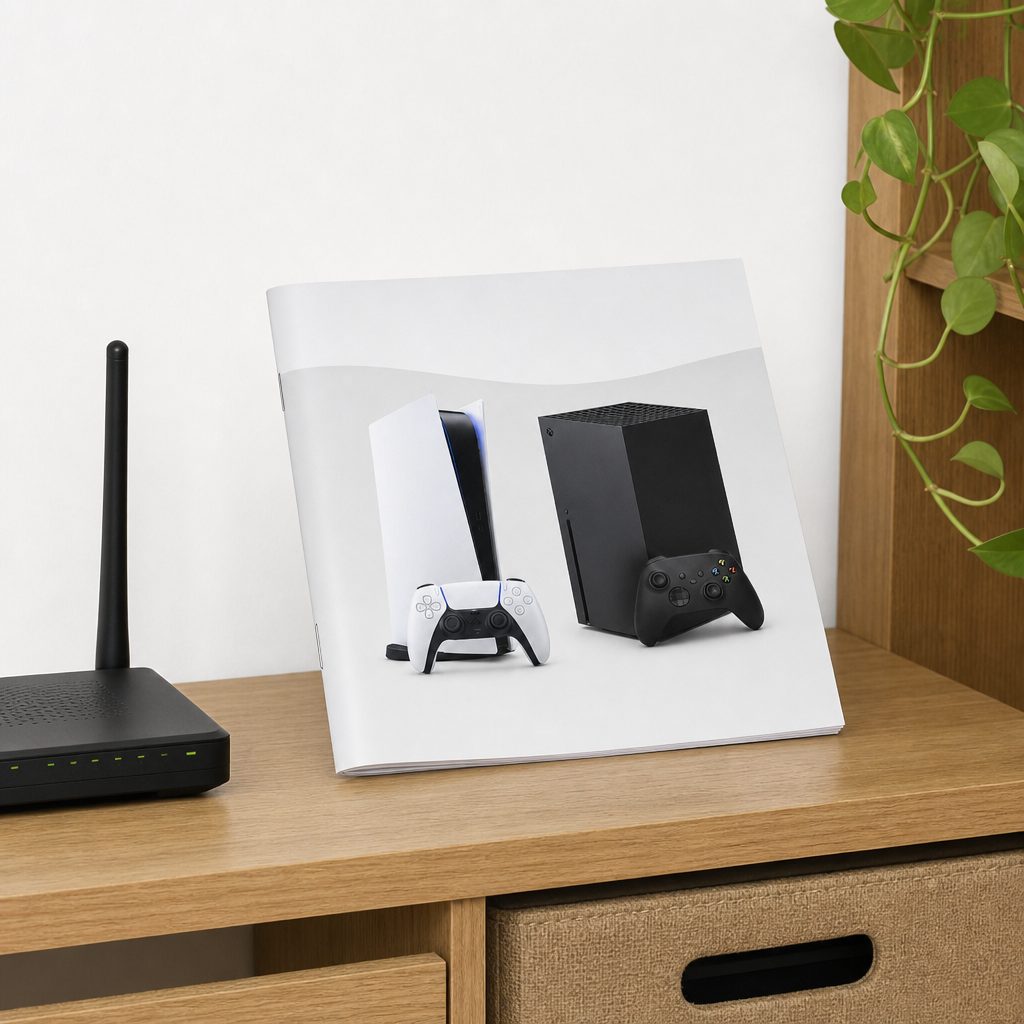
A router placed openly and away from dense electronics generally has a better chance of providing a stable signal than one hidden inside a packed media cabinet.
6. Fix weak rooms with mesh Wi-Fi or an access point
A mesh Wi-Fi system can be an excellent solution when your router is at one end of a long home, the console is upstairs or brick walls have turned the building into a wireless obstacle course. The important word is placement. A mesh node cannot rescue a signal it barely receives itself. Put each node where it still has a reliable link back to the main router, then let it extend coverage towards the console.
In practice, that often means positioning a node between the router and gaming room rather than placing it directly beside the console in the deadest of dead spots. Think of it as handing a message across a room: it is much easier to pass it through someone standing halfway than to shout through three closed doors.
If a mesh node has Ethernet ports, connecting the console to that nearby node by cable can be a neat compromise. The console receives a wired local connection for the final stretch, whilst the mesh handles the longer route back to the router. It is not identical to a cable running directly to the main router, because part of the journey remains wireless, but it can be substantially better than relying on a weak console Wi-Fi connection.
A dedicated access point connected back to the router by Ethernet is another strong option for homes where cable can be run to the gaming area. It provides proper wireless coverage where it is needed rather than hoping one router can serve every corner of a substantial house. Powerline networking can sometimes be useful too, but its behaviour depends heavily on the home's electrical wiring. Treat it as something to test, not a guaranteed cure.
Mesh and access point strengths
- They can improve coverage in rooms where the main router has always struggled.
- A nearby node may allow a short, tidy Ethernet run to the console.
- They help every household device in the weak area, not only one console.
Things they cannot fix
- They cannot cure an unstable broadband line or a game server fault.
- A badly positioned mesh node simply repeats a poor signal.
- Adding more wireless hops may not beat a direct Ethernet cable for serious competitive play.
7. Check NAT status before diving into port forwarding
NAT, short for Network Address Translation, is one of those terms that sounds as though it was invented specifically to put people off. The useful version is simple: your router helps devices in your home share one internet connection, and it controls how easily outside services can begin a connection back to a device inside.
A restrictive NAT state can make it difficult to join certain multiplayer sessions, host a party, connect to friends or use voice features reliably. It does not usually explain every slow download. That distinction matters. If your game files download slowly but you can join friends without issue, port settings are unlikely to be your first stop.
Use the network test area on your PS5 Pro or Xbox to look for NAT-related warnings. If there are no warnings and online sessions work, leave router forwarding rules alone. This is one of the few areas where doing less is often smarter. Router settings can affect every device in the house, so a change made to solve one evening's problem should be deliberate and documented.
If NAT is restricted, first make sure the router's firmware is current through its official management page or provider instructions. Then check whether your router supports automatic game-friendly connection handling, often described as UPnP. If you enable anything, test the console afterwards and make one change at a time. Manual port forwarding may help in particular setups, but it needs to match the console platform's current official documentation and should be set carefully. Do not copy a random list from an old forum post and hope for the best.
Do not place a console into a router's exposed-device or "DMZ" setting as a casual first fix. It is a broad change with security implications. Start with sensible network placement, current router software and the least invasive option that addresses the actual NAT warning.
8. Try DNS changes with realistic expectations
DNS is the system that turns a service name into the network address your console needs to contact. Changing DNS servers can occasionally improve how reliably a console finds a service, particularly if a provider's default DNS service is having trouble. It can also be useful as a controlled test if game sign-in or store access is unreliable.
What it generally cannot do is transform a weak Wi-Fi signal, cure packet loss on an overloaded line or make a distant game server physically closer. DNS is often presented online as a magical speed boost. It is more like changing the person who gives you directions before a journey. Helpful if they were giving poor directions; irrelevant if the motorway is closed.
On either console, note down the existing network settings before changing anything. Enter an alternative DNS provider only through the console's network settings, keep the rest of your configuration unchanged and test the exact service that was failing. If there is no improvement, return to automatic settings. Do not stack a DNS change on top of new Wi-Fi settings, forwarded ports and a fresh router configuration, because then the result is impossible to interpret.
Use DNS as a test, not a superstition
DNS is worth trying when services fail to resolve or sign in consistently. It is not the first answer to match lag, Wi-Fi drop-outs or a busy household connection. Diagnose the path before changing the address book.
9. Control the household traffic during game time
Gaming rarely consumes as much download capacity as people imagine, but it cares intensely about consistency. A household connection can feel fine until someone starts a huge game download, a video call begins, cloud photos synchronise or several televisions start streaming at once. The result is often not merely slower internet but unstable responsiveness — the sort that makes a character jump backwards just as you had lined up the perfect move.
Start by pausing downloads on the console itself. Check other consoles, computers and phones too. Modern devices can update quietly in the background with all the subtlety of a marching band. If a regular problem occurs during busy periods, look in the router settings for sensible traffic-management or quality-of-service options. The goal is not to punish everyone else in the household. It is to stop one bulk transfer from crowding out time-sensitive traffic.
Keep expectations fair. A router cannot manufacture capacity your broadband service does not provide. It can, however, make a crowded connection behave more politely. If the line slows or disconnects at repeated times even when the home is quiet, gather evidence and contact your broadband provider. Explain the pattern, the tests already performed and whether the same problem affects wired devices. That is much more useful than saying "the Xbox is weird", however true it may feel.
10. Use a simple isolation routine when the fault keeps returning
Intermittent problems are the most annoying because they often vanish exactly when you are ready to demonstrate them. The answer is not to become a full-time network engineer. It is to create a short, repeatable routine.
- Test the console in its normal location and write down the symptom.
- Pause other major household traffic and test again.
- Try a direct Ethernet connection to the main router, even temporarily.
- If wired is stable, focus on router position, Wi-Fi band choice, mesh placement or a local access point.
- If wired is also unstable, test another device by cable and record whether the wider connection drops.
- Check service status for the console network and the affected game.
- Only then consider NAT, DNS or more advanced router settings.
This sequence matters because it rules out whole categories of problem. If a direct wired test is flawless, there is little point arguing with the broadband provider before fixing coverage. If wired and wireless devices both fail together, moving mesh nodes around the living room is unlikely to solve the underlying issue. Troubleshooting becomes much less mysterious when each test has a purpose.

A temporary cable test is not a permanent decorating commitment; it is a quick way to discover whether the home Wi-Fi route is the weak link.
11. Know when the console itself may need attention
Console hardware faults are less common than router, signal and provider problems, but they are not impossible. If your PS5 Pro or Xbox cannot stay connected even beside the router, after testing with another known-good cable and after other devices work normally on the same connection, the console becomes a more plausible suspect.
Check for system software updates through the console settings when it can connect. Restart it fully, forget and re-add the Wi-Fi network if you are testing wirelessly, and review whether the issue began after a physical move, a spill, a damaged Ethernet port or a particular accessory being connected. Do not attempt to repair internal networking hardware yourself unless you genuinely know what you are doing; this is one of those jobs where confidence and competence should ideally arrive together.
For a recurring fault, make a small record: date, time, error wording, game or service involved, connection method and whether another device was affected. Support teams can do far more with that than with "it happened loads last week". It also prevents you from repeating the same test six times because, in the heat of annoyance, every evening begins to look alike.
12. The best fix depends on the kind of gamer you are
There is no single cure that suits every household. A student in a small flat with a router in the same room has a very different problem from a family trying to reach an upstairs bedroom through several thick walls. Choose the least complicated solution that directly addresses your particular weak point.
Best for competitive players
Use direct Ethernet to the main router where possible. It is the most straightforward route to remove local wireless instability from the equation.
Best for large homes
Improve coverage with carefully positioned mesh Wi-Fi or a wired access point, then connect the nearby console by Ethernet if the layout allows.
Best low-cost first move
Restart properly, check cables, pause household downloads and reposition the router before buying anything. These fixes cost nothing and often reveal the cause.
Best for party and co-op issues
Check NAT status and router configuration only after confirming that ordinary Wi-Fi or broadband stability is not the more basic fault.
For a shared household, the most effective improvement is often the one that makes the whole network calmer rather than simply chasing the fastest possible download on one console.
13. A calm final checklist before you call your provider
By this stage, you should have a much clearer idea of where the fault lives. The most useful evidence is not a single speed result but a consistent story: "the console loses Wi-Fi in the back bedroom but is fine by cable", "all wired devices drop in the evening", or "only one game cannot join friends whilst everything else works". Those are actionable descriptions.
- Restarted the console and router in an orderly way.
- Checked and, where possible, swapped the Ethernet cable.
- Tested the console by direct Ethernet to the main router.
- Tested another device in the same room and another device by cable.
- Paused major downloads and background syncing during testing.
- Checked the console network test and the affected game's service status.
- Recorded repeated drop-outs with times and error messages.
- Changed advanced settings only one at a time, with the original configuration noted down.
When you contact a broadband provider, be specific about whether the issue occurs on wired devices, whether the router itself loses connection and when it happens. When you contact console support, explain what occurs after the console has been tested on a different connection if that is available. A friend or relative's network can be a useful comparison point, provided you do not turn a family visit into an impromptu IT appointment. At least bring biscuits.

A short written checklist turns a vague "the connection keeps dying" complaint into a useful set of observations for you, your provider or console support.
Frequently asked questions
Online games care about stable, responsive communication rather than only raw download capacity. Wi-Fi interference, household uploads, packet loss, busy router processing or a distant game server can cause lag even when large downloads appear healthy. Test by cable and pause competing traffic to separate these causes.
A direct Ethernet connection usually removes a major source of local instability, so it is the best starting point for competitive gaming. Good Wi-Fi can still be perfectly enjoyable, particularly in a smaller home with a well-positioned router. The important comparison is how stable each option is in your actual room.
That strongly suggests a coverage issue. Walls, floors, metal furniture, a closed cabinet and the distance from the router can all weaken the signal. Try temporary Ethernet first. If that solves it, improve router position, use a well-placed mesh node or consider an access point closer to the room.
DNS may help if the console struggles to find or sign into a service, but it is not a reliable cure for weak Wi-Fi, congested broadband or a busy game delivery service. Try it as a controlled troubleshooting step, keep notes and revert if it makes no difference.
It means your router's connection handling may be limiting how easily the console can connect with other players or host sessions. It is relevant to party, matchmaking and multiplayer access problems. It is less likely to be the root cause of general slow downloads or a weak Wi-Fi signal.
It can if nodes are placed where they already receive a poor signal, or if the console has to communicate through an unnecessarily complicated wireless route. Place nodes where they have a strong connection back to the main router. If possible, use Ethernet from the console to the nearest well-positioned node.
Contact them when multiple devices show the same issue, wired devices are affected, the router repeatedly loses its internet connection, or slowdowns follow a repeatable pattern even when your household is quiet. Give them dates, times and the results of your cable tests.
Not as an early step. A factory reset removes your existing network name, password and other settings, creating more work and possibly more variables. Restart first, test by cable, check placement and make smaller changes before considering a full reset.
The bottom line
The best cure for a slow or dropped PS5 Pro or Xbox connection is usually not an exotic setting. Start with the straightforward evidence: restart cleanly, test a known-good Ethernet connection, reduce competing traffic and work out whether the problem follows the console, the room or the whole household. If a cable fixes it, improve Wi-Fi coverage with sensible router or mesh placement. If every device struggles, take your notes to the broadband provider. One careful test at a time beats a dozen desperate tweaks — and gets you back to playing far sooner.