PS5 Pro Won't Detect Your 4K TV? A Clear Troubleshooting Walkthrough
A blank screen, "no signal" warning or stubborn 1080p read-out does not automatically mean your new console or television has failed. Most PS5 Pro 4K detection problems come down to the HDMI chain, the order in which devices wake up, or one ambitious display setting trying to do too much at once.
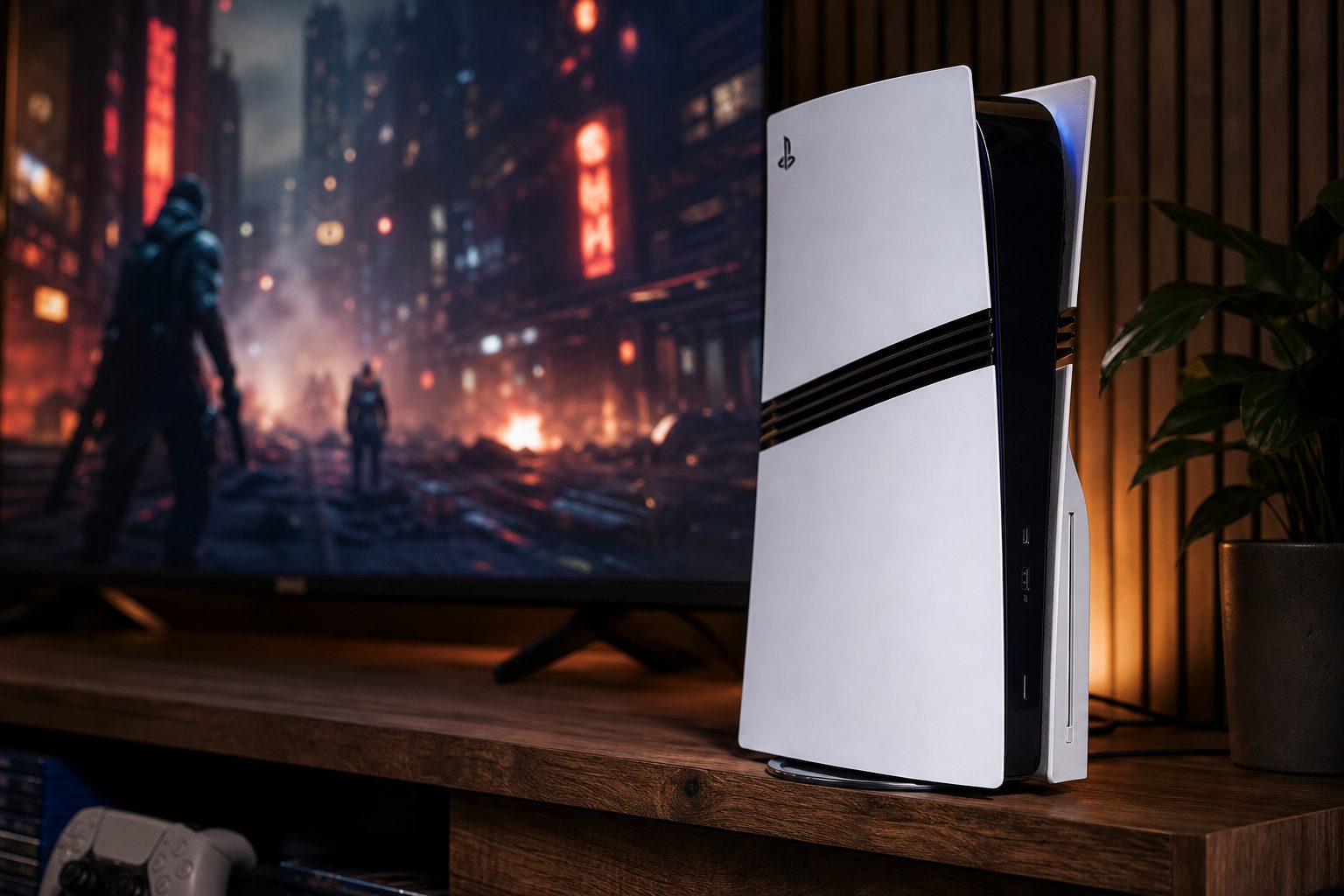
A PS5 Pro connected directly to a 4K television: direct, simple connections make it far easier to isolate an HDMI handshake fault.
1. Start by working out which problem you actually have
"It will not detect my 4K TV" can mean several rather different things. The PS5 Pro may show no picture at all. It may show a picture but report 1080p rather than 2160p. Or it may reach the home screen nicely, then go black when you open a game, enable HDR, or select a 120Hz mode. Those are not the same fault, so do not throw every setting at it at once. That way lies menu archaeology.
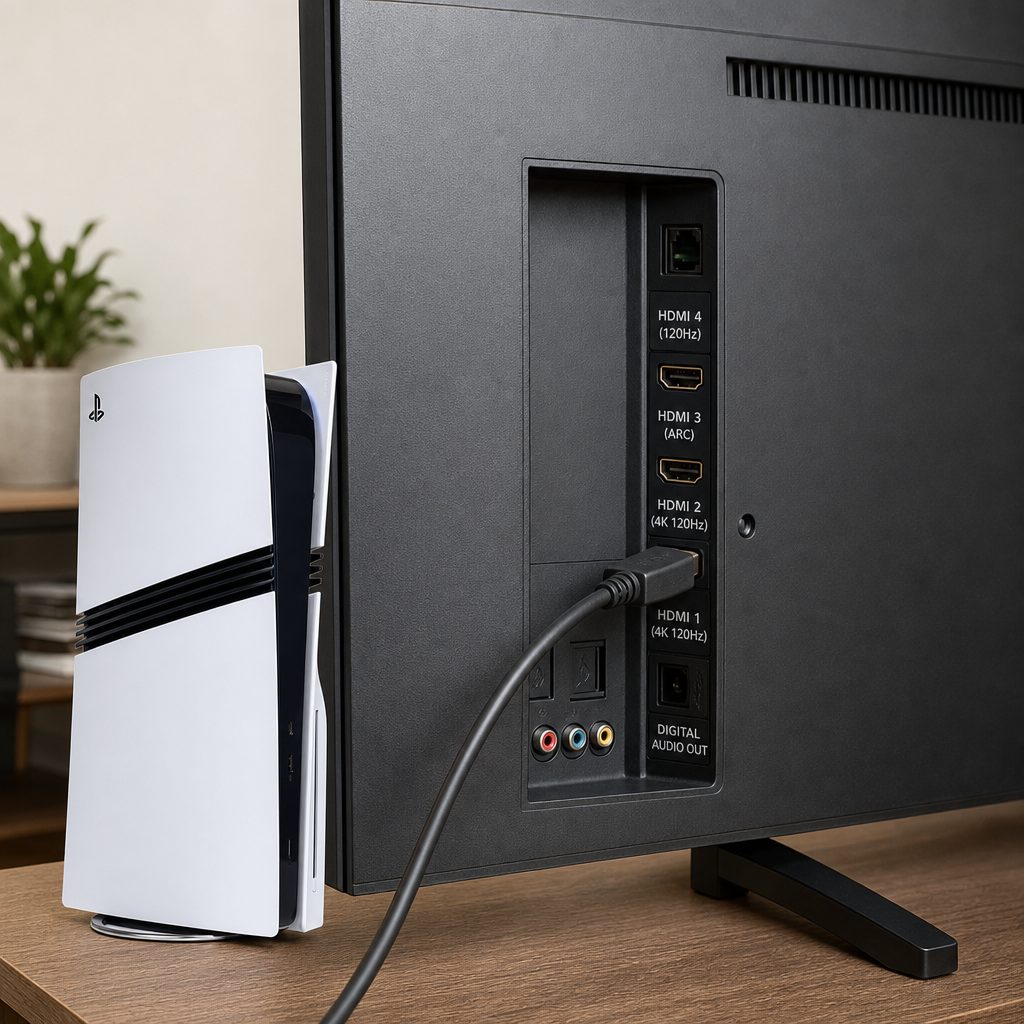
Check the exact HDMI socket on the television, not merely the cable plugged into it; 4K and high-refresh features are often limited to particular inputs.
The PS5 Pro supports HDMI 2.1, 4K output at up to 120 frames per second and Variable Refresh Rate. It also supports HDR and can output up to 8K where the display chain allows it. That flexibility is excellent when everything agrees. When a cable, port, soundbar or television menu does not agree, the console and screen can fail their little digital introduction.
The reassuring bit: if you can see the PS5 Pro home screen, the console has already established some form of HDMI connection. You are usually dealing with a capability or setting mismatch, not a completely dead console.
2. Check the television input before touching the PS5 Pro
Begin at the television end. Modern 4K sets can have several HDMI sockets, but they are not always equal. One may be intended for a sound system's eARC connection, another may provide the set's fullest gaming features, and others may be more limited. Look at the labels beside the sockets and the TV manual or on-screen help. If your TV has a port marked for 4K, 120Hz, gaming, enhanced signal, or similar wording, use that one first.
Then make sure the television is actually set to that input. It sounds almost offensively obvious, but televisions are fond of remembering the last source and occasionally deciding that your console, receiver and streaming stick should all share the same afternoon. Select the input manually with the TV remote rather than relying on automatic switching.
Finally, open the television's external-input or HDMI settings. Many sets have a per-port option that must be switched from a compatibility mode to an enhanced, deep-colour, high-bandwidth or gaming mode. The wording varies wildly between brands, which is helpful in the same way a map written in riddles is helpful. The aim is the same: tell the television that this port is allowed to accept a higher-bandwidth 4K signal.
3. Strip the HDMI chain back to one direct connection
For diagnosis, connect the PS5 Pro straight to the TV with one HDMI cable. Remove an AV receiver, soundbar pass-through, HDMI switch, capture device, splitter and any wall-plate extension temporarily. They can all work perfectly in a finished setup, but each adds another device that must understand the resolution, HDR format, refresh rate and copy-protection handshake.
This is the quickest meaningful test in the whole guide. If the PS5 Pro displays correctly when connected directly, neither the console nor the television is your main suspect. The issue sits in the removed equipment, its settings, its cable run, or the order in which the devices are being powered on.
Use one known-good cable
Swap in the cable supplied with the console or another cable that has worked reliably with a 4K device. Bent ends, loose plugs and old cables are remarkably good at pretending to be software bugs.
Try another TV socket
A single damaged or limited HDMI input can produce a very convincing "PS5 Pro problem". Move the cable and select the matching input on the television.
Restart the whole chain
Turn the television and console fully off, unplug them briefly, then reconnect. HDMI handshakes are stored in memory more often than people expect.
Add audio gear later
Once direct 4K works, reconnect a receiver or soundbar and test again. You have then narrowed the fault without guesswork.
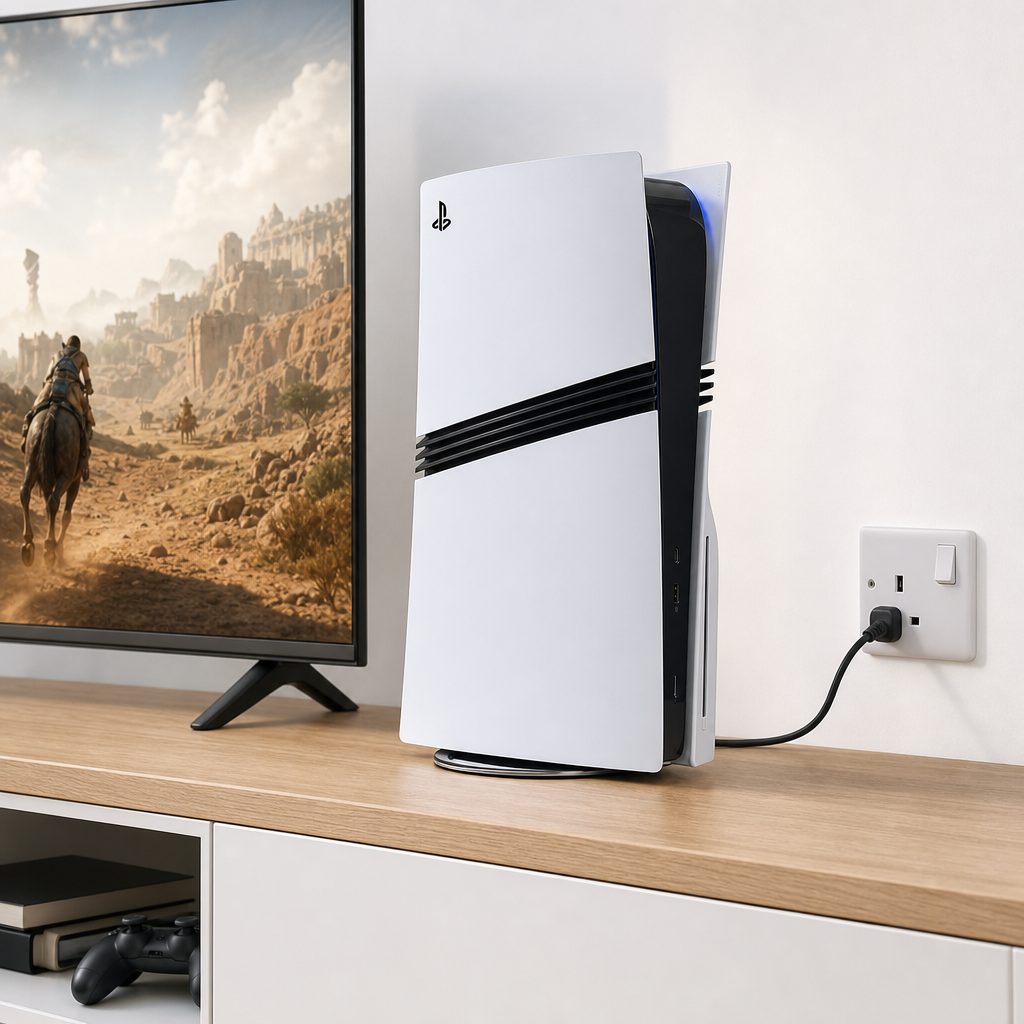
A direct console-to-TV test removes receivers, switches and soundbars from the equation before you begin changing picture settings.
4. Do a proper HDMI handshake reset
HDMI devices exchange information about what they can handle. Your TV tells the PS5 Pro its available resolutions, refresh rates and HDR capabilities; the console chooses an output mode. If either device woke at an awkward moment, the information can be incomplete or stale. It is fussy technology, but thankfully the fix is wonderfully low-tech.
- Turn off the PS5 Pro completely rather than leaving it in Rest Mode.
- Turn off the TV and unplug both TV and console from mains power.
- Disconnect the HDMI cable at both ends.
- Wait a minute, then reconnect the HDMI cable firmly.
- Power on the TV first and select the correct HDMI input.
- Turn on the PS5 Pro once the television has fully started.
If that produces a picture, leave the system in that simple arrangement for a few minutes before enabling advanced features. It is tempting to race immediately to 4K120, HDR, VRR and every visual flourish available. Resist for a moment. One successful mode at a time gives you useful evidence.
The useful clue
If picture returns only after the TV is switched on before the PS5 Pro, you have found a handshake timing issue. It is annoying, but it does not by itself indicate that either device needs replacing.
5. Use Safe Mode if the PS5 Pro screen stays black
When the TV shows absolutely nothing after the basic checks, use Safe Mode to force a more conservative video output. Safe Mode is designed for exactly this sort of recovery job. You will need the controller connected to the console with a USB cable.
With the console fully off, press and hold the power button. Keep holding until you hear the second beep, then connect the controller and follow the Safe Mode instructions on screen. The relevant option resets video output, allowing the PS5 Pro to start with a display signal the television is more likely to accept. Once you have a stable image, return to the normal settings menu and build back up gradually.
This is also a sensible route if you changed an output setting and the TV immediately lost signal. Do not panic, and do not keep restarting the console ten times in a row. Safe Mode exists because screens and consoles occasionally have a disagreement that requires an adult in the room. You are the adult now. My condolences.
6. Set resolution, HDR and VRR in a sensible order
Once you can see the dashboard, go to Settings > Screen and Video. Start with resolution set to Automatic. If the TV still identifies the console as 1080p, select 2160p manually and watch the screen closely. If it goes black or the TV reports an unsupported format, return to Automatic or reset video output through Safe Mode.
Next, deal with HDR. Leave HDR on Automatic initially. HDR is not simply "more colourful"; it requires both the TV and game to agree on the signal. A washed-out, grey or oddly dim image can sometimes be an HDR configuration issue rather than a failure to detect 4K. Follow the console's HDR calibration screens with the TV in its normal game or cinema picture preset, not an eye-searing shop-floor mode.
Only after 4K and HDR are stable should you enable VRR. VRR synchronises the display refresh rate with the console's output and can make supported games look smoother. Yet it can be the setting that exposes a shaky cable, a limited HDMI port or a device in the middle that cannot pass the required signal. If the screen blanks only after enabling VRR, turn it off, confirm basic 4K works, then revisit your television's gaming-input settings.
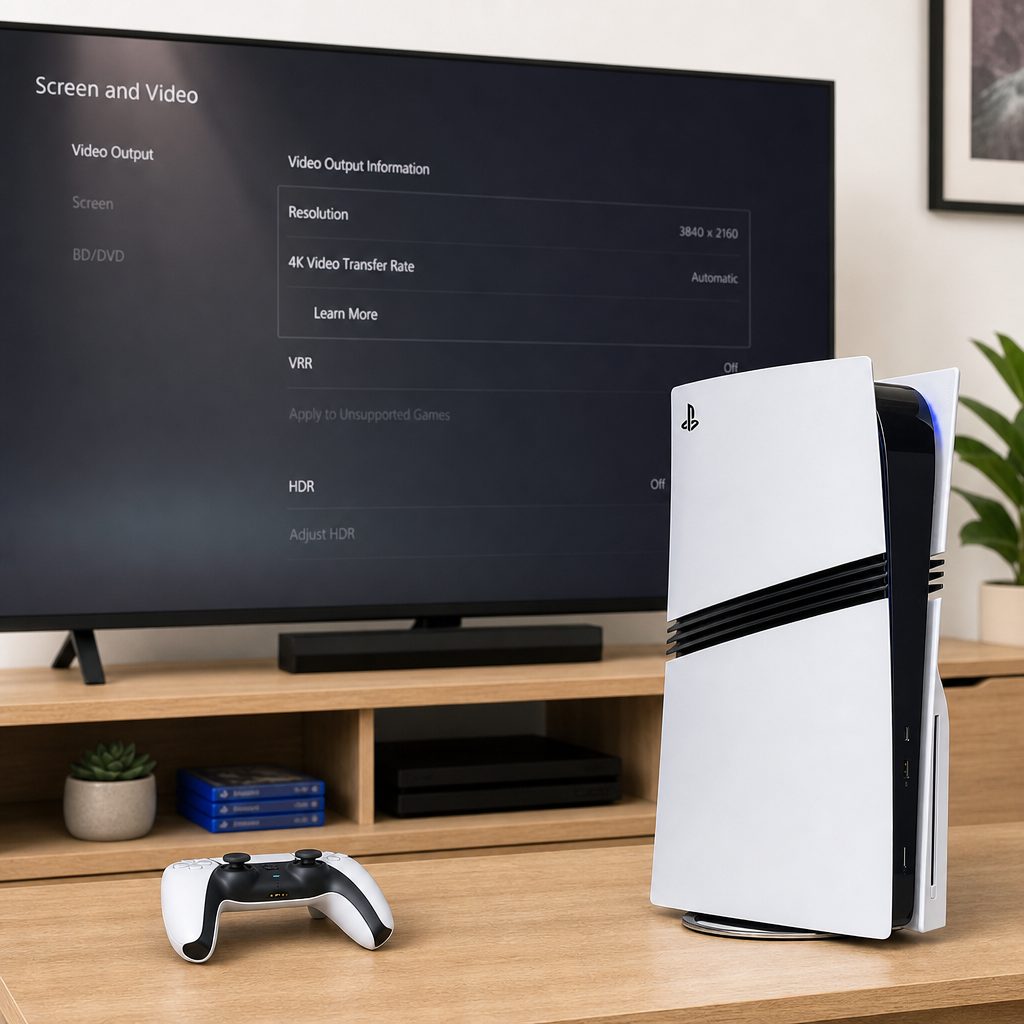
The PS5 Pro Screen and Video menu is where a stable 4K baseline should be established before HDR and Variable Refresh Rate are added back in.
7. Treat 4K120 as a separate test, not the starting point
A 4K TV can be a perfectly good 4K TV whilst still being designed chiefly for 4K at 60Hz. The PS5 Pro can output 4K at up to 120fps, but that does not mean every 4K television, every HDMI port, every game, or every device in between will offer it. Think of 4K60 as the foundation. Think of 4K120 as the loft conversion.
Get a stable 2160p image first. Then test a game that offers a 120Hz option, with the TV's gaming or enhanced HDMI mode enabled. If the console works at 4K60 but loses signal at 120Hz, do not assume 4K itself has failed. Go back through the cable, port and intermediary-device checks specifically for that higher refresh-rate path.
Those numbers explain why the PS5 Pro may make a 4K display work harder than an older console did. It has 60 compute units compared with 36 on the original PS5, and its graphics memory bandwidth rises from 448GB/s to 576GB/s. In enhanced games, the point is often to deliver a sharper image and higher frame rates without choosing quite such a brutal compromise between fidelity and performance. That is excellent news once the TV handshake is behaving itself.
8. What the PS5 Pro and original PS5 can output
It helps to separate a television fault from a console expectation. Both PS5 models support 4K up to 60Hz and HDR over HDMI 2.0 or HDMI 2.1 connections. The PS5 Pro adds a considerably stronger GPU, supports 4K at up to 120fps with or without VRR, and can support 8K gaming. The base PS5 can still look superb on a 4K television; the Pro's advantage is that enhanced titles can push image quality, ray tracing and frame rate further.
| Feature | PS5 Pro | Original PS5 |
|---|---|---|
| GPU compute units | 60 | 36 |
| Rendering performance | Up to 45% faster | Baseline |
| Graphics memory bandwidth | 576GB/s | 448GB/s |
| 4K output | Up to 120fps, with or without VRR | Up to 60Hz over HDMI 2.0 or HDMI 2.1 |
| HDR | Supported | Supported |
| Maximum stated resolution | Up to 8K | 4K output supported |
Why the Pro can be demanding
- It supports 4K at up to 120fps and VRR, giving compatible TVs more to work with.
- PSSR is designed to improve clarity in supported games at near-4K resolutions.
- Ray tracing can run at double, and sometimes triple, the speed of the original PS5.
What can cause confusion
- A 4K badge on a TV does not automatically mean every HDMI socket supports every gaming feature.
- Receivers, soundbars and switches can become the weak link in an otherwise capable setup.
- Not every game offers 120Hz, VRR, HDR or PS5 Pro enhancements.
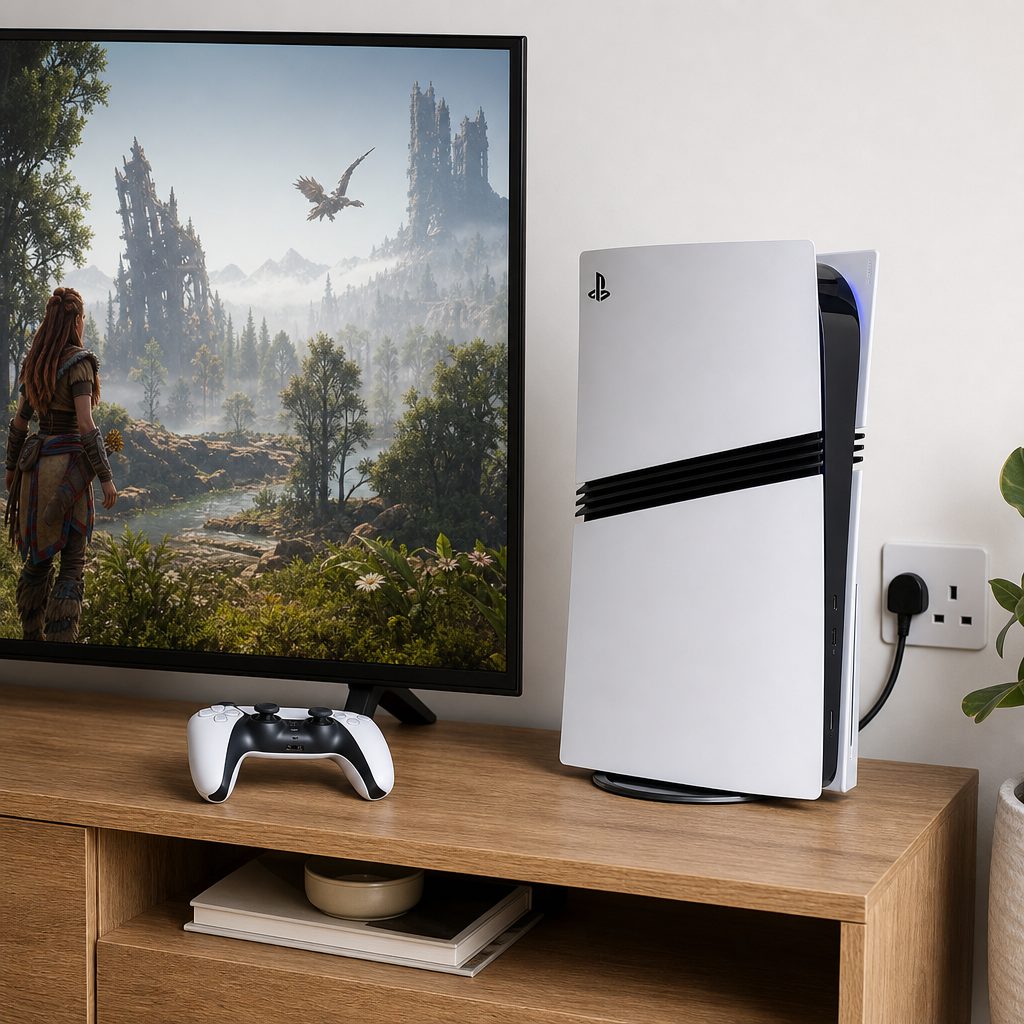
The important distinction is between a television that accepts 4K and a complete HDMI setup that can carry the particular 4K mode you have selected.
9. Reintroduce your soundbar, receiver and accessories carefully
Once the PS5 Pro is stable directly into the TV, add equipment back one item at a time. If you normally run the console through an AV receiver, connect it back and check the home screen, then HDR, then a game. Repeat the process with a soundbar or HDMI switch. Yes, it takes a little longer. It also prevents you spending Saturday afternoon blaming the wrong box.
Where a receiver or soundbar is the culprit, there are two practical options. First, review its HDMI input settings and its firmware, then use the best available input and cable arrangement. Second, keep the PS5 Pro connected directly to the TV for video and use the television's audio-return connection for sound. The best choice depends on the rest of your kit, but direct video is usually the simplest way to retain the console's full display options.
Also disable any automatic HDMI device-control feature temporarily if devices keep changing inputs, turning one another off, or waking in the wrong order. You can bring the convenience features back after the picture is stable. Convenience is lovely. Convenience that leaves you staring at "No Signal" is less lovely.
10. Update the console and television, then test one feature at a time
System software matters on both sides of the cable. Keep the PS5 Pro updated, and use your television manufacturer's normal update process as well. The PS5 Pro received a system update in March 2026 that introduced PSSR 2.0, improving image stability and fine-detail clarity in supported titles. Updates can improve compatibility as well as add headline features, so they are worth doing before declaring an HDMI mystery unsolvable.
After updating, use a calm test sequence: 4K dashboard first, then HDR, then a game, then VRR, then 120Hz where supported. Change one item, test it, and note what happens. If an issue returns at one particular stage, you have a clear direction. If everything fails randomly, return to the direct-TV connection and basic handshake reset.
Quick five-minute recovery checklist
- Select the TV's correct HDMI input manually.
- Use the TV input intended for 4K or gaming features.
- Connect the PS5 Pro directly to the TV with one reliable cable.
- Power-cycle TV and console, then start the TV before the console.
- Use PS5 Safe Mode to reset video output if no picture appears.
- Restore 4K first, then HDR, VRR and 120Hz one at a time.
11. Best setup route for each kind of PS5 Pro owner
This is not really a shopping contest; it is a matter of choosing the least troublesome connection route for the equipment you already own. Still, a quick best-for guide can stop you chasing the wrong solution.
Best for most homes: direct PS5 Pro-to-TV
Use this as the baseline and, if you do not need extra HDMI switching, keep it. It is the cleanest route to stable 4K, HDR, VRR and higher refresh rates.
Best for 4K120 gaming: the TV's gaming input
Choose the television port that specifically supports its enhanced gaming features, then enable its relevant high-bandwidth setting before turning on 120Hz or VRR.
Best for surround sound: direct video plus TV audio return
If receiver pass-through causes black screens, let the TV handle video directly and route audio separately through its supported return connection.
Best for persistent faults: Safe Mode reset
When the console has no picture after a setting change, reset video output rather than blindly swapping every item in the room.
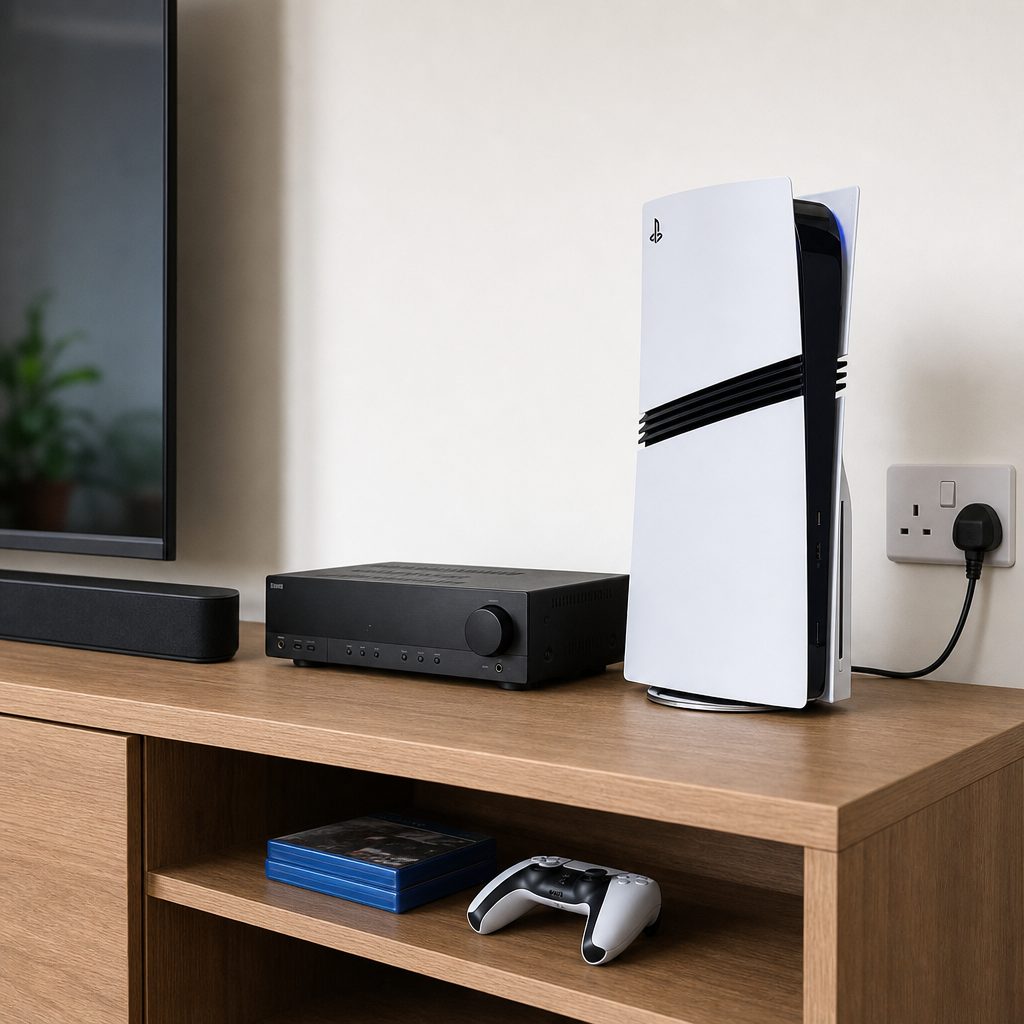
Once the direct setup is stable, add a receiver or soundbar back into the system one piece at a time to identify the exact point where the signal fails.
12. When the problem may need professional support
If the PS5 Pro fails to display on several different televisions with several different HDMI cables, including after a Safe Mode video reset, that is no longer a typical one-TV handshake problem. Equally, if another known-working 4K device cannot display through the same TV input, focus on the television and its support options.
Take notes before contacting support: the TV model, exact HDMI input used, whether the PS5 Pro works on another screen, whether the issue appears at startup or only in a game, and whether direct connection changes the result. Those details turn "my screen is blank" into something a support agent can act on. You should not have to become an HDMI detective, but a good case file speeds things up.
Frequently asked questions
The basic HDMI connection is functioning, but the TV, selected port, cable or another device in the chain is not accepting the 4K mode. Use a direct connection, enable the TV's enhanced input setting, and set resolution to Automatic before trying 2160p again.
No. A 4K TV can work very well with PS5 Pro. However, 4K at up to 120fps and VRR depend on the particular television and its HDMI input capabilities. A stable 4K60 HDR experience is still a strong result.
The game may be switching to HDR, VRR or a different refresh rate. Confirm that the dashboard remains stable at 4K, then enable or disable those features one by one to find the setting that triggers the loss of signal.
Yes. A soundbar, receiver, switch or capture device can interrupt or limit the HDMI handshake. Connect the PS5 Pro directly to the television as a test. If that fixes the picture, reintroduce the sound equipment after you have checked its HDMI settings.
Start with HDR set to Automatic. That lets the PS5 Pro use HDR where it is appropriate without forcing it unnecessarily. Calibrate HDR only after you have a reliable 4K signal.
It lets the PS5 Pro restart using a more compatible display signal, which is useful after an unsupported output setting has left you with a black screen. It is the sensible recovery step before assuming hardware has failed.
No. The console supports 4K output at up to 120fps, but individual games decide which modes they offer. Some prioritise higher frame rates, some visual detail, and some use PS5 Pro enhancements to improve the balance between the two.
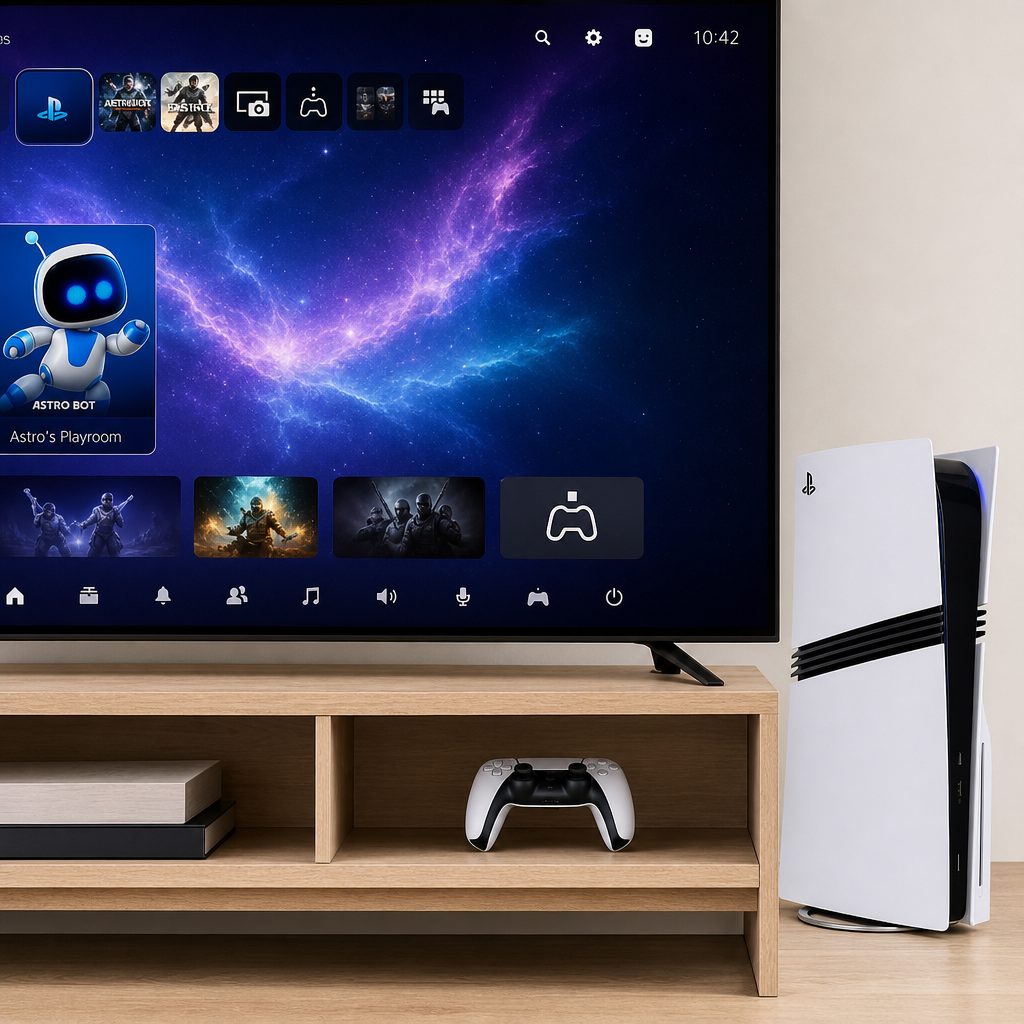
A successful 4K home screen is the foundation; add HDR, VRR and 120Hz gradually rather than changing every display option in one go.
Bottom line
If your PS5 Pro will not detect your 4K TV properly, start simple: connect it directly to the correct TV input, reset the HDMI handshake, and establish a stable 4K picture before introducing HDR, VRR, 120Hz or audio hardware. The PS5 Pro is capable of 4K at up to 120fps, HDR and VRR, but every part of the HDMI chain has to agree. Usually, one cable, one port or one overly enthusiastic setting is the troublemaker. Find that, and the rest tends to fall neatly into place.