PS5 Pro Won't Output 4K 120Hz? How to Fix HDMI and Display Problems
Your PS5 Pro has the muscle for 4K at 120Hz, but the console, cable, television, receiver and game all have to agree on the same plan. Here is the calm, methodical way to find the weak link — without buying three cables and shouting at the remote.
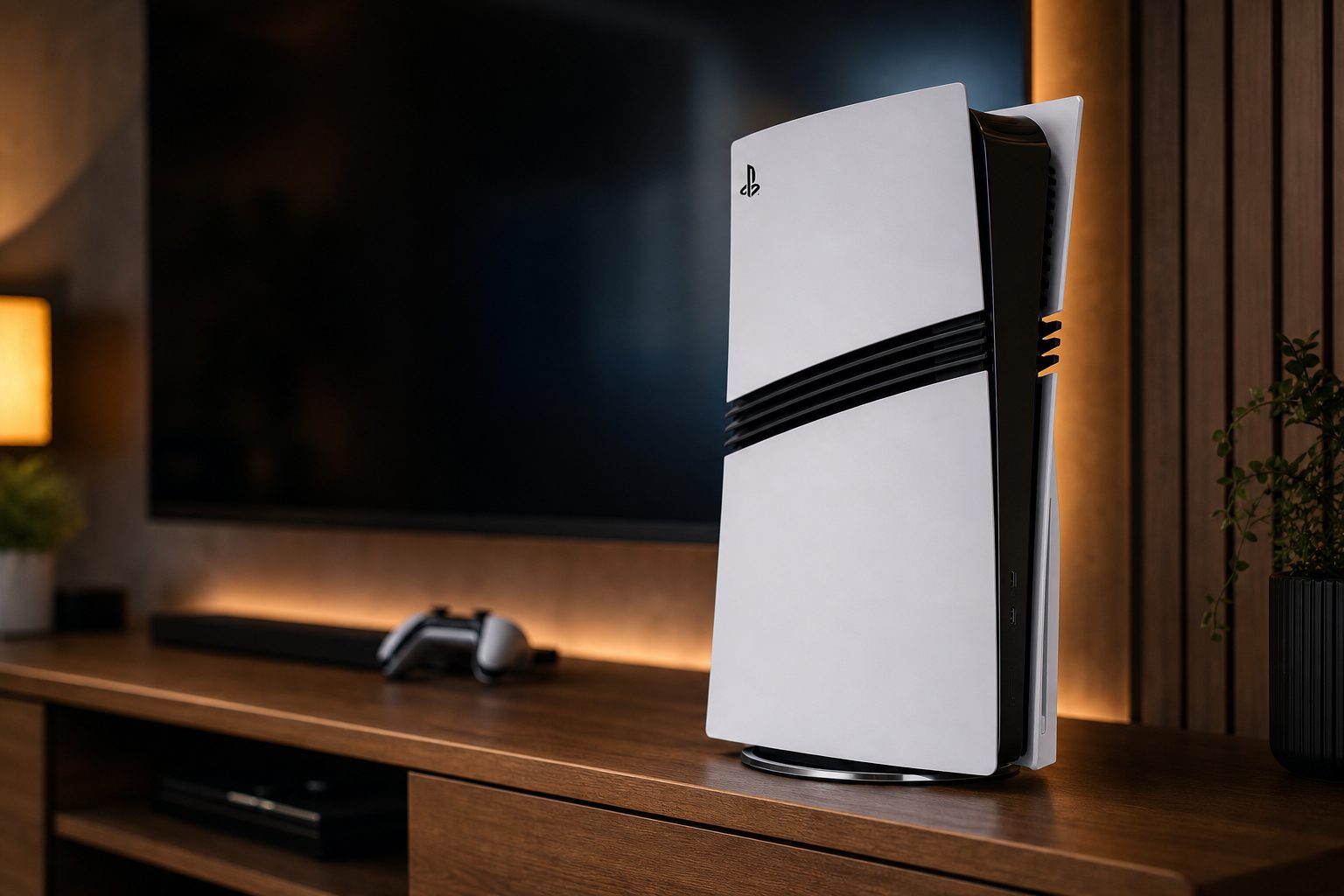
A PS5 Pro connected directly to a display's full-bandwidth HDMI input is the cleanest starting point for diagnosing a missing 4K 120Hz option.
1. First, establish what "4K 120Hz" actually means
There is an important little trap in this problem: 4K output, 120Hz output and a game running at 120 frames per second are related, but they are not the same thing. A PS5 Pro can send a 4K 120Hz signal to a compatible screen through HDMI 2.1. That does not force every game to render at a locked 120fps, and it does not make every game offer a 120fps mode. Some games run nearer 60fps, some use dynamic resolution, and some use a 120Hz display mode to present a smoother 40fps option. Three lots of 40 fit neatly into 120, which is less glamorous than a giant "120FPS" badge but can look genuinely lovely.
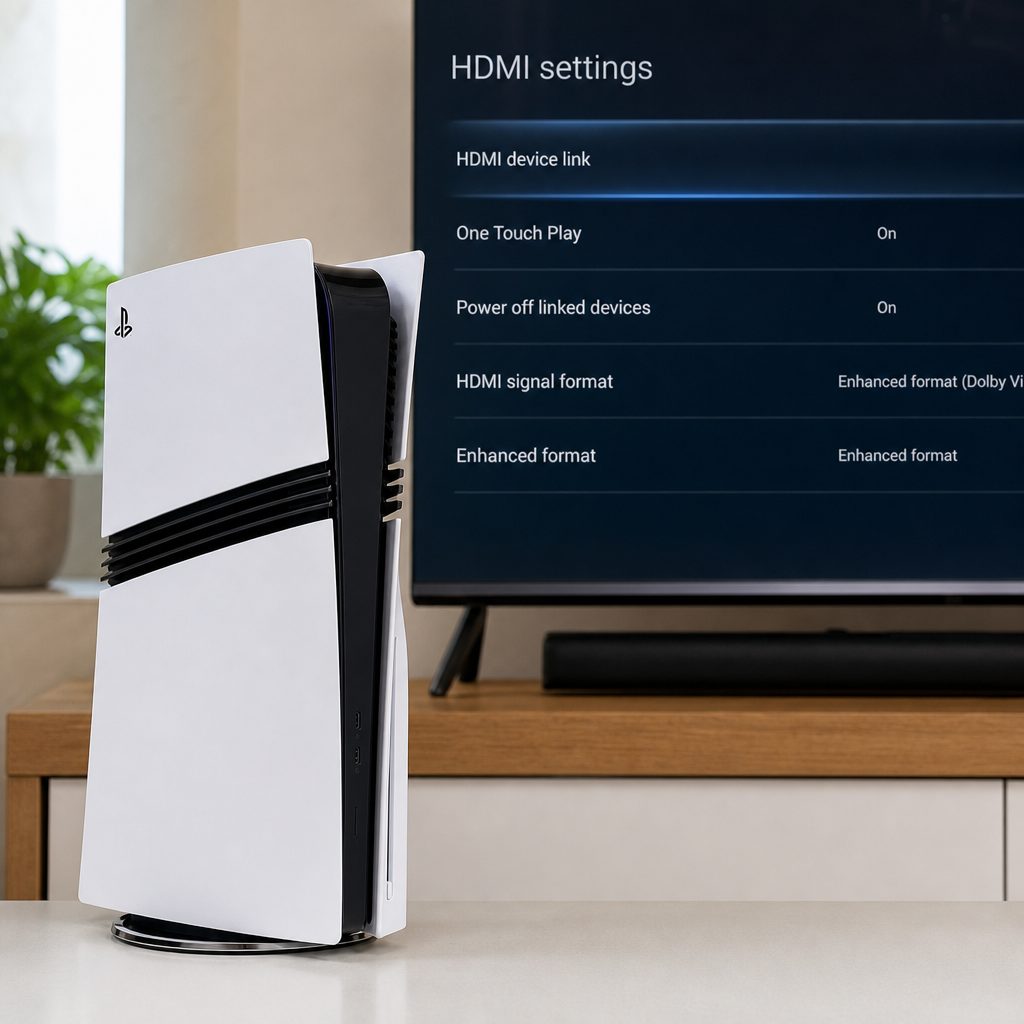
Television menus often require high-bandwidth HDMI mode to be enabled on each input separately, even when the panel itself supports 120Hz gaming.
The PS5 Pro, released on 7 November 2024, was built with HDMI 2.1 support, variable refresh rate support and far more graphics headroom than the original PS5. Sony stated that its GPU had 67% more compute units and 28% faster memory, helping to produce up to 45% faster rendering. It also used PSSR upscaling and enhanced ray tracing. All useful things. None of them can persuade an HDMI 2.0 television input to carry 4K at 120Hz, unfortunately.
So begin with the right expectation. If the PS5 Pro's video-information page reports 4K 120Hz, the HDMI side is working even if a particular game is displaying 60fps. If it only reports 4K 60Hz, or refuses 4K altogether, then you have a handshake, bandwidth or settings problem to solve. The good news is that most of these are ordinary setup issues rather than a faulty console.
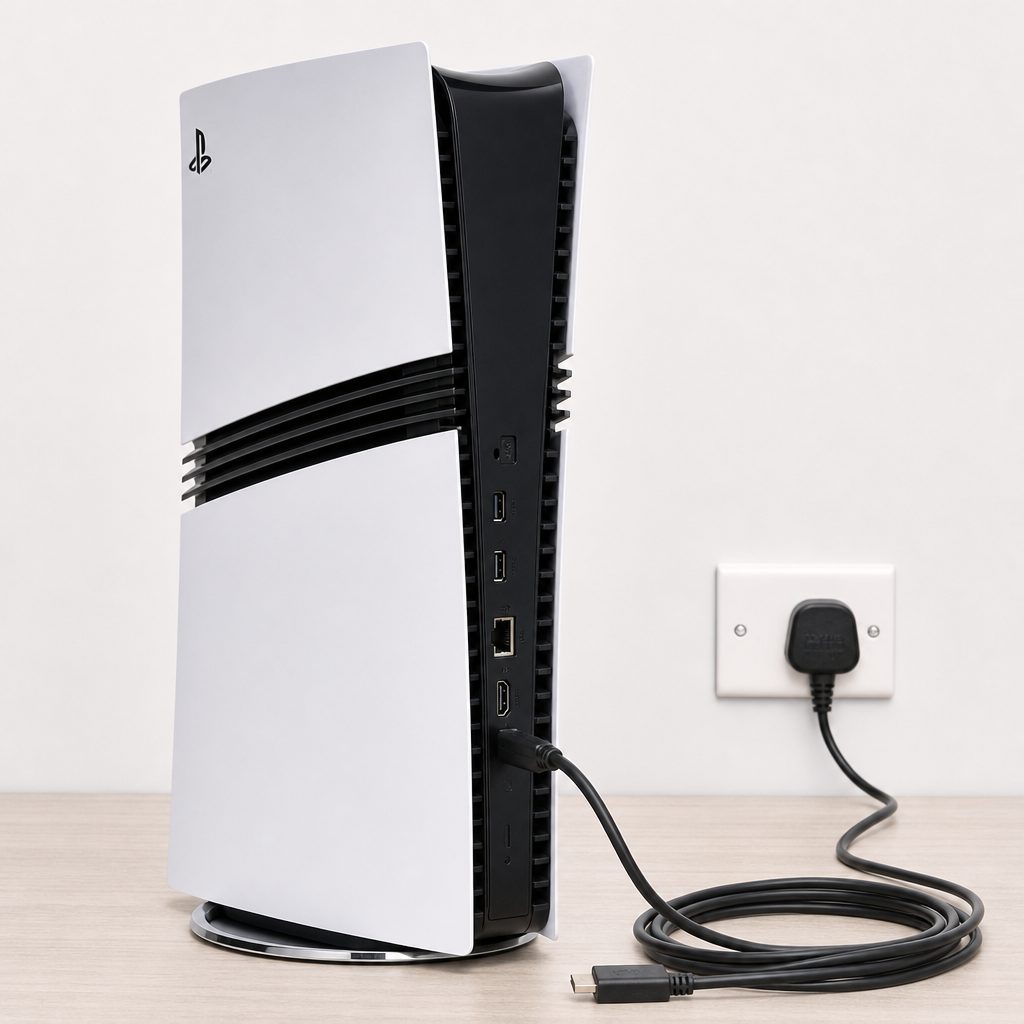
The supplied PS5 Pro lead was an Ultra High Speed HDMI cable, so keep it in the test chain before assuming a replacement is needed.
2. Check the whole HDMI chain, not just the television
Think of the route from console to panel as a relay race. The PS5 Pro can be capable, and the television can be capable, yet one baton drop in the middle still ruins the result. The usual culprits are an older AV receiver, a soundbar HDMI pass-through port, an HDMI switch, a capture card, a wall plate, or simply the wrong HDMI socket on the television.
For the first test, make life deliberately boring: connect the PS5 Pro directly to the television or monitor. Disconnect the receiver, soundbar, switch and capture kit completely. Use the cable supplied with the console. Turn the TV and console fully off, then turn on the television first and the PS5 Pro second. This gives the devices a clean chance to identify each other's supported formats.
Do not judge a port by its position. Many televisions have four HDMI sockets but only one or two are full-bandwidth HDMI 2.1 inputs. The label may say "4K 120", "120Hz", "Gaming", "eARC" or "HDMI 1/2", depending on the set. Read the manual or the labels beside the ports rather than assuming HDMI 4 is the fancy one.
If 4K 120Hz appears when connected directly but disappears after reconnecting the soundbar or receiver, you have found the issue. That intermediary must itself support the required signal all the way through. eARC is often misunderstood here. eARC concerns sending audio from the TV back to a sound system; it does not magically make a receiver's video pass-through HDMI 2.1-capable. The simple and often best arrangement is PS5 Pro to the TV, then TV to soundbar through eARC for audio.
3. Put the PS5 Pro on the correct video settings
Shop Put the PS5 Pro on the correct video settings on Amazon UK
On the console, go to Settings > Screen and Video > Video Output. This is where the PS5 Pro tells you what it thinks the display can do. Before changing everything at once, look at Current Video Output Signal. That screen is remarkably useful because it turns vague frustration into a specific fact: perhaps the console sees 4K but only 60Hz, perhaps it sees 1440p at 120Hz, or perhaps it has fallen back to 1080p.
Set 120Hz Output to Automatic. This lets the PS5 Pro switch to 120Hz when both the game and display permit it. If it is off, the console will not use the mode even with perfect hardware. Also leave resolution on Automatic during diagnosis. Manually forcing a resolution before you know what the display is advertising can make the picture vanish, which is dramatic but not especially helpful.
- Open Settings, then Screen and Video.
- Choose Video Output.
- Set 120Hz Output to Automatic.
- Check VRR and leave it on Automatic if your display supports it.
- Open Current Video Output Signal and note the resolution and refresh rate.
- Launch a game known to offer a 120Hz mode, then check again.
It is worth doing that final check while the game is actually running. Console menus, streaming apps and individual games do not necessarily request the same output mode. A television's information banner may show 60Hz in the dashboard, then 120Hz once the game starts. That is normal rather than evidence of a conspiracy between Sony and your telly.
The setting people miss
"Automatic" does not mean "always 120Hz". It means the PS5 Pro is allowed to use 120Hz when the display and game ask for it. You still need a game mode or in-game 120Hz option where the developer provides one.
4. Enable the television's HDMI 2.1 or Enhanced Format mode
Shop Enable the television's HDMI 2.1 or Enhanced Format mode on Amazon UK
Even a television with the right physical port may arrive with its high-bandwidth mode disabled. Manufacturers hide this behind different names: Enhanced Format, HDMI Deep Colour, Input Signal Plus, 4K Signal Format, UHD Colour, Game Mode Plus, or something equally cheerful that sounds as though it belongs in an aircraft cockpit. The principle is the same: enable the expanded signal mode for the exact HDMI input used by the PS5 Pro.
Use the TV's settings menu, find external inputs or HDMI signal settings, select the port hosting the console, and enable the option that explicitly mentions enhanced bandwidth, 4K 120Hz or gaming. Then restart the PS5 Pro. Some televisions do not apply the new capability cleanly until the HDMI handshake happens again.
Correct physical input
Use a labelled 4K 120Hz or HDMI 2.1 socket, not merely any spare HDMI port.
Enhanced signal enabled
Turn on the television's high-bandwidth mode for that individual input.
Game mode selected
Game mode can reduce processing and makes it easier to see which gaming features are active.
Audio routed separately
Use eARC from television to soundbar if a receiver blocks the video signal.
While you are in there, turn on Game Mode if it is available. It is not a bandwidth upgrade, so it cannot repair an HDMI 2.0 port, but it can stop picture processing from creating needless complications and may expose useful status information. A good television will show whether VRR and 120Hz are currently active. If yours says "4K 60", take that as a clue rather than a verdict: you still need to check the cable path and the game.
5. Use the supplied cable before buying a "better" one
The PS5 Pro shipped with an Ultra High Speed HDMI cable certified for the bandwidth expected from HDMI 2.1 features. In plain English, it was already the right sort of cable for 4K 120Hz and VRR. Replacing it with an expensive lead immediately is therefore rarely the clever first move. The cable in the box was not a ceremonial ribbon. Use it.
That said, cables can be damaged, crushed behind a cabinet, stretched around furniture, or undermined by a connector that has spent too long being plugged in at an angle. If the supplied cable works when laid across the floor but fails once routed through trunking, that tells you something. If it works directly into the TV but not through a wall plate or switcher, that tells you something too. HDMI problems adore adding one apparently harmless item to the route.
For a replacement test, use a short certified Ultra High Speed HDMI cable where possible. A length around 25 to 50cm is excellent for proving whether the original lead is at fault, because there is less distance and less opportunity for signal loss. You do not need a fancy-looking braided cable with a dragon printed on the packet. You need one genuinely certified for Ultra High Speed performance and free of damage.
Sensible cable checks
- Start with the included Ultra High Speed cable.
- Connect straight from PS5 Pro to the display.
- Try a short certified replacement only as a controlled test.
- Inspect plugs for looseness, dirt or bent strain relief.
Things that waste money
- Assuming a higher-priced lead fixes an HDMI 2.0 port.
- Buying an unverified cable based on marketing alone.
- Testing through an old switch and blaming the console.
- Changing cable, port and settings all at the same time.
6. Know the bandwidth limits: HDMI 2.0 versus HDMI 2.1
This is the awkward truth at the centre of many "my PS5 Pro is broken" stories: an HDMI 2.0 input can be perfectly good for 4K at 60Hz, but it does not have the bandwidth for 4K at 120Hz. It may still support 120Hz at 1080p or 1440p on a compatible monitor with the correct timings. That can be a useful option, especially if fast competitive play matters more than pixel count, but it is not the same target.
| Connection and display path | 4K output | 120Hz output | What it means for PS5 Pro |
|---|---|---|---|
| Direct HDMI 2.1 display input with Ultra High Speed cable | Supported | Supported at 4K where the display and game support it | The proper route for 4K 120Hz and PS5 VRR. |
| HDMI 2.0 display input | Supported at 60Hz | Possible at 1080p or 1440p on compatible monitors | Not enough bandwidth for 4K 120Hz. |
| Receiver, switch or capture device in the middle | Depends on its pass-through capability | Depends on its pass-through capability | One older device can reduce the whole chain to 4K 60Hz. |
The table is deliberately less exciting than a trailer full of explosions, but it will save you time. If your screen has no HDMI 2.1 input, no console setting can create one. In that case, choose the best mode your display actually supports: perhaps 4K 60Hz for image quality, or 1440p/1080p at 120Hz if the monitor supports it and you prefer responsiveness. That is not "wasting" the PS5 Pro. It is using the most sensible mode for the screen in front of you.
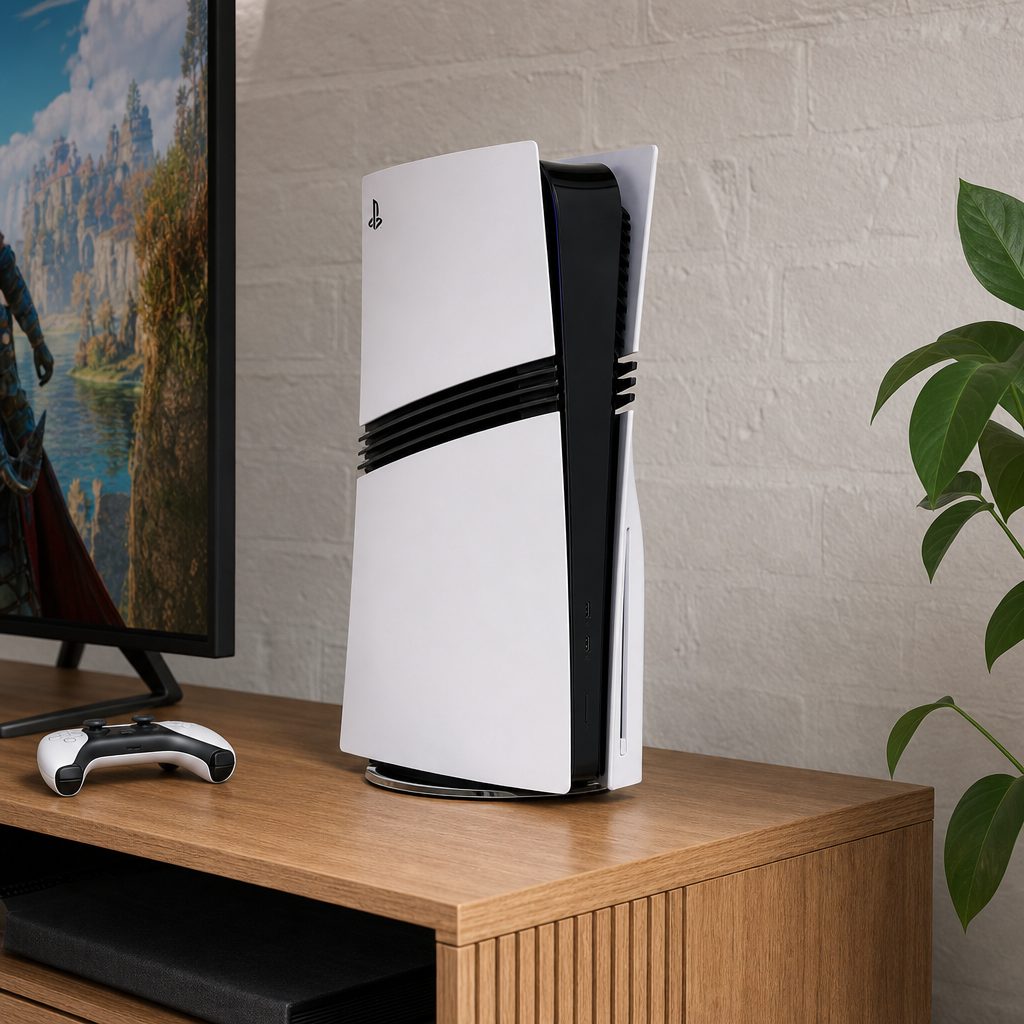
An HDMI 2.0 display can still be excellent for 4K 60Hz or lower-resolution 120Hz play, but it cannot carry 4K at 120Hz from the PS5 Pro.
7. Confirm that the game is asking for 120Hz
Once the signal chain is healthy, the game becomes the next suspect. A 120Hz-capable display does not make every title a 120fps title. Developers decide whether to include 120Hz support, and they often place it behind a Performance setting, a 120Hz option, or a choice between graphical detail and frame rate. PS5 Pro Enhanced status also does not automatically mean a game has a native 120fps mode.
Some titles on PS5 Pro used dynamic resolution and unlocked frame rates, often averaging around 80–90fps in Performance mode. That can be a substantial improvement over 60fps, even though it is not a locked 120fps. Other games use the display's 120Hz mode to offer 40fps Fidelity gameplay. If you are seeing a cleaner 40fps mode, that is a valid benefit of a 120Hz screen rather than an error.
Open the game's graphics or display menu and read each option rather than guessing from its name. "Performance" commonly prioritises higher frame rates, but it may be 60fps, an unlocked range, or 120fps depending on the game. "Fidelity" usually prioritises resolution and visual effects, but in some games it can gain a 40fps option at 120Hz. The wording varies enough that there is no universal button sequence. That is irritating, yes. It is also why checking the in-game menu matters.
8. Test VRR, HDR and 8K one at a time
Shop Test VRR, HDR and 8K one at a time on Amazon UK
VRR synchronises the display refresh rate with the console's output, reducing tearing and smoothing fluctuating frame rates. It is one of the genuinely useful HDMI 2.1 features on PS5 Pro, particularly in games with unlocked performance. But when you are troubleshooting, more features mean more variables. First get a stable 4K 120Hz signal. Then enable VRR and confirm it remains stable. Then test HDR. Do not flip every option at once and hope for a miracle; that is how you end up not knowing which setting helped.
The PS5 Pro also supported 8K output at 60Hz in Gran Turismo 7 and F1 24, with a compatible display using Display Stream Compression. That is an entirely different target from 4K 120Hz. If you have manually selected 8K, or a display reports unusual 8K behaviour, return the console to Automatic resolution while diagnosing 4K 120Hz. A 4K 120Hz television does not need an 8K detour to do its job.
Change one thing, then test. Start with direct connection and 120Hz Output set to Automatic. Add VRR after that works. Add your receiver or soundbar only after that works. The method is slower for five minutes and much faster than guessing for two hours.
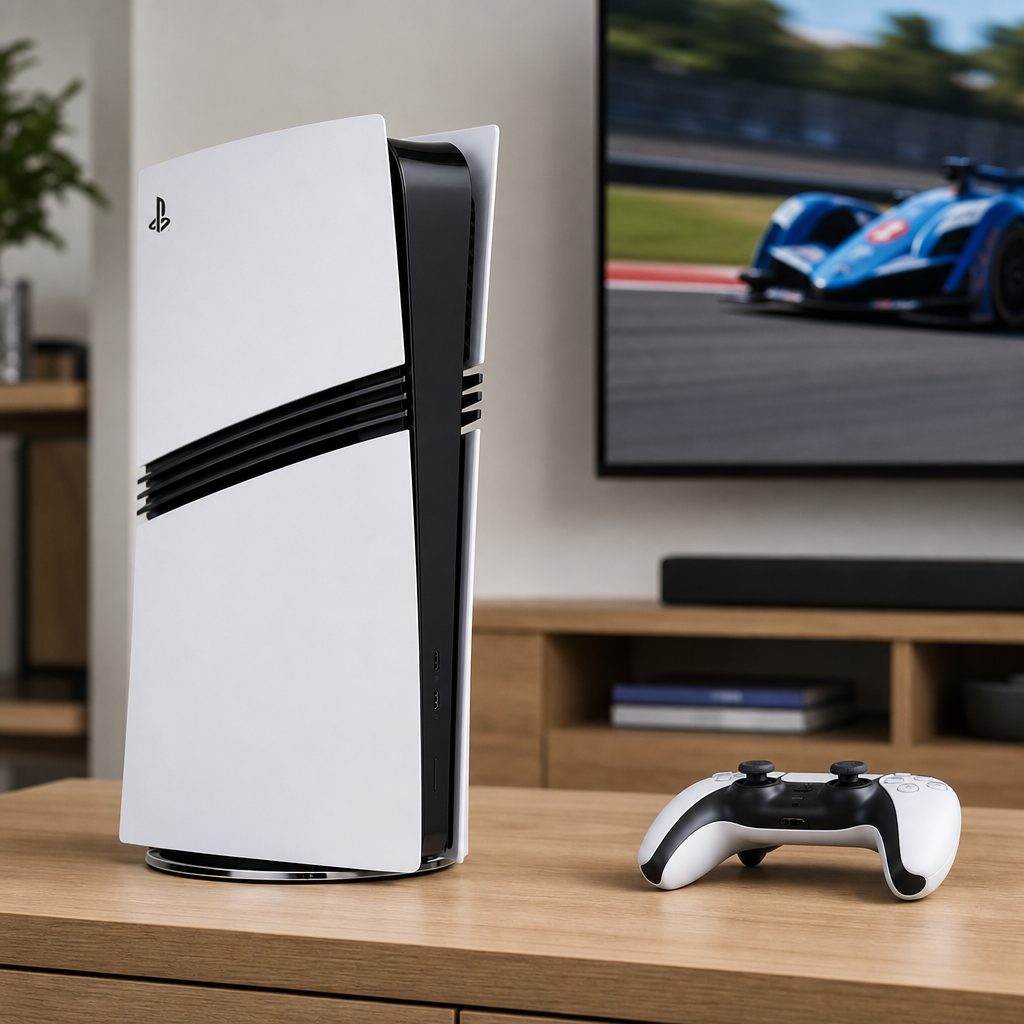
VRR can make fluctuating performance look smoother, but it should be enabled after a stable 4K 120Hz handshake has been confirmed.
9. Recover safely if the screen goes black
A black screen after changing output settings feels alarming, but it usually means the display rejected the selected signal. It does not necessarily mean the PS5 Pro has failed. First, wait a moment: HDMI renegotiation can take several seconds. If nothing returns, turn off the display and console, reseat both ends of the cable, then power the television on before the console.
If the picture still will not return, try a different HDMI input known to work, or connect temporarily to another television or monitor. The aim is not to "fix it" with the second screen; it is to regain a picture so that you can return Video Output settings to Automatic. Avoid repeatedly forcing a mode that the first display cannot accept. Consoles are very patient. HDMI handshakes are not.
Also inspect the obvious physical details. A plug that feels loose, a port covered by a bulky wall-mounted cable, or a console that has been moved recently can all be relevant. Unplugging and reconnecting firmly is not glamorous troubleshooting, but it has solved a remarkable number of living-room mysteries. We have all spent ten minutes in menus only to discover the cable was not quite home. It happens.
10. A practical order of tests that isolates the fault
If you have reached this point and still do not have 4K 120Hz, work through the following sequence exactly. It is designed to identify whether the limiting factor is the console setting, cable, display port, display menu or an intermediary device. Resist the urge to skip ahead. The point is to change only one variable at a time.
- Use the supplied cable and connect PS5 Pro directly to the TV or monitor.
- Move to a confirmed HDMI 2.1 input, not simply another socket.
- Enable the television's Enhanced/4K 120Hz HDMI setting for that port.
- Restart both devices, TV first and PS5 Pro second.
- On PS5 Pro, set 120Hz Output to Automatic and resolution to Automatic.
- Check Current Video Output Signal.
- Launch a game with a documented 120Hz or 40fps-at-120Hz mode and set its appropriate performance option.
- Only now enable or verify VRR.
- Reconnect the soundbar, receiver, switch or capture device one at a time.
- If the issue returns after adding one item, route around it or use its compatible input path.
Best for competitive players
Prioritise a direct HDMI 2.1 connection, 120Hz Output on Automatic and the game's Performance setting. Lower-resolution 120Hz can still be worthwhile on HDMI 2.0 monitors.
Best for living-room setups
Connect PS5 Pro straight to the TV, then use eARC to feed audio to the soundbar. It avoids an older receiver becoming the unexpected bottleneck.
Best for picture-quality fans
Use a game's 40fps Fidelity option when available on a 120Hz display. It can be a very satisfying middle ground between detail and smoothness.
Best for fault-finders
Keep the supplied lead in place and simplify the chain first. Direct-to-screen testing reveals more than buying accessories at random.
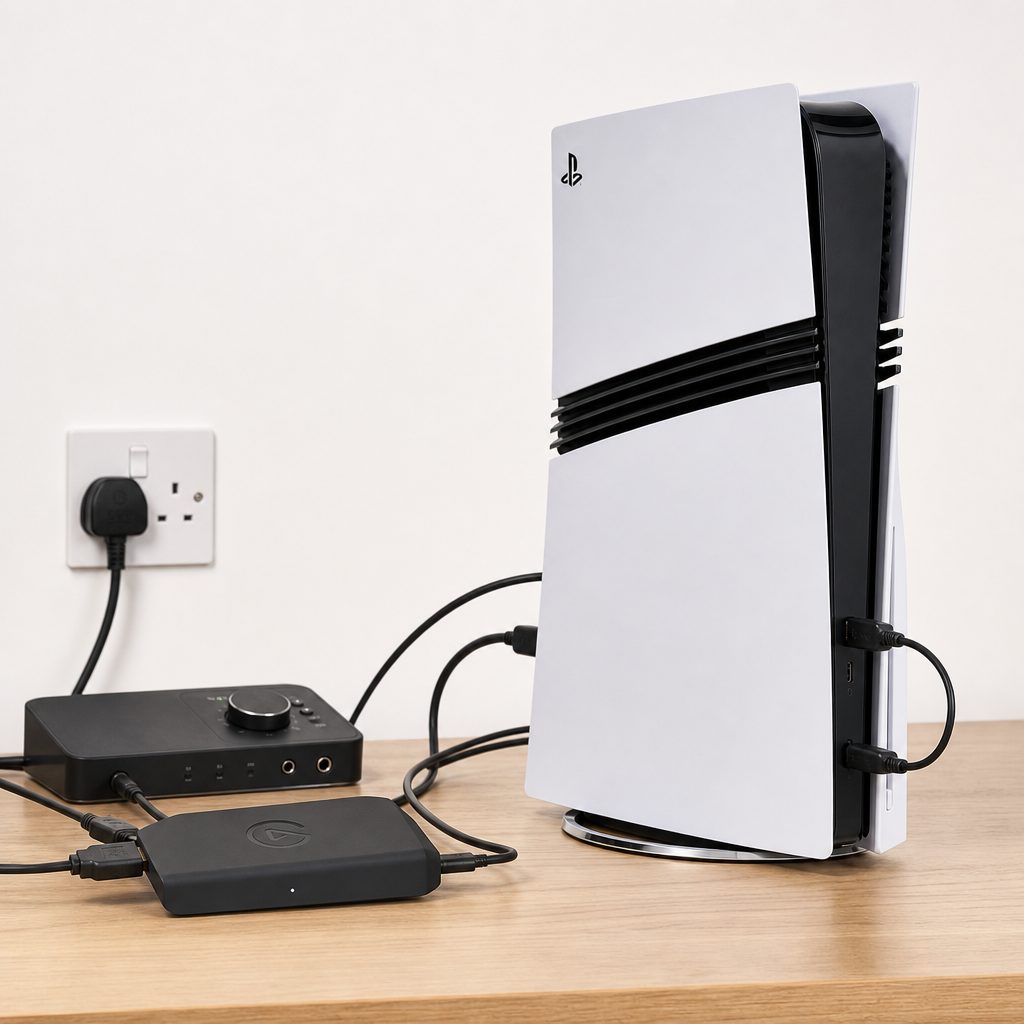
A direct connection first, then carefully adding audio and capture equipment back into the chain, is the fastest way to expose a bandwidth bottleneck.
11. When the display, rather than the PS5 Pro, is the limit
There comes a point where troubleshooting turns into accepting the display's specification. If the TV has HDMI 2.0 inputs only, it will not receive 4K 120Hz. If its HDMI 2.1 ports are already occupied, you may need to reorganise your connections. If its manual limits 4K 120Hz to selected ports, use those ports. And if it supports 120Hz only at 1080p or 1440p, that is the practical mode available to you.
Do not be too hard on an older 4K television here. 4K 60Hz remains a strong match for a great many games, and PS5 Pro's extra rendering performance, PSSR and enhanced ray tracing can still improve the experience in supported titles. A screen does not become rubbish because it cannot do the newest headline mode. It simply has a ceiling, as every piece of kit does.
Likewise, do not assume "120Hz panel" means "4K 120Hz over HDMI". Some televisions advertise a 120Hz panel but offer different input capabilities. Some monitors have high refresh rates through DisplayPort but not equivalent HDMI bandwidth. For PS5 Pro, the relevant question is very specific: can this exact HDMI input accept 4K at 120Hz from a console? If the answer is not clearly yes, check the manual before replacing perfectly good hardware.
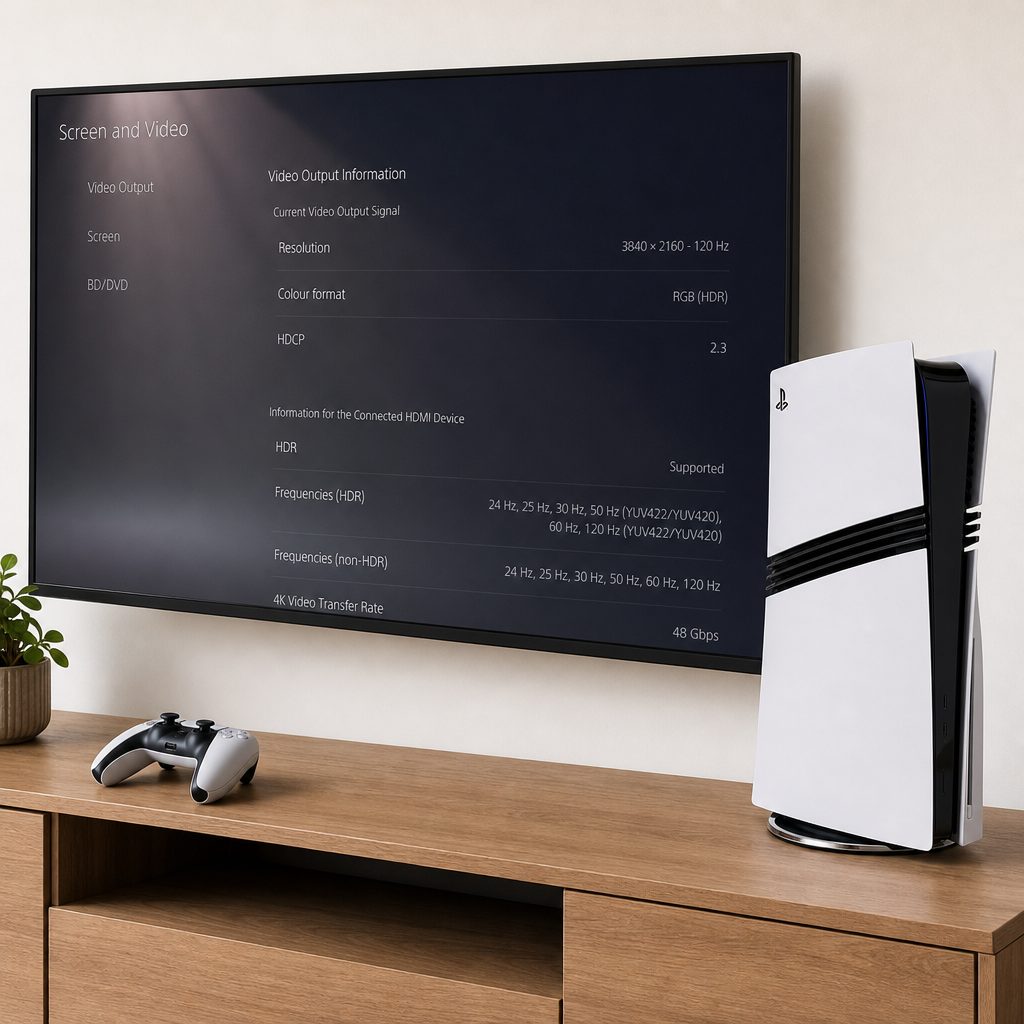
The final check is the console's Current Video Output Signal screen: it shows the format the PS5 Pro and display have actually agreed to use.
Frequently asked questions
No. The console can output 4K at 120Hz on a compatible HDMI 2.1 display, but games need their own 120Hz support and may use dynamic resolution, unlocked frame rates, 60fps modes or 40fps modes. Output refresh rate and rendered frame rate are not identical.
Check while a compatible game is running, not only in the PS5 dashboard. Then confirm you are using a full-bandwidth HDMI 2.1 input, that its Enhanced Format equivalent is enabled, and that no soundbar, receiver or switch is reducing the signal.
Usually no. The included cable was certified Ultra High Speed HDMI and was intended for HDMI 2.1 features including 4K 120Hz and VRR. Replace it only if it is damaged or fails a direct, controlled test against a known-good certified cable.
No. HDMI 2.0 lacks the bandwidth for 4K at 120Hz. A compatible HDMI 2.0 monitor may still offer 120Hz at 1080p or 1440p, which can be a sensible performance-focused alternative.
No. eARC handles audio return from the television to the soundbar or receiver. It does not improve that device's HDMI video pass-through. Connecting the PS5 Pro to the television first, then using eARC for audio, is often the cleanest solution.
It is better to prove that 4K 120Hz works first, then enable VRR. VRR is valuable for smoothing variable frame rates, but turning on several features at once makes faults harder to isolate.
Some games use a 120Hz display mode to deliver 40fps Fidelity gameplay because 120 divides evenly by 40. That can give smoother frame pacing than 40fps on a 60Hz display, and it is an intended mode rather than a malfunction.
Power down the display and console, reseat the cable and restart the TV before the PS5 Pro. If necessary, connect to another screen temporarily and return the console's Video Output settings to Automatic before trying again.
The bottom line
A PS5 Pro that will not output 4K 120Hz is most often being limited by the HDMI route, not its graphics hardware. Start with the supplied Ultra High Speed cable connected directly to a confirmed HDMI 2.1 input, enable that input's Enhanced Format setting, set 120Hz Output to Automatic, and test with a game that genuinely supports the mode. Only then add VRR, soundbars, receivers, switches and capture devices back into the chain.
Do it in that order and the problem usually stops being mysterious. It becomes one cable, one port, one menu setting or one older box in the middle. Which is not quite as cinematic as blaming the console, admittedly, but it is much cheaper.