
How to Set Up Your PS5 Pro for the Best Picture and Performance
The PS5 Pro had more graphical muscle, smarter upscaling and a roomy 2TB SSD when it arrived in November 2024. Getting the best from it, though, was not simply a matter of plugging it in and admiring the shiny white panels. This practical first-hour guide covers the HDMI settings, 4K120, VRR, PSSR, storage and game options that genuinely make a difference.
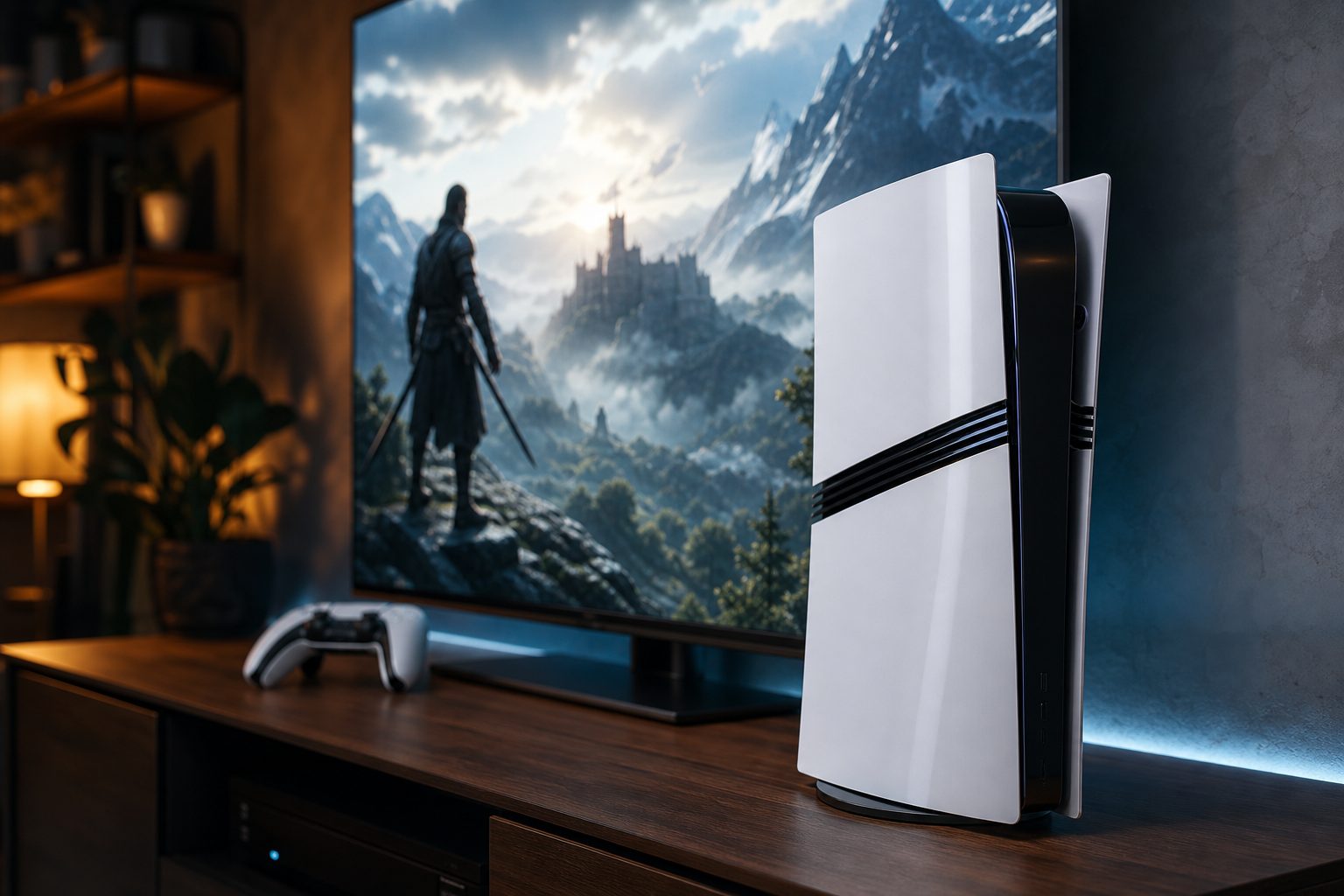
The PS5 Pro can look spectacular on a modern display, but the television's HDMI port and picture settings matter just as much as the console itself.
1. Start with the right expectations
The PlayStation 5 Pro was Sony's premium PS5 rather than a new console generation. It used an eight-core, 16-thread AMD Ryzen Zen 2 CPU, but paired it with a considerably stronger AMD RDNA-based GPU containing 60 compute units. In the blunt language of living-room gaming, that meant it aimed to make the old "pretty but 30fps" versus "smooth but softer-looking" choice less painful.
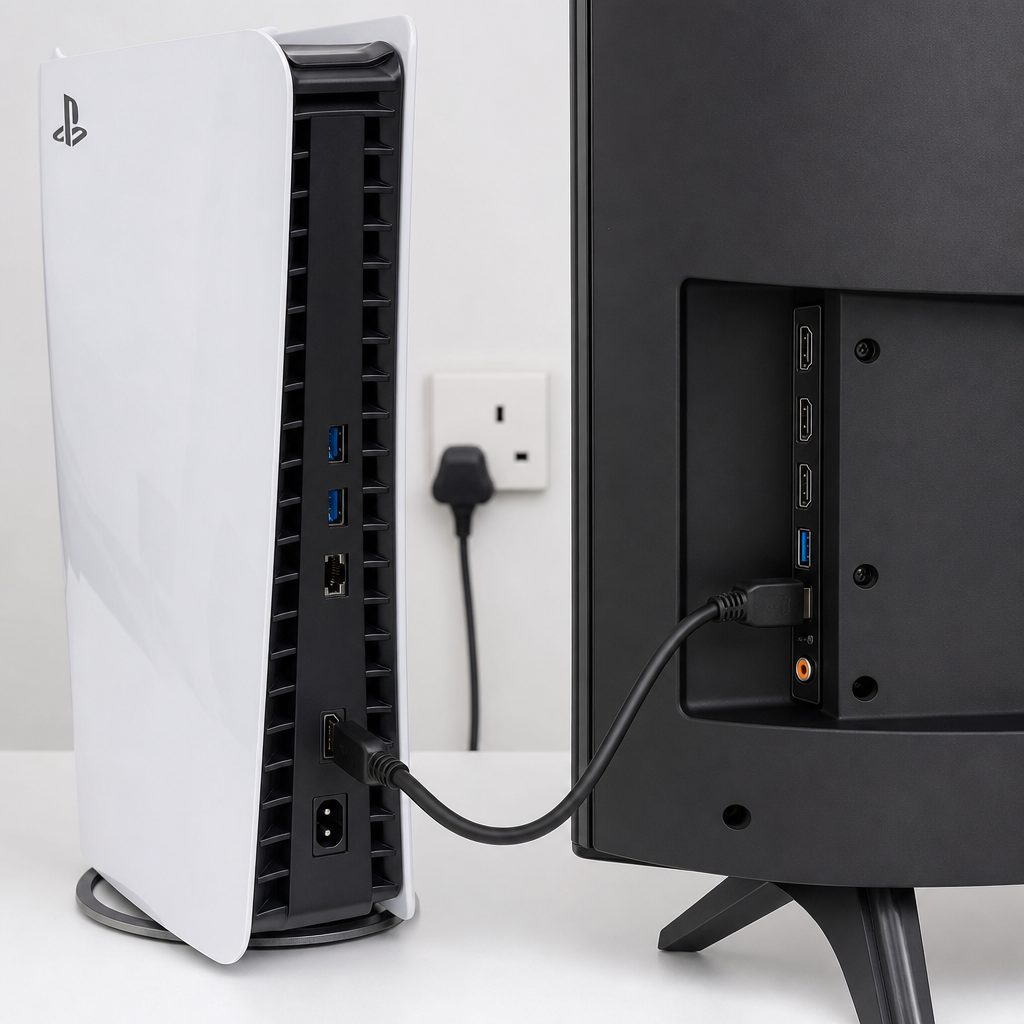
The supplied HDMI connection is the first link in the chain: a capable console cannot force an older television port to accept a 4K120 signal.
It did not turn every game into native 4K at 120fps with every ray-tracing bell attached. No console gets to ignore physics just because the box is expensive. What it did offer in supported games was up to 45% faster rendering than the original PS5, faster ray tracing, and PlayStation Spectral Super Resolution, or PSSR. The result was often a much more convincing compromise: sharp 4K-looking output, high-quality lighting and a 60fps target in modes that previously asked you to sacrifice one of those things.
That last bit is important. Your PS5 Pro will not apply a magical "make everything better" filter to every title. The biggest visual improvements arrive in games with PS5 Pro enhancements. Older and unpatched games can still benefit from Game Boost, but it is sensible to judge each game on its own settings rather than expect the same result everywhere.
Before you begin: the PS5 Pro is a digital-only console. If you own physical PS5 or PS4 discs, you need the separately sold Disc Drive before those games can be used. Also note that the vertical stand was sold separately, so do not start dismantling your TV unit in search of a missing part.
2. Connect the PS5 Pro to the correct HDMI port
Shop Connect the PS5 Pro to the correct HDMI port on Amazon UK
This is the first job, and it is where a surprising number of fancy-console setups quietly go wrong. Modern televisions commonly have several HDMI sockets, but not necessarily several sockets with identical capabilities. One port may accept the full HDMI 2.1 feature set; another may be reserved for eARC sound output; another may be limited to lower bandwidth. The labels are often microscopic, because apparently television manufacturers enjoy a little treasure hunt.
Use a certified HDMI 2.1 cable and connect the PS5 Pro directly to a television or monitor port that supports HDMI 2.1. This is essential for 4K at 120Hz and VRR. If you route the console through an older AV receiver, HDMI switch or soundbar, that device can become the bottleneck even when the television itself is excellent. For the first setup, direct-to-display is the cleanest way to prove that everything works.
Once the picture appears, open your television's own input settings. The exact language differs by brand, but look for an enhanced HDMI format, 4K120 mode, gaming mode or similar option for that individual input. Enable it for the socket holding the PS5 Pro. It is worth checking this even if the TV claimed to be "gaming ready" on the box. The phrase is doing heroic amounts of work there.
Use the capable input
Choose the television or monitor HDMI port that explicitly supports HDMI 2.1 features rather than assuming every socket is equal.
Keep the signal path simple
Connect direct to the display while testing 4K120 and VRR. Add other equipment only after the console is working as intended.
Enable enhanced input mode
Many displays require a separate per-port setting before they will accept their highest refresh rates and VRR features.
Monitors count too
A 1440p HDMI output option is available on PS5 Pro, which can be a very sensible match for a capable gaming monitor.
3. Put your television into Game Mode before tweaking anything else
For games, Game Mode should generally be the starting point. It reduces processing delay between you pressing a button and the display drawing the result. That matters in shooters, racers, sports games and anything requiring a well-timed dodge; it also matters in slower games once you have felt the difference. A beautiful image that arrives late is still late.
Picture presets with names such as Cinema, Vivid or Dynamic can make a shop-floor demo leap off the wall, but they often add extra processing and exaggerate colour, sharpness or motion smoothing. In a game, heavy sharpening can outline objects with a pale halo, whilst motion interpolation can make camera movement look oddly artificial. The PS5 Pro was already working hard to reconstruct fine detail through PSSR in supported titles. It does not need the television attempting its own enthusiastic second opinion.
Start in Game Mode, then make modest adjustments only if your room demands them. A bright lounge may need more brightness than a dark evening setup. That is normal. Avoid treating the television's contrast and sharpness sliders as a competitive sport. The best picture is usually the one with good shadow detail, natural colours and no obvious processing artefacts, not the one that looks like it has been dipped in fluorescent paint.
Pro tip: switch off motion smoothing for games
Names vary, but "motion", "clarity", "interpolation" and "smooth movement" settings are worth disabling in the gaming input. A 120Hz panel is excellent; forced fake frames are a different thing entirely.
4. Enable 120Hz output and understand what it actually does
On the PS5 Pro, go to Settings > Screen and Video and look through the video output options. Set 120Hz output to automatic. This tells the console it may use a 120Hz signal when the display and game support it. It does not force every game to run at 120fps, and that is a good thing. A cinematic game may sensibly target 30, 40 or 60fps depending on its mode.
4K at 120Hz needs HDMI 2.1 support at both ends. If your display is only a 60Hz 4K television, do not panic: PS5 Pro enhancements can still improve image quality, rendering performance and ray tracing. You are not "wasting" the console. You are simply not using one of its higher-refresh-rate routes.
A 120Hz display has another useful trick beyond 120fps games. Some PS5 games offer 40fps fidelity modes. Forty does not sound like a tidy number until you remember that 120 divides perfectly into three lots of 40. On a compatible 120Hz screen, each frame can be displayed evenly, producing noticeably smoother motion than 30fps whilst retaining more visual detail than a conventional performance setting. It is one of the most satisfying options for players who care about image quality but cannot quite return to 30fps after getting used to 60.
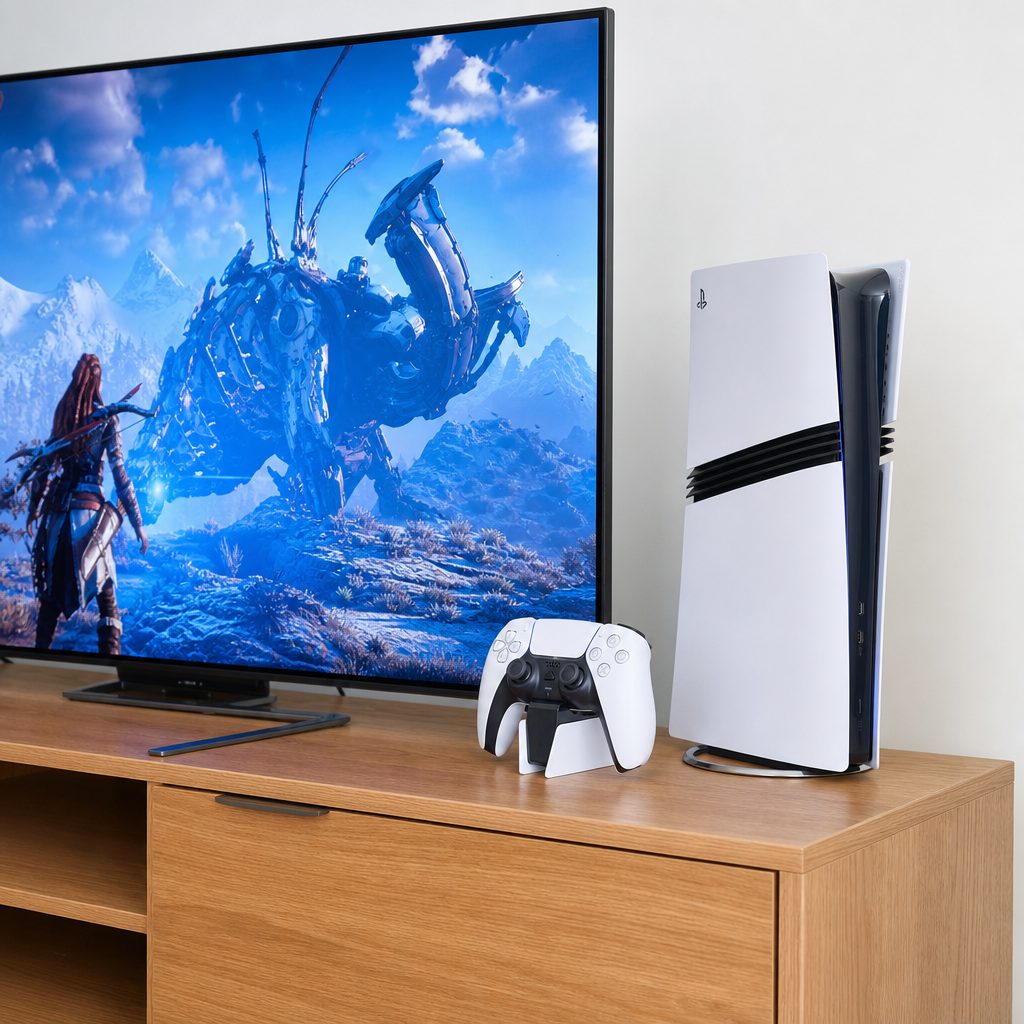
A 120Hz display gives the PS5 Pro room for full 120fps play in supported titles and smoother 40fps fidelity modes in games that offer them.
Quick 4K120 troubleshooting checklist
- Confirm the console is connected to the display's HDMI 2.1-capable socket.
- Check that enhanced HDMI or gaming input mode is enabled on the display itself.
- Set PS5 Pro 120Hz output to automatic in Screen and Video settings.
- Use a game mode that actually supports 120fps or 40fps at 120Hz.
- Temporarily remove older receivers, splitters and switches from the connection path.
5. Turn on VRR for smoother, cleaner motion
Variable Refresh Rate, usually shortened to VRR, synchronises the display refresh with the console's frame delivery. In practical terms, it helps reduce frame tearing, stutter and uneven motion when a game cannot hold precisely to its target frame rate. It is one of those features that can sound like a marketing acronym until you see a difficult scene move smoothly instead of juddering around the screen.
VRR relies on HDMI 2.1, so it belongs in the same chain of checks as 4K120. In the PS5 Pro's Screen and Video settings, set VRR to automatic. Then ensure VRR is enabled in your TV or monitor's own gaming settings. Both ends need to agree. If either side is off, you may still get a picture, but not the adaptive refresh behaviour you paid for.
There is no need to obsessively turn VRR on and off per game. Leave it enabled and let compatible games use it. The more useful habit is checking a game's own performance options after a major update. A title may add a 120Hz mode, alter ray-tracing choices or receive PS5 Pro support later in its life. Settings menus change far more often than most of us would like, mostly because menus have never met a label they could not rename.
The chart is not a frame-rate promise. It simply shows why PS5 Pro-enhanced games had more room to pursue higher image quality and smoother performance together. Game engines, targets and patches still determine the result. The console is the toolbox, not the carpenter.
6. Let PSSR do its job, then choose game modes sensibly
PSSR stands for PlayStation Spectral Super Resolution. It is Sony's AI-based resolution enhancement technology and one of the major reasons PS5 Pro results can look different from a straightforward settings bump. Rather than rendering every pixel at native output resolution, a supported game can render at a lower resolution and use on-device AI inference to reconstruct detailed output. It replaced methods such as FSR and TAAU in supported implementations, with the aim of delivering a sharper 4K image than checkerboard rendering alone.
The key point for setup is that PSSR is normally controlled by the game developer, not a giant system-wide switch you should constantly prod. If a game is PS5 Pro Enhanced, inspect its graphics menu. You may see choices built around quality, performance, ray tracing, 120Hz or a custom mix. Read the short description beside each choice rather than reflexively selecting whichever one has "Performance" in capital letters.
For a slower story-led game, a quality or fidelity-oriented PS5 Pro mode may be the sweet spot if it delivers the visual features you value at 60fps. For competitive multiplayer, use the mode prioritising high frame rate and low latency. Call of Duty: Black Ops 6 was able to run at a stable 120Hz on PS5 Pro, which is exactly the kind of game where responsiveness is not decorative. In Gran Turismo 7, PS5 Pro supported a stable 120fps mode with PSSR upscaling, whereas prior PS5 models had been capped at 60fps.
Do not confuse sharper with more "sharpness". Let PSSR supply the image reconstruction and keep your television's artificial sharpness control restrained. If fine grass, hair or distant fencing begins to sparkle or develop outlines, the TV processing is a likely suspect.
Use quality-focused modes when
- You play slower single-player games and notice lighting, reflections and fine environment detail.
- The game offers a PS5 Pro mode that keeps a 60fps target whilst improving image quality.
- Your screen is 4K and you sit close enough to appreciate the extra clarity.
Avoid chasing quality modes when
- You are playing competitive shooters, racing or fighting games where response matters most.
- A mode has a lower frame-rate target than you personally find comfortable.
- Your television is adding noticeable delay because Game Mode is disabled.
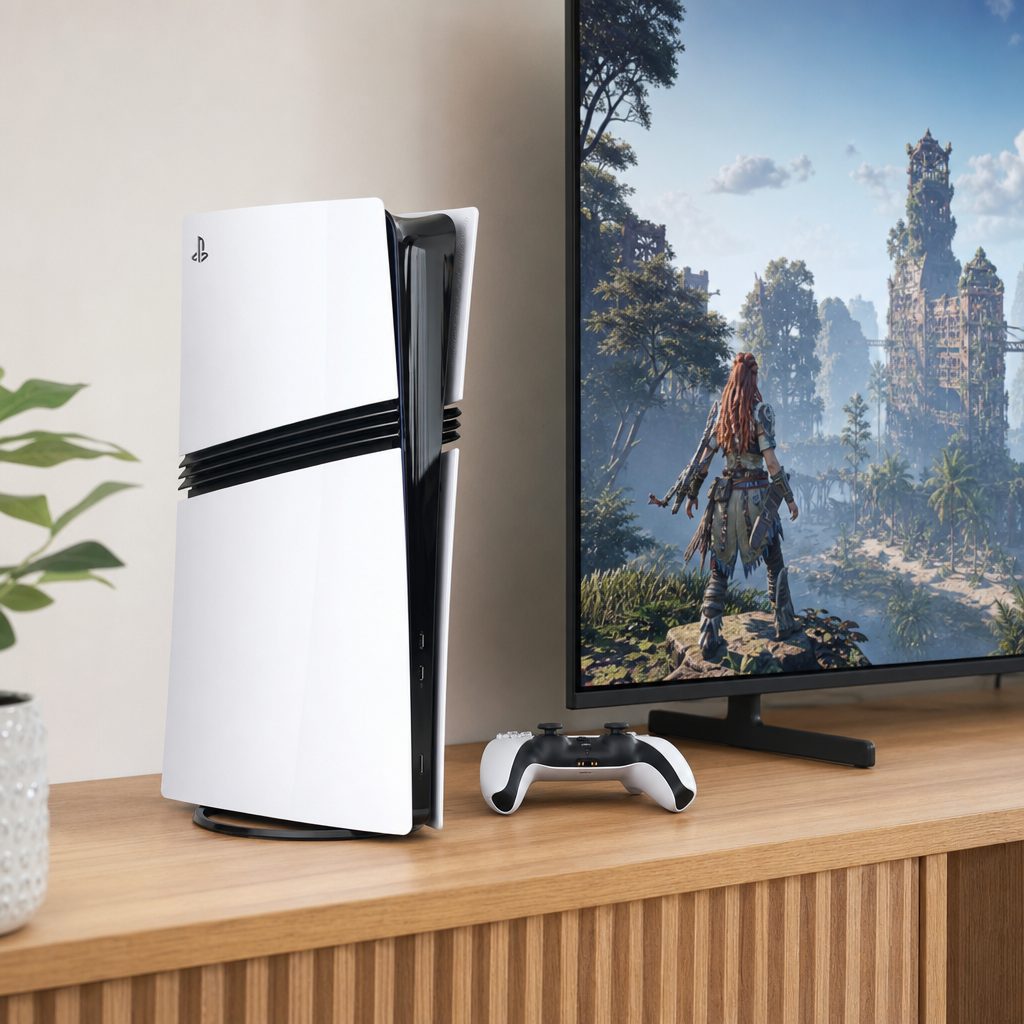
PSSR works within supported games to reconstruct a sharper image from a lower-resolution render, helping PS5 Pro modes balance clarity and frame rate.
7. Use the PS5 Pro's storage properly from day one
Shop Use the PS5 Pro's storage properly from day one on Amazon UK
The built-in 2TB SSD was a genuinely practical upgrade. It was more than double the original PS5's 825GB storage and double the PS5 Slim's 1TB capacity. That means fewer rounds of deleting a game, downloading another game, remembering you deleted the first game and beginning the cycle again. A small victory for domestic harmony.
Still, 2TB is not infinite, especially if several people use the console or you keep a large library of modern games installed. During your first setup, go to Settings > Storage and look at the categories rather than waiting for the warning message. Keep enough free space for updates and the occasional new installation. If you play the same handful of games each week, leave those on the internal SSD and archive the rest rather than treating your library as a museum display where everything must be permanently on view.
Use the game library's installed filter to find titles you have finished or barely started. Be honest. We all have one game installed because we fully intend to return to it, sometime after sorting the garage and learning Italian. Removing it does not erase the purchase or your save data.
The console also has two USB-C ports at the front, with two USB-A ports, Ethernet and HDMI at the rear. Keep the front accessible for controller charging and temporary accessories. If the PS5 Pro sits in a cabinet, give it breathing room. Under heavy load it draws noticeably more power than a PS5 Slim, and packing a powerful console into a warm enclosed shelf is not a clever way to reward it.
8. Choose Ethernet where you can, and tidy up the first-hour settings
The PS5 Pro includes Wi-Fi 7, which is welcome if your home network supports it and the console has a strong, stable signal. But if an Ethernet cable can reach your console without creating a tripwire across the hallway, wired networking is still the boringly reliable option for large game downloads, patches and online play. Boring is good here. Boring means your download does not collapse halfway through because someone started streaming a wildlife documentary in 4K.
Sign in to your PlayStation account, allow system updates to complete and update the DualSense controller when prompted. The DualSense is the same controller model used by the other PS5 systems, so existing compatible controllers remain useful. Set up your preferred power-saving and controller options, then check audio output once you are in your usual play position. A console can be delivering an immaculate 4K image whilst the sound is coming from the television's tiny rear-facing speakers. That is technically audio. It is not always an experience.
Finally, enable automatic updates if that suits your household. PS5 Pro patches and game updates can alter how individual games use the hardware. Keeping the console current means you are less likely to be troubleshooting an issue that has already been fixed while you were making tea.
Connection priority: for the most consistent online play and big downloads, use Ethernet if practical. Wi-Fi 7 is available on PS5 Pro, but a cable remains the simplest answer where the room layout allows it.
9. Check the game, not just the console
The PS5 Pro had the most obvious advantage in games specifically updated to use it. That means your final step should be inside the game itself. Start with a title you know well: somewhere with a bright outdoor scene, a dim interior, busy motion and reflective surfaces. Those conditions make differences in resolution reconstruction, ray tracing and frame stability easier to spot than staring at a static loading screen.
Spider-Man 2 provided a useful example of the sort of upgrade the machine could deliver, reaching native 4K at 60fps compared with a dynamic 1440p–1800p range on PS5 Slim. Horizon Forbidden West could enable ray-traced reflections at 4K and 60fps, where those reflections had previously been locked to 30fps or disabled. Those are not universal promises for every PS5 game. They are illustrations of what a well-targeted PS5 Pro update can achieve.
Try each available mode for ten minutes rather than three seconds. Pan the camera slowly. Move through foliage. Drive through a wet night scene. Play an actual mission. A mode that looks marginally prettier in a paused comparison may feel worse once you are controlling it. Conversely, a 40fps quality mode can feel wonderfully balanced on a 120Hz display even if the marketing bullet point does not shout as loudly as "120fps".
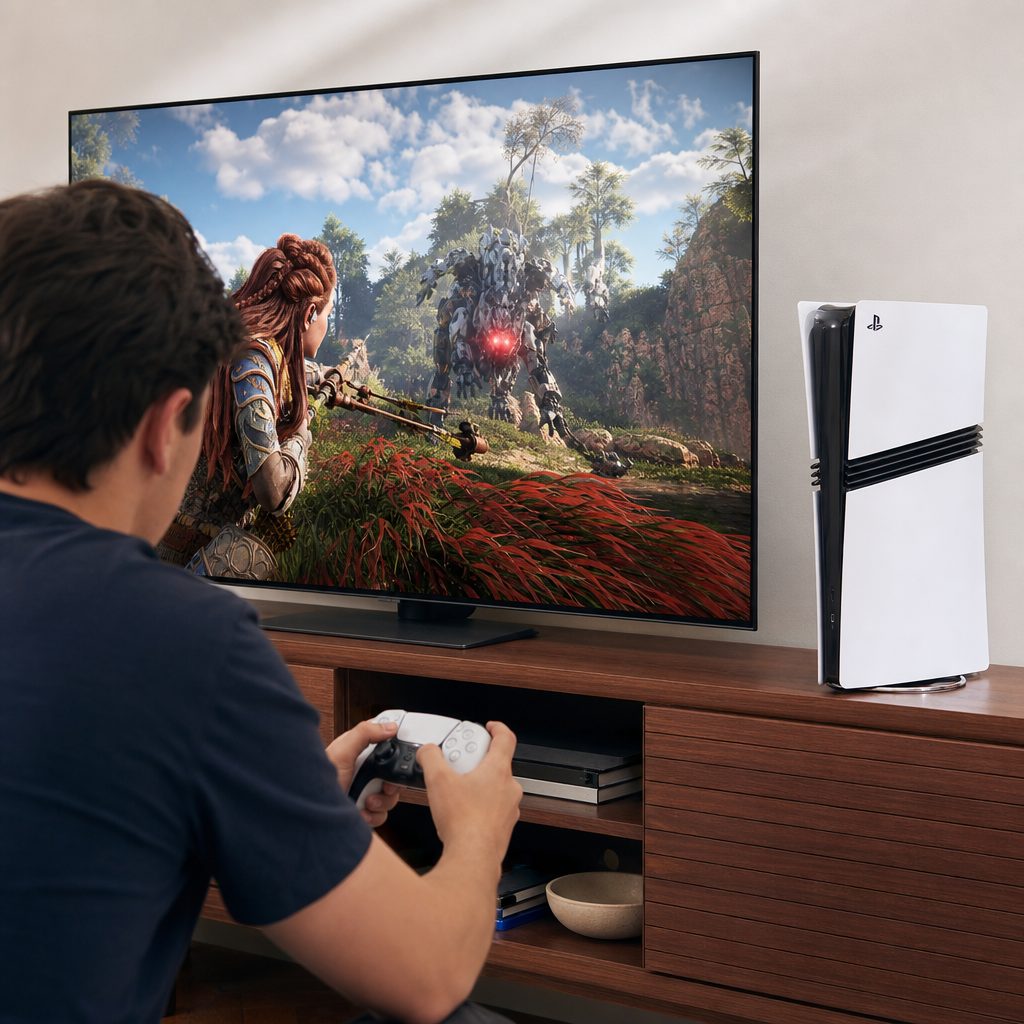
PS5 Pro-enhanced games make the clearest use of the extra graphics capability, so compare their modes in real play rather than relying on a still screenshot.
| Feature | PS5 Pro | Original PS5 | PS5 Slim |
|---|---|---|---|
| Internal SSD | 2TB | 825GB | 1TB |
| GPU compute units | 60 | Roughly 67% fewer than PS5 Pro | Roughly 67% fewer than PS5 Pro |
| Graphics memory speed | 28% faster than base PS5 | Base level | Base level |
| Supported rendering uplift | Up to 45% faster | Baseline | Baseline |
| Disc drive | Sold separately | Available on disc model | Available on disc model |
| Wireless connectivity | Wi-Fi 7 | WiFi 6 (802.11ax) | WiFi 6E (802.11ax) |
The comparison also explains why the PS5 Pro setup priorities are so display-focused. Storage is immediately useful to everyone, but the leap in experience comes from pairing the upgraded rendering hardware with a screen that can accept 4K120 and VRR. Put it on a basic 60Hz television and it remains a powerful console. Put it on a well-configured HDMI 2.1 display and the point becomes much clearer.
10. Find the best setup for the way you play
There is no single "best" PS5 Pro configuration because different games reward different choices. The trick is matching the setup to your priority, then leaving it alone long enough to enjoy the game. Constantly revisiting menus can become its own hobby, and it is a much less fun hobby than actually playing Gran Turismo 7.
4K120, VRR and performance modes
Use a compatible HDMI 2.1 display, enable 120Hz and VRR, keep Game Mode on, and select the game's highest-frame-rate option.
4K display and quality-focused PS5 Pro modes
Prioritise PSSR-enhanced fidelity, richer ray tracing and 60fps where the game offers that blend. A 120Hz panel also opens the door to smooth 40fps modes.
120Hz plus low-latency Game Mode
Fast, clean motion matters here. Gran Turismo 7's stable 120fps PS5 Pro mode is exactly the sort of upgrade a responsive display can show off.
2TB storage and sensible library management
Keep family favourites installed, archive finished games and use Ethernet if you regularly download large games or updates.
The best PS5 Pro setup depends on the game: competitive players should favour 120Hz and VRR, whilst cinematic adventures may reward a quality-focused mode.
Frequently asked questions
No. PS5 Pro works with existing compatible displays, and its faster rendering, PSSR support in enhanced games, ray tracing improvements and 2TB SSD still matter on a 4K60 television. To access 4K at 120Hz and VRR, however, you need a display and HDMI connection that support HDMI 2.1.
Check the HDMI socket first. Use the display's HDMI 2.1-capable port, activate its enhanced input or gaming setting, set 120Hz output to automatic on the console, and confirm that the game itself has a 120fps or 40fps-at-120Hz option. Older switches and receivers can also block the signal.
Set VRR to automatic on PS5 Pro and enable it in the display's gaming menu. VRR is designed to reduce lag, stutter and tearing when compatible games vary their frame rate. There is little reason to disable it unless you are specifically troubleshooting a display issue.
No. PSSR is implemented by supported games rather than being a universal picture setting. PS5 Pro-enhanced titles are where it makes its most deliberate contribution, reconstructing a sharper output image from a lower-resolution render. Other games can still benefit from PS5 Pro hardware and Game Boost, but results vary.
It can be, particularly on a 120Hz display. Forty frames per second divides evenly into a 120Hz refresh rate, so the image can be displayed smoothly while allowing a game to spend more resources on visual quality than a 60fps mode. Whether you prefer it remains personal; try it in a game you know well.
No. The PS5 Pro is digital-only, with the Disc Drive sold separately. If you have a collection of physical PS5 or compatible PS4 games, plan for that before moving your old console out of the cabinet.
It is a very useful starting point and more than double the original PS5's 825GB. It will not be endless if several people keep lots of large games installed, so use the Storage menu occasionally, remove finished titles and keep your regular favourites ready to play.
Wi-Fi 7 is available on PS5 Pro and is a strong option in a suitable home network. Ethernet remains the straightforward recommendation where it is practical, especially for reliable online play and large downloads. It is less glamorous than a wireless standard, but so is arriving at the finish line without disconnecting.
Once the HDMI chain, Game Mode, 120Hz, VRR and game-specific options are correctly set, the PS5 Pro can settle into the simple job it was bought for: playing games beautifully.
The bottom line
The best PS5 Pro setup is refreshingly straightforward once you tackle it in the right order: connect to the correct HDMI 2.1 port, enable the display's gaming input mode, set 120Hz and VRR to automatic, then choose each game's graphics mode based on how you actually play.
For the biggest upgrade, pair the console with a capable 4K120 VRR screen and focus on PS5 Pro-enhanced games. That is where PSSR, the faster GPU and improved ray tracing have the clearest opportunity to blend high-end image quality with smooth performance. The 2TB SSD is the quieter win, but anyone who has spent an evening shuffling installs will appreciate it just as much.
Do the setup once, resist the urge to turn every television slider to maximum, and then get on with the important business: enjoying your games.