How to Set Up Dolby Atmos and 3D Audio on PS5 Pro
For a soundbar or AV receiver, select Dolby Atmos in your PS5's Audio Format settings. For a headset, Tempest 3D Audio is the important part: it delivers positional game sound directly to compatible headphones rather than relying on an Atmos sound system. The best choice depends on where and how you play.
Editorial note: The Dolby Atmos and 3D Audio settings described in this article are features of the PS5 system software, introduced in a September 2023 system update. No PS5 Pro-specific audio documentation was found to distinguish its setup from the standard PS5; the steps and settings below apply to the PS5 system software and are not exclusive to PS5 Pro hardware.
The short version is simple. Use Dolby Atmos over HDMI when your PS5 is connected to a compatible soundbar or receiver. Use a headset when you want personal, close-up positional sound without filling the room. These are related approaches, but they are not the same setting with a different name.
PS5's Dolby Atmos output arrived in a September 2023 system update. It takes games using Sony's Tempest 3D AudioTech and outputs that spatial audio to compatible Dolby Atmos HDMI equipment. That means the console does the Tempest processing, whilst the soundbar or receiver handles the Dolby Atmos output path.
Start with the device you actually use
Do not buy a Dolby Atmos soundbar purely for headphone gaming. A headset and a living-room speaker setup solve different problems. Choose the headset route for quiet, focused play; choose Atmos over HDMI for room-filling sound through compatible home-cinema equipment.
Set Dolby Atmos on PS5
Before changing the console setting, make sure your PS5 is connected by HDMI to a Dolby Atmos-capable device. This can be a compatible soundbar or AV receiver. The console's Atmos option is for HDMI audio equipment; it is not the setting to chase when you are using a headset.
- From the PS5 home screen, open Settings.
- Choose Sound.
- Open Audio Output.
- Find Audio Format (Priority).
- Select Dolby Atmos.
That is the essential setup route documented for PS5 Dolby Atmos output. Once selected, games that use Tempest 3D AudioTech automatically receive Dolby Atmos output to compatible HDMI equipment; developers did not need to publish a separate Atmos patch for each such game.
Do not judge the setting by one streaming app. Game support through Tempest 3D AudioTech and Atmos support in video apps are separate matters. Streaming providers have to update their own PS5 apps for Atmos support, so an app may not behave like a supported game.
Understand Tempest 3D Audio for headsets
Tempest 3D AudioTech is Sony's game-audio system. With headphones, it works directly rather than taking the HDMI Atmos route needed by a soundbar or receiver. In practical terms, a headset is the straightforward choice if you play late at night, share a room, or simply prefer sound kept to yourself.
The aim is spatial positioning: hearing audio cues around you across three dimensions rather than treating everything as flat left-and-right stereo. That can make it easier to follow where a sound is coming from in games designed to use 3D Audio. It is not a promise that every game, headset or player will produce exactly the same impression. The game's own audio design still matters.
Tempest-compatible games can feed Atmos systems
For a compatible HDMI setup, PS5 converts Tempest 3D AudioTech game output into Dolby Atmos output automatically. You do not need to search for a separate in-game Atmos update first.
Headphones take the direct route
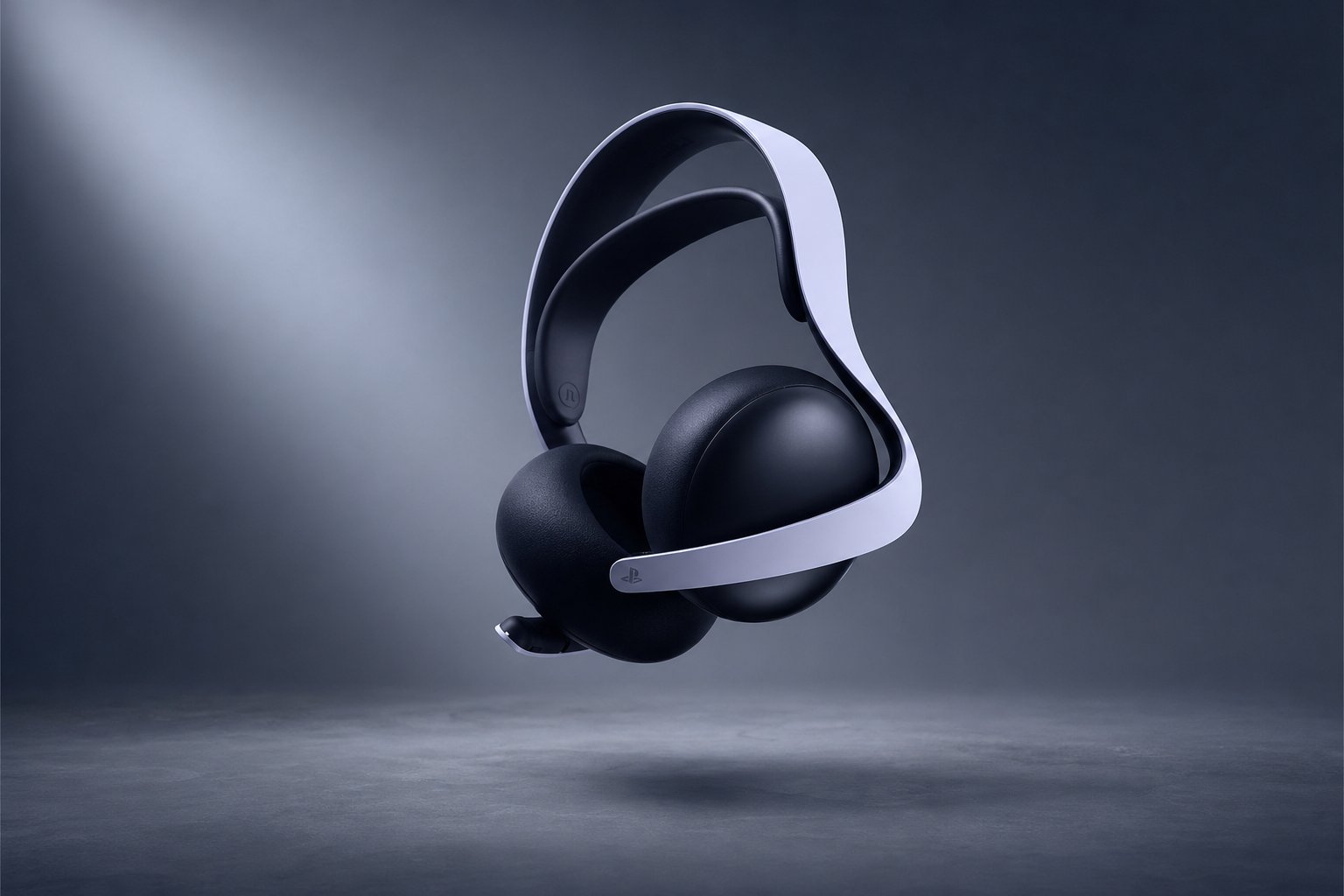
Headsets use Tempest 3D Audio directly. This is why a good PS5 headset remains a sensible answer even if you have no interest in fitting a soundbar below the television.
Soundbars need the HDMI Atmos path
External audio equipment does not have native Tempest 3D support, so Dolby Atmos output is the bridge between the console's game-audio processing and the home-cinema system.
Headset or soundbar: which route suits you?
| Choose this route | Best for | What the PS5 uses | Main limitation |
|---|---|---|---|
| Headset | Private gaming and close positional listening | Tempest 3D Audio directly through headphones | It does not create room-filling speaker sound |
| Dolby Atmos soundbar or receiver | Playing through a compatible living-room audio system | Tempest 3D AudioTech output via Dolby Atmos over HDMI | You need compatible HDMI audio equipment |
| Streaming app playback | Films and programmes from supported providers | Depends on the individual PS5 app's Atmos support | Atmos is not automatic in every media app |
Sony/PlayStation PULSE Elite wireless headset
Search Amazon UK for Sony/PlayStation PULSE Elite wireless headset
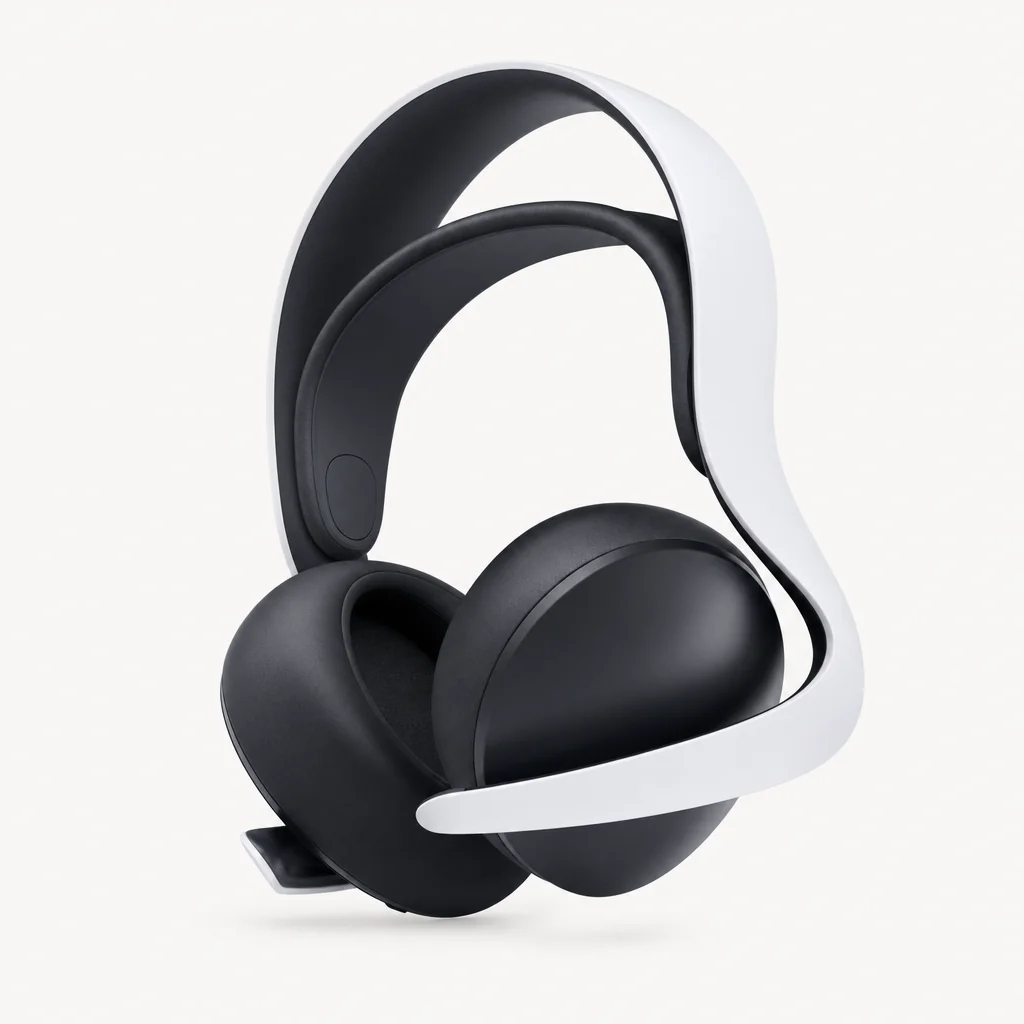
The PULSE Elite is a sensible PS5-focused headset choice if the headset route matches your habits. PlayStation says it is compatible with PS5, PlayStation Portal, PC, Mac and mobile devices through PlayStation Link technology. Its planar magnetic drivers are designed to improve the accuracy of audio-cue positioning in PS5 games that support 3D Audio. See the official PULSE Elite page for compatibility information.
That makes it the more focused option for someone who wants to hear the game clearly without changing the whole television setup. It is not a substitute for a soundbar if your priority is cinematic sound shared with everyone in the room.
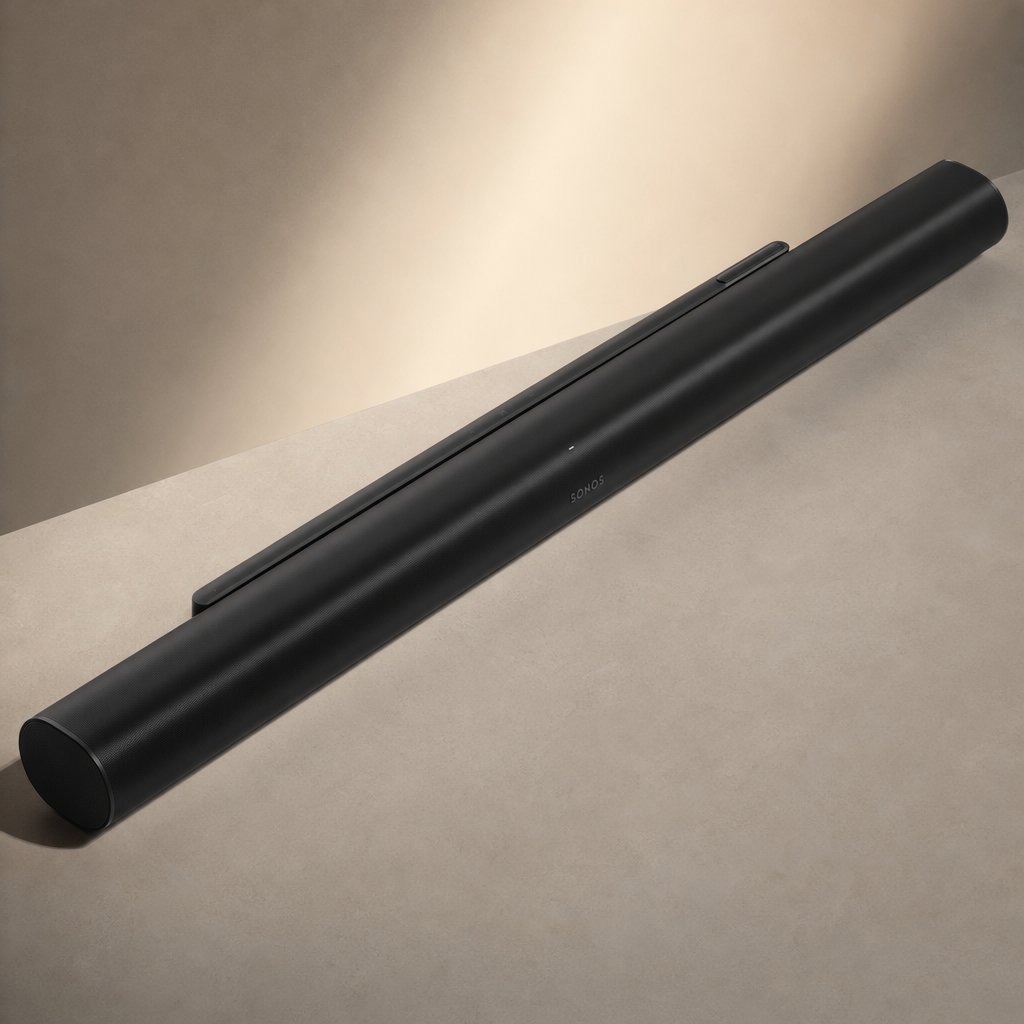
Sonos Arc Ultra
Search Amazon UK for Sonos Arc Ultra
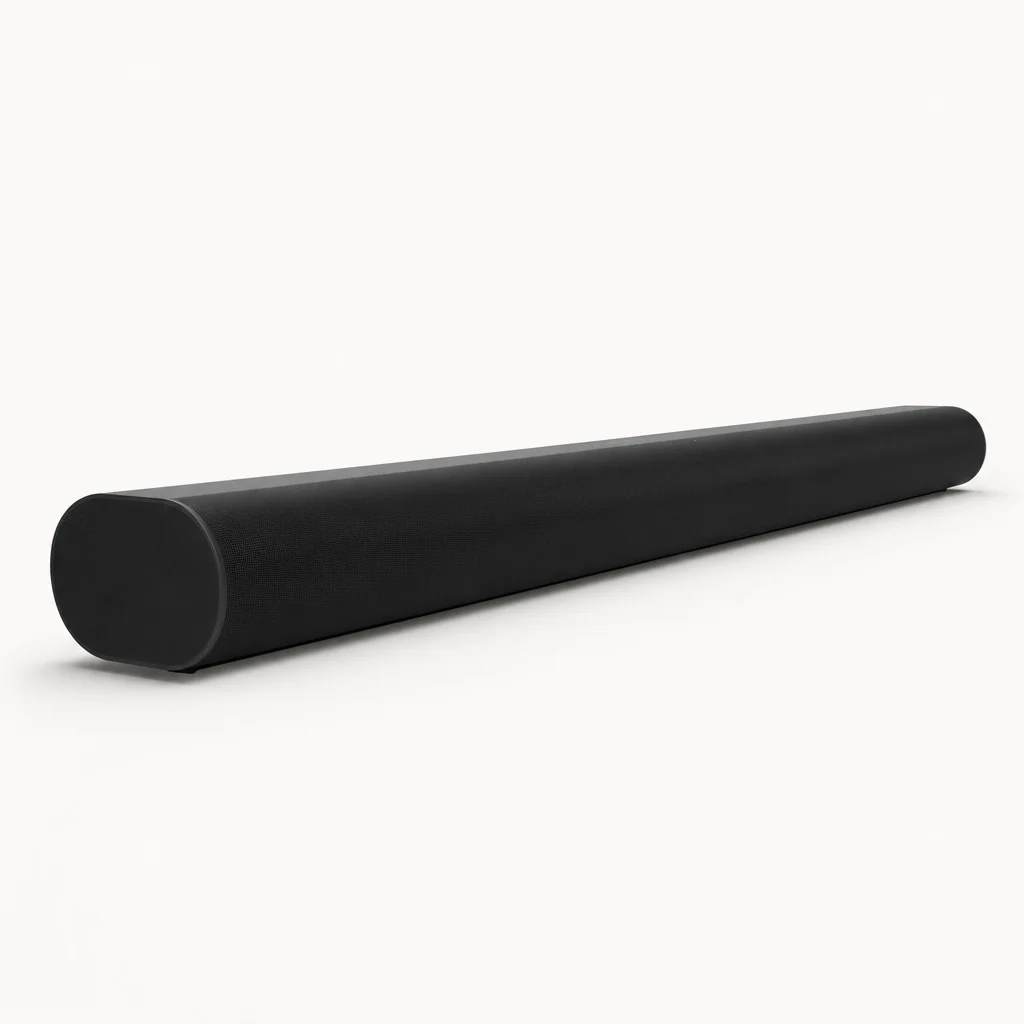
The Sonos Arc Ultra is the alternative route: a Dolby Atmos soundbar for an HDMI home-cinema setup. Sonos lists support for Dolby Atmos, including Dolby Atmos via Dolby Digital Plus and Dolby TrueHD, and UK retailer Smart Home Sounds identifies it as a 9.1.4 spatial-audio Dolby Atmos soundbar. It suits a player building around the TV rather than around a headset.
This is a bigger system decision than choosing headphones. It makes most sense when games, television and films all use the same living-room setup. It is also only worthwhile if you specifically want sound from speakers rather than the privacy and directness of a headset.
Quick troubleshooting checklist
If Dolby Atmos is selected but the result is not what you expected, work through the basics before changing lots of settings at once.
- Confirm that the console is using its HDMI audio connection to the compatible soundbar or receiver.
- Return to Settings > Sound > Audio Output > Audio Format (Priority) and confirm that Dolby Atmos remains selected.
- Test with a PS5 game that uses Tempest 3D AudioTech, rather than assuming a media app will demonstrate the same behaviour.
- If testing a streaming service, check whether that particular provider has enabled Atmos in its PS5 app.
- For headset gaming, concentrate on the headset connection and 3D Audio support rather than changing the HDMI Atmos format.
Common questions
The sensible PS5 audio choice
Select Dolby Atmos under Audio Format (Priority) if your PS5 is connected to a compatible HDMI soundbar or receiver. Stick with a headset such as the Sony/PlayStation PULSE Elite if personal 3D game audio is what you need. Tempest 3D Audio is the common foundation; Atmos is the HDMI route that lets compatible living-room audio equipment make use of it.