How to Transfer Everything From an Old Xbox to a New One
A calm, practical guide to moving games, apps, saves, profiles and settings between Xbox consoles — with network transfer, external storage and cloud syncing explained before you press a single destructive-looking button.
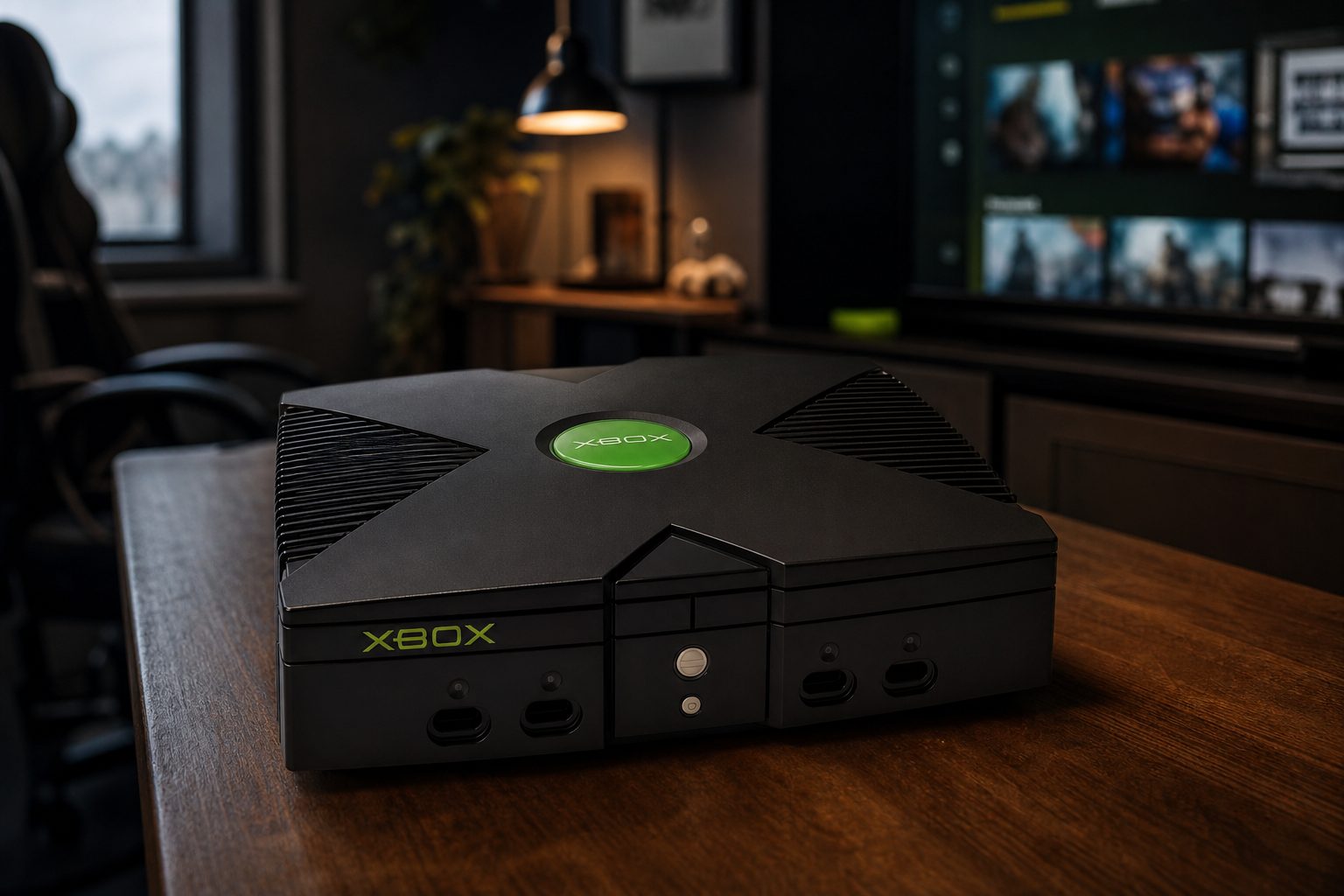
Moving to a new Xbox need not mean losing a library, a carefully arranged home screen or that awkwardly hard-earned save from three years ago.
Start by separating what you want to move
"Everything" is a wonderfully dangerous word when setting up a new console. It sounds simple, but an Xbox contains several different sorts of things, and they do not all travel in the same way. Your installed games are one thing. Your save data is another. Your account, digital purchases, screenshots, apps, console preferences and discs each have their own little route through the moving-day chaos.
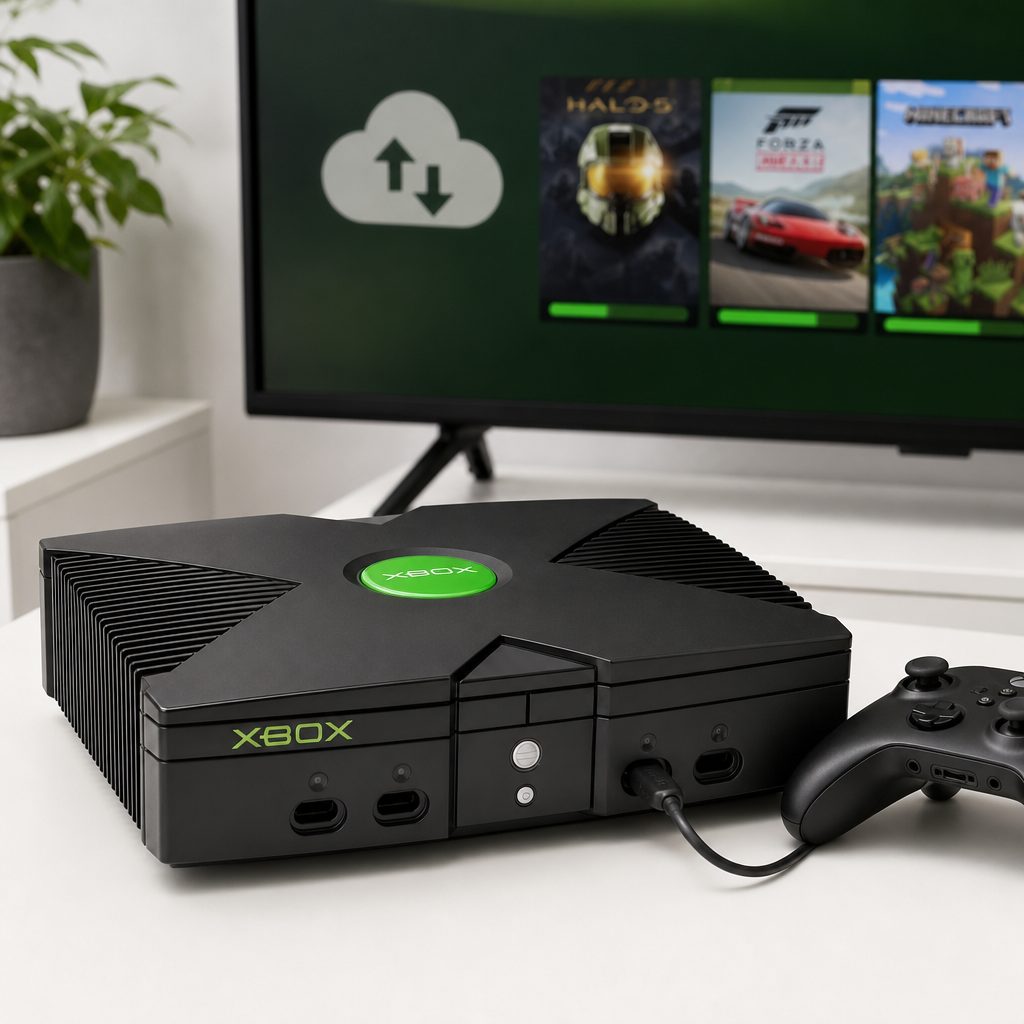
Cloud save synchronisation is the safety net for progress, but the best reassurance comes from opening key games on the new console and checking the save itself.
The reassuring part is that your games and purchases are tied to your account rather than trapped forever in the old box under the telly. Your save data can synchronise when the console is online. Installed games, meanwhile, can be copied locally through a network transfer or moved using compatible external storage. There is no need to treat the old Xbox like an archaeological dig. You just need a plan.
Before doing anything else, turn on the old console, sign into the account you use to play, and leave it connected to the internet for a while. Launch a game you care about, let it reach its menu, then close it properly. This gives the console a sensible chance to finish synchronising the most recent save. It is not glamorous. Neither is checking you have locked the front door before a holiday. Both are worth doing.
Before moving any installed games, make sure the old console has had an opportunity to synchronise the saves you actually care about.
Do not factory-reset the old Xbox yet. Keep it intact until you have signed into the new console, opened your important games, checked your progress and confirmed that your favourite apps and accessories behave as expected.
Make a simple moving checklist before setup
I know. A checklist for a games console sounds like the sort of thing a person says immediately before labelling every cable in the house. But it prevents the two most common mistakes: forgetting which account owns the games, and wiping the old machine before the new one has proved it has your saves.
Write down the email address or sign-in method for the Xbox account that holds your purchases. If several people use the household console, make a note of every profile that needs to move. Also list the handful of games where lost progress would genuinely sting. A huge open-world game, a child's long-running building save, a co-op campaign and a game with an ongoing seasonal character are all worth checking individually afterwards.
- Update the old Xbox and allow it to connect online.
- Confirm that each player can sign in to their own account.
- Close games after they have had time to synchronise.
- Check which games are installed internally and which already live on an external drive.
- Keep disc games nearby; the disc may still be required to launch them.
- Find the power and network leads for both consoles before beginning a network transfer.
The sensible order
Set up the new Xbox first, sign into the right account, transfer or install games second, and only then consider removing accounts or resetting the old console. Reversing that order is how a pleasant upgrade becomes a very long evening.
Choose the transfer route that suits your home
There are three sensible ways to get your games onto the new Xbox. Network transfer copies installed content directly from the old console over your home network. External storage lets you move eligible installed games by physically connecting the drive to the new console. Downloading again brings games from your digital library over the internet. In real life, many households use a mixture of all three.
Network transfer is particularly handy when the old and new Xbox can sit near each other and your internet connection is not the thing holding up the process. It uses the consoles on your local network, so you are not simply downloading the same game again from scratch. External storage is the neat option if you already keep games on a compatible drive. Re-downloading is often the least fiddly answer for a smaller library, or for games you no longer want installed anyway.
| Transfer method | What moves most directly | Best for | Watch out for |
|---|---|---|---|
| Network transfer | Installed games and apps from the old console | Large existing libraries and two consoles in the same home | Both consoles need to stay powered, connected and available |
| External drive | Content already stored on the drive | Players who regularly use portable game storage | Some games may need to be moved to suitable storage before play |
| Re-download | Owned digital games and apps from the library | Smaller, tidier installs or a single-console setup | Uses your internet connection and can take time |
| Cloud save sync | Save data linked to the signed-in account | Every upgrade, whichever game-transfer route you choose | The old console must have synchronised recent progress first |
Why local transfer helps
- You can reuse games already installed on the old console.
- It avoids making your broadband do all the heavy lifting.
- You choose what comes across rather than cluttering the new console with everything.
Where patience is needed
- Network conditions, storage space and updates can still slow the job down.
- Not every setting is worth copying blindly to a different console.
- A transferred game may still need an update before you can play.
Set up the new Xbox before copying games
Unbox the new console, connect it to the television and network, then work through its first-time setup. When asked to sign in, use the same Xbox account that you used on the old console. This is the important bit. It is how the new machine recognises your purchases, subscriptions, achievements and cloud saves.
Do not panic if the home screen does not immediately look exactly like the old one. A new Xbox is a new device, not a clone grown in a lab. Some preferences will need a quick once-over, particularly display settings, audio choices, accessibility features, parental controls and the console's home arrangement. That is normal. It is also a good opportunity to quietly remove the games nobody has touched since the great family enthusiasm for a farming simulator in 2022.
Once setup is complete, confirm that the new console is online and that your profile appears correctly. Visit your game library and look for a couple of owned titles. Seeing them there before you start shuffling storage around is a small but very calming milestone.
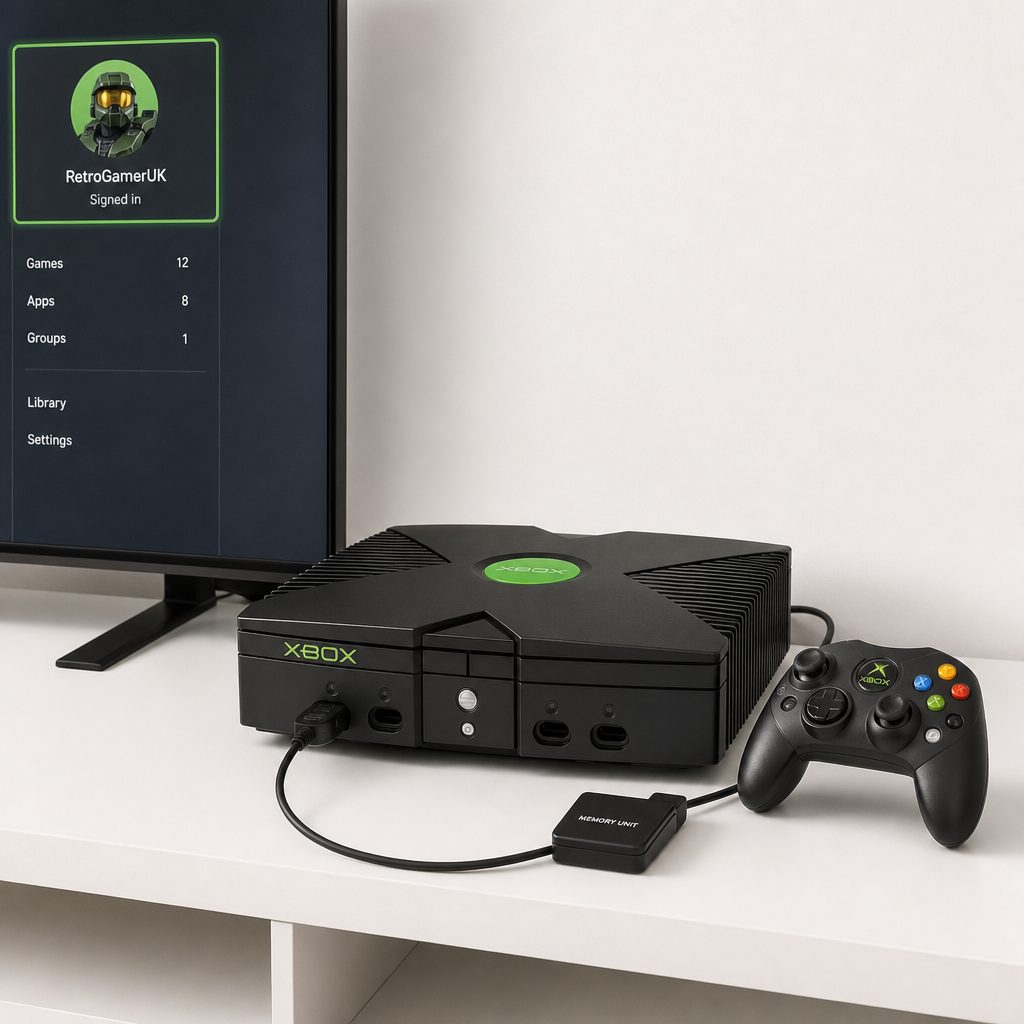
Set up and sign into the new Xbox with the same account before moving games; the account is the thread linking purchases, achievements and save synchronisation.
Use Xbox network transfer for installed games and apps
Network transfer is the closest thing to moving house with a van rather than posting every book one at a time. Put both consoles on the same home network. A wired connection can make the setup more dependable where it is practical, but the key point is simply that both machines can see the same local network and remain switched on throughout the copy.
On the old Xbox, open the settings area and find the network transfer option under the system settings. Enable the feature so the new console can find it. Then move to the new Xbox, return to the same network transfer area, and select the old console when it appears. The new machine will show content available to copy.
Choose deliberately. Start with the games you play now, the big games you know you would rather not re-download, and your essential apps. Resist the urge to tick every box merely because it is there. A new console feels wonderfully spacious for about nine minutes, and you will have a much nicer experience if you leave room for future updates and the games you genuinely want next.
- Keep both consoles awake and connected to the same local network.
- Enable network transfer on the old Xbox.
- Open network transfer on the new Xbox and select the old console.
- Select individual games and apps rather than assuming a full copy is necessary.
- Confirm the destination storage on the new console.
- Leave both consoles alone until the queue has completed.
Expect the transfer queue to be a process, not magic. Game files are substantial, the consoles may apply updates, and your network may be serving phones, tablets, streaming television and someone's video call at the same time. Do not judge success by how quickly the first progress bar moves. Judge it by whether items continue to complete and appear in the new console's library.
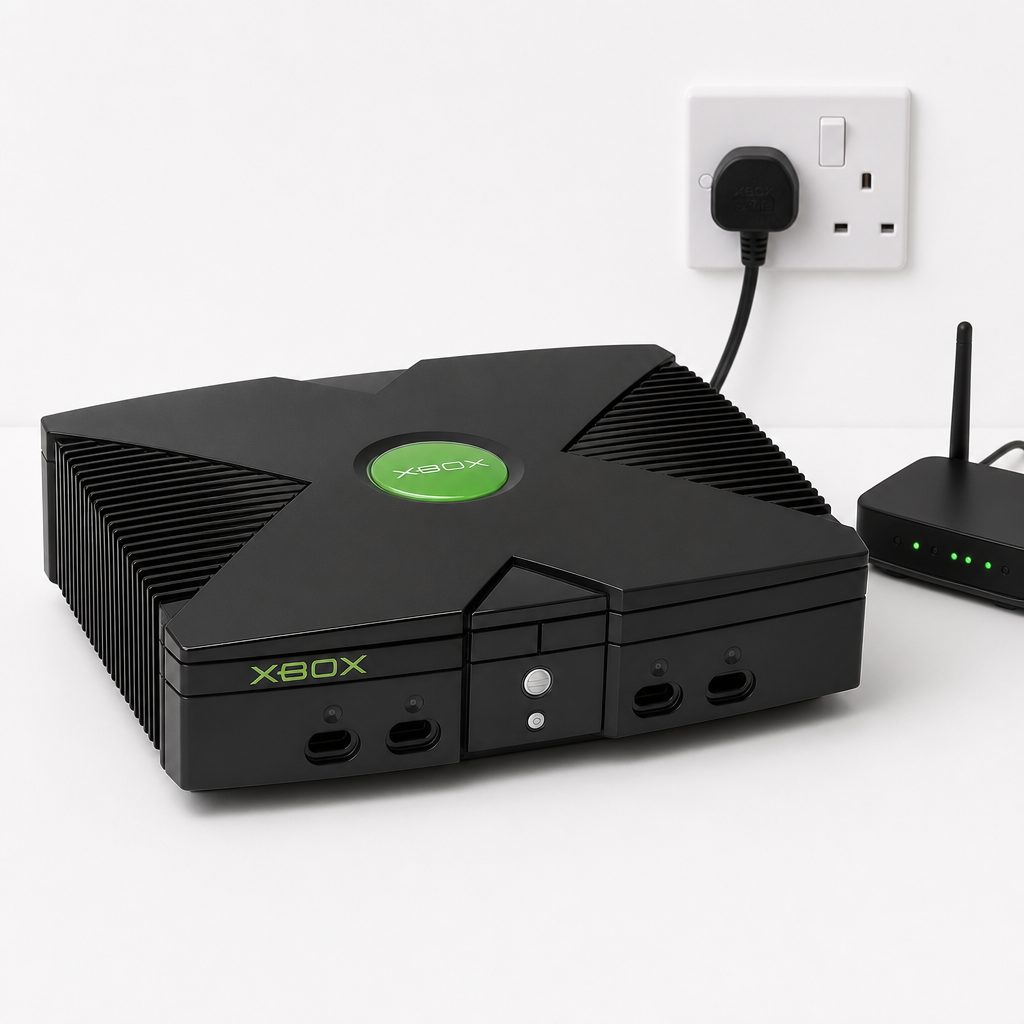
A network transfer lets the old and new consoles work together on the same home network, making it useful when you have a large installed library to carry across.
Move games with an external drive when that is easier
If you already use external storage with the old Xbox, this may be the least dramatic route of all. Shut down carefully, disconnect the drive, attach it to the new console, and let the new system recognise it. Games that are already on the drive can remain there or be moved as needed, depending on the game and the storage arrangement you are using.
The practical advantage is obvious: the drive is already doing the carrying. That makes external storage a good choice for anyone who has kept a broad back catalogue there, or for a family moving from one living-room console to another without wanting both machines on the floor for an afternoon.
There is one important distinction to understand. Storage and play location are not always the same thing. A game can be present on an external drive but still require moving to a suitable location before it will run in the way you expect on the new Xbox. The console will tell you if this applies. Read the message rather than assuming something has gone wrong. It usually means the game is safely there but needs to be placed in the right spot before launch.
Safely reconnect storage
Connect the external drive only after the new Xbox is fully set up, then wait for it to be recognised before launching into menus or moving files.
Check where each game lives
Use the storage management screen to see which games are on internal storage and which are on the external drive.
Move, do not duplicate by accident
Choose a move when you want to free the old location; choose a copy only when you genuinely need two stored versions.
Launch-test a favourite
Open a game you know well after the move. A working title screen and correct save are better proof than a reassuring-looking storage list.
Let cloud save sync do its job, then verify it
Your save data deserves its own section because it is the part people care about most. Games can be reinstalled. A save containing dozens of hours, a child's carefully made world, or a save file from a game you finally beat after several deeply personal arguments with one boss is harder to replace.
After signing in on the new Xbox, launch a transferred or downloaded game while the console is online. If the game offers to synchronise saved data, let it finish. Do not cancel it because you are impatient to get to the menu. This is one of those moments where tea-making is a valid technical strategy.
Once the game opens, inspect the actual save. Look at the character level, campaign chapter, world name or recent achievement state. Repeat this with the games on your must-not-lose list. If something looks older than it should, stop before you overwrite anything. Return to the old console, make sure it is online, launch and close the game there, then try the new console again. The goal is to give the latest save a clean chance to synchronise rather than forcing the issue in a panic.
Save-sync habit worth keeping
When you finish an important session on the old console, return to the game's menu and close it normally while connected online. Then wait a moment before switching off. It is a small routine, but it makes a later move far less nerve-racking.
Bring profiles, subscriptions and family settings across
Each person who plays should sign in with their own account on the new Xbox. Do not rely on one household account if individual achievements, saves and purchases matter. It is tempting to get everyone playing quickly by using whichever profile is already on screen. That can create a muddle later, particularly in a family where two people play the same game.
Go through the new console's account and family settings at a calm moment rather than while someone is waiting to play. Review child accounts, content restrictions, screen-time rules, communication settings and purchasing permissions. These are not the glamorous bits of an upgrade, but they are the bits that prevent an accidental purchase or an age-inappropriate download from turning Saturday morning into an admin session.
Also check subscriptions from the account that holds them. A subscription benefit is linked to the relevant account and its status, not to the physical old console sitting beside you. If a game does not appear as expected, first confirm that you are signed in to the account that owns it or has access to it. That one check resolves more confusion than people expect.
For shared consoles: set up adult and child accounts separately, then test the new console with each one. It takes a few extra minutes, but it avoids mixing up saves, parental controls and in-game progress later.
Reinstall only what did not transfer
There is no prize for having every game installed at once. In fact, one of the nicer parts of upgrading is choosing a fresh starting lineup. Use your library to install the games that were not moved by network transfer or external drive, along with any apps you use regularly. You can always add more later.
If a game has a disc version, keep in mind that installing it on the new console does not necessarily remove the need for the disc. The disc can still act as your proof that you own that edition. This catches people out because the game icon appears so confidently on the dashboard, as if it has personally vouched for everything.
Downloads can also queue behind updates, patches and apps. If you are waiting to play one particular game, move it to the front of the queue where the console allows. It is much better than watching a racing game update whilst the game night you planned has already begun.
Check accessories, captures and finishing touches
Once games and saves are secure, test the things that turn a console into your console. Pair controllers, check headsets, verify charging accessories, and revisit display and sound settings. If you use accessibility features, make these an early priority rather than assuming defaults will be comfortable. A new machine can be technically ready long before it feels familiar.
For screenshots and clips, take a moment to check where your captures are stored and whether there are favourites you want to preserve independently. Treat cherished captures as you would photos on a phone: if they matter, make sure they are available where you expect them to be before retiring the old hardware.
Finally, organise the home screen. Pin the games and apps the household uses. Remove the things nobody needs. It sounds cosmetic, but a tidy dashboard makes the new Xbox feel settled immediately, especially for children or less technical family members who just want to find their game without an expedition through menus.
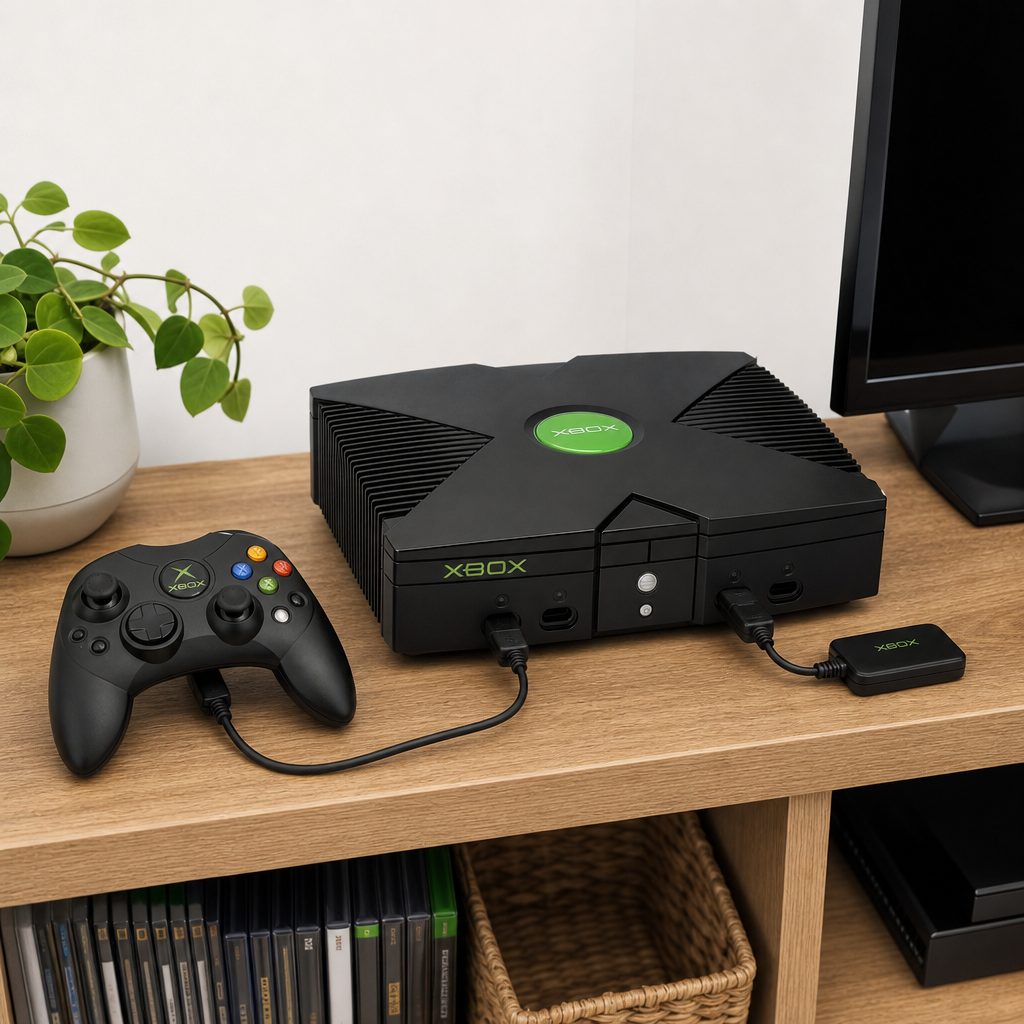
The final stage is the human one: reconnect controllers, check accessibility and family settings, and make the new home screen feel familiar rather than merely functional.
Best transfer method for different Xbox households
Shop Best transfer method for different Xbox households on Amazon UK
There is no universally "best" route, because homes are annoyingly individual. One family has a large external drive and several profiles. Another has a small set of favourite games and would rather download them again overnight. A third has two consoles, a good local network and a child standing nearby asking whether the transfer is done yet. Choose the method that removes the most friction for your setup.
Best for a large installed library
Network transfer. Use the old Xbox as a local source and copy the games you actively want on the new machine.
Best for storage regulars
External drive move. Particularly tidy if much of your library already lives on portable storage.
Best for a clean slate
Re-download selectively. Install only your current favourites and let the rest remain in the library.
Best for protecting progress
Cloud save sync. Use it alongside every other method, then verify important saves game by game.
The right transfer method depends less on owning every possible cable and more on whether you want speed, simplicity, a clean library or the reassurance of portable storage.
Do not reset the old Xbox until this final check is complete
Shop Do not reset the old Xbox until this final check is complete on Amazon UK
This is the finish line. Before selling, gifting, storing or resetting the old Xbox, use the new console for a few ordinary sessions. Play a game with an important save. Open a downloaded purchase. Test a disc if you use them. Check that each family member can sign in. Confirm the controller and headset you rely on are behaving.
Only when those checks are complete should you consider removing your account from the old console and resetting it for a new owner. If you are passing it to a child or another member of the household, decide whether it needs your account at all. If you are selling it, take the time to remove personal information properly. The old console has been a loyal little archive of your gaming life. It does not need to accompany someone else to their living room with all your details still inside.
Signs you are ready to reset
- Important games open with the correct progress on the new Xbox.
- Every household player has signed in successfully.
- Purchases, apps and accessories have been checked.
- You have copied any captures or personal material you want to keep.
Reasons to wait
- A save appears missing, outdated or unsynchronised.
- You cannot remember the sign-in details for a key account.
- A controller, headset or parental setting has not been tested.
- You are still unsure which account owns a particular digital game.
Frequently asked questions
Installed game files and save data are best treated as separate jobs. Use network transfer to copy installed content, but make sure the old Xbox has synchronised your latest progress online. Then launch important games on the new console and allow save synchronisation to complete.
It is wiser to leave both consoles alone until the transfer has finished. Playing, downloading, changing networks or allowing either console to sleep can complicate an already busy queue. Make a drink, watch something else, and let the consoles get on with it.
No. Your digital library remains associated with the account that owns it, so you can install games again later. Moving only current favourites is often the best way to begin with a cleaner, more manageable new console.
A local copy can still need a newer patch before it is ready to play. That is normal. Let the update finish, especially before judging whether a transfer has failed. The console may also need to check licences or synchronise recent data after the game is opened.
Yes, that is often the simplest route when games are already stored there. Once connected, check that the drive is recognised and look at the storage management screen. Some games may need moving to appropriate storage before they can be played, but the drive remains useful for carrying the files across.
Stop before continuing and avoid overwriting anything. On the old console, sign in to the relevant account, connect online, launch the game and close it normally after it has had time to synchronise. Then return to the new Xbox, ensure it is online, and try the game again.
No. Keep the old Xbox unchanged until you have verified saves, games, profiles and accessories on the new one. Removing the account or resetting too early turns a minor issue into a much harder recovery job.
The installed data can be copied or moved, but a disc game may still require its disc when you launch it. Keep your game cases accessible during setup so you can test the titles you intend to play on the new console.
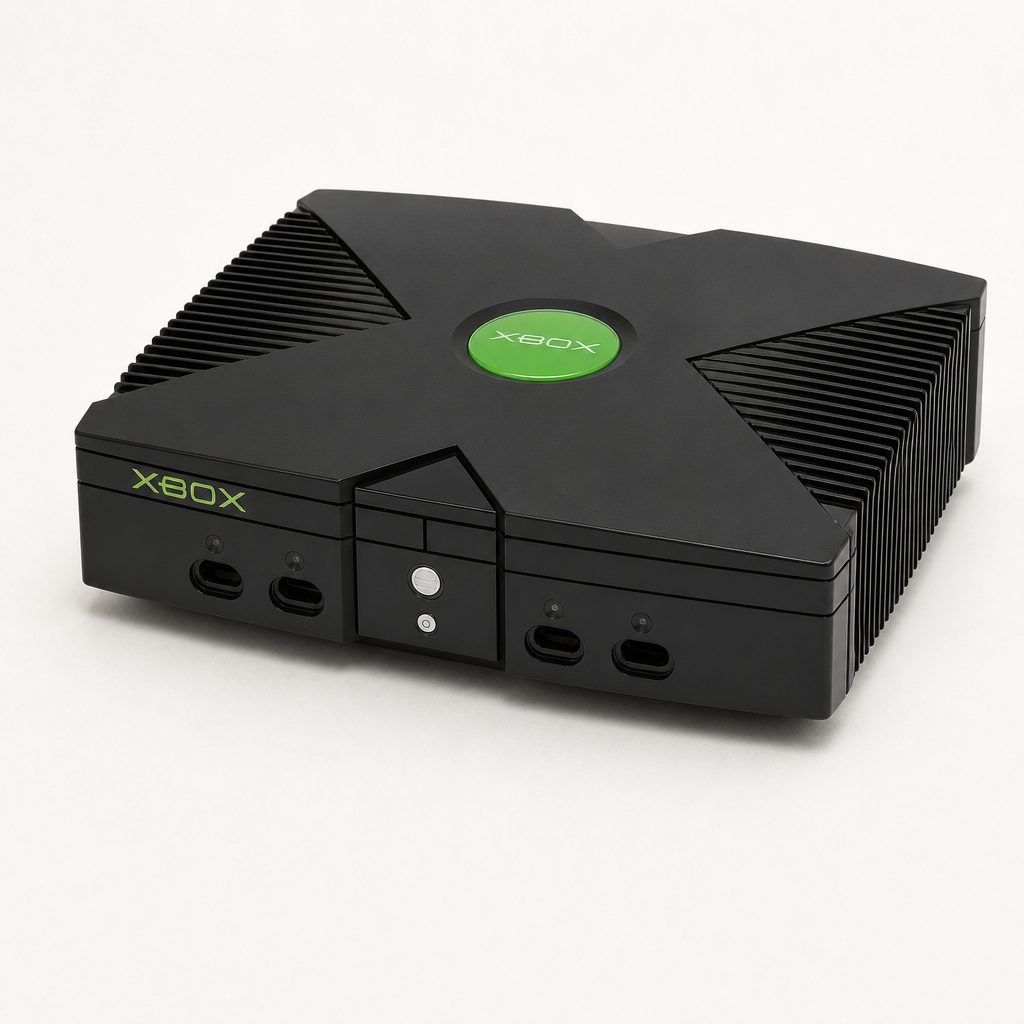
Do the final verification before the old console leaves the house: a few successful game launches are worth far more than an optimistic glance at a completed transfer queue.
The bottom line
Moving from an old Xbox to a new one is much less daunting once you stop treating it as one giant transfer. Sign into the same account, let recent saves synchronise, choose network transfer, external storage or selective downloads for the installed games, then verify the progress that matters.
The golden rule is wonderfully boring and completely effective: do not reset the old Xbox until you have played key games on the new one. Give yourself that safety net, and the upgrade becomes what it should be — an evening spent setting up a new console, not trying to rescue a beloved save file at midnight.