
How to Add Storage to Your Xbox Series X the Right Way
Running out of room on an Xbox Series X is irritating, but it is not a reason to start deleting favourites in a blind panic. The trick is understanding the console's two storage routes, what each one can actually do, and how to organise games so that moving things around becomes a rare bit of housekeeping rather than a weekly ritual.
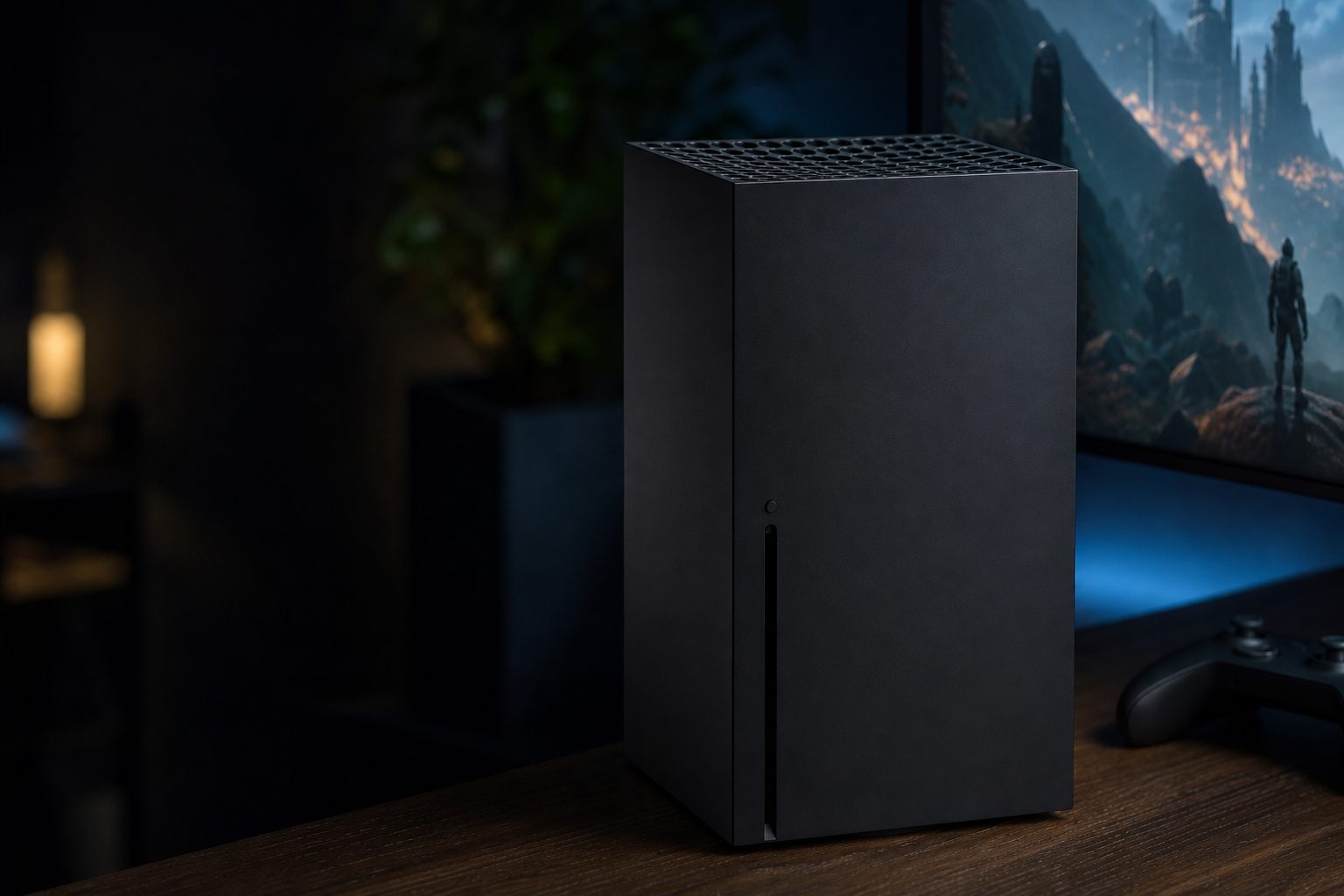
The Xbox Series X has two very different routes to more room: the rear USB ports for external drives, and the dedicated expansion-card slot for current-generation storage.
1. Start with the one thing that matters: where each game can run
Xbox storage gets muddled because "extra storage" sounds like one simple job. It is not. Your Series X can use a dedicated expansion card and it can use a USB external drive, but those options serve different purposes. Think of them as two shelves in the same games cupboard: one is the shelf your newest games need to live on, whilst the other is an extremely useful holding area for older titles and games you are not playing this week.
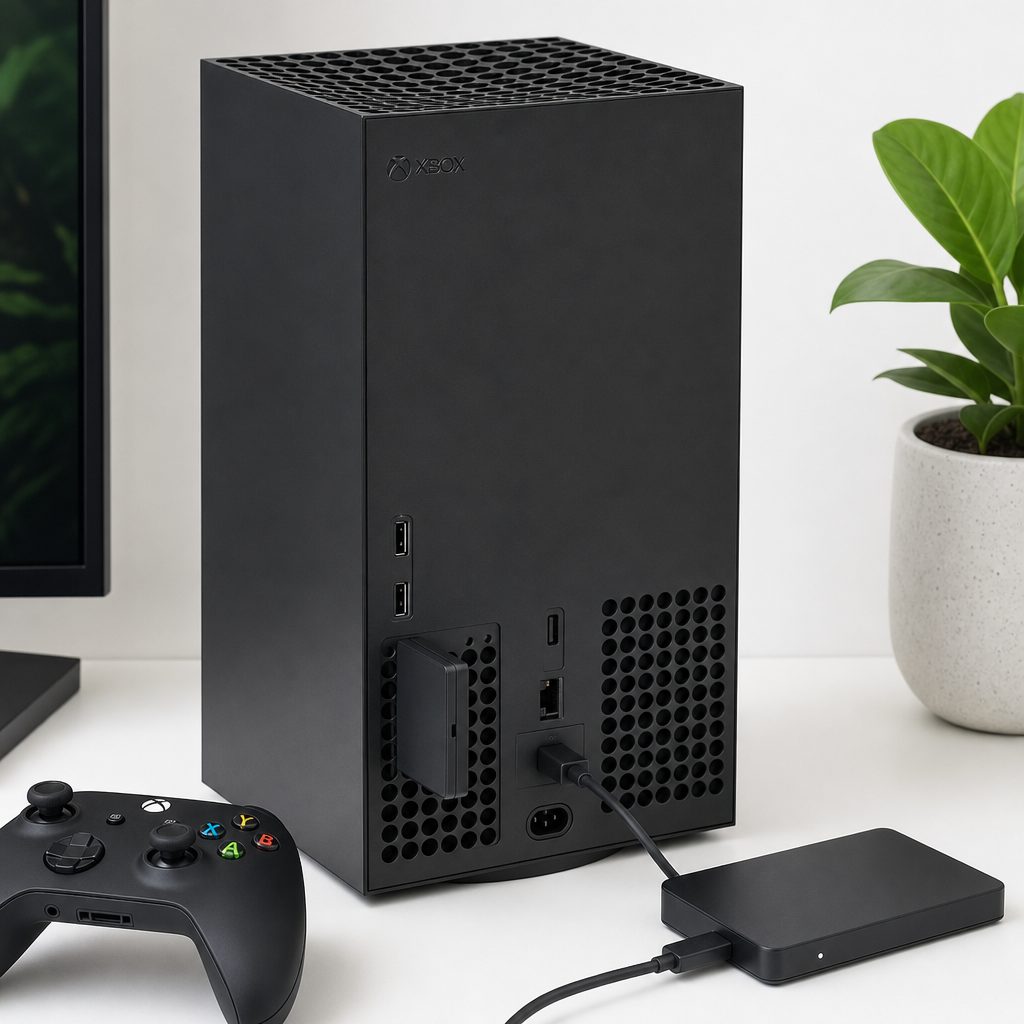
The most useful setup is often a split library: active Series X|S games in the console or expansion storage, with older favourites organised on an external drive.
The important distinction is the game's generation and its storage requirement, not whether it happens to look demanding. A title designed to use Xbox Series X|S features may need to be installed on the console's internal storage or on a compatible expansion card before it will play. An older Xbox game, meanwhile, can often be perfectly happy on USB storage. That makes an external drive far more useful than some people first assume. It is not merely a digital attic full of things you can no longer reach.
That last card is the unspectacular hero of this whole guide. Before buying anything, open the console's storage management area and look at your installed games. Check which ones you return to constantly, which ones are one evening away from being finished, and which ones have occupied valuable space since the last school holiday. It is amazing how often the answer is already sitting in front of you. A huge game that nobody in the house has touched for months does not need pride of place just because it took a long time to download.
Do not judge by the cover alone. Two games from the same long-running series can have different storage behaviour. Use the information shown by your own Xbox when deciding where a particular title belongs.
2. Understand the expansion-card slot before you buy anything
The neatest way to increase active Xbox Series X storage is the expansion-card slot at the back of the console. It is a purpose-built connection rather than an ordinary USB port. The card slides into place and becomes part of your console's available storage, with no dangling cable, no spare power lead and no need to find another place on the television unit for a drive that your cat will immediately investigate.
In practical terms, this is the route for people who want more current-generation games installed and ready to launch. Once the card has been recognised and set up, it behaves as another storage location in the console's own management menus. You can decide where new games install, move installed games between locations, and see how much free space remains. It is deliberately straightforward. Microsoft's approach here was less "build a little PC behind your telly" and more "please insert the storage thing in the storage-shaped hole". Sensible, really.
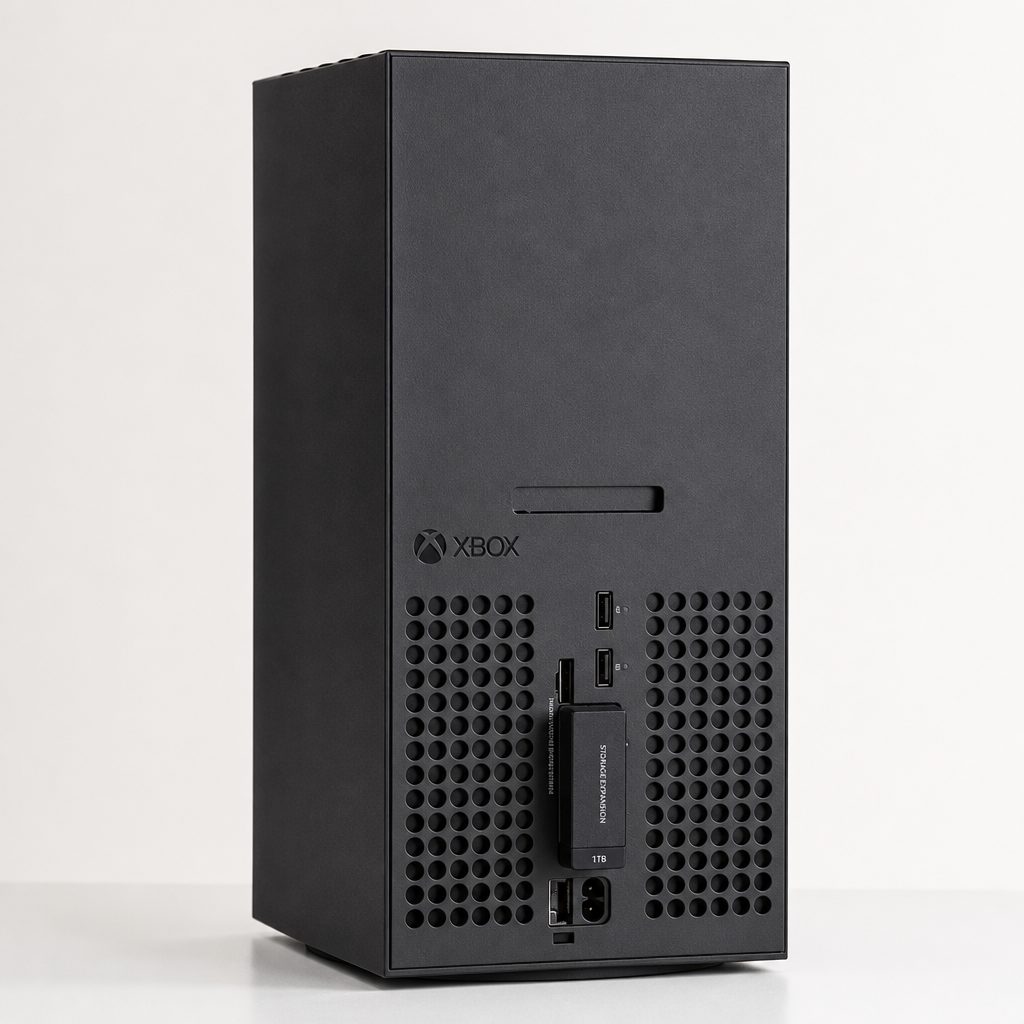
A storage expansion card uses the dedicated connection on the rear of the console, keeping the setup tidy and making it suitable for a regularly played Series X|S library.
Built for active Series X|S games
An expansion card is the direct answer when your problem is having too many current-generation games that need to be playable without shuffling installations around.
A clean console-first setup
There is no separate drive to balance beside the machine. For a shared living-room console, that tidy simplicity genuinely counts for something.
Less game moving
More compatible active storage means fewer moments where a game night begins with a storage-management screen instead of the game itself.
Good for busy households
If several people use one Xbox, the always-ready approach is kinder than expecting everyone to remember which games can be moved where.
There is one caveat worth being clear about: an expansion card is not automatically the right purchase for every owner. If your Xbox is mostly used for backwards-compatible favourites, occasional party games and a rotating selection of older downloads, USB storage may solve the actual problem more efficiently. The premium route only makes sense when it answers the problem you genuinely have. Buying the most capable option for a smaller problem is how you end up proudly owning a very elegant solution to something you did not need to fix.
3. Use a USB external drive for your older games and overflow library
A USB external drive is the practical workhorse of Xbox storage. It connects to one of the Series X's USB ports and gives the console another place to hold games. For older Xbox titles that can run from external storage, this can turn your USB drive into a proper second library rather than a simple archive. That is ideal if you keep a large collection of backwards-compatible games, play through older favourites with family, or like having familiar titles ready for a rainy Sunday.
It is also useful as a parking place for games that need faster storage when you want to keep them downloaded but are not currently playing them. Instead of deleting a large current-generation title and downloading it again later, you can move it to the external drive. When you want it back, move it to the internal storage or expansion card. It is still a transfer, yes, but it can be much more convenient than starting from scratch, particularly in a household where the internet is serving laptops, streaming telly and somebody's very important video call at the same time.
The useful way to think about USB storage
USB storage is brilliant for keeping an older library playable and for holding games between play sessions. Treat it as your sensible overflow cupboard, not as a replacement for the storage location required by every current-generation game.
When setting up an external drive, let the Xbox guide you through formatting it for games. This is the point at which you should pause and make sure there is nothing else on that drive you want to preserve. A drive formatted for console game storage should be treated as dedicated console kit. Do not expect it to remain a convenient place for family photos, work files and a surprisingly important folder called "definitely final version". Keep those worlds separate.
Once it is connected, give the drive a clear name in the storage settings. "External Drive" is technically accurate but not especially helpful if you later add another one. A simple name such as "Older Xbox Games" or "Archive Library" makes the menus easier to understand, especially for children or anyone in the home who did not volunteer for the role of household technology curator.
4. Choose the right route for the way your household actually plays
There is no single "best" storage upgrade because Xbox use varies wildly. One person might play the same two current games for months. Another may download a new title every weekend, dip in for an hour, then move on with the confidence of a person browsing a buffet. Families often have a mixture: one large current game, several older favourites, a racing game, something co-operative and at least one title installed because someone insists they will return to it. They will. Probably.
Start by sorting yourself into a rough pattern. If your priority is keeping lots of current-generation games ready to play, favour the expansion-card route. If you mainly want to preserve older downloads and stop deleting games you revisit now and again, an external USB drive is the more natural fit. If you have a genuinely sprawling library, combining the two can make excellent sense: expansion storage for active Series X|S games, USB storage for older playable titles and parked downloads.
| Storage choice | Best use | Where current-generation games belong | What makes it appealing |
|---|---|---|---|
| Internal Xbox storage | Your everyday installed games | They can be installed and played here | Already part of the console; no extra setup |
| Storage expansion card | A larger active Series X|S library | They can be installed and played here | Dedicated connection and a tidy all-in-one setup |
| USB external drive | Older games and overflow storage | Use internal storage or an expansion card when required | Useful for playable older titles and keeping downloads stored |
USB external drive
Best if your real aim is making room for older games and keeping less frequently played downloads without endlessly deleting them.
Expansion card plus USB library
Best for a varied household: active Series X|S games stay ready, whilst the older collection gets its own sensible home.
Expansion-card-first setup
Best for players who want a broad current-generation library installed and want the least possible faffing before play.
USB external drive
Best for backwards-compatible gaming, family favourites and a collection built over several Xbox generations.
5. How to install a storage expansion card safely
Adding an expansion card is refreshingly un-dramatic, but it is still worth doing it properly. Start by closing games and turning the console off if you prefer to handle hardware with everything settled. Make sure you can comfortably reach the rear of the Series X without tugging at HDMI, power or network cables. The console is sturdy, but there is no prize for trying to perform cable origami behind a television stand.
- Find the dedicated expansion-card slot. This is separate from the USB ports, so do not attempt to force the card into the wrong connection.
- Line up the card gently. It should fit in the intended orientation. If it feels wrong, stop, check the alignment and try again without pressure.
- Insert it fully. A properly seated card should sit securely in its dedicated slot rather than wobbling or hanging at an odd angle.
- Turn the console on and check storage management. Confirm that the additional location appears before starting a major game move.
- Name the storage location if prompted or available. A clear label makes later housekeeping much easier.
- Set your preferred install location. Decide whether new compatible games should default to internal storage, the expansion card, or be chosen each time.
After setup, do a small test before reorganising your whole library. Move one game you know you play regularly, confirm it appears in the expected place, then launch it. This is not because storage setup is inherently perilous; it is simply a good habit. Test one small thing, then do the big tidy-up. It is the digital equivalent of checking that the paint colour is not unexpectedly "aggressive custard" before covering the entire hallway.
Take care with removal. Do not pull out storage whilst the console is actively using it. Close games, make sure transfers have finished and follow the console's storage options before disconnecting anything.
6. How to set up a USB drive without making a mess of your library
With a USB external drive, placement matters more than people expect. Put it somewhere with a little airflow and somewhere its cable will not be knocked loose by a passing knee, an overexcited child or a dog who believes every new wire is a personal challenge. A drive that lives behind the console in a calm, stable spot will save you a surprising amount of low-grade annoyance.
Connect the drive directly to the Xbox, then follow the prompts to use it for games. Once the console has recognised it, head into the storage area and decide what its job will be. My preference is to make this decision before moving files. If the drive is primarily an older-games library, move those first and label it accordingly. If it is mostly archive space for games that currently need faster storage, call it something like "Transfer Library". A boring name is a good name here. You want instant clarity, not poetry.
Archive finished games
Keep large games downloaded when you may return to them later, rather than immediately deleting them and relying on another full download.
Protect family favourites
Put often-requested older games on the external library so they do not get sacrificed whenever somebody needs room for a new download.
Create a sensible split
Use one location for today's active games and another for the wider collection. That simple division makes storage menus far less intimidating.
Rotate rather than delete
When your active storage fills up, move games you have paused rather than removing them altogether whenever that makes sense for your library.
Do not move everything just because you can. Leave currently played games where they need to be, and resist the temptation to create a storage puzzle so intricate that only you understand it. The goal is not to achieve the prettiest possible storage screen. The goal is to make Friday night gaming start promptly, particularly when somebody has already announced they only have "half an hour". That half-hour has a habit of becoming forty-five minutes of updates if the setup is not thought through.
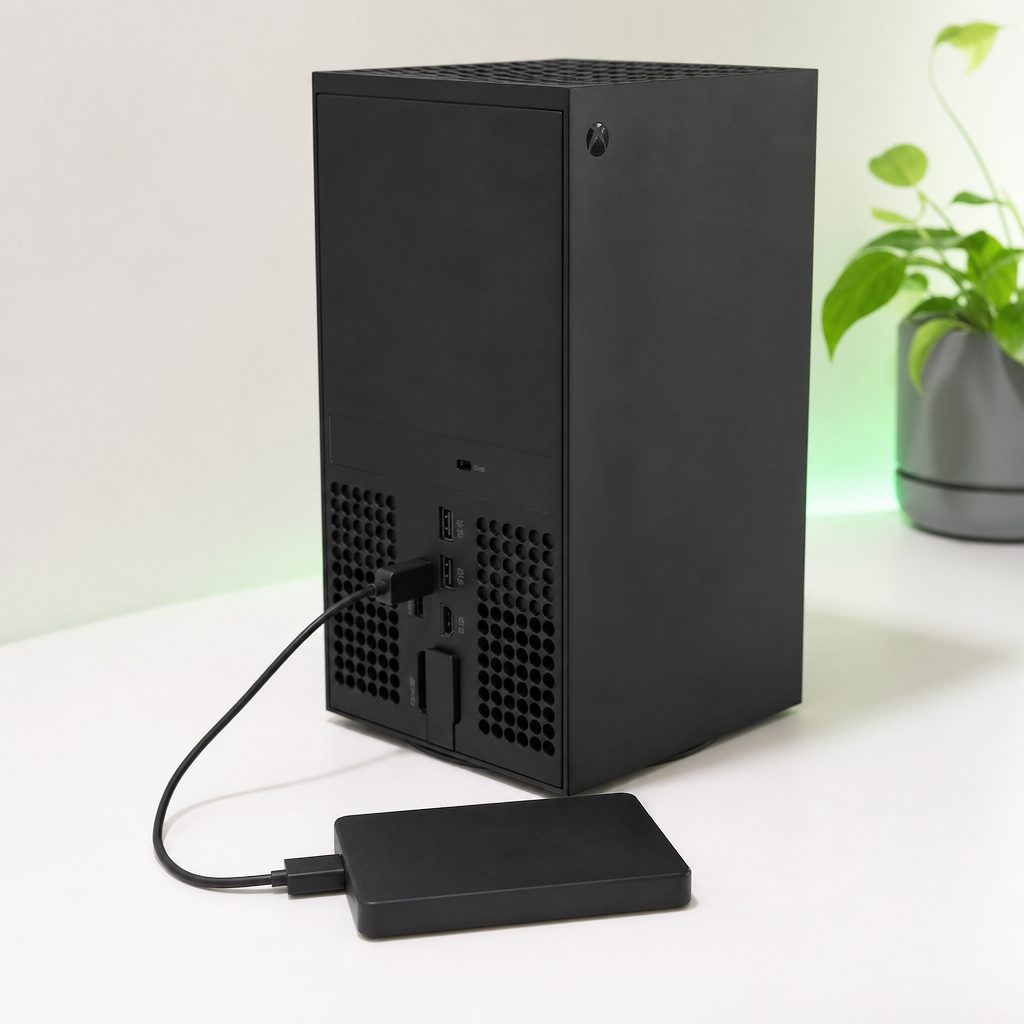
A USB external drive works best when it has a clear role: an older-games library, a holding space for downloads, or both, rather than a mysterious pile of everything.
7. Move games deliberately instead of deleting them on impulse
The Xbox storage menus let you manage games by location, and this is where the system becomes genuinely useful. You can look at each storage device, see what lives there and move games between them. Before starting, give yourself a simple rule: move games based on when you expect to play them next, not on sentiment. A game you loved two years ago is still a game you loved two years ago, even if it spends a while in the external library.
A sensible rotation is usually enough. Keep the game you are actively playing, the game you play with friends, a dependable family game and perhaps one comfort favourite on your active storage. Put the rest in the external library if appropriate. When you finish a big game, move it out before downloading the next one. It takes a tiny amount of discipline, but it prevents the point at which the console presents a storage warning exactly when a new game has finished installing. Technology has a flair for timing.
Why moving games is useful
- You can keep a broader collection downloaded.
- Older compatible games can remain ready on USB storage.
- Finished games do not need to disappear the moment you need room.
- Your active storage stays focused on what you genuinely play.
Where people get caught out
- Not every current-generation game can simply run from USB storage.
- Large transfers require a little patience and planning.
- A random file structure becomes confusing in a shared household.
- Disconnecting storage carelessly can interrupt transfers or play.
When deciding what to move, do not forget add-ons and saves. Let the console handle the relationship between a game and its content through its own management tools rather than trying to second-guess where individual pieces belong. The broad rule is simple: use Xbox's game-management options, wait for the transfer to complete, and then check the game still appears where you expect. A couple of minutes spent verifying saves much more stress than any storage upgrade is supposed to create.
A low-effort routine that works
Whenever you install a new major game, move one title you have finished or paused. One in, one out. It keeps the active library manageable without turning storage maintenance into a monthly domestic project.
8. Make your default install settings work for you
Once you have more than one storage location, your defaults matter. The console can ask where you want to install games, or it can use the location you have chosen as the usual destination. Neither approach is universally better. If you are the only person using the Series X and your habits are predictable, a default location is wonderfully convenient. If several people download games, choosing each time is safer because it prevents an older game from filling the storage reserved for newer titles.
For an expansion-card setup, it often makes sense to use internal storage and the expansion card as the places for your active modern library. For a USB setup, treat the external drive as the home for the category it is best at handling in your collection, rather than sending every download there automatically. The difference is subtle but important. A good default reduces decisions. A bad default creates them later, just when someone is waiting to play.
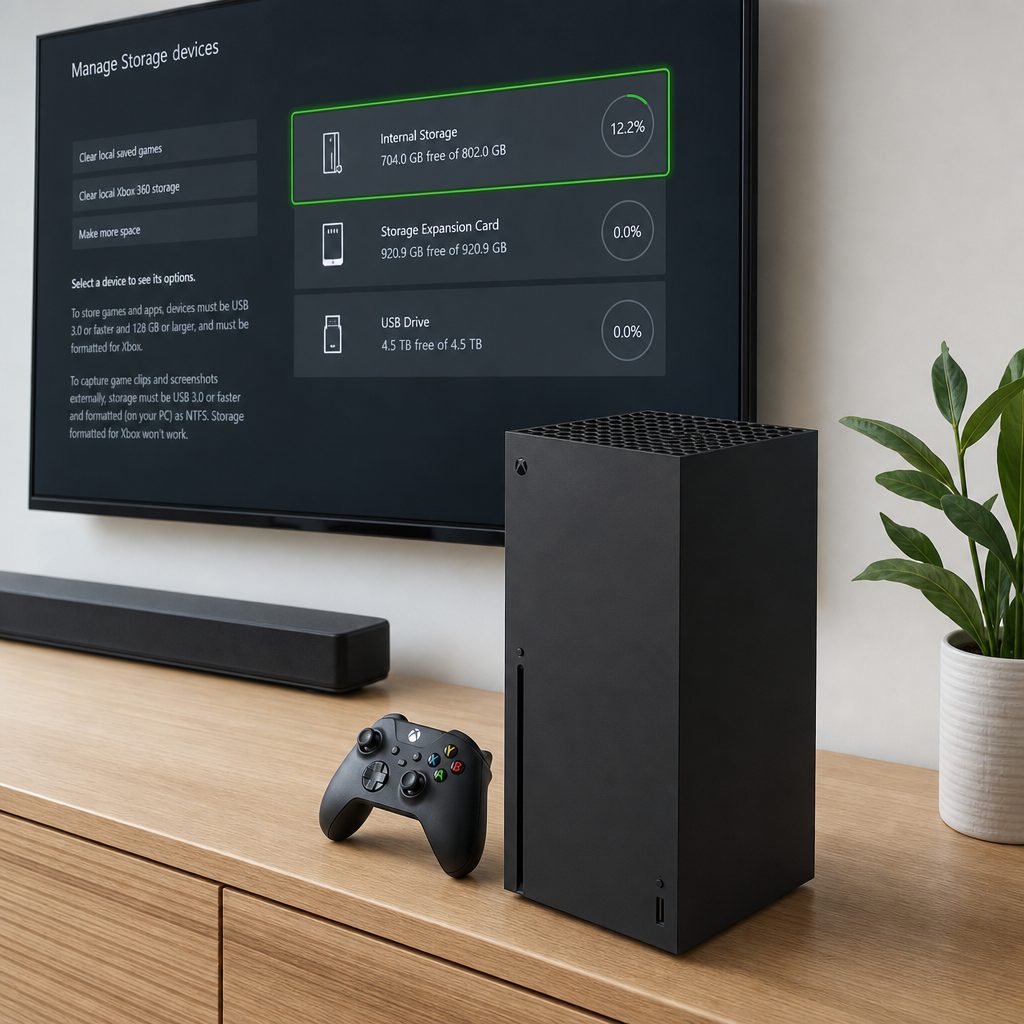
The Xbox storage screen is worth checking after every major download; a clear default location helps, but choosing deliberately can be better on a shared console.
It is also worth occasionally opening the storage view simply to see where space is going. Installed games tend to expand in the background of our lives: one update here, one new co-op title there, then suddenly the console is full and everyone is glaring at the least-played game as though it personally caused the problem. A quick check every few weeks is enough for most households. There is no need to become a storage accountant.
9. Common mistakes to avoid when adding Xbox Series X storage
The biggest mistake is buying storage without deciding whether you need more playable current-generation space or simply more room for your collection. These are related needs, but they are not identical. An expansion card solves the former neatly. USB storage is excellent for the latter, particularly where older games are concerned. Be honest about which frustration you are actually trying to remove.
The second mistake is treating all installed games as equally important. They are not. A game you are halfway through, a multiplayer favourite and the title your children play every Saturday deserve easy access. The rest can be moved, archived or deleted without any ceremonial farewell. Digital ownership does not require every game to occupy your most convenient storage forever.
Third, avoid disconnecting an external drive casually. Do not unplug it whilst playing from it, transferring to it or moving a game back to active storage. If you need to change cables or tidy your TV unit, close anything using the drive first and let the console finish its work. This is not glamorous advice, but neither is explaining to an impatient eight-year-old why the game library has temporarily vanished.
Finally, do not assume that a USB drive and an expansion card are rivals. For many Series X owners, they are teammates. One keeps the current library ready; the other preserves the history of your library. It is a pleasingly practical arrangement, and it means storage warnings stop feeling like a demand to choose between new games and old favourites.
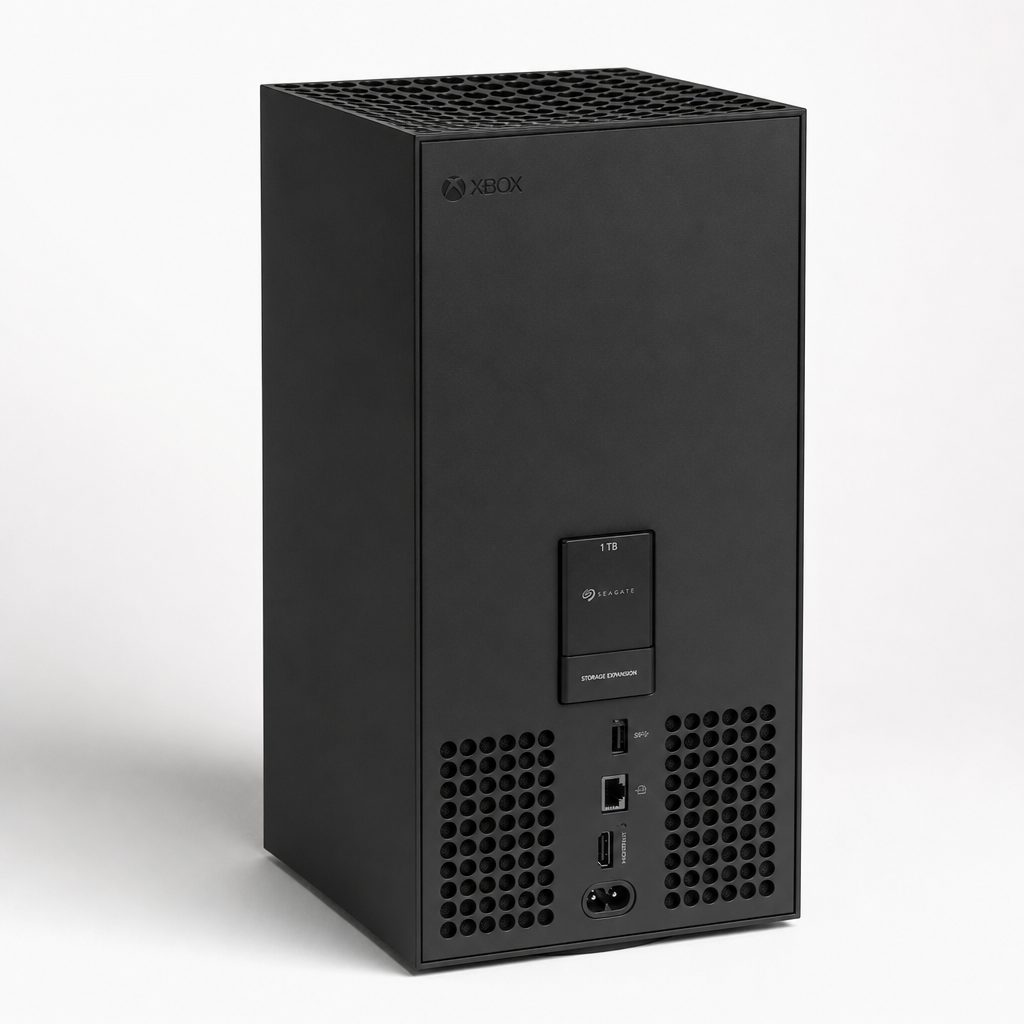
A little organisation prevents the dreaded full-storage warning from arriving just as a new game is ready to play.
10. A simple storage plan for different kinds of Xbox owner
If you mainly play one large game at a time, keep that game and your immediate favourites on the internal storage. You may not need an upgrade straight away; a light rotation could be enough. If the console is shared and downloads pile up quickly, add USB storage for older titles and use it as the household's long-term game shelf. It is a modest organisational change with a disproportionate benefit.
If you are a keen player who wants several current-generation games ready at all times, the expansion-card route is the clean answer. You are paying for convenience in the truest sense: less moving, fewer choices and more time spent actually playing. Then, if you also have a broad back catalogue, an external USB drive can carry the older library without turning your active storage into a game of musical chairs.
For parents, I would keep the system deliberately obvious. Make one storage location "Current Games" and another "Older Games". Show the family where games appear, explain that some games need to be on the active storage, and make one person responsible for moving a finished game when space runs low. It sounds almost comically simple. That is exactly why it works.
Use a small active rotation
Keep only what you are currently playing on active storage and move finished games before the next big install.
Split active and older libraries
Clear naming and a USB library stop favourite older games from vanishing whenever somebody downloads something new.
Prioritise expansion storage
Keep more current-generation games ready when you move regularly between multiplayer, single-player and co-op sessions.
Use both storage routes
Keep the active modern selection close to hand whilst giving the older collection its own organised external home.
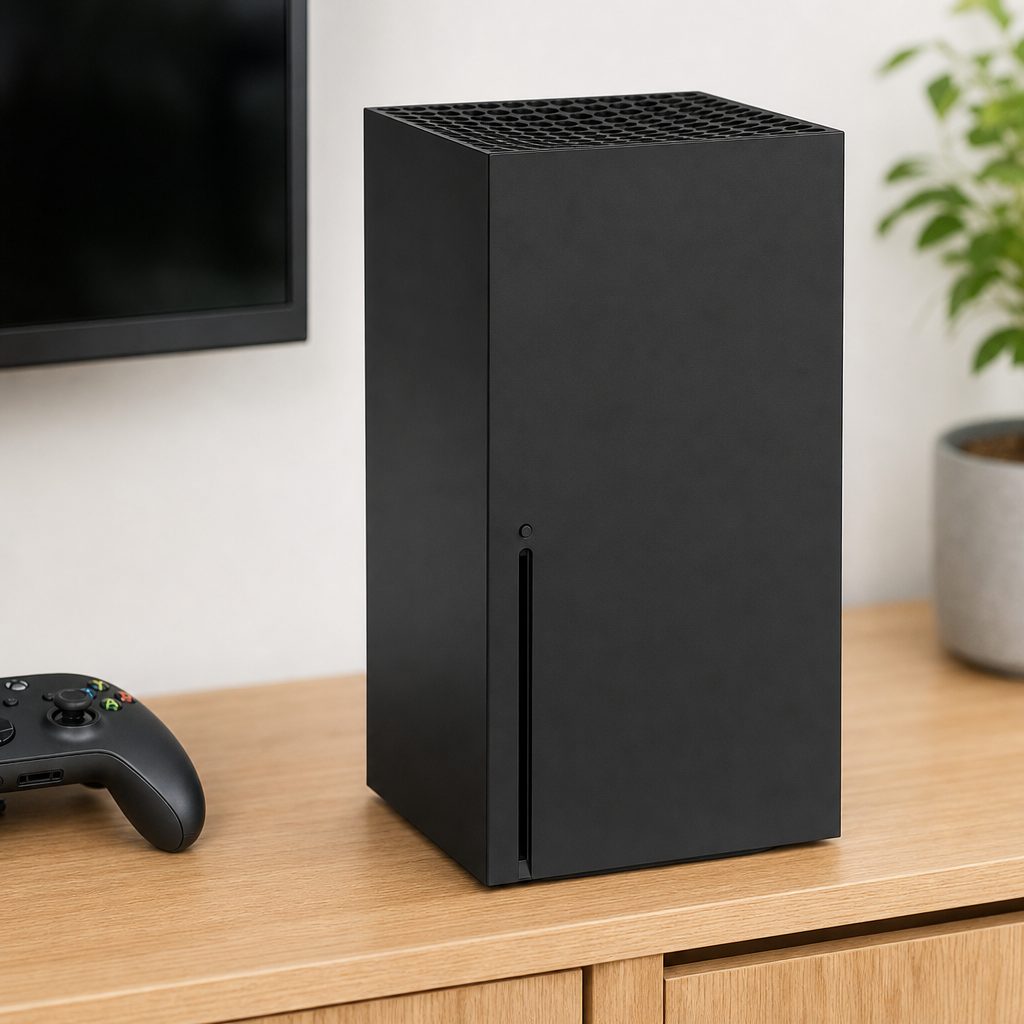
The best storage upgrade is the one that reflects your real playing habits, whether that means a compact active library or a vast collection of older favourites.
Frequently asked questions
The bottom line
The right way to add storage to an Xbox Series X is to give each type of storage a clear job. Use internal storage or an expansion card for the current-generation games you want ready to play. Use a USB external drive for older compatible games and for holding downloads when your active library gets crowded.
You do not need to turn the back of your television into a miniature data centre. Pick the route that matches how your household plays, name your storage clearly and move games before space becomes a problem. Then get back to the important bit: playing the game, rather than administering it.