How to Get the Best Battery Life Out of Your Switch 2
The Nintendo Switch 2 can run for roughly two to 6.5 hours, depending on what you play and how you set it up. That is a broad spread, admittedly. Here is the practical, no-nonsense way to make each charge go further without turning your lovely new handheld into a dim, joyless compromise.
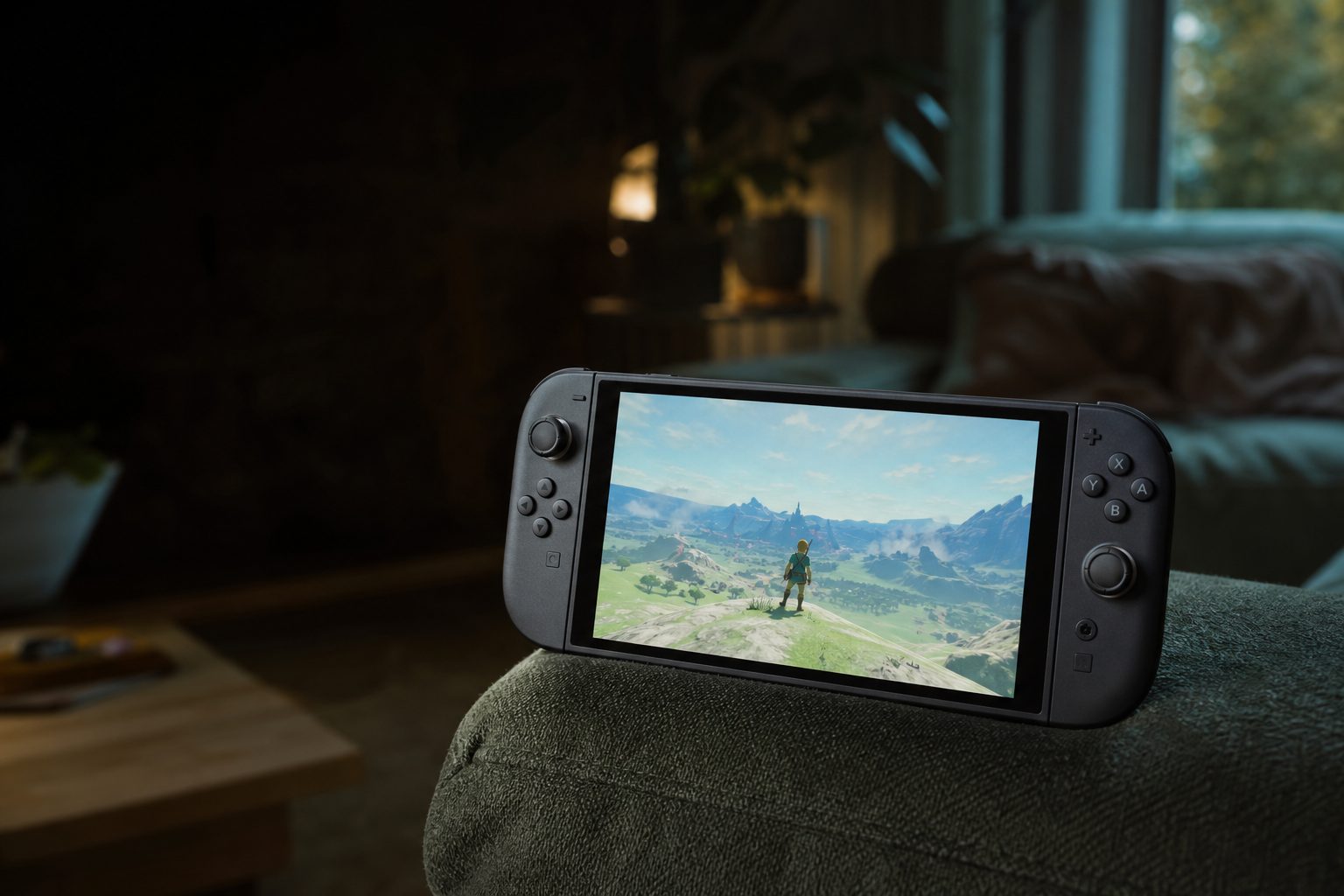
The Switch 2's 7.9-inch screen is wonderfully bright and sharp, but display settings are also the quickest route to a longer handheld session.
1. Start with realistic expectations
Before fiddling with a single setting, it helps to understand what you are trying to improve. The Nintendo Switch 2 arrived worldwide on 5 June 2025 with one 5,220mAh lithium-ion battery, identified at 19.74Wh. There was no Switch 2 Lite, OLED refresh or Pro version to muddy the waters by 15 August 2026. Every standard Switch 2 began from the same basic battery position.
Nintendo's quoted range of around two to 6.5 hours was always an estimate rather than a promise. That is not Nintendo being slippery; it is simply the reality of a console with a large 7.9-inch 1080p LCD, HDR10 support, VRR and a refresh rate that can reach 120Hz. A colourful 3D world at high brightness asks vastly more of the hardware than a quiet puzzle game. One battery percentage is not remotely as useful as knowing what the machine is doing whilst it spends it.
Real-world testing made that point rather clearly. Digital Foundry recorded exactly 2.5 hours in handheld mode with Mario Kart World and No Man's Sky. Nintendo Life's timed Mario Kart World session lasted just over two hours and 10 minutes, whilst a Cyberpunk 2077 quality-mode run came in at two hours and 25 minutes. Those are not faulty consoles. They are demanding games giving demanding hardware a proper workout.
The sensible goal, then, is not to chase the mythical 6.5-hour marathon in every game. It is to remove wasted power draw, choose the right settings for the moment, and avoid arriving on a train platform with 11% battery and a face like somebody has cancelled Christmas.
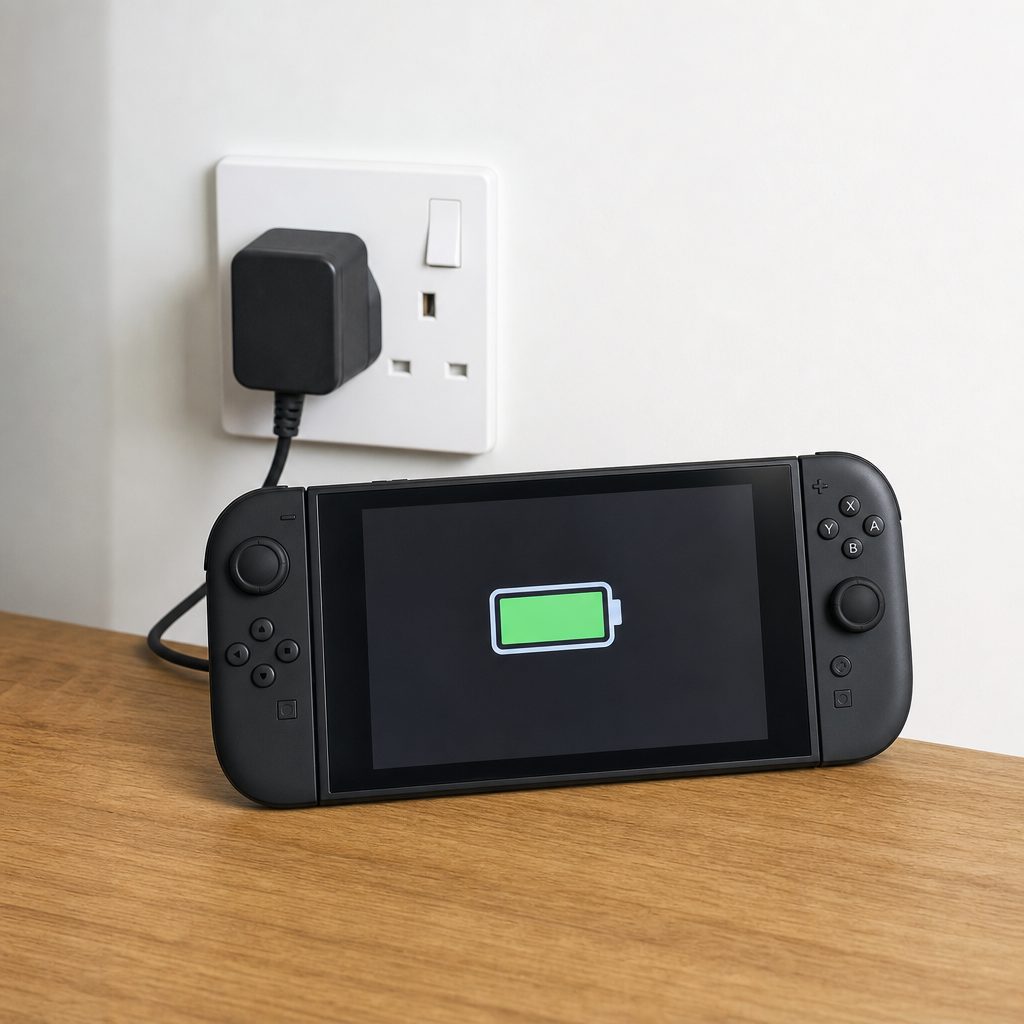
A full charge before leaving home matters more than endlessly checking the battery icon halfway through a game.
2. Use brightness as your first and biggest lever
If you change only one thing, change screen brightness. The Switch 2's larger 1080p LCD is one of its best features, particularly for games with rich colour and detailed menus. It is also one of the largest regular drains on the battery. At the default brightness level, demanding titles such as Mario Kart World and Cyberpunk 2077 tended to sit around the two-hour mark in testing when Wi-Fi was on and brightness was around 80%.
For ordinary indoor play, set brightness around 50% and give yourself ten minutes to adjust. Most people find it perfectly comfortable once their eyes stop comparing it with the brightness of a kitchen window or an overhead lamp. The screen still looks crisp; you simply stop powering it as though you are signalling aircraft.
Keep higher brightness for situations where it genuinely helps: a sunny garden, a conservatory, a bright train carriage or a room full of direct daylight. Lower it again once you are indoors. A 20-minute trip from the station does not require the same settings as a Saturday afternoon in the park.
Indoor target: roughly 50%
This was one of the settings used in battery-saving testing and is usually the best balance between comfort and endurance in a normal room.
Change it for the room, not the game
A dark game does not always need a darker screen. Set brightness according to ambient light, then leave it alone unless the environment changes.
Save the bright setting for travel
Outdoor and window-seat gaming are where high brightness earns its keep. Expect the trade-off and pack a charging option if needed.
Do not mistake dim for efficient
There is no prize for playing at a level that makes text uncomfortable. A sustainable setting is one you will actually use.
The easy win
Brightness is the setting worth revisiting before a journey. Start at around 50%, play for a few minutes, and only increase it if the image is genuinely difficult to see. It is the least disruptive battery saving you can make.
3. Cap the refresh rate at 60Hz when battery matters
The Switch 2 supports VRR up to 120Hz. In the right game, it is lovely: motion can feel smoother and fast camera movement looks more natural. But extra refreshes cost power. If you are playing at home near a socket, enjoy the feature. If you are trying to make a three-hour coach journey survive, 60Hz is the more practical choice.
A 60Hz cap does not mean a game suddenly looks bad. Many console games were built around 30fps or 60fps targets for years, and plenty still feel excellent there. Mario Kart World is a good example of a game where smoothness is nice, but an extra hour of actual play is often nicer. Particularly if your travelling companion has claimed the only USB socket.
Where a game presents performance, quality or frame-rate choices, use the option that lets you keep the experience comfortable rather than simply selecting the largest number on the screen. The best battery setting is rarely "maximum everything". It is "the setting where I stop noticing the compromise after five minutes".
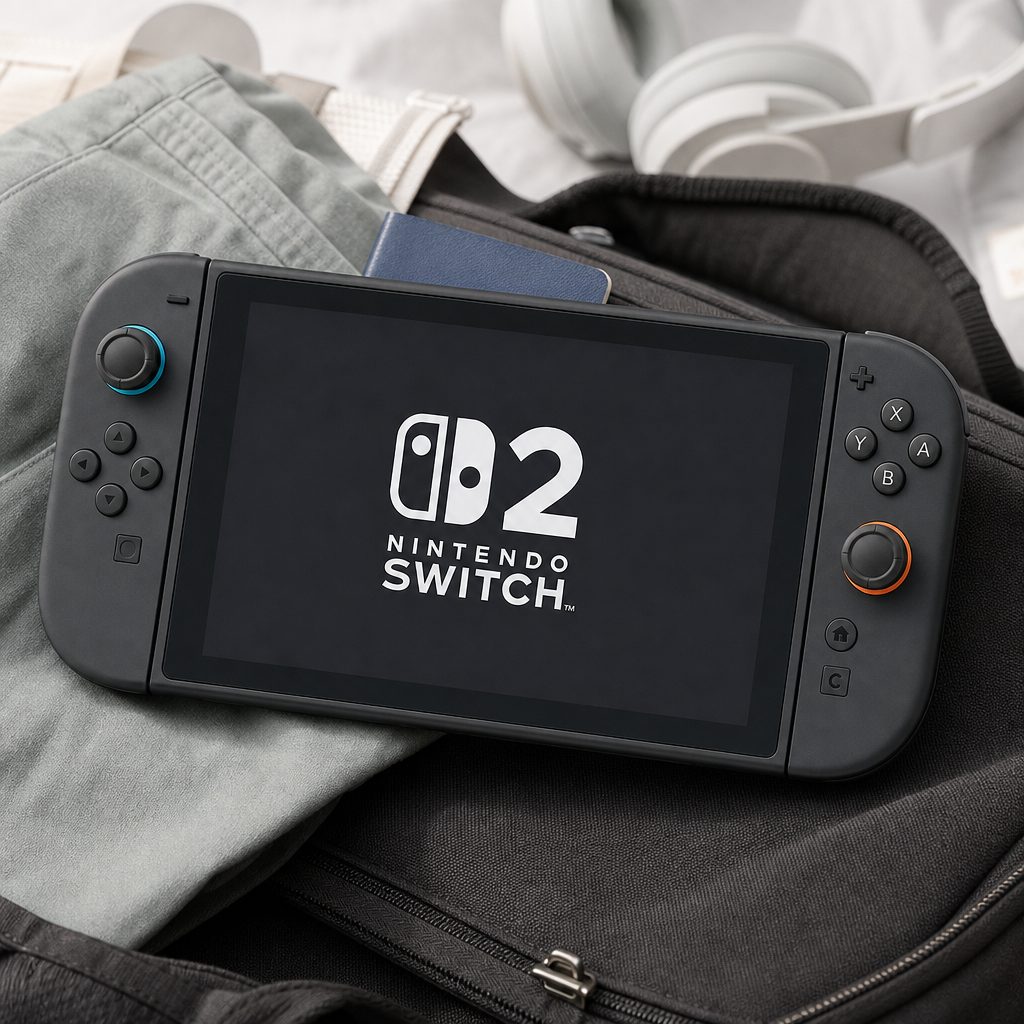
Fast-moving games can benefit from 120Hz support, but 60Hz is the sensible travelling setting when every percentage point counts.
Think in sessions, not absolutes. For an evening on the sofa, 120Hz support may be worth using. For a long train journey or a child's back-seat entertainment mission, reducing the refresh-rate target to 60Hz is a very reasonable trade.
4. Turn HDR off for longer handheld sessions
HDR can add punch to bright skies, neon signs, explosions and all the other bits game trailers love to linger on. It can also contribute to battery drain because the display is working harder to produce that extra visual impact. Disabling HDR was one of the changes included in battery-saving test setups that added a meaningful amount of play time.
I would not tell anyone to permanently disable a feature they enjoy. That rather defeats the point of owning modern hardware. Instead, treat HDR as your "at home or plugged in" setting. If you are heading out for a day, switch it off before you leave. You are more likely to notice the extra play time than to mourn slightly less dramatic highlights in a café.
This is especially true in bright places. In daylight, the finer visual differences HDR can deliver are often less obvious anyway. A sensible brightness setting, 60Hz refresh rate and HDR switched off form a very effective travel profile. None of them asks you to alter how you play. They simply stop the console spending power on visual flourishes that may not matter in that particular moment.
5. Switch off wireless activity you do not need
Shop Switch off wireless activity you do not need on Amazon UK
Wi-Fi is useful. It handles downloads, online play, cloud-related activity and all the background bits that modern consoles quietly get on with. Yet if you are playing a single-player game offline, it can be needless overhead. Airplane Mode was another setting used in the more battery-conscious test profile, alongside lower brightness, HDR disabled and a 60Hz cap.
The practical approach is uncomplicated: if you are on a journey and playing a game that does not need an internet connection, use Airplane Mode. Turn it back off later when you want downloads, online features or syncing. You do not have to treat it as a permanent lifestyle choice. This is not a monastery.
It is worth remembering that wireless activity may also affect Sleep mode. Before the System Version 22.0.0 update in Q2 2026, some owners reported losing 40% to 50% overnight, with batteries falling from full to around 59% after eight or nine hours of sleep. That update addressed the issue as a software reporting glitch rather than a mechanical standby leak. Even so, if you want to preserve a charge for tomorrow, fully powering down after a long session remains the belt-and-braces option.
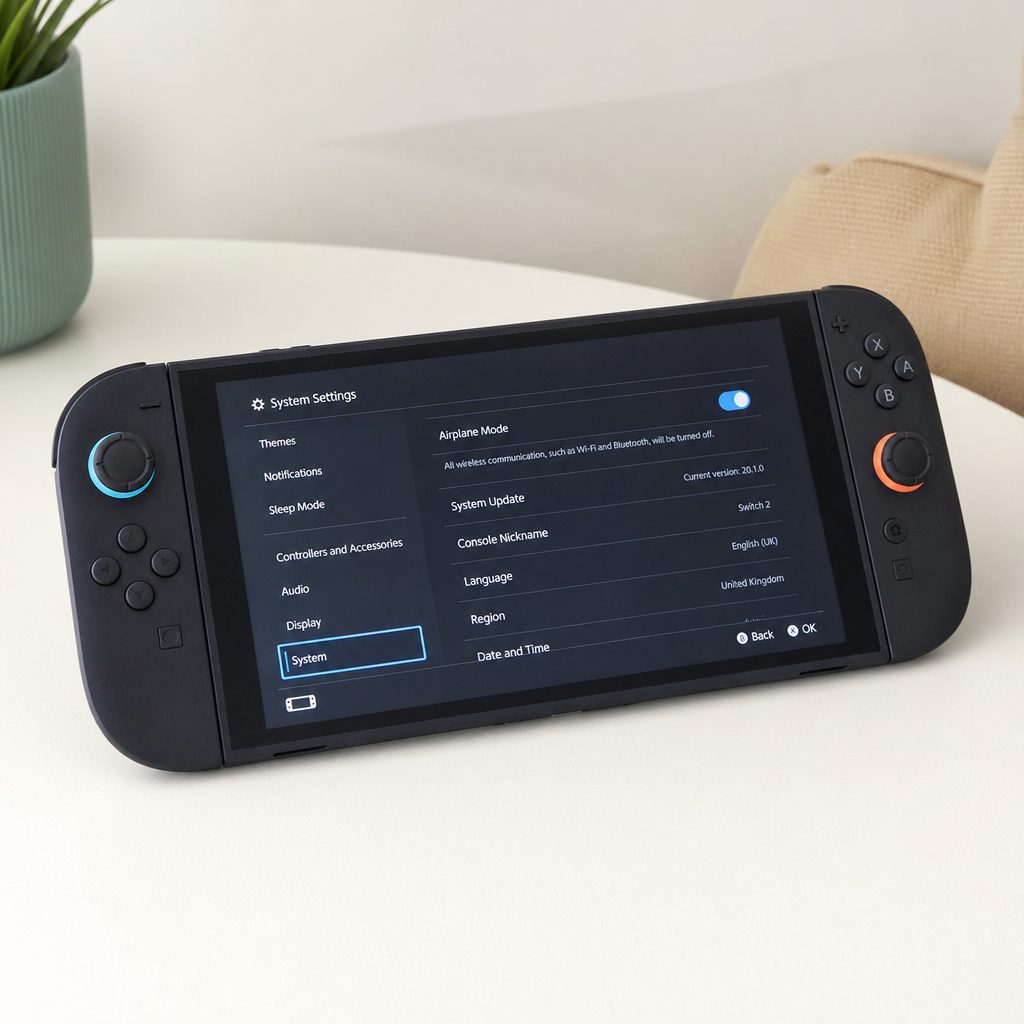
For offline single-player games, Airplane Mode removes wireless activity you do not need and helps preserve a charge for the journey home.
Good reasons to use Airplane Mode
- It cuts unnecessary wireless activity during offline play.
- It makes the battery-saving travel profile easier to maintain.
- It avoids background online tasks competing for power when you do not need them.
What you give up temporarily
- Online multiplayer and internet-dependent game features.
- Downloads and automatic background activity until you reconnect.
- The convenience of leaving every connection on by default.
6. Tidy up background habits before they cost you
Battery saving is not only about the dramatic settings. It is also about the small things that keep the console busy when you would rather it concentrated on the game. If automatic upload options are enabled, consider turning them off before a trip and handling uploads later when the Switch 2 is charging. That was one of the settings adjustments associated with longer sessions in battery testing.
Likewise, use Sleep mode deliberately. It is excellent when you need to pause for dinner or stop at a station. It is less useful when you have finished for the night and want the fullest possible charge in the morning. The 22.0.0 update improved the confusing standby reporting issue, but the most reliable way to stop a device using power is still to turn it off. Ancient wisdom, admittedly. Also annoyingly effective.
Do not become obsessed with checking the percentage every ten minutes. Batteries fall unevenly depending on the game and the setting. What matters is building a routine: recharge after demanding sessions, avoid leaving a nearly empty console in Sleep mode for days, and use a lower-power profile before you set out rather than after the battery becomes an emergency.
7. Charge properly, rather than constantly worrying about it
The Switch 2 took approximately three hours to fully charge in Sleep mode using its official power cable or dock. That is the useful baseline. It may take longer with another charger, and it will naturally take longer if you are playing at the same time. If you need a reliably full console for the morning, connect it before bed and let it do its thing.
For day-to-day battery health, the "Stop Charging Around 90%" option is worth considering when your routine allows it. It gives up a little immediate runtime in exchange for avoiding a constant full charge. That is most useful for households where the Switch 2 spends most of its life in the dock and rarely needs every last percentage point. If you are about to travel, though, turn that strategy off and charge fully. Battery care is supposed to make life easier, not make you leave home deliberately undercharged.
Use the official power cable or dock when possible. The console has USB-C ports on the top and bottom, which is handy in handheld mode because you can choose the more convenient direction for charging. Keep cables free from awkward bends, do not bury the console under cushions whilst charging, and avoid treating warmth as a sign that it needs a blanket. Electronics appreciate airflow. So do people, to be fair.
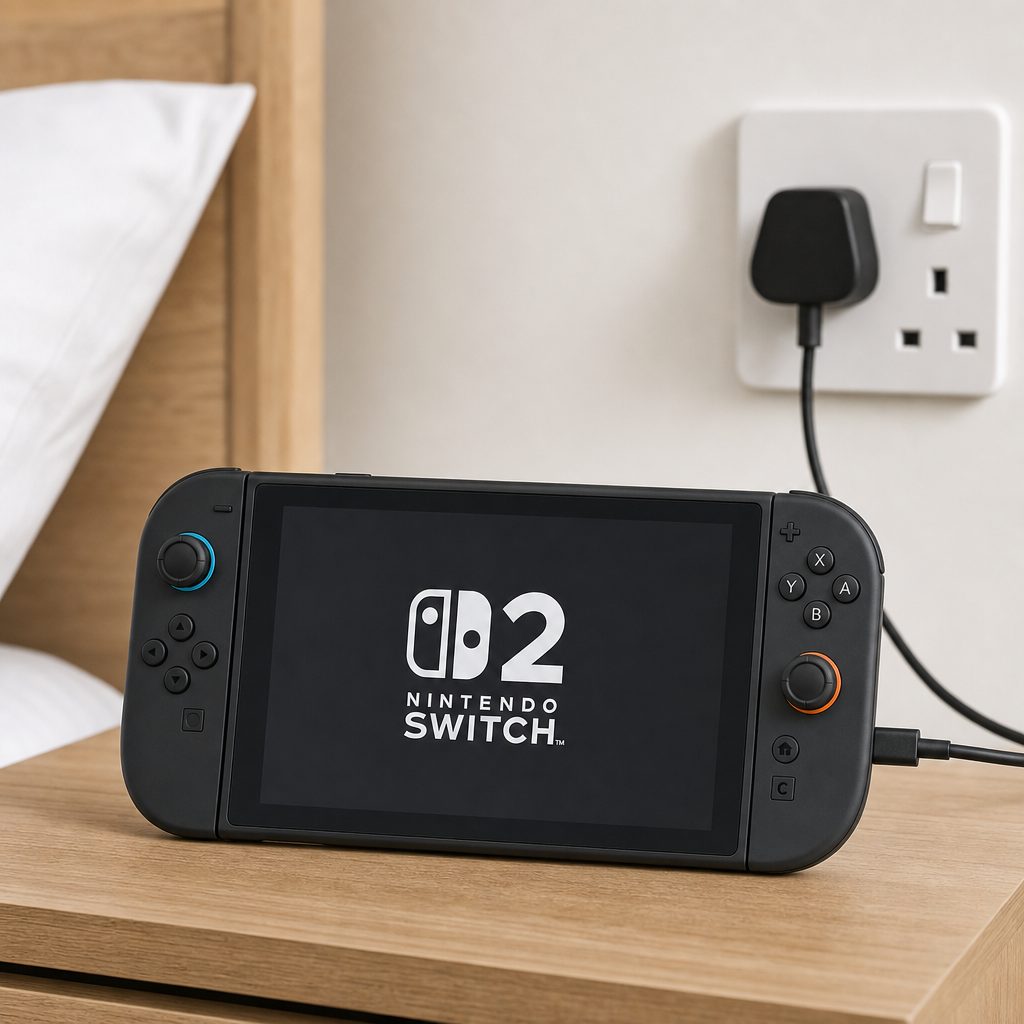
The Switch 2 takes around three hours to charge fully in Sleep mode with the official cable or dock, making an overnight top-up straightforward.
A useful charging rule
Use the 90% charging limit for dock-heavy home routines, but charge to 100% before travel. A battery-saving feature is only helpful if it matches what your day actually requires.
8. Keep the console cool during demanding games
Heat and battery life have a slightly awkward relationship. The Switch 2's active cooling system, heatpipes, heatsink and large rear vent kept long sessions warm but controlled, even in demanding 3D games. That is good news. The back can become noticeably warm and the fan can become audible under a serious workload, but that does not mean you should panic.
It does mean you should avoid making the cooling system's job harder. Do not play with the rear vent pressed into a thick blanket, a sofa cushion or the folds of a winter coat. If you use a case, make sure it does not restrict ventilation. Give the console a few minutes in open air if it has been working hard for a long time, especially on a warm day.
This is not about chasing a magic temperature. It is common sense. When a game is pushing the hardware, the battery, processor and display are all working together. Keeping airflow clear helps the console stay in the controlled operating range it was designed for, rather than making it fight both the game and your soft furnishings.
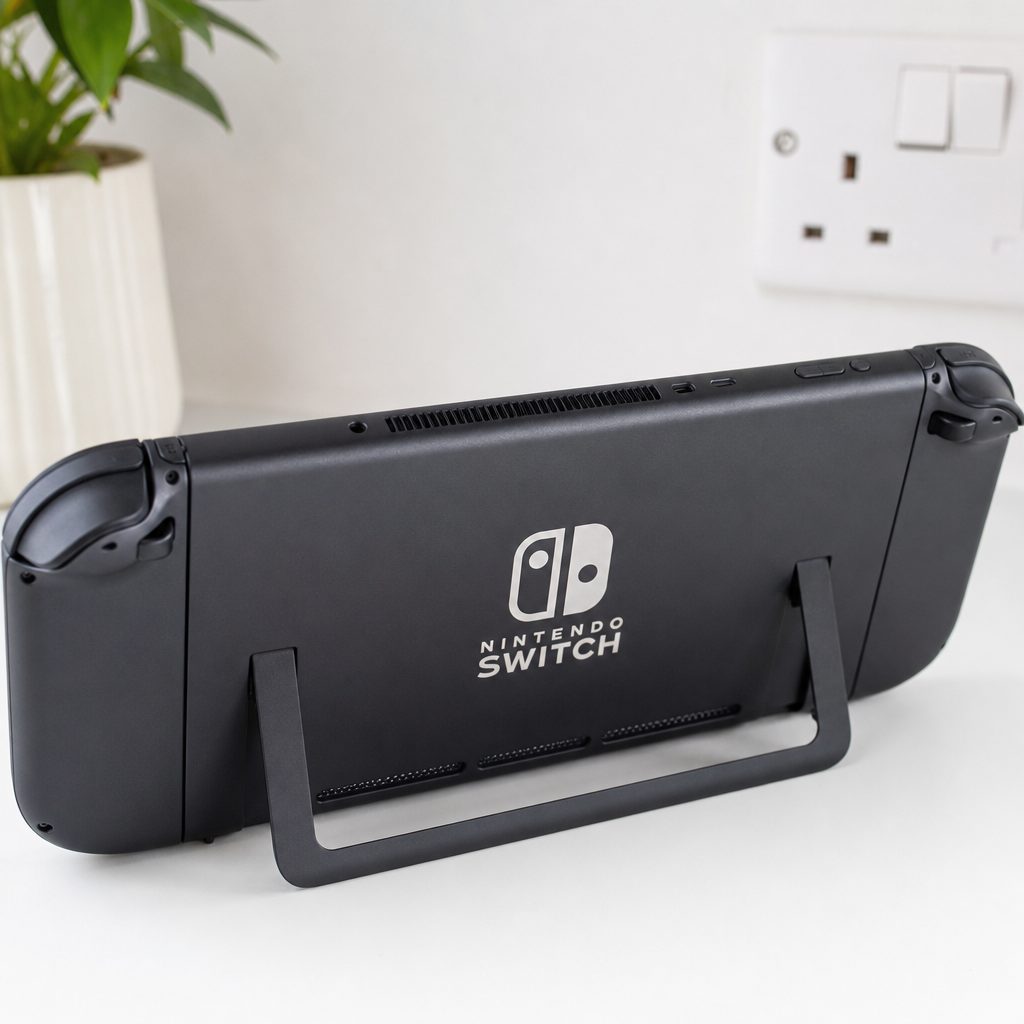
Keep the rear vent clear during long 3D sessions; the Switch 2 can run warm under load, but its cooling system works best with proper airflow.
9. Pick the right battery profile for the game and the day
There is no single best Switch 2 setup. There is only the best setup for what you are doing. A short Mario Kart World session at home can happily use brighter visuals, HDR and higher refresh support. A long single-player journey calls for a different approach. The trick is to stop treating settings as permanent declarations of loyalty.
| Setting or situation | Home and short-session profile | Travel and endurance profile | Why it matters |
|---|---|---|---|
| Brightness | Set for the room and your comfort | Around 50% indoors where practical | The screen is a major recurring drain. |
| Refresh rate | Use up to 120Hz where you enjoy it | Cap at 60Hz | Fewer refreshes reduce power demand. |
| HDR | On if you prefer the presentation | Off | HDR was among the tested battery-saving adjustments. |
| Wireless | Wi-Fi on for online features | Airplane Mode for offline games | Stops unnecessary wireless activity. |
| Background uploads | Use normally if convenient | Disable until charging later | Reduces background work during play. |
| Expected runtime | Depends heavily on game load | Settings tests added around 1.5–2.5 extra hours to many sessions | Game demands still set the starting point. |
The last row is important. Settings adjustments including HDR off, 60Hz, around 50% brightness, Airplane Mode, Basic Black theme and automatic uploads disabled added approximately 1.5 to 2.5 extra hours to most sessions in testing. That is a worthwhile result. It does not mean Cyberpunk 2077 suddenly behaves like a low-demand indie game, but it can turn a nervy two-hour outing into a much more relaxed one.
Best for commuters
Use the full travel profile: 60Hz, HDR off, around 50% brightness and Airplane Mode for offline games. This is the best pick when a socket is not guaranteed.
Best for families
Prioritise predictability: charge overnight, lower brightness indoors, and power down after use if the console will sit untouched for a while.
Best for visual purists
Keep the good stuff on at home: use HDR and high refresh support when convenient, then switch to the endurance profile only for travel.
Best for long single-player sessions
Combine all the small wins: offline mode, reduced display demands, paused uploads and clear ventilation make the biggest combined difference.
10. A final battery-saving routine worth actually using
The best routine is not the most extreme one. It is the one you can repeat without resenting it. I would leave the Switch 2 looking its best when it is docked or close to a charger, then use the travel profile before leaving the house: around 50% brightness, 60Hz, HDR off, Airplane Mode if the game allows it, and no automatic uploads chewing away in the background.
After you get home, charge it in Sleep mode with the official cable or dock. If it will not be used again until another day, shut it down. Keep vents unobstructed during long 3D sessions. That is really the whole strategy. No mystical calibration ritual. No need to drain it to zero for sport. No daily spreadsheet, unless that is your idea of fun and I am not here to judge.
The Switch 2's battery rating sounded modest beside its more ambitious screen and performance features, but it was never a lost cause. It simply rewards a bit of judgement. Make the screen and wireless features work for your day, rather than leaving everything at maximum because the settings menu said you could.
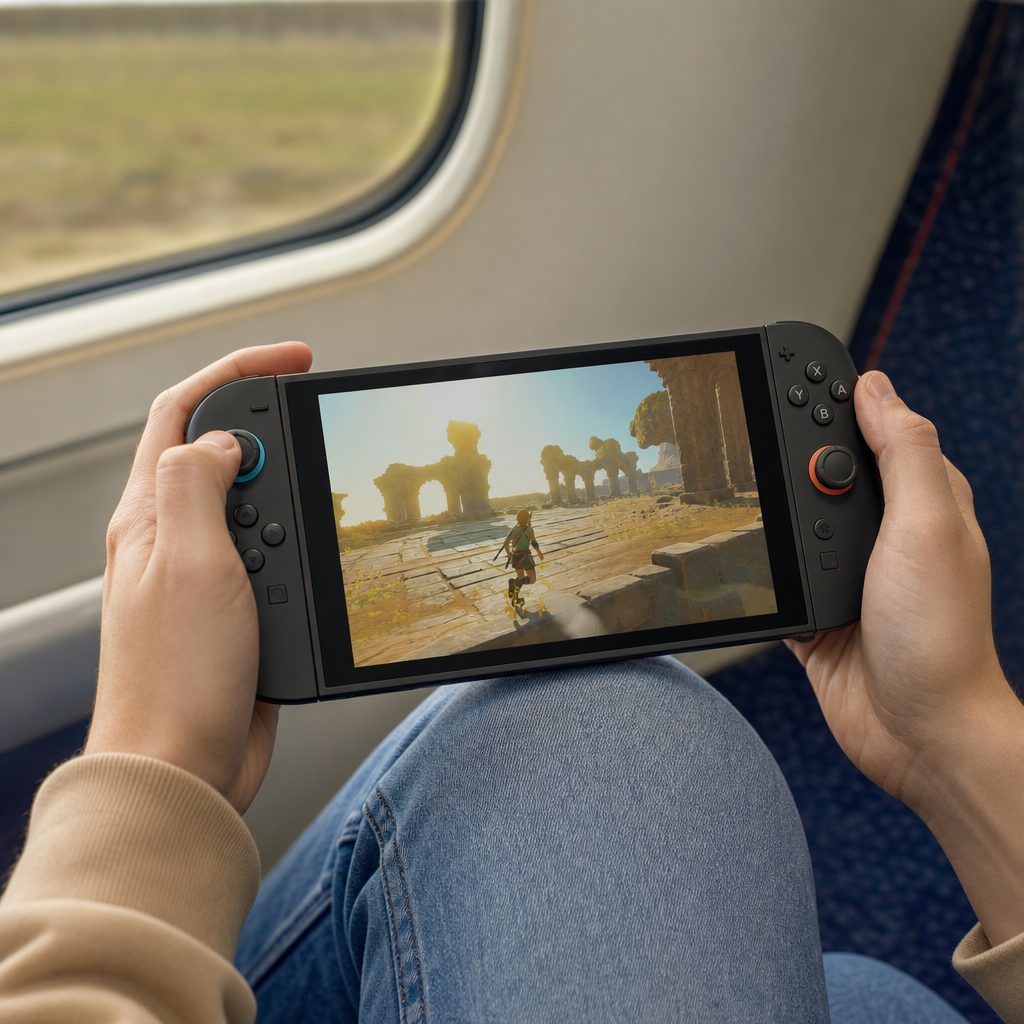
A few sensible adjustments can make handheld Switch 2 play far less stressful, especially on journeys where the next plug socket is anyone's guess.
Frequently asked questions
Nintendo estimated around two to 6.5 hours, depending on software and use. Demanding games can sit near the lower end: Mario Kart World tests ranged from just over two hours and 10 minutes to around 2.5 hours, whilst a Cyberpunk 2077 quality-mode test lasted two hours and 25 minutes.
Yes. The 7.9-inch 1080p LCD is one of the console's most power-hungry features. Around 50% brightness is a sensible indoor target and was part of the settings combination associated with an extra 1.5 to 2.5 hours in many sessions.
Use up to 120Hz when smooth motion matters to you and charging is easy. Choose 60Hz when you need the console to last longer. It remains a perfectly good way to play, and the lower refresh target reduces display workload.
For travel, yes. HDR can make supported games look more striking, but disabling it was one of the tested battery-saving measures. It is a sensible compromise when you value an extra chunk of handheld time more than peak visual impact.
It can when you are playing offline. Airplane Mode prevents unnecessary wireless activity, which is why it belongs in the travel profile. Do not use it for games or features that require an online connection, naturally.
It takes approximately three hours to charge fully in Sleep mode with the official power cable or dock. Charging can take longer if you use a different charger or continue playing whilst connected.
The "Stop Charging Around 90%" option makes most sense if your Switch 2 spends much of its time docked and you do not need maximum range every day. Before travel, charge fully instead. A protected battery is not very helpful if it runs flat halfway through the journey.
The rear can become noticeably warm during long, demanding 3D sessions, and the fan can be heard under load. Keep the rear vent clear and avoid enclosing the console in bedding or cushions. Its active cooling system is designed to manage these sessions when airflow is available.
The bottom line
The Switch 2 was never designed to deliver identical battery life in every game, and its two-to-6.5-hour estimate reflected that honestly. Big, demanding games can empty it quickly. The good news is that the sensible fixes are straightforward.
For the biggest practical gain, lower brightness to around 50%, cap refresh rate at 60Hz, disable HDR, use Airplane Mode for offline play and pause automatic uploads. Together, those changes added around 1.5 to 2.5 hours to many sessions in testing. Keep the console cool, charge it properly, and save maximum visual settings for when a plug is nearby. That is not glamorous advice. It is, however, exactly how you get more game time out of the battery you already have.