GameChat Setup Guide: Voice, Video and Screen Sharing on Switch 2
Everything you need to get Nintendo's headline social play feature up and running — the built-in mic, the optional camera, screen sharing, and how to fix it when it sulks.
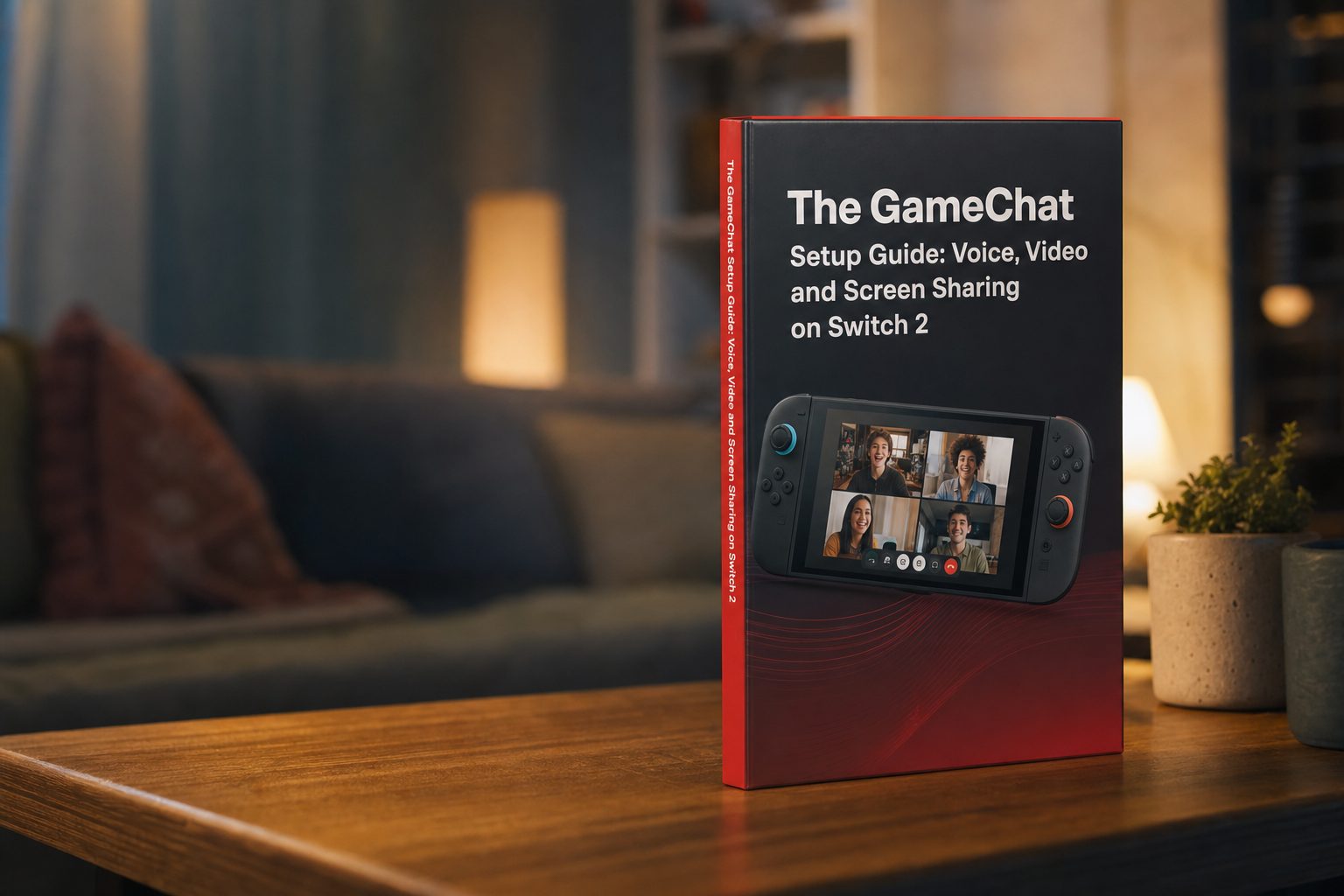
GameChat Setup Guide: Voice, Video and Screen Sharing on Switch 2
If you've picked up a Nintendo Switch 2, you've probably spotted a little button on your Joy-Con 2 you never had before: the C Button. That single addition is Nintendo's way of telling you they take social play seriously this time round. Press it and you drop straight into GameChat — the console's built-in system for voice chat, video chat and screen sharing with up to a dozen mates at once. No third-party app, no fiddly party system bolted on years later, just a feature woven right into the machine.
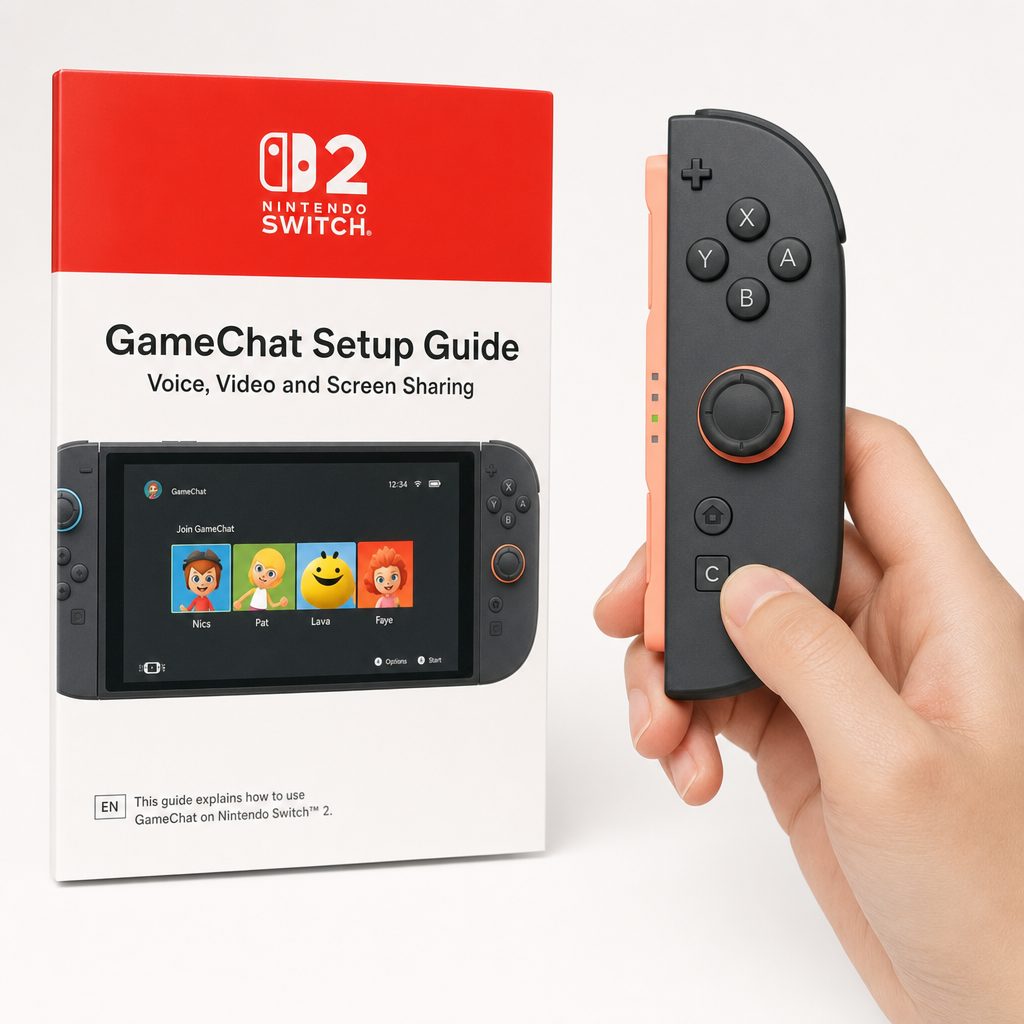
The C button on Joy-Con 2 is the fastest way to access GameChat
I've spent a good while poking at every corner of GameChat since the Switch 2 landed, and the honest truth is that it's one of those features that feels almost magical when it works and quietly frustrating when a setting is off. So this is the walkthrough I wish someone had handed me on day one: how to switch it on, what hardware you genuinely need (and what's optional), how to add a camera, and how to talk yourself off the ledge when the mic won't behave.
Whether you're a parent setting it up for a couple of kids playing Mario Kart together across town, or you just want to natter with friends without balancing your phone on a Discord call, I'll take you through it step by step in plain English.
What GameChat Actually Is
Let's clear up the biggest misconception first, because it trips loads of people up: GameChat is not a product you buy. There's no box on a shelf, no separate download, no subscription-only app you install. It's a system-level feature built directly into every Nintendo Switch 2 console. If you own the hardware, you already own GameChat.
The whole design philosophy is to make online play feel closer to sitting on the same sofa as your friends. It bundles three things together: voice chat for a group of up to 12 people, screen sharing so you can watch what someone else is doing, and optional camera video if you fancy seeing faces. It's the closest Nintendo has ever come to a proper, modern party-chat system, and reviewers noticed — Wired described it as "the most notable, wholly new feature" of the console, whilst Mashable framed it as Nintendo taking a two-decade-old concept and pushing it "beyond pure utility".
The Hardware You Need (and What's Optional)
Here's the good news that keeps GameChat from feeling like an expensive add-on hobby: for basic voice chat, you need nothing beyond the console you already have. The Nintendo Switch 2 has a microphone built directly into the console body, and it's designed specifically for this feature.
I'll be honest, I was sceptical about a tiny built-in mic. Voice chat mics baked into hardware are usually dreadful. But Nintendo's implementation genuinely surprised me — the built-in monaural microphone is surprisingly good in practice. It adjusts the input based on your surroundings, automatically filtering out unwanted noises like game audio, and it adapts the volume to suit different situations. Sit a metre or two from the console in dock mode and it picks you up cleanly without you having to lean in and shout.
Built-in microphone (included)
Right there in the console. Adaptive noise filtering strips out game sounds and adjusts volume automatically. This alone covers all the voice chat you'll ever need.
USB-connected headsets (optional)
You can use a headset via the USB port on the dock, or the USB Type-C port on the console itself. Handy if you want private audio or a boom mic.
USB camera (optional)
Only needed if you want to share your face on video. The official Nintendo Switch 2 Camera works, and so do many other USB-C cameras.
Bluetooth mics — not supported
Worth flagging early: voice chat does not accept Bluetooth microphone input. You can pair Bluetooth headphones for listening, but your chat mic must be the built-in one or a wired USB option.
That Bluetooth limitation catches loads of people out. If you've got a pair of AirPods paired for game audio, they'll play sound just fine, but GameChat will keep using the console's built-in mic rather than the earbud mic. Plan around it before you start a session.
Do You Need a Nintendo Switch Online Membership?
This is the bit that changed, so let me be precise about where we stand as of today. When the Switch 2 launched on 5 June 2025, Nintendo ran a GameChat Open-Access Period. Between 5 June 2025 and 31 March 2026, anyone could use GameChat without paying for a Nintendo Switch Online membership. It was a lovely way to let everyone try it out.
That open-access window closed on 31 March 2026. Since then, GameChat requires an active Nintendo Switch Online membership. If you're reading this today in July 2026, the free ride ended a few months back, so you'll need a subscription to use it.
The subscription itself isn't dear, and it's the same membership that unlocks the rest of Nintendo's online features, classic game libraries and cloud saves. It runs at £17.99 per year for the standard individual plan, or £6.99 for a three-month rolling plan if you'd rather dip in and out. There are family options too if you've got several players in the house, which tends to work out far cheaper per person than everyone buying their own.
Pro Tip
If you already had a Switch Online membership from an original Switch, it carries straight over to your Switch 2 — GameChat will simply work the moment you're signed in. No need to buy anything twice.
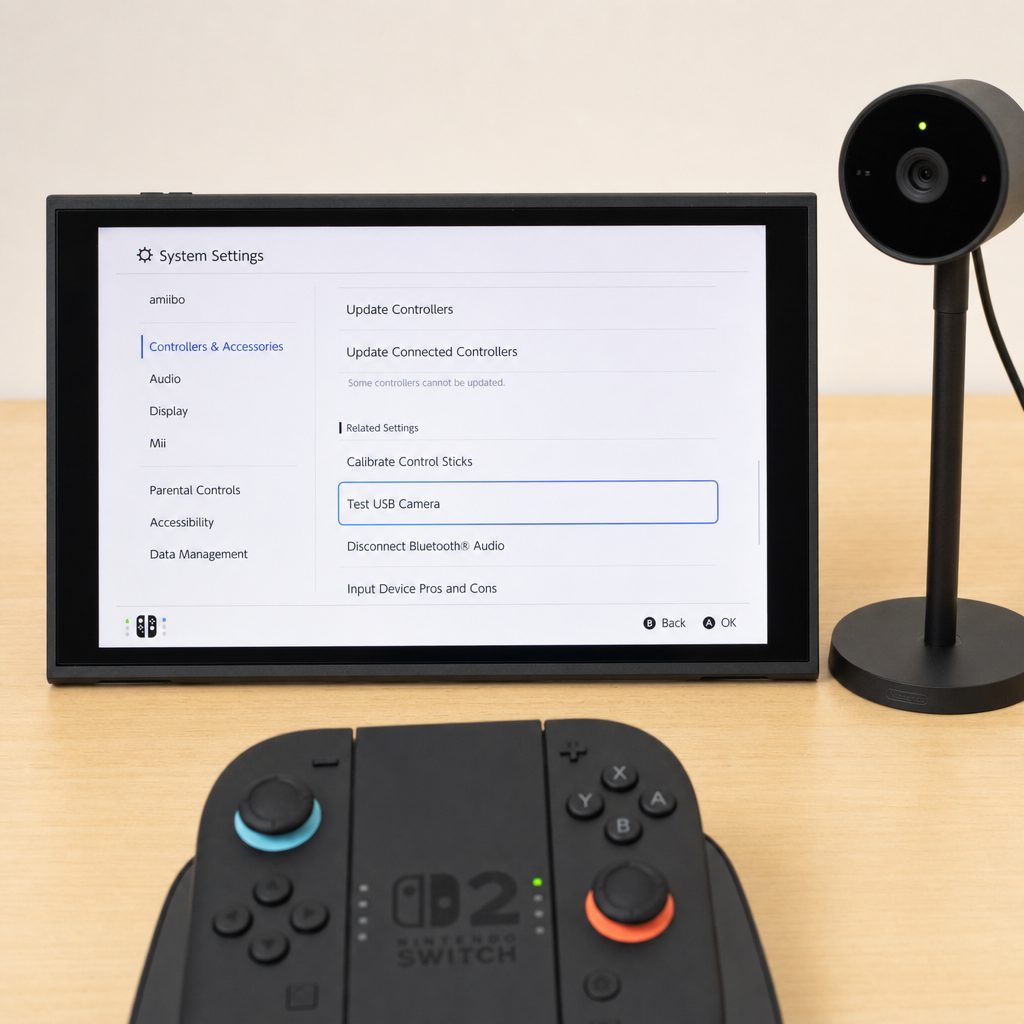
System Settings, Controllers and Accessories menu on Switch 2
Step-by-Step: Starting Your First GameChat Session
Right, hands-on time. This is the actual process I follow every time, and once you've done it once it becomes second nature. There are two ways in, and I'll cover both.
Step 1 — Sign in and check your membership
Before anything else, make sure you're signed into the Nintendo Account you want to chat under, and that it has an active Nintendo Switch Online membership. If you're not sure, pop into System Settings and check. Without the membership, the C Menu will let you look but won't let you actually start chatting with others.
Step 2 — Open the C Menu
The C Menu is your GameChat control centre. You can open it two ways:
- Press the C Button on a Joy-Con 2, the Nintendo Switch 2 Pro Controller, or the Nintendo Switch 2 GameCube Controller. This is the quick route — it works even mid-game.
- From the HOME Menu, select the GameChat option if you'd rather navigate visually.
The beauty of the C Button is that you don't have to quit your game. Tap it, the C Menu slides in, and your game keeps ticking along.
Step 3 — Invite your friends
From the C Menu you can start a new chat and invite people from your friends list. You can bring in up to 12 participants for voice chat in a single session. Once someone accepts, they drop straight into the same chat and you'll hear each other almost immediately.
Step 4 — Set your mute and volume preferences
Before you get chatting, take ten seconds to sort your audio. You can adjust mute settings for when you enter or leave a session, and you can change the balance between game volume and chat volume. I always nudge game volume down a touch so voices sit clearly on top — nothing worse than a boss battle drowning out your mate mid-sentence.
Step 5 — Add screen sharing or video (optional)
Once you're in and talking, you can layer on the visual stuff. Choose to share your game screen so others can see what you're up to, or — if you've got a camera connected — switch on video chat. Up to four people can share their screen or camera at the same time within one session.
Pro Tip
Start voice-only for your first couple of sessions before you bother with screen sharing or video. It's far easier to learn the C Menu layout when you're not also fiddling with a camera. Add the extras once the basics feel familiar.
Adding a Camera: The Nintendo Switch 2 Camera
Voice and screen sharing are the meat of GameChat, but video is where it gets genuinely charming — especially for families and younger players who love seeing each other's reactions. To share camera footage, you'll need a USB camera. Nintendo makes an official one, sensibly called the Nintendo Switch 2 Camera, sold separately.
Nintendo Switch 2 Camera
Shop Nintendo Switch 2 Camera on Amazon UK
I've used the official camera plenty and it's a tidy little bit of kit. It has an aluminium body with a rubber grip at its base so it sits steady on a shelf or TV stand, and it's built around a 110-degree wide lens with a 1080p image sensor. That wide angle matters more than you'd think — it captures both you and your surroundings comfortably, so you don't have to sit rigid and centred to stay in frame.
The image sensor is high-sensitivity and adjusts brightness automatically to detect and light faces, which means it copes surprisingly well in a dimly lit lounge in the evening. On the software side it's tuned to do a fair bit of work for you by default: blurring the background for privacy, adapting to lighting, and keeping your face visible and clear.
One feature I appreciate more than I expected: the built-in privacy shutter. When you're not using the camera you can physically cover the lens, which is exactly the kind of reassurance you want if the thing lives permanently near your telly. It comes with a cover for privacy and includes one USB-C charging cable in the box.
Thinking about the official camera?
Check the latest price and any current bundles on Amazon.
Check on AmazonThird-party and other USB-C cameras
You are absolutely not locked into Nintendo's own camera. Third-party options are available, and other USB-C cameras are compatible too, depending on their features. If you've already got a decent USB-C webcam sitting in a drawer, it may well work.
The catch is that a generic webcam won't necessarily support all the GameChat software niceties — the background blur, face-tracking and lighting adjustment are tuned around the official hardware. So plug in what you've got, but manage your expectations on the clever extras.
How to test whether your camera works
Nintendo built a proper test tool for exactly this, and it saves a lot of guesswork. Here's how to check any camera before you rely on it in a live session:
- Connect the camera to the console's USB-C port.
- Go to System Settings.
- Select Controllers & Accessories.
- Choose Test USB Camera.
If you see a live preview, you're good to go. If nothing appears, the camera either isn't compatible or isn't getting enough power — more on that in the troubleshooting section.
Video Chat Extras: Backgrounds, Avatars and AR Filters
Once video is running, GameChat has a genuinely fun toolbox that goes well beyond a plain webcam feed. This is the part kids adore and, frankly, adults quietly enjoy too.
Background options
Choose from three settings for your camera footage: Filter Off, No Background, and Face Only. "No Background" blurs or removes what's behind you for privacy, whilst "Face Only" crops tightly to just you.
Character Avatars
Rather than showing your real face, you can appear as a character from the game you're playing, with the avatar mirroring your expressions and movements. Brilliant for younger players who'd rather not be on camera.
AR Filters
Add fun accessories or effects from the game directly onto your camera feed — the sort of playful layer that turns a chat into a laugh.
The Character Avatar option is a genuinely thoughtful bit of design for families. If your child wants to join the fun but you'd rather they weren't broadcasting their actual face, an on-screen game character that still mirrors their expressions gives you the best of both.
Text-to-Voice and Voice-to-Text
One feature that deserves more attention than it gets is GameChat's two-way text and voice conversion. You can type a text message and have it converted into audio for everyone to hear, and you can have the voice audio from other participants converted into text you can read.
This is a proper accessibility win. If you can't or don't want to speak — maybe there's a sleeping baby in the next room, maybe you're in a shared space, maybe speaking simply isn't comfortable for you — you can still take part in the conversation by typing. And if you struggle to catch spoken audio, having it appear as on-screen text keeps you in the loop. It quietly widens who GameChat is for, and I think it's one of the underrated highlights of the whole system.
How GameChat Performs in the Real World
Now for the honest bit. GameChat is impressive, but it isn't flawless, and you'll enjoy it more if you know what to expect.
Voice chat is the standout. The built-in mic's adaptive filtering does a genuinely good job of keeping game noise out of your voice, and in a group of friends the audio feels natural and immediate — much more "sitting together" than a laggy phone call.
Screen sharing is where the compromise shows. To send several video and screen feeds simultaneously over the internet, something has to give, and that something is frame rate. When you share your game screen, the frame rate is drastically reduced. It's not smooth, high-refresh footage — think more of a moving snapshot. That said, it does the job of showing what another player is doing well enough. You'll happily follow along with a friend's puzzle solution or watch their race, you just won't mistake it for a crisp local stream.
Impressions based on hands-on use — voice and setup are the strengths; screen share trades sharpness for keeping everyone connected.
What Works Well
- Built into the console — no separate app to download or manage
- Built-in mic is genuinely good and filters out game noise automatically
- Up to 12 in a voice chat, 4 sharing screens or video
- Dedicated C Button opens chat without quitting your game
- Character avatars and privacy shutter make it family-safe
- Text-to-voice and voice-to-text broaden accessibility
Worth Knowing
- Screen sharing runs at a drastically reduced frame rate
- No Bluetooth microphone support for voice chat
- Camera is sold separately — video isn't free out of the box
- Requires a paid Nintendo Switch Online membership since 31 March 2026
- Third-party cameras may miss the clever software features
GameChat vs Other Console Party Systems
To put GameChat in context, it's worth seeing how Nintendo's approach compares with the party-chat systems on rival consoles. Nintendo took its time getting here — PlayStation and Xbox have had party chat for years — but the twist is how tightly Nintendo integrated video and family-focused features.
| Feature | Nintendo Switch 2 GameChat | PlayStation 5 Party | Xbox Series Party |
|---|---|---|---|
| Built-in console mic for chat | Yes — adaptive noise filtering | No (headset expected) | No (headset expected) |
| Quick-access hardware button | Dedicated C Button | Via Control Centre / Create button | Via Guide button menu |
| Max voice participants | Up to 12 | Large group support | Large group support |
| Built-in video chat | Yes (with optional USB camera) | Not natively in party | Not natively in party |
| Screen sharing | Up to 4 at once, reduced frame rate | Share Play / Share Screen | Screen sharing supported |
| Avatar / AR camera effects | Character avatars & AR filters | Limited | Limited |
| Text ↔ voice conversion | Yes, both directions | Accessibility tools vary | Accessibility tools vary |
| Paid subscription required | Yes (since 31 March 2026) | Yes (for online) | Yes (for online) |
The takeaway is that Nintendo isn't trying to out-spec the competition on raw party size — it's leaning hard into video, avatars and that friendly, low-friction setup. If your priority is chatting whilst you play with a small group of friends and family, and you like the idea of seeing faces or game-character avatars, GameChat is arguably the most approachable of the three.
Troubleshooting: When GameChat Won't Play Ball
Even a well-designed feature has its off days. Here are the problems I've bumped into most often and how to sort them.
Nobody can hear me
First, check you haven't got yourself muted — the C Menu shows your mute state, and it's easy to leave the "mute on entry" setting active without realising. Next, remember that Bluetooth mics don't work for chat; if you've paired wireless earbuds hoping to use their mic, GameChat will fall back to the built-in mic or, if a wired headset is plugged in, that instead. Speak toward the console (or your wired headset boom) and check the chat volume balance isn't cranked all the way down.
I can't hear other people
Nudge the chat volume up relative to game volume in the C Menu. If you're using Bluetooth headphones for listening, confirm they're actually connected and selected as the audio output. And check the obvious one — the other person might be the one who's muted.
My camera isn't detected
Run the built-in test: System Settings → Controllers & Accessories → Test USB Camera. If there's no preview, the camera may not be compatible, or it may not be drawing enough power through the port. Try the official Nintendo Switch 2 Camera to rule out a compatibility issue, and make sure the camera is plugged into the correct USB-C port. Some third-party cameras work for basic video but won't show the software effects — that's normal.
The camera video looks dark or grainy
The official camera's high-sensitivity sensor adjusts brightness automatically, but it can only do so much in a genuinely dark room. Add a lamp or turn a light on. It's also worth checking your background setting — "Face Only" and background removal can sometimes make low-light footage look busier than a clean "Filter Off" feed.
Screen sharing looks choppy
This one isn't a fault — it's expected behaviour. Screen sharing deliberately runs at a drastically reduced frame rate to keep multiple feeds flowing over the internet. It'll never be silky smooth. If it's stuttering far worse than usual, though, your internet connection is the likely culprit; a wired connection through the dock's LAN port (or a solid Wi-Fi signal) helps enormously.
GameChat won't let me start a session at all
Since the open-access period ended on 31 March 2026, you need an active Nintendo Switch Online membership. If GameChat lets you open the C Menu but blocks you from starting a chat with others, an expired or missing membership is the most common reason. Check your subscription status in your Nintendo Account settings.
Pro Tip
A wired internet connection transforms GameChat. If your dock is near your router, an Ethernet connection through the LAN port keeps voice crisp and screen shares as smooth as they'll get. Wi-Fi is fine, but for a house full of players it's the single biggest quality upgrade you can make for free.
Setting It Up Safely for Kids
Because GameChat brings voice, video and strangers into the mix, it's worth a moment on safety — especially if you're setting it up for children. The good news is Nintendo built in sensible guardrails.
The physical privacy shutter on the official camera is the simplest safeguard going: when it's not in use, slide it shut and the lens is physically covered, no software trust required. For video, the Character Avatar option lets a child join in as a game character rather than showing their real face, whilst still mirroring their expressions so it feels personal. The background-removal settings add another layer, keeping your home out of shot.
On top of GameChat's own settings, the Switch 2's parental controls let you manage who your child can communicate with — sensible practice is to keep chat limited to people you actually know. Take five minutes to walk through the C Menu together with your child so they know how to mute themselves and leave a chat, and you'll both feel far more comfortable.
Families playing apart
Grandparents, cousins or split households can play together and actually see each other. Avatars and the privacy shutter keep it comfortable for younger players.
Friend groups
Up to 12 in voice chat with no separate app to wrangle. The C Button makes hopping into a chat mid-game effortless.
Anyone needing accessibility
Text-to-voice and voice-to-text mean you can join in without speaking or by reading along — a genuinely inclusive touch.
Frequently Asked Questions
The Verdict
GameChat is one of the clearest signs that Nintendo finally decided social play deserved first-class treatment. It's not a product you buy — it's woven into the Switch 2 itself — and that integration is exactly what makes it feel so effortless. A dedicated C Button, a built-in mic that's genuinely good, up to 12 people in a voice chat, and family-friendly touches like character avatars and a physical privacy shutter add up to the most approachable console party system I've used.
It isn't perfect. Screen sharing trades smoothness for keeping everyone connected, Bluetooth mics are off the table, video needs a camera bought separately, and since 31 March 2026 you'll need a paid Nintendo Switch Online membership to use it at all. But none of that undermines the core appeal.
Set it up voice-first, add a camera when you're ready, run a wired connection if you can, and take five minutes over the safety settings if kids are involved. Do that and GameChat delivers on its promise beautifully: online play that actually feels like your friends are in the room.
And that's the lot. Once you've been through it once, the whole thing becomes muscle memory — a quick tap of the C Button and you're straight back in with your mates. Enjoy it.