Joy-Con 2 Mouse Mode Explained: The Games Where It's a Real Game-Changer
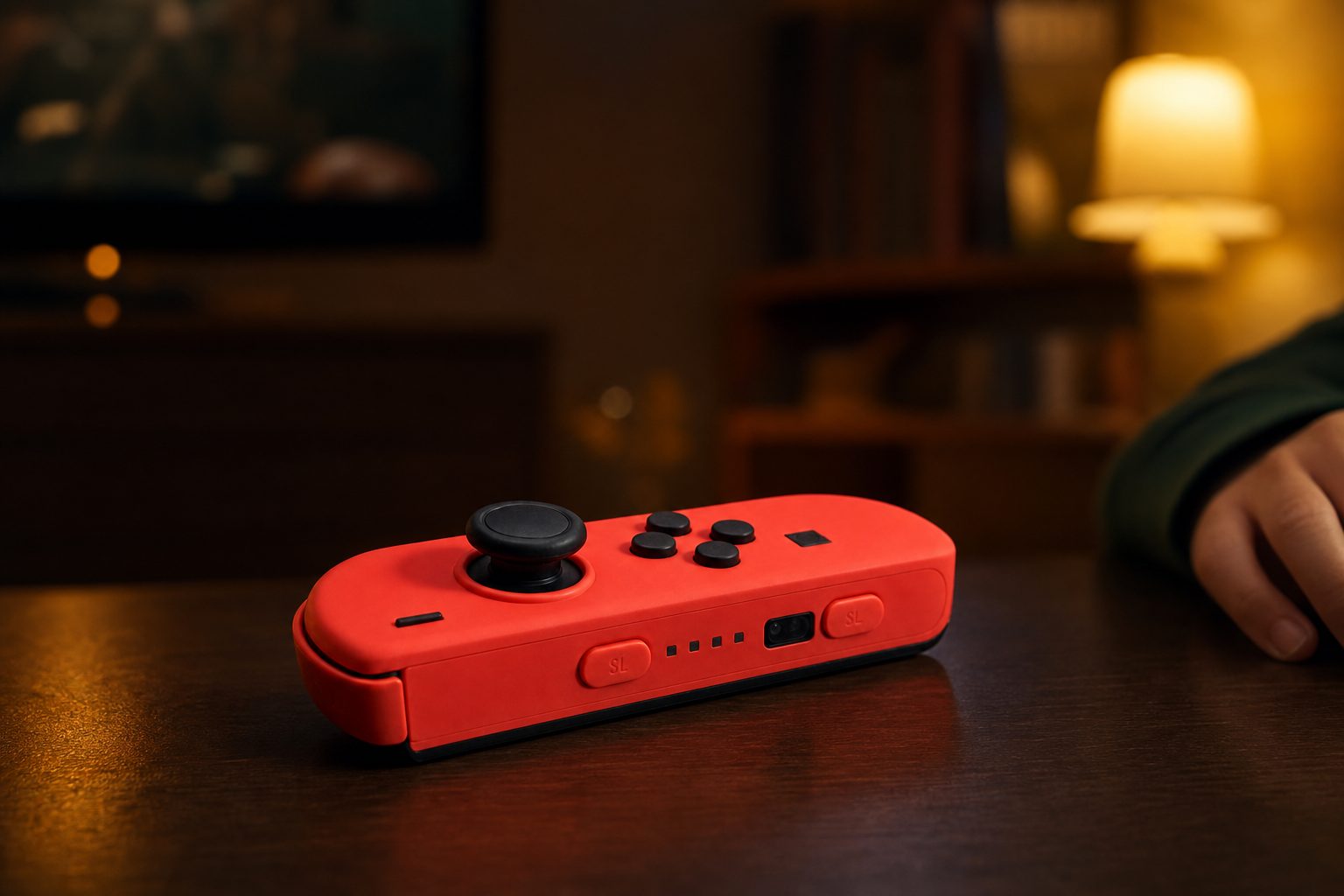
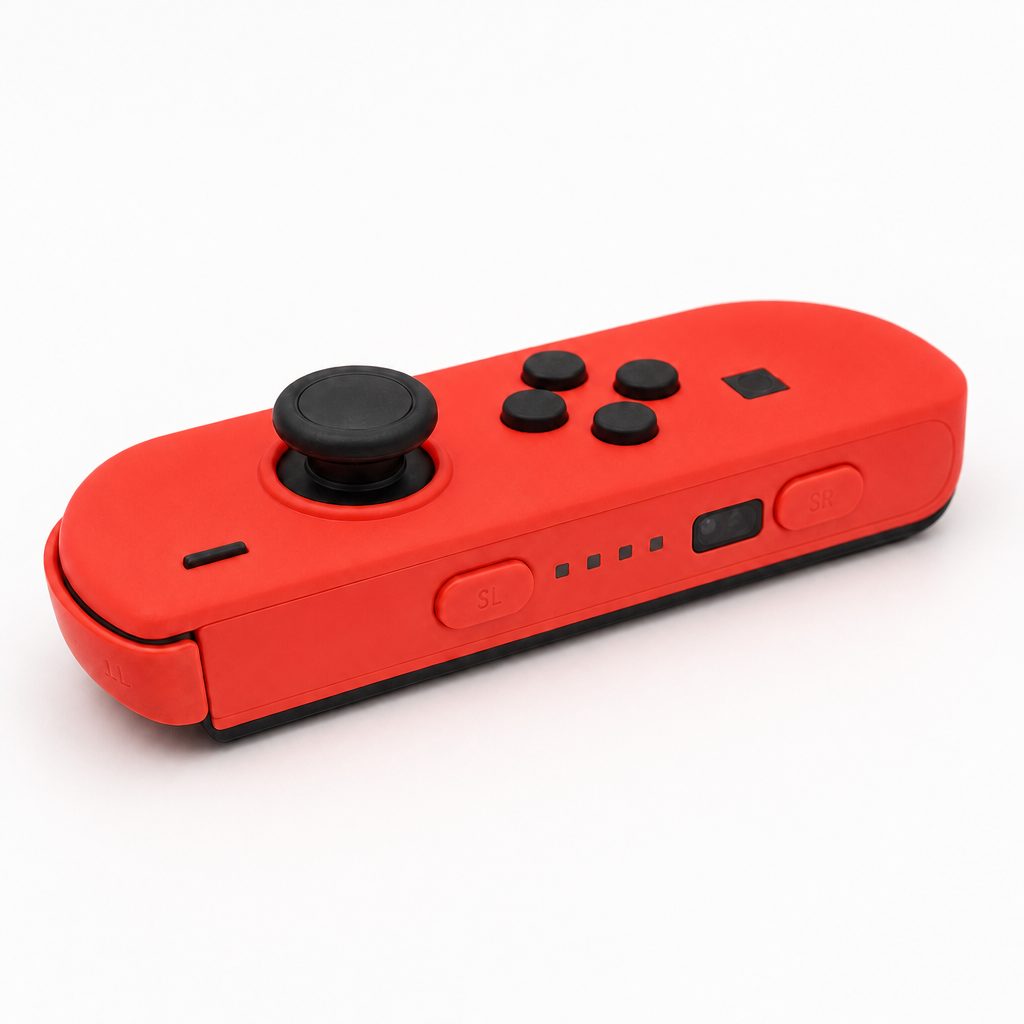
A detached Joy-Con 2 on its flat edge: the optical sensor is what turns Nintendo's small controller into a surprisingly capable mouse.
The Nintendo Switch 2's Joy-Con 2 controllers can do something rather clever: each one can be turned sideways and used as a mouse. It is not a gimmick for every game, but in the right shooter, strategy title or wonderfully oddball multiplayer game, it can make playing feel faster, more direct and a good deal more satisfying.
1. What Joy-Con 2 mouse mode actually is
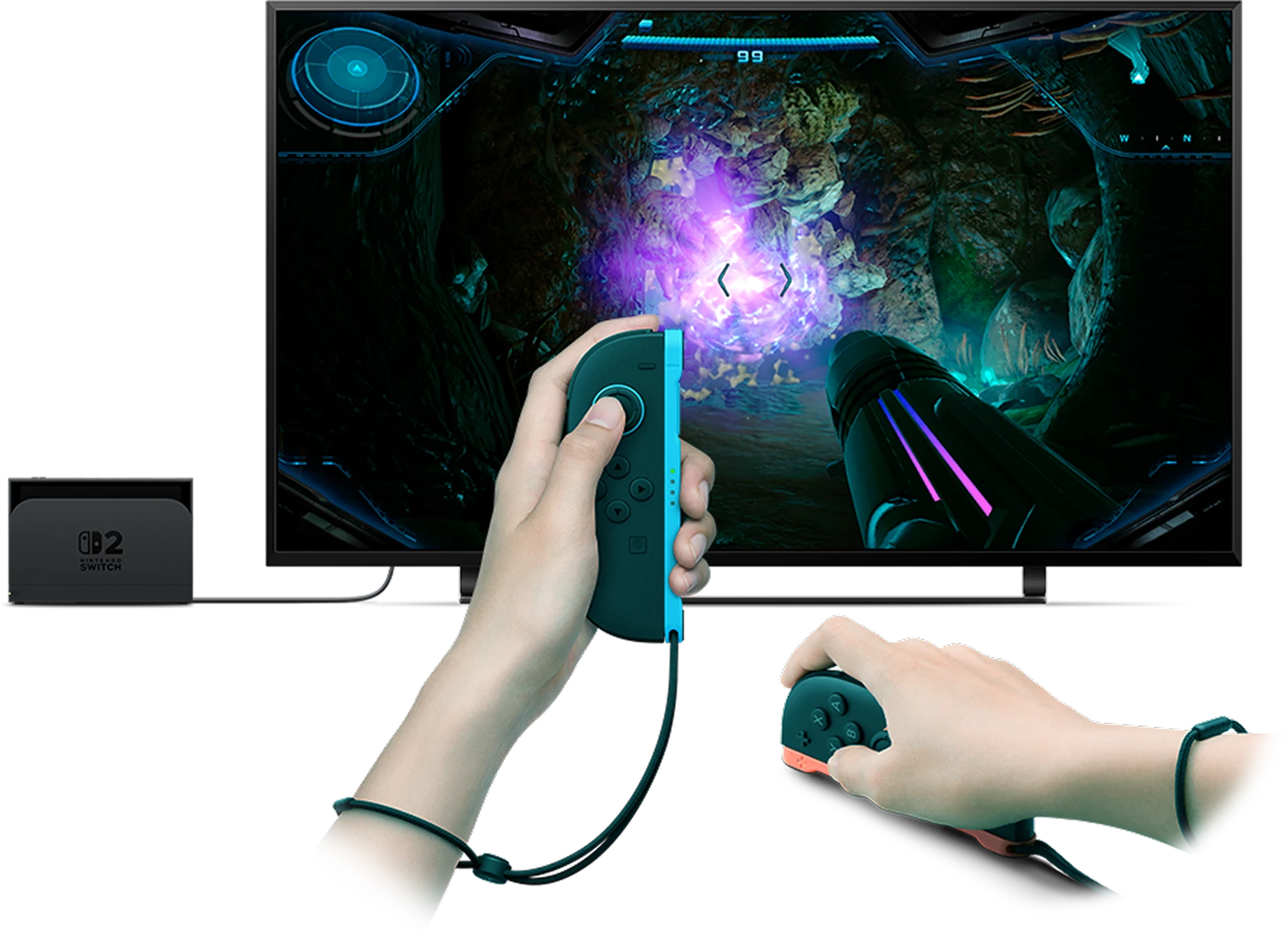
The slightly confusing bit is that there is no separate "Mouse Mode" controller to buy. Mouse control is built into every Joy-Con 2 supplied with Nintendo Switch 2, whether it is the left controller, the right controller, or a separately bought pair. Detach one from the console, rest its flatter edge on a reasonably suitable surface, and the optical sensor tracks its movement much like a conventional computer mouse.
Nintendo placed the sensor just to the right of the SL button when the Joy-Con 2 is detached. It detects reflected light from the surface below, whilst the controller's gyros and accelerometers assist with movement tracking. In ordinary language: slide the controller across a desk, table, tray or even your trousers, and the on-screen pointer or camera movement follows your hand.
This matters because analogue sticks are excellent all-round controls, but they are not naturally as immediate as pointing. A stick asks you to push in a direction and wait for the camera to move. A mouse lets you move precisely to the spot you meant. That distinction is enormous in games involving aiming, selecting tiny units, placing objects or dragging things around. It is the difference between saying "over there somewhere" and putting your finger directly on the map.
Mouse mode is game-dependent. The controller can physically work as a mouse, but a game has to support that input. Do not assume that every Switch 2 title suddenly becomes a PC-style shooter because you have turned a Joy-Con on its side. Nintendo has not handed out a magic wand. More's the pity.
The larger sticks, longer shoulder buttons and magnetic attachment system were welcome Joy-Con 2 changes, but mouse support is the feature that changes how certain games feel.
2. Set up mouse mode in under a minute
The basic physical setup is refreshingly unfussy. You do not need a dock, a cable or a special mat. Start with the Joy-Con 2 detached from the console. For a right-handed player, the right Joy-Con 2 is usually the natural choice for aiming or pointer work, because it sits under the right hand in the way a traditional mouse does. Left-handed players can reverse that logic, and games that support both controllers as mice give you useful flexibility.
- Detach the Joy-Con 2. Press the release button and lift it away from the magnetic connector.
- Turn it onto its flat edge. The optical sensor needs to face the surface, not the ceiling. It sounds obvious, but it is the sort of thing one tries after five seconds of confusion.
- Open a compatible game or mode. Follow the game's prompt or control menu to select mouse controls if it does not switch automatically.
- Rest your hand lightly over the controller. Do not grip it like a standard Joy-Con. Think small vertical mouse rather than mini gamepad.
- Move slowly first. Use a short slide to see how much on-screen travel it produces, then adjust the speed option if the game provides it.
When you need to return to conventional controls, simply lift the controller and hold it normally. In games such as Metroid Prime 4: Beyond, the attraction is being able to switch on the fly rather than committing to one method for an entire session. You can explore with familiar sticks, then put the right Joy-Con down on a nearby table when you want a more deliberate aiming tool.
Quick-start tip
Before launching a big campaign, try mouse mode in a calmer menu or tutorial. It gives your wrist a minute to learn the controller's unusual shape without a boss, enemy horde or impatient sibling making helpful comments from the sofa.
3. Learn the buttons before the busy bits begin
The controller's shoulder buttons become the important ones when it is on its side. Depending on the game and its settings, left and right clicks can be assigned to ZL/ZR or SL/SR. That is a sensible arrangement, but it does mean there is a small adjustment period. Your fingers are no longer resting where they would on a normal mouse, and the Joy-Con 2 is narrower than an ergonomic desktop model.
For shooters, one button will usually handle firing and another may aim, use an item or interact. For strategy games, those same inputs become select, confirm, cancel, issue orders or open a context command. The key lesson is simple: do not judge mouse mode in the first thirty seconds. The control idea is familiar; the tiny Nintendo-shaped object in your hand is not.
Fine aiming
Small wrist movements are more natural for lining up targets than holding an analogue stick at just the right angle for a second or two.
Direct selection
Strategy interfaces benefit when you can point at an ally, unit or map position rather than steering a cursor across the screen.
Two-controller play
Both Joy-Con 2 controllers can work as mice, creating control options that a standard single-mouse setup simply cannot offer.
Easy return to pads
Lift the controller and use it normally whenever a game asks for movement, menus or a more relaxed gamepad grip.
4. Choose the right surface and speed
Mouse mode has worked surprisingly well across a variety of surfaces, including flat tables and fabric such as trousers. That is genuinely handy if you are playing in handheld mode on a train or in a hotel room and do not have a desk available. The Switch 2 is, after all, meant to leave the living room occasionally.
That said, "works on fabric" is not quite the same as "identical to a tidy desk with a proper mouse". Surface responsiveness can vary. A stable, reasonably smooth and non-reflective tabletop gives your hand consistent feedback and is usually the least frustrating place to learn. A soft duvet, uneven armrest or pile of magazines is likely to make the experience feel more fussy than it needs to.
Use the Slow, Medium and Fast sensitivity settings as practical tools rather than competitive badges of honour. Slow is sensible for tiny selections, careful placement and players who tend to overshoot. Medium is the natural starting point for most people. Fast is useful when the game wants broad camera turns or you only have a small patch of usable surface beside you. A higher setting is not inherently better. If every tiny twitch sends your view sailing past the thing you wanted, it is plainly worse.
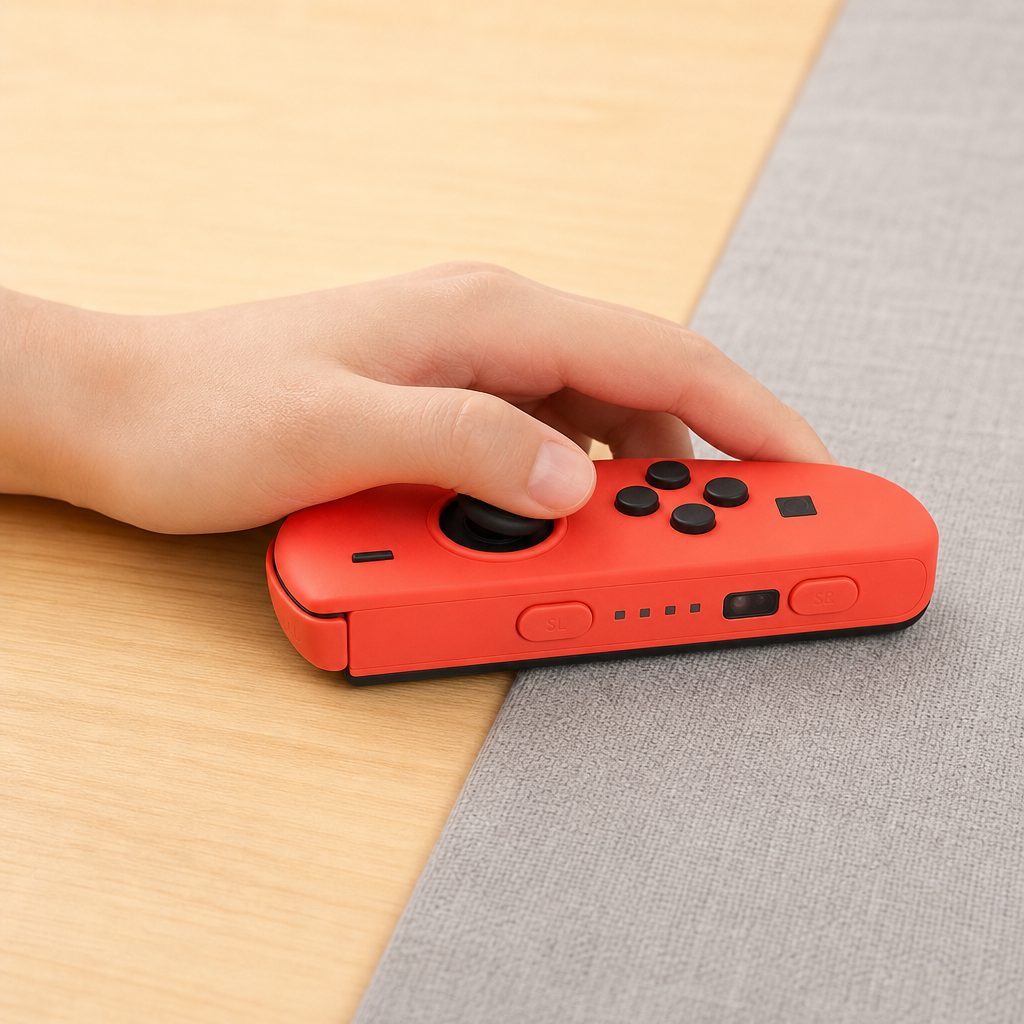
A stable table gives the optical sensor the most predictable tracking, although Joy-Con 2 mouse mode can also operate over fabric when space is tight.
Where it feels excellent
- Precise aiming in compatible first-person action games.
- Fast selection and placement in strategy-focused interfaces.
- Portable play where a full-sized mouse would be inconvenient.
- Short, inventive multiplayer sessions built around two mouse controllers.
Where it can frustrate
- The slim body offers less palm support than an ergonomic mouse.
- Some buttons can be less comfortable to reach when the controller is sideways.
- Tracking feel changes with the surface underneath it.
- Support must be built into the game; it is not universal.
5. Drag x Drive is the clearest proof of the idea
Drag x Drive is the game that makes the Joy-Con 2's mouse capability easiest to understand. Rather than adding a pointer option to a familiar genre, it puts the side-on controllers at the centre of the experience. The motion is not a decorative extra tucked away in a settings menu. It is the point.
This is important because it shows what Nintendo had in mind with two mouse-capable Joy-Con 2 controllers. One mouse is useful for aiming. Two invite games to ask both hands to do something physical and coordinated. That can be more involving than tapping buttons, particularly in short social sessions where everybody is watching, laughing and claiming they absolutely meant to do that.
If you are showing the feature to family members, this is the sort of game that communicates it instantly. Hand somebody the controllers, show them the basic movement, then get out of the way. They do not need a lecture on sensor technology. They need the small revelation of seeing their hand movement become part of the game.
Mouse mode is at its most convincing when the game was designed around it. A good dedicated implementation does not merely replace a stick with a sensor; it gives the player a reason to use the physical movement in the first place.
6. Metroid Prime 4: Beyond makes shooters feel more immediate
For many players, Metroid Prime 4: Beyond is the headline reason to care. First-person games have always faced a console-control compromise. Sticks are flexible and familiar, but aiming precisely can feel slower than using a mouse. Nintendo's answer here is not to force a single solution. It lets you swap to mouse mode on the fly.
That flexibility is the clever bit. You may prefer a conventional controller grip for movement, exploration and the relaxed wandering that makes a Metroid game feel like a Metroid game. When a combat encounter asks for more accurate aim, place the Joy-Con 2 on a surface and use your wrist instead. It is a change in posture as much as a change in controls: suddenly you are leaning forward, taking a little more care and treating each shot as intentional.
Mouse aiming does not automatically turn somebody into a competitive wizard, of course. You still need to learn enemy patterns, judge range and avoid walking into trouble whilst admiring your own accuracy. But it lowers the awkwardness of placing the reticle exactly where you want it. For players used to PC shooters, it also provides a welcome bridge between the control style they know and Nintendo's portable hardware.
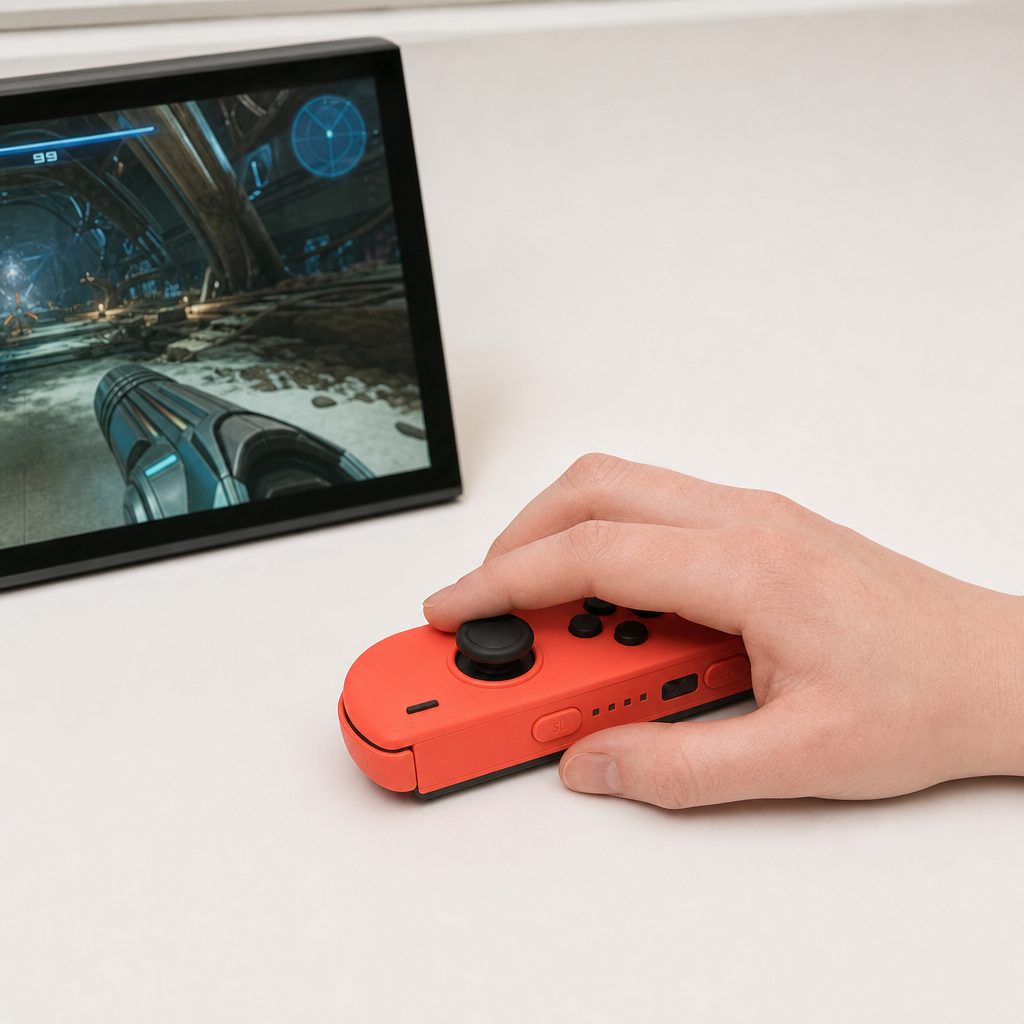
Metroid Prime 4: Beyond is especially suited to mouse controls because you can move from regular Joy-Con play to more deliberate pointer-style aiming during play.
Shooter setup advice
Start at Medium sensitivity, use a firm table if possible, and focus on accuracy before speed. Once your hand has adapted to the narrow controller, move to Fast only if you regularly run out of surface during turns.
7. Cyberpunk 2077 and Mouse Work show the two extremes
Cyberpunk 2077 was advertised with mouse support on Switch 2, and it makes sense. A first-person game that mixes shooting, menus and detailed aiming has plenty of moments where a mouse-style input can feel more direct than a thumbstick. It is particularly appealing to players who had spent years on PC and do not want to entirely retrain their hands just because they fancy playing away from a desk.
At the other end of the scale sits Mouse Work. Where Cyberpunk 2077 uses mouse control to improve a large action game, Mouse Work embraces the sheer silliness of two little controllers sliding around a surface. This is the sort of title that belongs in a group setting, where the novelty is not a criticism but half the entertainment. Nintendo hardware has form here. Sometimes a strange input method is exactly what gets everyone off the sofa.
These games make a useful pair when deciding whether the feature matters to you. If you mostly want precision in serious games, think of mouse mode as an optional tool. If you enjoy party games, local multiplayer and hardware that produces a few raised eyebrows before it produces laughs, think of it as a new sort of toy box.
8. Nobunaga's Ambition: Awakening Complete Edition is the strategy case
Strategy is arguably where mouse mode can have the greatest day-to-day impact. Nobunaga's Ambition: Awakening Complete Edition was advertised with mouse features, and that is not a minor technical flourish. Grand strategy games are full of maps, menus, territories, units and decisions that benefit from direct pointing. The more time a game asks you to choose something specific from a busy screen, the more a mouse begins to make sense.
A related Capcom action-and-strategy game also used mouse functionality for placing villager allies and issuing orders more intuitively. Again, it is easy to see why. Selecting an ally with a pointer feels closer to giving a real instruction: choose this person, put them there, do this now. With a stick, the same process can feel like navigating a television menu from 2004. Functional, certainly. Graceful, not always.
Mouse input will not make a dense strategy game instantly beginner-friendly. You still have to learn the systems, understand the map and accept that your first campaign may involve decisions you will later describe as "bold experiments". But it removes some interface friction. When a game's challenge is meant to be tactical judgement rather than fighting a cursor, that is a meaningful improvement.
Strategy interfaces are a natural home for Joy-Con 2 mouse mode: direct selection can make map commands, menus and unit placement feel less cumbersome.
Map navigation
Use the mouse-like movement to reach a location directly instead of repeatedly nudging an on-screen cursor with a stick.
Unit commands
Games involving allies, villagers or armies are easier to read when selection and placement happen with a clear point-and-click rhythm.
Busy menus
Mouse controls can be particularly useful in games that ask you to compare several icons, panels or small on-screen choices.
9. When two Joy-Con 2 mice are better than one
Both Joy-Con 2 controllers can be used in mouse mode simultaneously. That is the feature most likely to sound like a novelty until you try a game designed to exploit it. One controller can handle one side of an action, the other can manage the other side, and suddenly the player is doing something more physical than simply pressing a conventional button layout.
It is not automatically the best way to play every game. In fact, for a long story-led adventure, holding two tiny controllers sideways for hours would be a fairly heroic commitment to the bit. But for short sessions, inventive sports-style control schemes, party games and titles designed around coordinated hand movements, two mice make the Switch 2 feel distinct from a standard console.
Welcome Tour, Super Mario Party Jamboree Switch 2 Edition + Jamboree TV and its mouse-focused minigames, Drag x Drive and Mouse Work are the natural places to see this idea in action. They turn the controller feature into an activity rather than merely an alternative menu input.
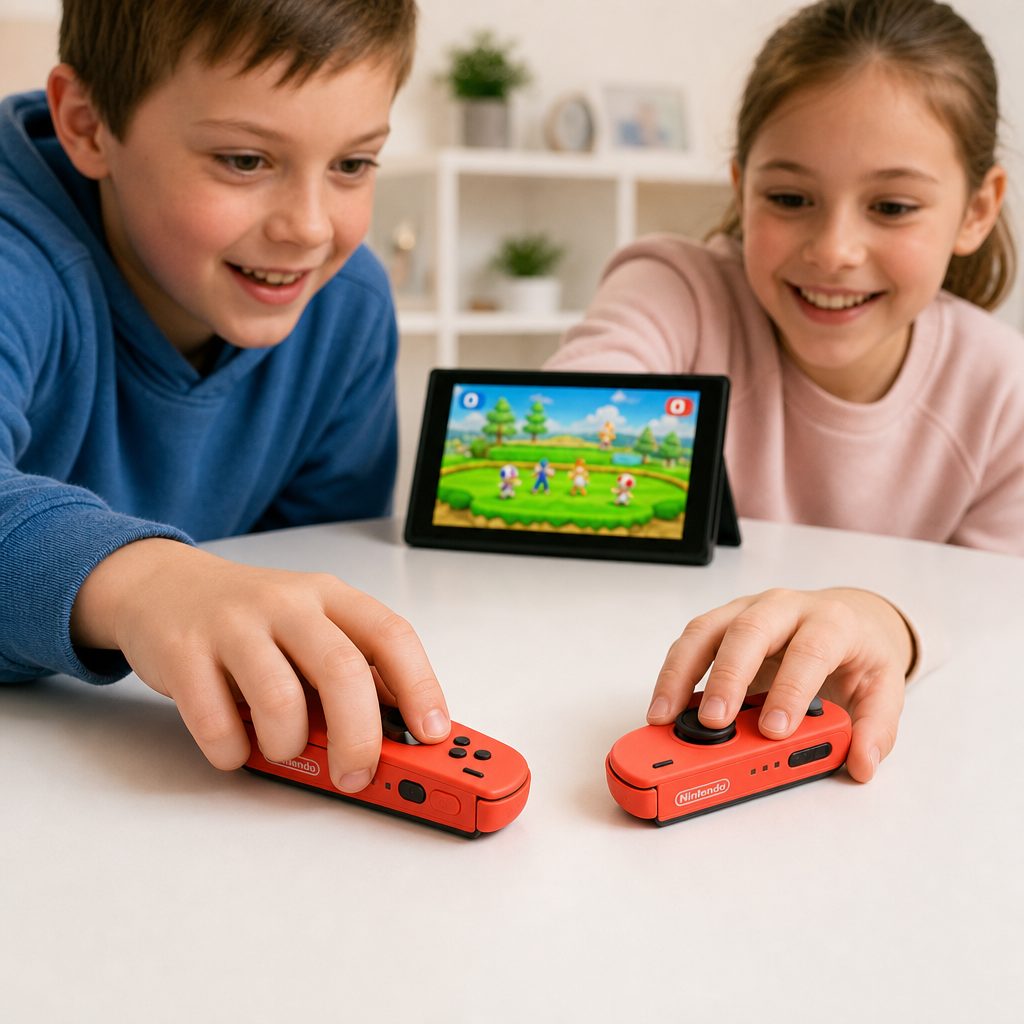
Using both Joy-Con 2 controllers as mice creates a more physical, playful control style, particularly in games and minigames designed around the feature.
10. Joy-Con 2 mouse mode versus a USB mouse and standard controls
Switch 2 games can also support a USB-connected mouse as an alternative control option. That may be the more comfortable long-session choice for somebody who already plays PC games at a desk, because a conventional ergonomic mouse supports the palm better than the narrow Joy-Con 2 shape. There is no need to pretend otherwise: Nintendo's controller is ingenious, not magically full-sized.
Yet the Joy-Con 2 has advantages that a USB mouse cannot match. It is already paired to the system, wireless, battery-powered for about 20 hours and designed to travel with the console. It also brings the possibility of two mouse inputs, motion controls and normal Joy-Con play in the same small object. A USB mouse is often more traditionally comfortable. The Joy-Con 2 is vastly more versatile.
| Feature | Joy-Con 2 mouse mode | USB-connected mouse | Standard Joy-Con 2 grip |
|---|---|---|---|
| Best role | Portable precision, supported games and two-controller play | Desk-based comfort and familiar mouse handling | General play, movement and conventional controls |
| Connection | Wireless Bluetooth | USB connection | Wireless Bluetooth or attached to console |
| Battery figure | About 20 hours | Not required for the USB connection | About 20 hours |
| Charging figure | About 3.5 hours | Not applicable | About 3.5 hours |
| Can two be used as mice? | Yes, both Joy-Con 2 controllers support mouse mode | Depends on the game and connected hardware | No mouse input while held conventionally |
| Palm comfort | Less supportive than an ergonomic mouse | Typically the more comfortable long-session option | More familiar for standard controller play |
11. Which Joy-Con 2 option suits different players?
Every Joy-Con 2 has the same mouse capability, so colour is not a performance decision. Light Green and Light Purple variants had been released in January 2026, while Blue and Light Yellow variants had been released in July 2026. Choose the pair you like looking at, or the one that is easiest to identify in a household where controllers tend to migrate mysteriously between bedrooms.
A pair is included with Nintendo Switch 2 systems, and separate pairs are also sold. In the UK, Joy-Con 2 controllers were listed at £74.99, while Amazon UK promotional pricing had reached £59.95, down from £67.95. Availability and offers move around, so treat those as useful reference points rather than a promise that every shop will show the same figure on a particular day.
| Standard UK price reference | £74.99 for Joy-Con 2 controllers |
|---|---|
| Amazon UK promotional reference | £59.95, reduced from £67.95 |
| US price reference | $94.99 |
| Earlier purple and green US price reference | $99.99 |
| Included with Switch 2 | One Joy-Con 2 pair |
Joy-Con 2 colour choices do not alter mouse mode; the useful decision is whether you need an additional pair for local multiplayer or replacement purposes.
Metroid Prime 4: Beyond players
Use mouse mode when precision matters, then return to a standard grip for exploration and relaxed movement.
Nobunaga's Ambition: Awakening Complete Edition players
Direct selection suits map-heavy games where menus, territories and commands can otherwise feel slow on a stick.
Drag x Drive and Mouse Work households
Two mouse-capable controllers turn an unusual control idea into a social, hands-on activity.
USB mouse users
For long desk sessions in supported games, a conventional ergonomic mouse may be the more comfortable route.
12. Avoid the common mouse-mode mistakes
The most common mistake is expecting mouse mode to replace every control method. It should not. Treat it as another option in the Joy-Con 2 toolbox, alongside sticks, buttons, motion controls and handheld play. A game that involves lots of character movement may still feel best with a normal controller grip, even if aiming or menus benefit from a mouse.
The second mistake is choosing a poor surface and blaming the controller immediately. If tracking feels inconsistent, move to a flatter surface before changing every setting. A sturdy table gives you a cleaner baseline. Then try Medium sensitivity. Only after that should you decide whether Slow or Fast better suits the game.
Third: do not tense your hand. Because the Joy-Con 2 is so much smaller than a normal mouse, gripping it tightly makes button access feel worse and can tire your wrist. Let the controller rest under your fingers, use shorter movements, and take a break if you are playing a long session. No game is improved by turning your hand into a claw machine prize.
The sensible routine
Use a table, begin on Medium, learn the shoulder-button clicks in a quiet menu, and switch back to normal Joy-Con controls whenever the game's movement or camera work feels more natural that way. Mouse mode works best as a choice, not a rule.
13. Joy-Con 2 mouse mode FAQ
14. The bottom line: clever hardware needs the right game
Mouse mode is most valuable when it matches the game: precision shooters, detailed strategy interfaces and playful two-controller experiences are where Joy-Con 2 genuinely earns its party trick.
Joy-Con 2 mouse mode is more than a novelty — selectively
The Joy-Con 2's mouse feature is not the reason every Switch 2 owner will suddenly abandon sticks, and it is not as comfortable as a dedicated ergonomic mouse for a marathon desk session. But that misses the point. It gives a portable Nintendo controller a direct, accurate input method that genuinely improves compatible shooters and strategy games.
Metroid Prime 4: Beyond demonstrates the precision benefit, Nobunaga's Ambition: Awakening Complete Edition shows why strategy players should care, and Drag x Drive proves that two side-on controllers can create a whole new kind of social play. Use a decent surface, start at Medium sensitivity, and allow a few minutes for your hand to adapt. In the right game, it stops feeling like a clever feature and starts feeling like the obvious way to play.